Holiday Scam Trends Targeting Windows & Mac Users
The holiday season brings joy, gift-giving, and, unfortunately, a surge in cybercriminal activity. Holiday scams targeting Windows and Mac users have become increasingly sophisticated, with fraudsters exploiting the shopping frenzy to steal personal information, financial data, and install malicious software on your computer.
Understanding these threats and knowing how to protect yourself is essential for safe online shopping and browsing during the festive season.
Common Holiday Scam Tactics Affecting Computer Users

Fake Shopping Websites and Phishing Emails
Cybercriminals create convincing replicas of popular retail websites, offering deals that seem too good to pass up. These fraudulent sites collect your credit card information without delivering any products. Phishing emails pretending to be from legitimate retailers often contain malicious links that download malware onto your Windows or Mac system.
These scam emails typically use urgent language like “Limited Time Offer” or “Your Package Couldn’t Be Delivered” to pressure you into clicking without thinking. The links may lead to fake login pages designed to steal your credentials.
Malicious Holiday-Themed Downloads
Scammers distribute holiday screensavers, e-cards, and seasonal software that contain hidden malware. Once installed on your computer, these programs can log your keystrokes, steal passwords, or give hackers remote access to your system. Both Windows and Mac users face these threats, though Windows systems are more frequently targeted due to their larger market share.
Tech Support Scams Disguised as Security Alerts
During the holidays, fake security warnings pop up on your browser claiming your computer is infected. These tech support scams prompt you to call a “support number” where fraudsters convince you to grant remote access to your device or pay for unnecessary security software. These scams often intensify during holiday shopping periods when users are more anxious about protecting their financial information.
How to Protect Your Windows Computer from Holiday Scams
Strengthen Your PC Security with Fortect
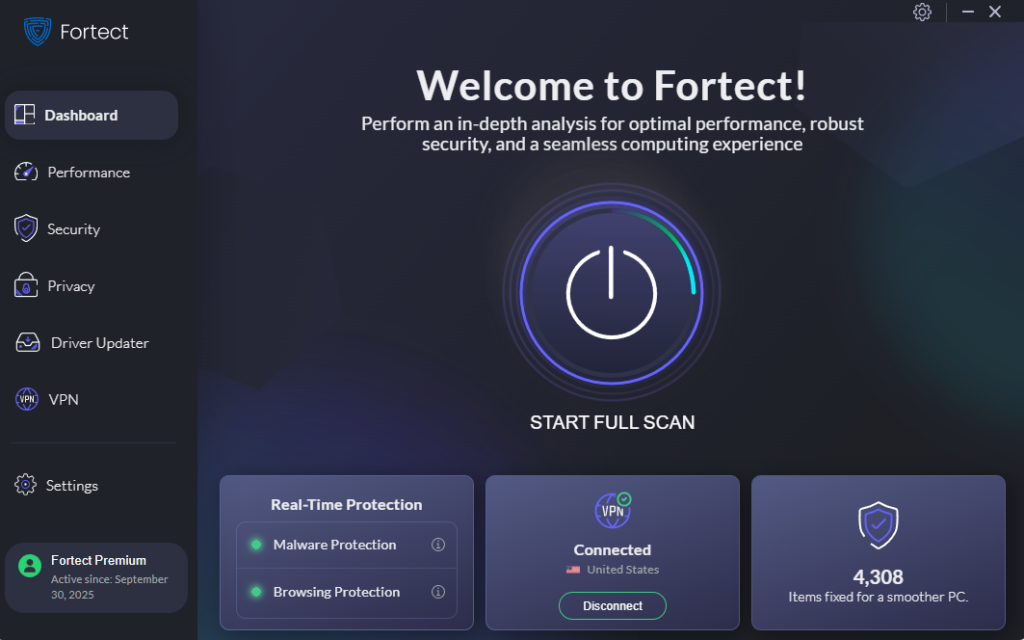
Fortect delivers advanced real-time malware protection for Windows users during the high-risk holiday season. It automatically scans your PC for traditional and emerging threats, including malicious software from holiday scam websites and phishing emails, eliminates them safely, and restores damaged system files for improved performance. Its smart threat-detection engine monitors suspicious activity from fraudulent shopping sites and fake holiday downloads, alerting you before harmful actions can take place, helping keep your device secure and running efficiently throughout the festive shopping period.
Download and install Fortect today.
Enable Windows Security Features (Windows 10/11)
Windows includes built-in protection tools that can defend against holiday scams and malware. Here’s how to ensure they’re properly configured:
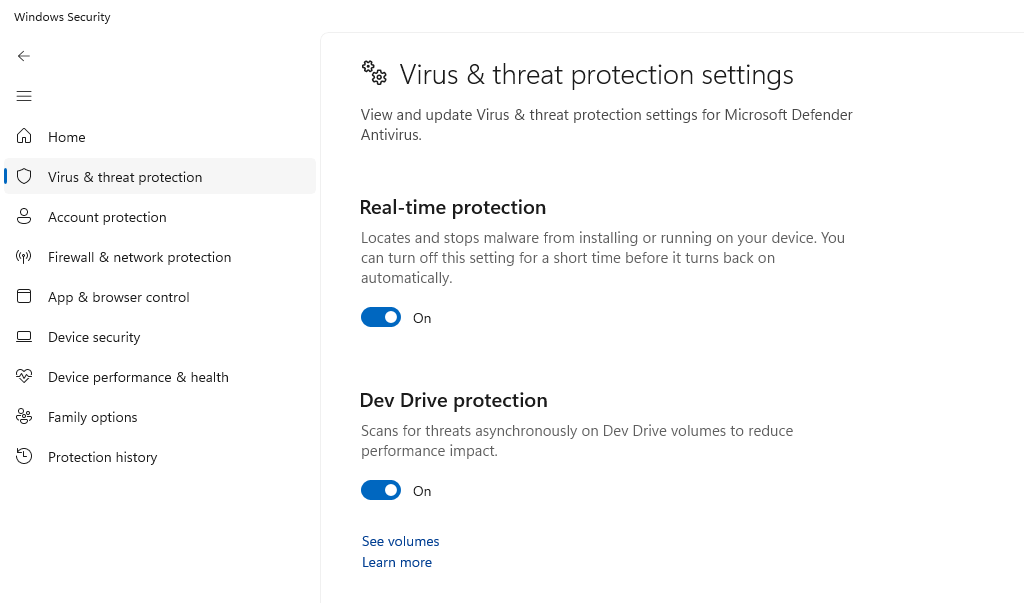
-Click the Start button and select “Settings” (gear icon)
-Navigate to “Privacy & Security” (Windows 11) or “Update & Security” (Windows 10)
-Choose and click on “Windows Security” and select “Open Windows Security”
-Select “Virus & threat protection” and ensure Real-time protection is turned “On”
-Then click “Manage settings” and verify that Cloud-delivered protection and Automatic sample submission are enabled
-Return to the Windows Security home screen and select “Firewall & network protection”
-Ensure the firewall is turned “On” for all network types (Domain, Private, and Public)
Keep Windows Updated Against Security Threats
Security updates patch vulnerabilities that scammers exploit. Here’s how to check for and install updates:
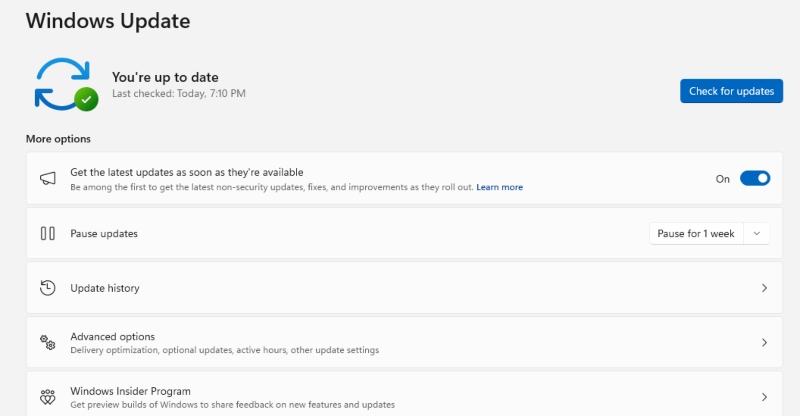
-Open Settings by pressing Windows key + I
-Click “Windows Update” (Windows 11) or “Update & Security” then “Windows Update” (Windows 10)
-Then click “Check for updates”
-If updates are available, click “Download and install”
-Choose “Advanced options” and enable “Receive updates for other Microsoft products”
-Restart your computer when prompted to complete the installation
Set Windows to automatically install updates by enabling “Automatic updates” in Advanced options to stay protected without manual intervention.
Configure Browser Security Settings
Most holiday scams enter through your web browser. Enhance your protection:
For Microsoft Edge (Windows 10/11):
-Open Edge and click the three-dot menu in the top-right corner
-Select “Settings” then click “Privacy, search, and services”
-Under “Security,” turn on “Microsoft Defender SmartScreen”
-Enable “Block potentially unwanted apps”
-Scroll to “Enhance your security on the web” and select “Balanced” or “Strict”
Protecting Your Mac from Holiday Scams
Fortect for Mac: Strengthen Your Defense Beyond macOS
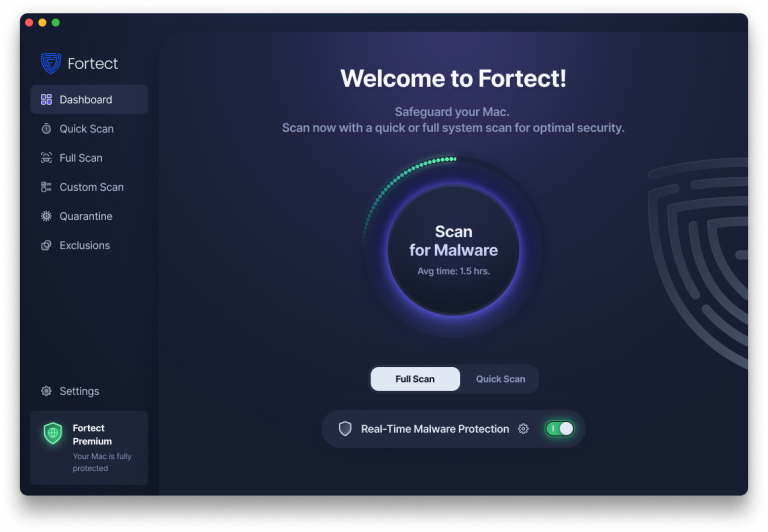
For Mac users, it’s a relief to finally have a security solution that acknowledges today’s reality: cybercriminals are no longer focused on Windows alone. Threat actors have evolved, and modern ransomware, spyware, and stealth-based attacks are increasingly designed to slip past traditional macOS protections. While Apple’s built-in security provides a solid foundation, relying on it alone is no longer enough as attack methods grow more sophisticated and frequent.
That’s where Fortect for Mac comes in. Fortect doesn’t replace macOS security; it works alongside it. I see it as an added defensive layer that fills the gaps attackers actively exploit, offering protection against threats users may not even realize are present.
Fortect for Mac provides smart, real-time protection powered by cloud-based threat intelligence, allowing it to detect and respond to emerging threats faster than signature-based tools alone.
Key Features include:
- Real-Time Malware Defense: Continuous monitoring that detects and blocks malicious activity without slowing down your system.
- Cloud-Based Threat Intelligence: Rapid identification of new and evolving attack patterns using advanced cloud analysis.
- Quick Smart Scan: Fast scans that quickly identify issues and help resolve them efficiently.
- Full System Scan: Deep, comprehensive scanning to uncover hidden threats and system vulnerabilities.

If you’d like to explore how Fortect for Mac works, including its cross-platform support and mobile protection options like Fortect Mobile Security for iOS, you can visit the product page for a complete breakdown of features, compatibility, and comparisons to help decide if it fits your setup.
Enable Mac Security and Privacy Features
Mac computers come with robust security features that help prevent scam attempts:
Activate Gatekeeper by going to System Settings (or System Preferences), clicking “Privacy & Security,” and ensuring “Allow applications downloaded from” is set to “App Store and identified developers.” This prevents unauthorized software installation.
Enable FileVault encryption to protect your data if your Mac is compromised. Navigate to System Settings, select “Privacy & Security,” click FileVault, and turn it on.
Turn on the built-in firewall by accessing System Settings, clicking “Network,” selecting “Firewall,” and switching it to “On.”
Keep macOS and Apps Updated
Apple regularly releases security updates to protect against emerging threats. Click the Apple menu, select “System Settings” (or “System Preferences”), click “General,” then “Software Update.” Enable “Automatic updates” to receive security patches immediately.
Red Flags That Indicate a Holiday Scam
Being able to recognize warning signs can prevent you from falling victim to holiday scams:
Deals that are significantly cheaper than anywhere else often indicate fraudulent websites. Legitimate retailers may offer discounts, but prices drastically below market value are suspicious.
Poor website design with spelling errors, broken links, or missing contact information signals a scam site. Professional retailers invest in quality web design.
Requests for unusual payment methods like wire transfers, gift cards, or cryptocurrency should raise immediate red flags. Legitimate businesses accept standard payment methods with buyer protection.
Urgent pressure tactics pushing you to act immediately without time to verify are classic scam techniques. Real deals don’t require split-second decisions.
Unsolicited emails with attachments or links, especially claiming to be shipping notifications or receipts for purchases you didn’t make, are likely phishing attempts.
Safe Online Shopping Practices During the Holidays
Shop directly from official retailer websites by typing the URL yourself rather than clicking email links. Verify website authenticity by checking for “https://” and a padlock icon in the address bar.
Use credit cards instead of debit cards for online purchases, as they offer better fraud protection. Enable two-factor authentication on all shopping accounts to add an extra security layer.
Monitor your bank statements regularly during the holiday season to catch unauthorized charges quickly. Report suspicious transactions immediately to your financial institution.
Avoid shopping on public Wi-Fi networks, which can be intercepted by hackers. Use your home network or a mobile hotspot for sensitive transactions.
Conclusion
Holiday scams continue evolving, but awareness and proper security measures can protect your Windows or Mac computer from these threats. By keeping your operating system updated, enabling security features, recognizing red flags, and practicing safe online shopping habits, you can enjoy the holiday season without falling victim to cybercriminals. Stay vigilant, verify before you click, and remember that if a deal seems too good to be true, it probably is.