Fake File Converters & Document Tools: Hidden Dangers
That free PDF converter you just downloaded might be doing more than converting files. Fake file converters and document tools have become a favorite delivery method for malware, putting your personal data and Windows PC at serious risk.
What Are Fake File Converters and Why Are They Dangerous?
Fake file converters are malicious programs disguised as legitimate document conversion tools. These fraudulent applications promise to convert PDFs, images, videos, or other file formats, but instead install harmful software on your computer.
Common Types of Malicious Document Tools
PDF converter malware tops the list of dangerous tools circulating online. Cybercriminals create convincing fake PDF to Word converters, image format changers, and video converters that look professional but harbor malicious code.
Trojanized software appears functional at first, sometimes even performing basic conversions while secretly installing spyware, ransomware, or keyloggers in the background. Browser hijackers often bundle with these tools, changing your homepage and flooding you with unwanted ads.
How These Threats Infect Your Windows PC
Fake converters typically enter your system through deceptive download sites that mimic legitimate software repositories. Search results for “free file converter download” often lead to compromised websites designed to trick users.
Once installed, these programs may request unnecessary administrator permissions, create hidden background processes, and establish persistent connections to remote servers. Your sensitive documents become vulnerable the moment you attempt to convert them using infected software.
Warning Signs of Fraudulent File Conversion Software
Recognizing fake converters before installation protects your system from compromise. Legitimate conversion tools rarely require extensive system permissions or display aggressive behavior.
Red Flags to Watch For
Suspicious download sources represent the first warning sign. If you’re downloading from unfamiliar websites rather than official sources or the Microsoft Store, proceed with extreme caution.
Excessive permission requests during installation signal potential danger. Genuine converters don’t need access to your camera, microphone, or network settings.
Bundled software offers during installation, especially browser toolbars, optimization utilities, or “recommended” programs, indicate the installer may contain unwanted software.
Poor reviews or no digital signature on the executable file suggest the developer hasn’t undergone proper verification processes.
How to Protect Yourself from Fake Document Converters on Windows
Taking proactive measures keeps your Windows 10 or 11 system safe from malicious conversion tools.
Strengthen Your PC Security with Fortect

Fortect delivers advanced real-time malware protection specifically designed for Windows users facing threats from fake file converters and other malicious software. It automatically scans your PC for both traditional and emerging threats, including fake file converters disguised as legitimate document tools, eliminates them safely, and restores damaged system files for improved performance. Its smart threat-detection engine monitors suspicious activity and alerts you before harmful actions can take place, helping keep your device secure and running efficiently.
Download and install Fortect now.
Step-by-Step Protection Guide for Windows 10/11
1: Enable Windows Security real-time protection. Press the Windows key, type “Windows Security,” and open it. Navigate to “Virus & threat protection” and ensure “Real-time protection” is toggled ON.

2: Activate SmartScreen filter. Open Windows Security, click “App & browser control,” then verify “Check apps and files” is set to “Warn” or “Block.”
3: Use Microsoft Store apps when possible. Press Windows + S, search “Microsoft Store,” and download verified conversion tools with user ratings and reviews.
4: Create a standard user account for daily use. Go to Settings > Accounts > Family & other users > Add someone else to this PC. Set up a local account without administrator privileges for routine tasks.
5: Keep Windows Defender definitions updated. Open Windows Security > Virus & threat protection > Check for updates to ensure the latest threat definitions are installed.
Safe Alternatives to Risky Converters
Online conversion services like Adobe Acrobat online tools or Microsoft’s built-in converters eliminate download risks. These browser-based solutions process files without installing software.
Built-in Windows features handle many common conversions. Microsoft Print to PDF converts documents to PDF format without third-party tools. Windows Photos app converts between image formats safely.
Verified open-source software, such as official LibreOffice or reputable GitHub projects with transparent code, provides trustworthy conversion options.
What to Do If You’ve Installed Fake Converter Software
Quick action minimizes damage if you suspect you’ve installed malicious conversion tools.
Immediate Response Steps for Windows Users
1: Disconnect from the internet immediately to prevent data transmission to remote servers.
2: Uninstall the suspicious program. Press Windows + I to open Settings > Apps > Installed apps. Locate the converter, click the three dots, and select “Uninstall.”
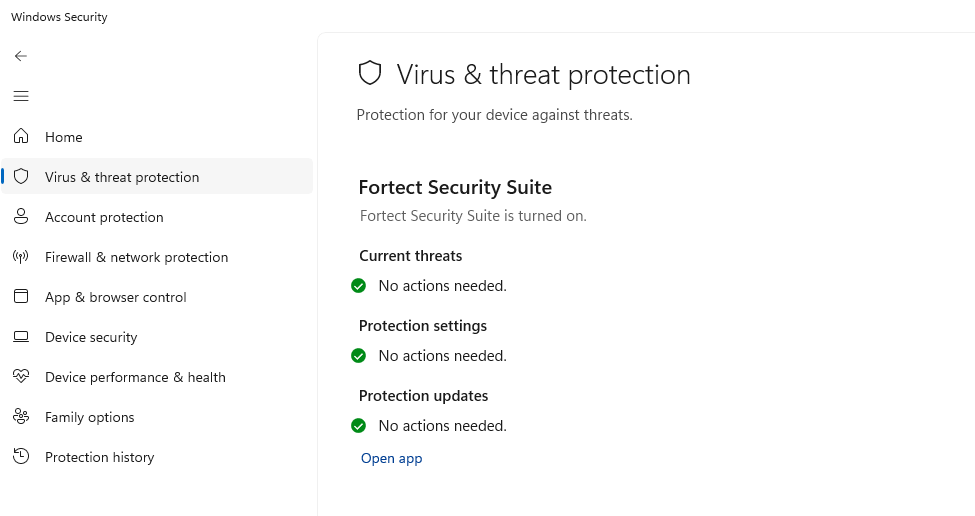
3: Run a full system scan. Open Windows Security > Virus & threat protection > Scan options > Full scan, then click “Scan now.”
4: Check for browser hijacking. Review your browser’s homepage settings and remove unfamiliar extensions.
5: Change passwords for important accounts, especially if you converted documents containing sensitive information.
6: Monitor bank and credit card statements for unauthorized activity if financial documents were processed.
The Bottom Line on File Converter Safety
Fake file converters represent a growing threat to Windows users seeking simple document solutions. By downloading only from trusted sources, maintaining updated security software, and recognizing warning signs, you protect both your system and personal information. When in doubt, cloud-based conversion services from established companies offer the safest path forward for your file conversion needs.