
Cyber Espionage Malware: Signs and Protection Tips
Cyber espionage malware is one of the most dangerous threats facing everyday Windows users today. Unlike ransomware that announces itself immediately, espionage-related malicious software is designed to stay invisible, quietly stealing passwords, monitoring keystrokes, capturing screenshots, and sending your private data to remote attackers. Whether you are a remote worker, a student, or simply someone who banks and shops online, understanding how this threat works and how to protect yourself is essential.
What Is Cyber Espionage Malware?
Cyber espionage malware refers to a category of malicious software specifically engineered to secretly gather sensitive information from a target’s device. Unlike conventional malware designed for financial fraud or system disruption, espionage malware operates in stealth mode, collecting credentials, personal files, communications, and behavioral data over extended periods.
Common types include keyloggers (which record every keystroke), Remote Access Trojans (RATs), spyware, and data-harvesting trojans. These are often delivered through phishing emails, malicious downloads, fake software updates, or compromised websites, threats that any Windows user can encounter on any given day.
Warning Signs Your Windows PC May Be Infected
Because cyber espionage malware is built to be discreet, most users do not realize they are infected until significant damage has already been done. Watch closely for these warning signs.
Unusual System Slowdowns
Spyware and keyloggers consume CPU and RAM resources in the background. If your PC has become noticeably sluggish without a clear reason, especially after a recent download or email attachment, malware activity may be the cause.
Unexplained Network Activity
Espionage malware regularly transmits stolen data back to command-and-control servers. If you notice unusually high data usage on your router or network monitor, particularly during idle hours, your device may be silently communicating with an external attacker server.
Disabled Security Software
Many advanced espionage tools are programmed to disable or interfere with antivirus programs and Windows Defender. If your security software suddenly stops running, shows greyed-out settings, or cannot update its definitions, treat this as a major red flag.
Unauthorized Account Access or Password Changes
Credential-harvesting malware often leads to unauthorized logins on your email, banking, or social media accounts. Receiving unexpected password reset emails or seeing unfamiliar login activity in your account history strongly suggests your credentials have been compromised.
Suspicious Processes in Task Manager
Unfamiliar processes running in the background, particularly those with generic or misspelled names like “svchost32.exe”, can indicate a hidden malicious process. Check by pressing Ctrl + Shift + Esc to open Task Manager and reviewing the Processes tab carefully.
How to Protect Yourself: Step-by-Step for Windows 10/11 Users
Strong protection against cyber espionage malware does not require expert technical knowledge. Follow these practical steps to significantly reduce your risk.
Step 1: Keep Windows Fully Updated
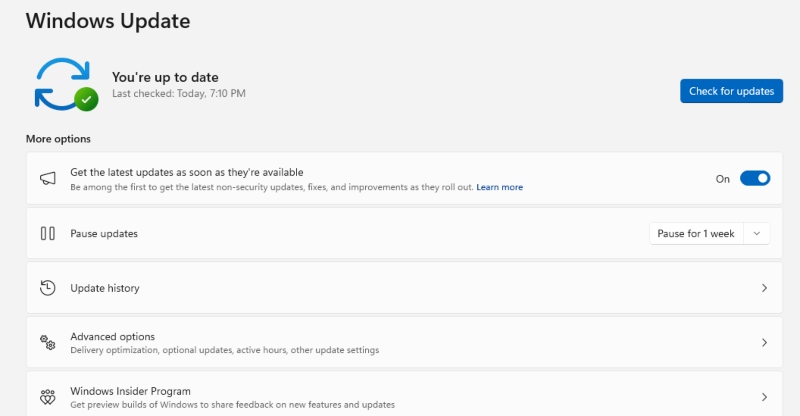
Attackers frequently exploit known security vulnerabilities in outdated Windows versions. Keeping your OS current patches these holes before they can be abused.
- Click the Start menu and open Settings (gear icon).
- Go to Update & Security (Windows 10) or Windows Update (Windows 11).
- Click Check for updates.
- If updates are available, click Download and install.
- Restart your computer when prompted to apply all patches.
Step 2: Enable and Configure Windows Defender
Windows Defender provides real-time protection against spyware, keyloggers, and trojans at no extra cost.
- Open Start and search for Windows Security.
- Click Virus & threat protection.
- Under Virus & threat protection settings, click Manage settings.
- Make sure Real-time protection, Cloud-delivered protection, and Automatic sample submission are all toggled On.
- Return to the main screen and click Quick scan to run an immediate check.
Step 3: Run a Dedicated Malware Scan
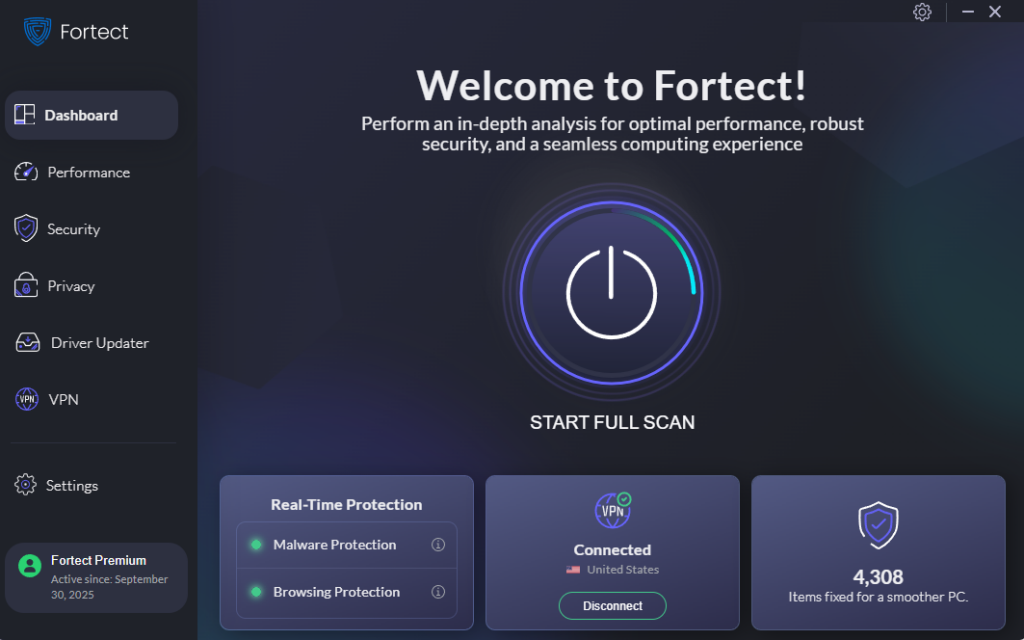
For deeper detection, I recommend downloading Fortect from its official website. After installing, run a full system scan and follow the on-screen steps to remove any threats it finds. Fortect is especially useful for identifying spyware and remote access trojans (RATs) that traditional antivirus programs sometimes overlook.
It provides advanced real-time malware protection designed for Windows users, continuously scanning for both known and emerging threats, including cyber-espionage malware. When suspicious activity is detected, Fortect safely removes malicious components and repairs affected system files, which can also improve overall performance. Its robust threat-detection engine monitors unusual behavior in the background and alerts you before harmful actions occur, helping keep your system stable, secure, and running efficiently.
Download and install Fortect now.
Step 4: Restrict User Account Privileges
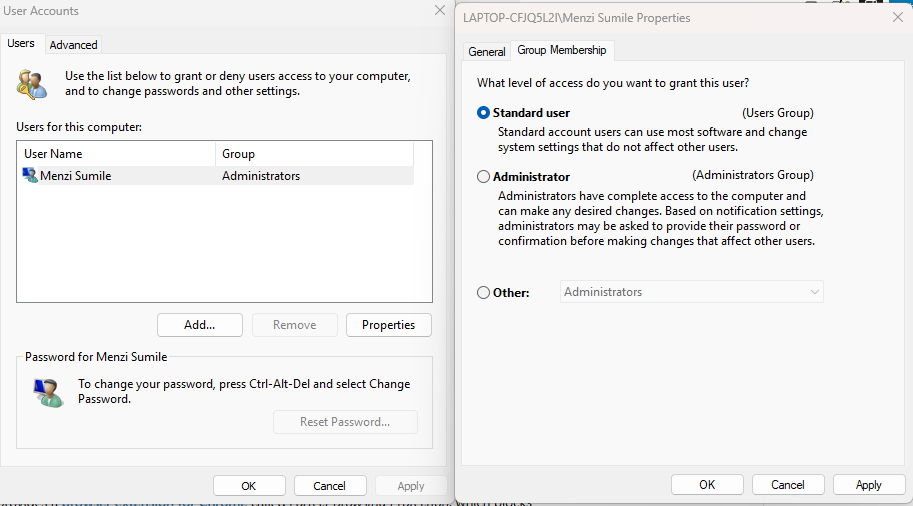
Running your PC under a standard (non-administrator) account limits the damage malware can do if your system is compromised. Espionage malware typically needs administrator rights to install itself deeply or disable security tools.
- Open Settings and go to Accounts.
- Click Family & other users (Windows 10) or Other users (Windows 11).
- Select your daily-use account and click Change account type.
- Set it to Standard User.
- Keep a separate Administrator account, with a strong password, only for installing trusted software.
Step 5: Enable Windows Firewall
A properly configured firewall can block unauthorized outbound connections, preventing stolen data from reaching attacker servers.
- Open Control Panel and go to System and Security.
- Click Windows Defender Firewall.
- Select Turn Windows Defender Firewall on or off from the left panel.
- Make sure the firewall is enabled for both Private and Public networks, then click OK.
Step 6: Use Strong Passwords and Enable Two-Factor Authentication
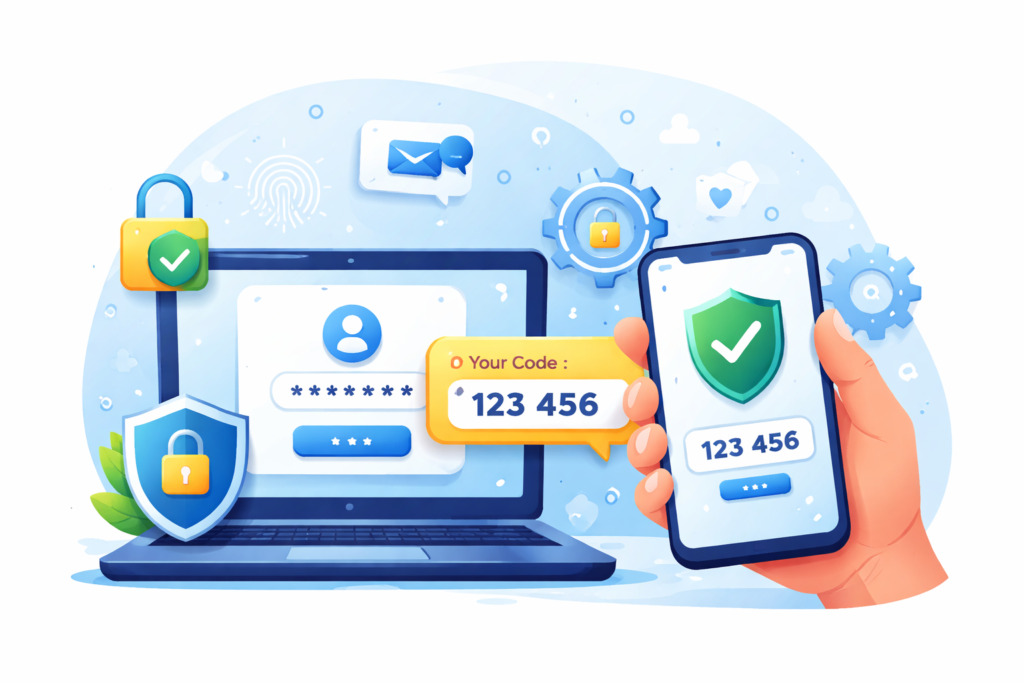
Even if a keylogger captures your password, two-factor authentication (2FA) adds a second barrier that blocks unauthorized access. Use a reputable password manager such as Bitwarden or KeePass to generate and store strong, unique passwords for every account. Enable 2FA on your email, banking, and social media accounts through each platform’s security settings.
Step 7: Be Cautious with Email Attachments and Downloads
The majority of cyber espionage malware infections begin with phishing emails or malicious downloads. Practice these habits consistently:
- Never open email attachments from senders you do not recognize.
- Hover over links before clicking to verify the actual destination URL.
- Download software only from official websites or the Microsoft Store.
- Avoid pirated software and cracked tools, which are common carriers of espionage malware.
Additional Security Layers Worth Considering
These extra measures can further harden your defenses against data theft, malware, and cyber surveillance threats:
- Use a VPN: A Virtual Private Network encrypts your internet traffic, making it significantly harder for malware-initiated data transmissions to be useful to attackers.
- Enable Controlled Folder Access: In Windows Security > Virus & threat protection settings, turn on Controlled folder access to block unauthorized apps from modifying your personal files.
- Cover Your Webcam When Not in Use: Remote Access Trojans can activate webcams and microphones without any visible indicator. A physical webcam cover adds a simple but effective layer of privacy.
- Regularly Review Installed Apps: Go to Settings > Apps > Installed apps and periodically remove anything unfamiliar or unused.
What to Do If You Suspect an Infection
If you believe your Windows PC is already infected with cyber espionage malware, act quickly:
- Disconnect from the internet immediately to stop any ongoing data exfiltration.
- Boot into Safe Mode: Press Shift + Restart > Troubleshoot > Advanced Options > Startup Settings > Enable Safe Mode with Networking.
- Run a full scan using both Windows Defender and Malwarebytes.
- Change all your passwords from a clean, unaffected device.
- If the infection persists, perform a Windows Reset: go to Settings > Update & Security > Recovery > Reset this PC > Remove everything (Windows 10), or Settings > System > Recovery > Reset this PC (Windows 11).
Conclusion
Cyber espionage malware represents a serious, real-world threat to everyday Windows users, not just corporations or governments. The tools attackers use have become increasingly accessible and sophisticated, making personal vigilance more important than ever.
By staying updated, using built-in Windows security features properly, managing your account privileges, and developing smart browsing and download habits, you build a strong, layered defense against silent data theft. The steps outlined in this guide require no technical expertise, just consistent practice.



