Behavioral Biometric Spoofing: Detection and Prevention
Passwords can be stolen. PINs can be guessed. But what about the way you type, swipe, or hold your phone? That’s the promise of behavioral biometrics, and it’s increasingly under attack. Behavioral biometric spoofing is one of the most sophisticated threats facing everyday Windows users today, and understanding how it works is the first step toward protecting yourself.
What Is Behavioral Biometric Spoofing?
Behavioral biometrics refers to the unique patterns in how a person interacts with a device, such as keystroke dynamics, mouse movement patterns, typing rhythm, touchscreen pressure, scrolling behavior, and even gait recognition. These traits are highly personal and difficult to replicate, which makes them a powerful layer of identity verification.
Behavioral biometric spoofing is the act of mimicking or fabricating these behavioral patterns to fool authentication systems into granting unauthorized access. Unlike traditional credential theft, spoofing attacks target how you interact with your device, not just what you know or carry.
How Spoofing Attacks Work
Attackers use several techniques to carry out behavioral biometric spoofing:
- Replay attacks — Recording genuine behavioral data (e.g., mouse movements or keystrokes) and replaying it to impersonate the legitimate user.
- Synthetic data generation — Using machine learning and AI models to generate fake behavioral patterns that closely mimic a real user’s profile.
- Man-in-the-browser attacks — Injecting malicious scripts into browsers to intercept and manipulate behavioral data in real time.
- Adversarial AI spoofing — Training generative models on stolen behavioral datasets to produce convincing imitations of keystroke dynamics or touch gestures.
These attacks are increasingly automated, making them accessible even to low-skill threat actors.
Why Windows Users Are at Risk
Windows 10 and Windows 11 users are frequent targets because Windows Hello and third-party behavioral authentication tools are becoming more common. If a malicious actor gains access to behavioral profiles stored locally or in the cloud, spoofing becomes far more feasible.
Common Vulnerabilities in Windows Environments
- Unencrypted behavioral data logs stored in app directories
- Browser extensions with excessive permissions that can harvest typing patterns
- Outdated drivers that expose keyboard and mouse input streams
- Weak user account controls that allow profile data access without elevation
How to Detect Behavioral Biometric Spoofing on Windows
Early detection is critical. There are both system-level and behavioral indicators that spoofing may be occurring.
Signs Your Behavioral Profile May Be Compromised
- Unexpected login alerts at odd hours
- Security software is flagging unusual input device activity
- Account lockouts from failed behavioral authentication attempts
- New apps or browser extensions you did not install are appearing in your system
Using Windows Security Tools to Monitor Suspicious Activity
Windows 10 and Windows 11 include built-in tools that can help detect anomalies linked to spoofing attempts.
Open Windows Security
- Click the Start menu and type Windows Security.
- Open the app and navigate to Virus & threat protection.
- Under Current threats, click Scan options and run a Full scan.
Enable Sign-In Activity Alerts (Microsoft Account)
- Go to account.microsoft.com and sign in.
- Navigate to Security > Sign-in activity.
- Review recent sign-in events for unfamiliar locations, devices, or times.
- If suspicious activity is detected, click Secure your account.
Review Installed Extensions and Apps
- Press Win + I to open Settings.
- Go to Apps > Installed apps.
- Sort by Install date to identify recently added programs.
- Uninstall anything unfamiliar.
How to Prevent Behavioral Biometric Spoofing on Windows
Prevention requires a layered approach that combines system hardening, account security, and safe browsing habits. While manual steps go a long way, dedicated security tools can automate much of the heavy lifting, especially against fast-evolving threats like behavioral biometric spoofing.
Strengthen Your PC Security with Fortect
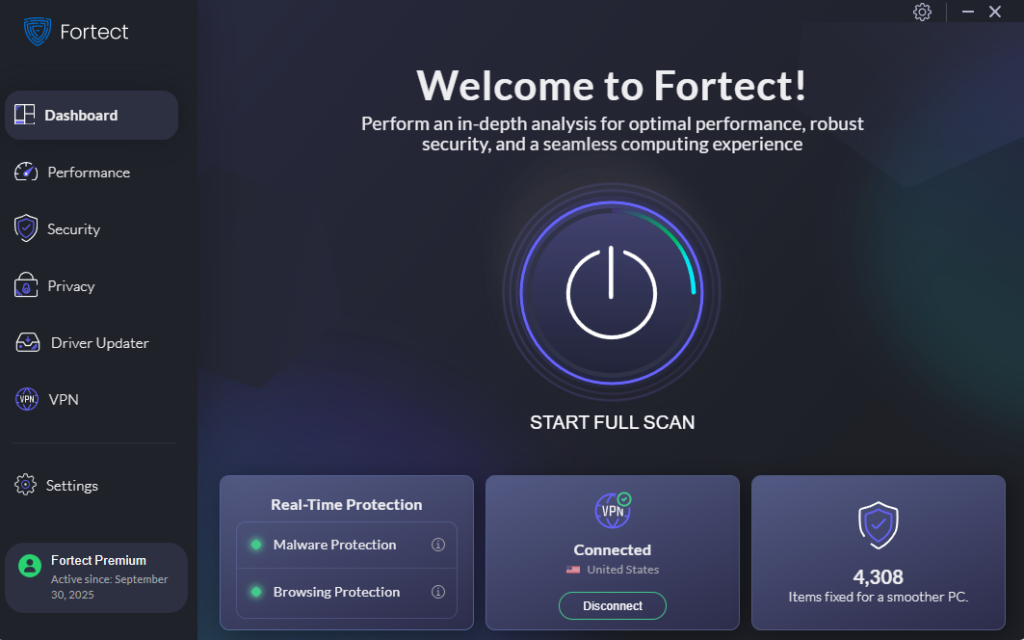
Fortect delivers advanced real-time malware protection for Windows users. It automatically scans your PC for traditional and emerging threats, including behavioral biometric spoofing, eliminates the threats safely, and restores damaged system files for improved performance. Its robust threat-detection engine monitors suspicious activity and alerts you before harmful actions can take place, helping keep your device secure and running efficiently.
How can Fortect help prevent Behavioral Biometric Spoofing?
- Real-time input monitoring — Fortect watches for unauthorized processes that attempt to intercept or record keyboard, mouse, and touchscreen input streams — a common first step in behavioral data harvesting.
- Malware removal — It detects and removes spyware, keyloggers, and man-in-the-browser threats that attackers use to build behavioral profiles of legitimate users.
- System file restoration — Corrupted or tampered system files that leave Windows vulnerable to spoofing exploits are automatically repaired, closing security gaps without requiring a full reinstall.
- Startup threat scanning — Fortect scans programs that launch at startup, identifying any suspicious tools that could be silently profiling your behavioral patterns in the background.
By combining Fortect with the manual prevention steps below, Windows users get a comprehensive defense against behavioral biometric spoofing attacks.
Download and install Fortect today.
How Fortect for Mac prevents behavioral biometric spoofing
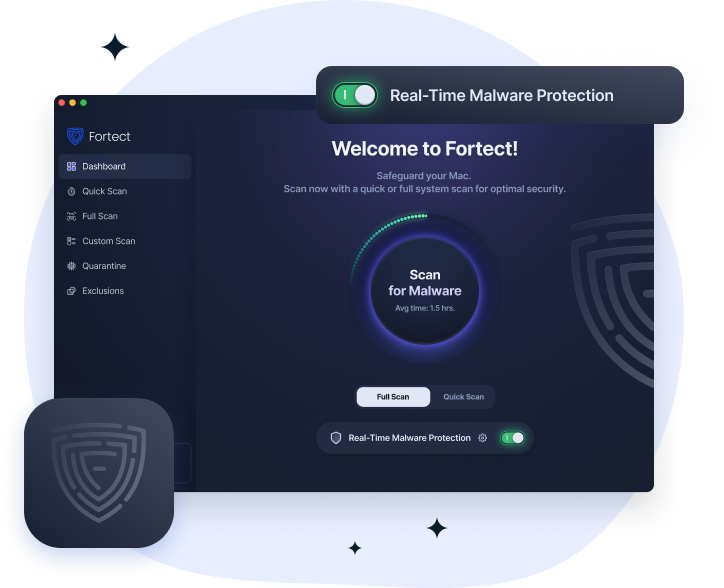
Behavioral biometric spoofing is when malware silently records how you type, scroll, and move your cursor, then replays that data to impersonate you. macOS’s built-in defenses weren’t designed to catch it, which is exactly why Fortect for Mac exists.
Threats like fake VPN apps combine spyware and phishing to harvest your behavioral data in the background. Fortect for Mac detects these at runtime, even if they’ve slipped past the App Store, and blocks them before your data leaves your device.
Keep Windows Updated
Outdated system files are a top entry point for attackers who want to intercept input data. Keeping Windows updated closes known vulnerabilities.
Steps to Update Windows 10/11:
- Click Start and open Settings (gear icon).
- Go to Windows Update (Windows 11) or Update & Security (Windows 10).
- Click Check for updates.
- Install all available updates, including optional driver updates.
- Restart your PC when prompted.
Set updates to install automatically by toggling Receive updates for other Microsoft products to On.
Restrict User Account Permissions
Limiting what applications can access your input streams reduces the attack surface for behavioral data harvesting.
Steps to Restrict User Account Control (UAC) on Windows 10/11:
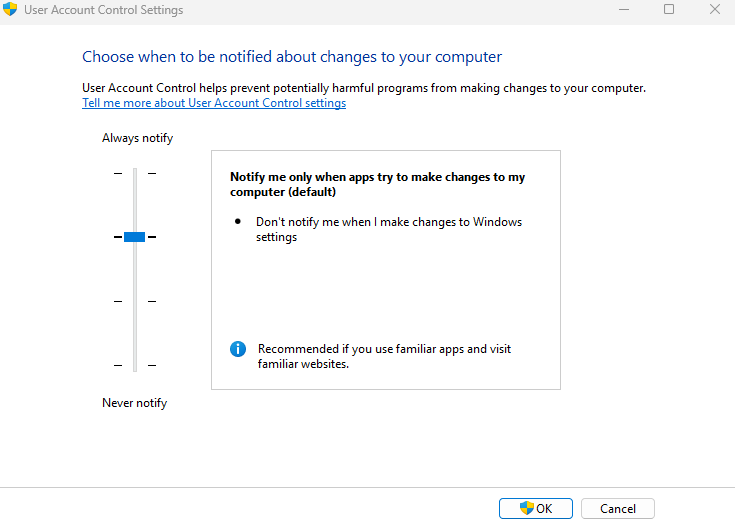
- Press Win + R, type UserAccountControlSettings, and press Enter.
- Move the slider to Always notify — the highest protection level.
- Click OK and restart if prompted.
Steps to Limit App Permissions:
- Open Settings > Privacy & security (Windows 11) or Privacy (Windows 10).
- Under App permissions, review each category — especially Input personalization and Diagnostics.
- Toggle off permissions for apps that do not require them.
- Scroll to Input personalization and turn it off if you do not use voice or handwriting features.
Use a Trusted Password Manager and Avoid Behavioral Data Leakage
Typing the same passwords repeatedly can inadvertently train a keystroke profiling attack. Using a password manager like Microsoft Autofill or a third-party tool reduces keystroke exposure.
Harden Your Browser Against Input Harvesting
Steps to Remove Suspicious Browser Extensions in Microsoft Edge:
- Open Edge and click the three-dot menu (⋯) in the top right.
- Go to Extensions > Manage extensions.
- Review all installed extensions.
- Click Remove on any extension you do not recognize or no longer use.
Enable Multi-Factor Authentication
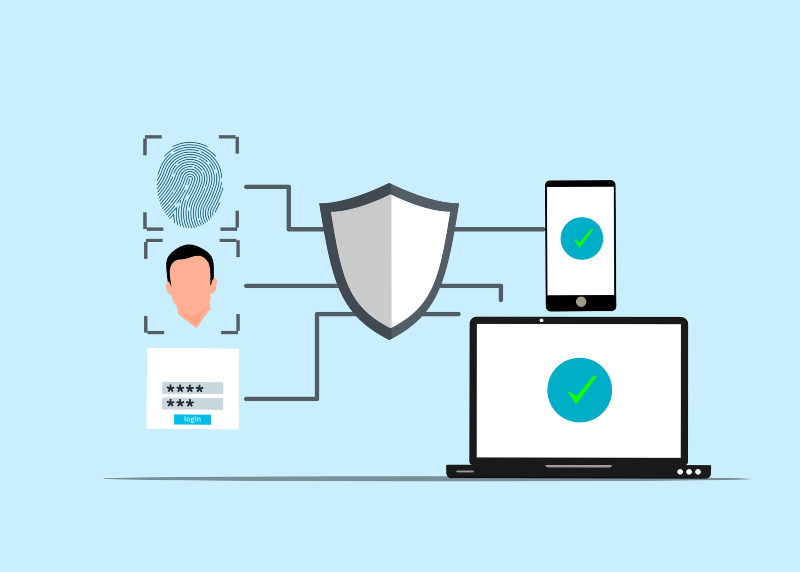
Behavioral biometrics alone should never be the only authentication layer. Pairing it with multi-factor authentication (MFA) ensures that even a successful spoof cannot grant full access.
Steps to Enable MFA for Your Microsoft Account:
- Visit account.microsoft.com/security.
- Click Advanced security options.
- Under Two-step verification, click Turn on.
- Follow the on-screen prompts to set up an authenticator app or SMS verification.
Additional Best Practices for Behavioral Biometric Security
- Use a VPN on public Wi-Fi to prevent man-in-the-middle interception of behavioral data transmissions.
- Disable unnecessary accessibility services — some malware exploits these to monitor input patterns.
- Review app data access regularly — especially apps that use keyboard or mouse input for functionality.
- Enable Windows Defender Credential Guard (Windows 11 Enterprise/Pro) to protect authentication tokens from being replicated.
- Monitor with Microsoft Defender for Identity if using a Microsoft 365 account, which can flag anomalous sign-in behavior automatically.
The Future of Behavioral Biometric Spoofing Threats
As AI-generated behavioral profiles become more convincing, the security industry is responding with anti-spoofing algorithms that analyze micro-variations in behavior patterns too subtle for even sophisticated AI to replicate consistently. Liveness detection and cross-channel behavioral correlation are emerging as key defenses.
For everyday Windows users, staying informed, keeping systems updated, and using layered security remains the most practical defense against behavioral biometric spoofing. No single tool is foolproof, but combining system hardening with strong account hygiene dramatically reduces the risk.
Protecting your behavioral identity starts with understanding how it can be attacked. Apply the steps above to make your Windows environment significantly more resilient against this growing threat.