AI-Driven Cybersecurity Explained for Non-Tech Users
If you’ve ever worried about hackers stealing your passwords, getting a virus from a suspicious email, or having your personal data exposed online, you’re not alone. Cyber threats are growing every year, and traditional security tools are struggling to keep up. That’s where AI-driven cybersecurity comes in. This guide breaks it all down in plain English, so you can protect yourself without needing a tech degree.
What Is AI-Driven Cybersecurity?
AI-driven cybersecurity is the use of artificial intelligence to detect, prevent, and respond to online threats automatically and in real time. Instead of relying solely on preset rules (like old antivirus software), AI learns from patterns, spots unusual behavior, and adapts to new threats as they emerge.
Think of it like this: traditional antivirus software is a lock on your door. AI-driven cybersecurity is a smart security system that watches for unusual activity, alerts you before a break-in, and can even lock the door on its own.
How Does AI Detect Threats?
AI uses a technique called machine learning to analyze millions of data points, things like login times, file access patterns, and network behavior. If something looks out of place (like someone logging into your account from a foreign country at 3 AM), the AI flags or blocks it instantly. It doesn’t need to have seen that exact threat before; it recognizes that something is off.
Common Types of Threats AI Helps Stop
AI-driven cybersecurity tools are built to tackle some of the most common threats Windows users face every day:
- Phishing emails — fake messages that trick you into clicking malicious links
- Ransomware — malware that locks your files and demands payment
- Identity theft — unauthorized access to your personal accounts
- Zero-day attacks — brand-new vulnerabilities that haven’t been patched yet
- Malware and spyware — software secretly installed to steal data or spy on you
How AI-Driven Cybersecurity Protects You on Windows 10/11
You don’t need to install anything complicated. Windows 10 and 11 already include AI-powered security tools built right in. Here’s how to make sure they’re active and working for you.
How to Enable Microsoft Defender (AI-Powered Antivirus) on Windows 10/11
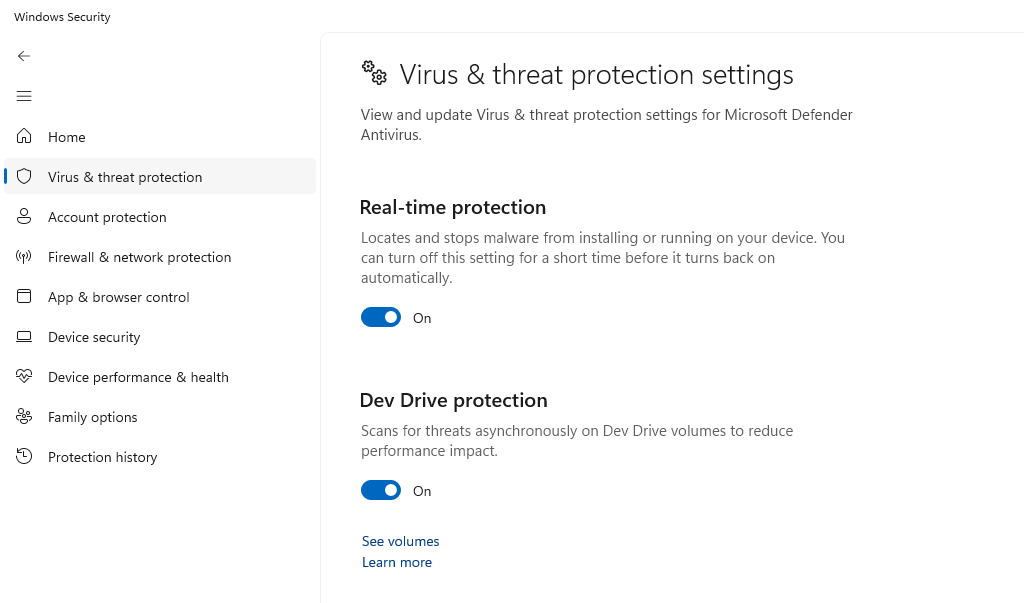
Microsoft Defender uses AI and cloud-based threat intelligence to protect your device in real time. Here’s how to check that it’s on:
1: Click the Start menu and type Windows Security, then press Enter.
2: Click Virus & threat protection in the left panel.
3: Under “Virus & threat protection settings,” click Manage settings.
4: Make sure Real-time protection, Cloud-delivered protection, and Automatic sample submission are all toggled On.
These settings allow Microsoft Defender to use AI in the cloud to identify new and emerging threats before they reach your device.
How to Keep Windows Updated (Critical for AI Security Tools)
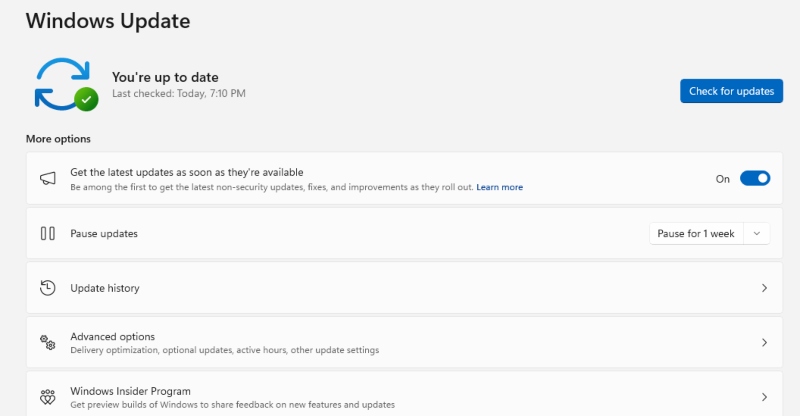
AI-driven security features are regularly improved through Windows Updates. Skipping updates leaves gaps that hackers exploit.
1: Open the Start menu and go to Settings (the gear icon).
2: Click Windows Update (Windows 11) or Update & Security (Windows 10).
3: Click Check for updates.
4: If updates are available, click Download & Install and restart when prompted.
5: To automate this, click Advanced options and turn on Receive updates for other Microsoft products and ensure automatic updates are enabled.
How to Set Up Smart App Control (Windows 11 Only)
Smart App Control is an AI-powered feature that blocks untrusted or potentially dangerous apps before they run on your device.
1: Open Windows Security from the Start menu.
2: Click App & browser control in the left sidebar.
3: Under “Smart App Control,” select On or Evaluation mode (Evaluation lets the AI learn your habits before enforcing rules).
Note: Smart App Control requires a clean install or reset to activate if it was previously turned off.
How to Restrict User Access to Strengthen Security
Limiting who can make changes on your PC is a key layer of protection, AI tools work best when paired with proper account controls.
1: Open Settings → Accounts → Family & other users.
2: Under “Other users,” click Add account.
3: For a child or limited user, select Add a child or set up a standard (non-admin) account.
4: To change an existing account’s permissions, click the account name → Change account type → select Standard User instead of Administrator.
Standard users can’t install software or change security settings without an admin password, which significantly reduces the risk of accidental malware installation.
Strengthen Your PC Security with Fortect

The built-in Windows tools above are a great starting point, but adding a dedicated layer of protection takes your security even further. Fortect delivers advanced real-time malware protection for Windows users. It automatically scans your PC for traditional and emerging threats, including those powered by AI-driven cybersecurity attacks, eliminates them safely, and restores damaged system files for improv, ed performance. Its smart threat-detection engine monitors suspicious activity and alerts you before harmful actions can take place, helping keep your device secure and running efficiently.
Download and install Fortect today.
Pros of AI-Driven Cybersecurity
- Real-time threat detection. AI monitors your device around the clock and reacts to threats in milliseconds, far faster than any human or traditional software could.
- Learns and adapts over time. Unlike old-school antivirus tools that need constant manual updates, AI improves itself by learning from new attack patterns.
- Stops threats before they cause damage. AI can identify and block ransomware or phishing attempts before they get a foothold on your system.
- Protects against unknown threats. AI doesn’t need to recognize a specific virus to flag suspicious behavior; it catches brand-new malware based on how it acts, not just what it looks like.
- Easy to use for everyday people. Most AI cybersecurity tools on Windows run in the background silently, no technical expertise needed.
Cons of AI-Driven Cybersecurity
- False positives can be frustrating. AI sometimes flags safe programs or files as threats, which can interrupt your workflow or cause you to accidentally delete something harmless.
- Requires an internet connection to be most effective. Many AI tools rely on cloud-based threat databases, meaning offline protection can be limited.
- Not 100% foolproof. Sophisticated hackers are also using AI to create more advanced attacks, meaning no security tool is a complete guarantee.
- Privacy concerns. AI security tools often collect behavioral data from your device to learn and improve. For privacy-conscious users, this can feel intrusive, even when the intent is protective.
- Can slow down older devices. Real-time AI scanning uses processing power. On older Windows computers, this can cause noticeable slowdowns.
Simple Habits That Work Alongside AI Cybersecurity
AI-driven tools do the heavy lifting, but your own habits matter too:
- Use strong, unique passwords and a password manager
- Enable two-factor authentication (2FA) on all important accounts
- Never click links in unexpected emails or text messages
- Back up your files regularly using Windows Backup or an external drive
- Avoid downloading software from unofficial websites
Conclusion
AI-driven cybersecurity isn’t just for big corporations; it’s already protecting your Windows PC right now through tools like Microsoft Defender, Smart App Control, and Windows Update. By enabling these features and staying aware of basic threats, you can significantly reduce your risk of becoming a cybercrime victim. The technology does most of the work; you just need to make sure it’s turned on.
Related AI Article Reads: