Spotlight TCC Bypass on macOS: Malware Risks
The Spotlight TCC bypass vulnerability allows malicious applications to circumvent macOS’s built-in privacy protections, potentially exposing sensitive data without your knowledge. Understanding this exploit is essential for protecting your Mac.
What Is the Spotlight TCC Bypass Vulnerability?
The Spotlight TCC bypass exploits a critical flaw in macOS’s Transparency, Consent, and Control (TCC) framework, Apple’s privacy system controlling which applications access sensitive data like contacts, photos, location, and files. TCC acts as a gatekeeper, prompting you to approve or deny access requests from applications.
How the Bypass Works
The Spotlight TCC bypass exploits a weakness in macOS Spotlight’s indexing service. Cybercriminals manipulate how Spotlight indexes files to trick the system into granting unauthorized access to protected data. Malware can piggyback on Spotlight’s legitimate permissions to view files that should be restricted.
This vulnerability is particularly dangerous because Spotlight has broad system access by design. When exploited, this access becomes a backdoor for attackers.
Real-World Malware Risks and Threats

Data Exfiltration Without Detection
Malware leveraging the Spotlight TCC bypass can silently steal sensitive information from your Mac, including personal documents, financial records, passwords stored in files, private photos, and confidential work materials. Because the malware bypasses normal permission requests, you won’t receive any warning that your data is being accessed.
Privacy Invasion and Corporate Risks
Attackers can exploit this vulnerability to monitor activities without consent, track accessed files, read private messages, capture screenshots, or monitor browsing history. For business users, this enables intellectual property theft, compliance violations through customer data exposure, and credential theft, compromising corporate network access.
How to Protect Your Mac from TCC Bypass Attacks
Keep macOS Updated
Apple regularly releases security patches to address vulnerabilities like the Spotlight TCC bypass. Staying current with updates is your first line of defense.
How to Update macOS:
- Click the Apple menu in the top-left corner
- Select “System Settings” or “System Preferences”
- Click “General” then “Software Update”
- If updates are available, click “Update Now”
- Enter your administrator password when prompted
- Allow your Mac to restart to complete installation
Enable automatic updates: Open System Settings, navigate to General > Software Update, click the information icon next to “Automatic updates,” and enable all automatic update options.
Review Application Permissions Regularly
Taking control of which apps access your data reduces your attack surface significantly.
How to Check and Manage TCC Permissions:
- Open System Settings from the Apple menu
- Click “Privacy & Security” in the sidebar
- Review each category (Files and Folders, Full Disk Access, Camera, Microphone)
- Examine the list of applications with access
- Disable access for apps you don’t recognize or no longer use
- Click the toggle switch next to an app’s name to revoke permissions
Pay special attention to applications with “Full Disk Access,” as these have the broadest permissions.
Install Reputable Security Software
While macOS includes built-in protections, dedicated security software provides additional defense layers against sophisticated threats. Look for solutions offering real-time malware scanning, TCC exploit detection, behavioral analysis, and regular definition updates. Reputable options include Malwarebytes for Mac, Norton 360, Bitdefender Antivirus, and Intego Mac Internet Security.
Download security software only from official websites or the Mac App Store, verify the developer’s digital signature, and configure scheduled scans to run regularly.
Practice Safe Download Habits

Most malware infections occur through user actions. Only download applications from the Mac App Store or verified developer websites. Research developers and read reviews before installing software. Be cautious with email attachments, avoid pirated software, and read permission requests carefully before granting access.
Monitor System Activity
Stay aware of unusual behavior to detect potential compromises early. Warning signs include unexplained battery drain, system slowdowns, unexpected network activity, unfamiliar processes in Activity Monitor, and files being accessed when you’re not using them.
How to Check Activity Monitor:
- Open Activity Monitor (Applications > Utilities)
- Click the CPU tab to see processor usage
- Review the process list for unfamiliar names
- Click the Network tab to monitor data transmission
- Research suspicious processes online before taking action
Enable FileVault Encryption
FileVault encrypts your entire drive, adding critical protection if malware gains access.
How to Enable FileVault:
- Open System Settings and click “Privacy & Security”
- Scroll to find the FileVault section
- Click “Turn On” next to FileVault
- Choose your recovery method (iCloud account or recovery key)
- Write down your recovery key and store it securely offline
- Restart your Mac to begin encryption
Fortect for Mac: Strengthen Your Defense Beyond macOS
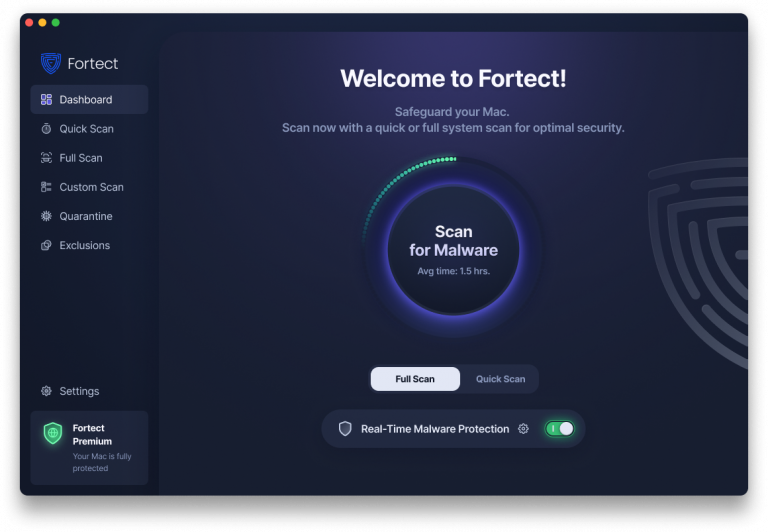
While following these protective measures significantly reduces your exposure to threats like the Spotlight TCC bypass, cybercriminals are evolving fast and targeting Mac users with increasingly sophisticated attacks. Fortect for Mac recognizes that modern ransomware, , and stealth malware are specifically designed to exploit vulnerabilities in macOS defenses, including TCC bypass techniques that allow unauthorized access to your sensitive data.
Relying solely on built-in security features is no longer enough when facing advanced threats that manipulate system frameworks like Spotlight’s indexing service. Fortect for Mac delivers intelligent, real-time protection that works alongside Apple’s native security rather than replacing it, filling the critical gaps that attackers exploit when circumventing TCC permissions and other macOS safeguards.
Key Features:
- Real-Time Malware Defense: Always-on threat monitoring that instantly detects and blocks malicious activity targeting TCC vulnerabilities without disrupting your workflow
- Cloud-Based Threat Intelligence: Leverages cloud security analysis for rapid detection of new Spotlight TCC bypass attempts and emerging attack patterns
- Quick Smart Scan: Fast and efficient scans to identify unauthorized permission exploits and resolve security issues quickly
- Full System Scan: Deep scanning across your entire machine for comprehensive protection against malware, leveraging macOS framework vulnerabilities
Fortect provides an essential security layer specifically designed to catch threats that slip past traditional defenses, giving you peace of mind that your Mac is protected against both current and emerging exploits like the Spotlight TCC bypass.
What to Do If You Suspect an Infection
If you believe your Mac may be compromised, disconnect from the internet immediately to prevent data transmission. Run a full system scan with updated security software. Change important passwords from a different secure device. Review Privacy & Security settings for unauthorized permissions. Check login items in System Settings > General > Login Items for suspicious entries. Back up critical files after scanning them for malware.
The Broader Context: macOS Security
Apple responds quickly to discovered vulnerabilities with security patches and maintains a bug bounty program encouraging responsible disclosure. However, no system is perfect; every operating system faces security challenges. The myth that “Macs don’t get viruses” is dangerous, as Macs face growing threats with increasing market share.
User awareness and responsible computing habits remain the most effective defense. Stay informed about emerging vulnerabilities, maintain skepticism about downloads and permissions, and prioritize regular updates and backups.
Conclusion
The Spotlight TCC bypass vulnerability highlights that even well-designed security systems can have flaws. For Mac users, this means staying vigilant with updates, carefully managing application permissions, and maintaining awareness of what applications can access.
By keeping macOS updated, reviewing permissions regularly, using reputable security software, and practicing safe computing habits, you significantly reduce your risk. Security requires regular attention to your Mac’s security settings and staying informed about new threats.