SOLVED: Living off Trusted Services (LOTS) Attacks
Living off Trusted Services (LOTS) is a cyberattack technique where hackers exploit legitimate, trusted platforms and cloud services, such as Google Drive, OneDrive, Dropbox, Discord, GitHub, or even Telegram, to deliver malware, steal data, or control infected devices. Instead of setting up sketchy, easily blocked servers, attackers hide their malicious activity inside traffic that looks completely normal.
Because these services are trusted by security tools and internet providers, traditional antivirus software often lets the malicious traffic pass right through. For everyday Windows users, this is a serious and growing threat.
How Is LOTS Different from Regular Malware?
Traditional malware usually calls home to a suspicious, unknown server. Security software flags it quickly. With a LOTS attack, the malware communicates through a service you already use and trust, like Microsoft OneDrive or Google Docs. To your security software, it looks like you’re just syncing files or checking a document. That camouflage is exactly what makes these attacks so dangerous.
Common Trusted Services Abused by Attackers
Cybercriminals have been caught abusing a wide range of platforms, including:
- Cloud storage: OneDrive, Google Drive, Dropbox, Box
- Code repositories: GitHub, GitLab, Bitbucket
- Messaging & chat apps: Discord (CDN links), Telegram bots, Slack
- Productivity tools: Notion, Trello, Google Sheets
- DNS and web services: Cloudflare, AWS, Azure
How LOTS Attacks Work: A Simple Breakdown
Step 1: Initial Infection
You receive a phishing email, click a malicious link, or download a poisoned file. This installs a small piece of malware on your Windows PC, often without any visible signs.
Step 2: Command & Control via Trusted Platforms
Instead of contacting a suspicious server, the malware reaches out to a legitimate service, for example, reading instructions from a private GitHub Gist or pulling a config file from a Google Drive folder.
Step 3: Data Exfiltration or Payload Delivery
Your stolen files, passwords, or screenshots are quietly uploaded to a cloud storage service the attacker controls. Or additional malware is downloaded from a legitimate CDN like Discord’s file-hosting network.
Step 4: Long-Term Persistence
Because the communication blends in with normal internet traffic, the attacker can maintain access to your PC for weeks or months without being detected.
How to Protect Yourself From LOTS Attacks on Windows 10/11
You don’t need to be a tech expert to defend yourself. Follow these practical steps to significantly reduce your risk.
Strengthen Your PC Security with Fortect

While manual steps go a long way, Living off Trusted Services attacks are specifically designed to slip past conventional defenses, making a dedicated security tool a smart addition to your setup. Fortect delivers advanced real-time malware protection for Windows users. It automatically scans your PC for traditional and emerging threats, including Living off Trusted Services (LOTS) attacks, eliminates them safely, and restores damaged system files for improved performance. Its smart threat-detection engine monitors suspicious activity and alerts you before harmful actions can take place, helping keep your device secure and running efficiently.
Download and install Fortect today.
Fortect for Mac: Stop Living off Trusted Services (LOTS) Attacks
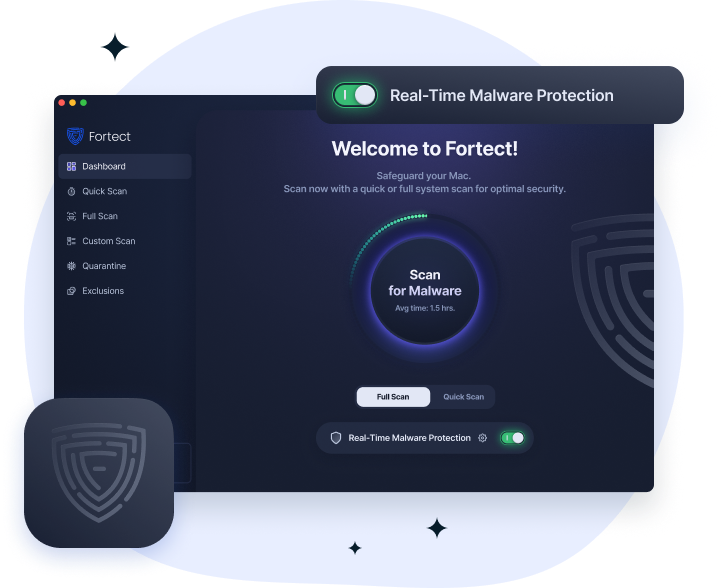
Mac users are increasingly targeted by Living off Trusted Services (LOTS) attacks, where cybercriminals exploit trusted system services to install malware and bypass macOS defenses. Fortect for Mac protects your system by detecting and stopping these hidden threats in real time, repairing affected files, and strengthening gaps that attackers exploit.
Key Features:
- Stop Trusted Services (LOTS) Attacks: Blocks malware using trusted system services before damage occurs.
- Real-Time Malware Defense: Continuous monitoring to catch threats instantly.
- Cloud-Based Threat Intelligence: Quickly identifies new and emerging attacks.
- Quick Smart Scan & Full System Scan: Fast and deep scans to secure and repair your Mac.
Update Windows Immediately
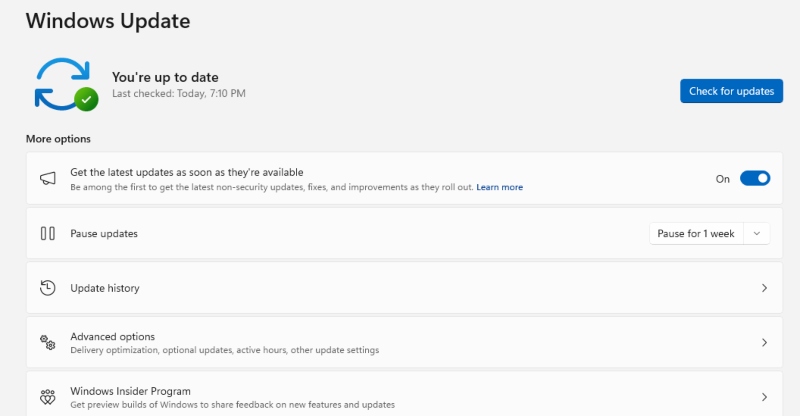
Keeping Windows up to date closes security holes that malware uses to gain a foothold in the first place.
Steps to update Windows 10/11:
- Click the Start menu and open Settings (the gear icon).
- Go to Windows Update (in Windows 11) or Update & Security > Windows Update (in Windows 10).
- Click Check for updates.
- If updates are available, click Download & Install.
- Restart your PC when prompted.
Set updates to install automatically: in the same Windows Update screen, click Advanced options and toggle on Receive updates for other Microsoft products, and ensure Automatic Updates is enabled.
Enable Microsoft Defender and Keep It Active
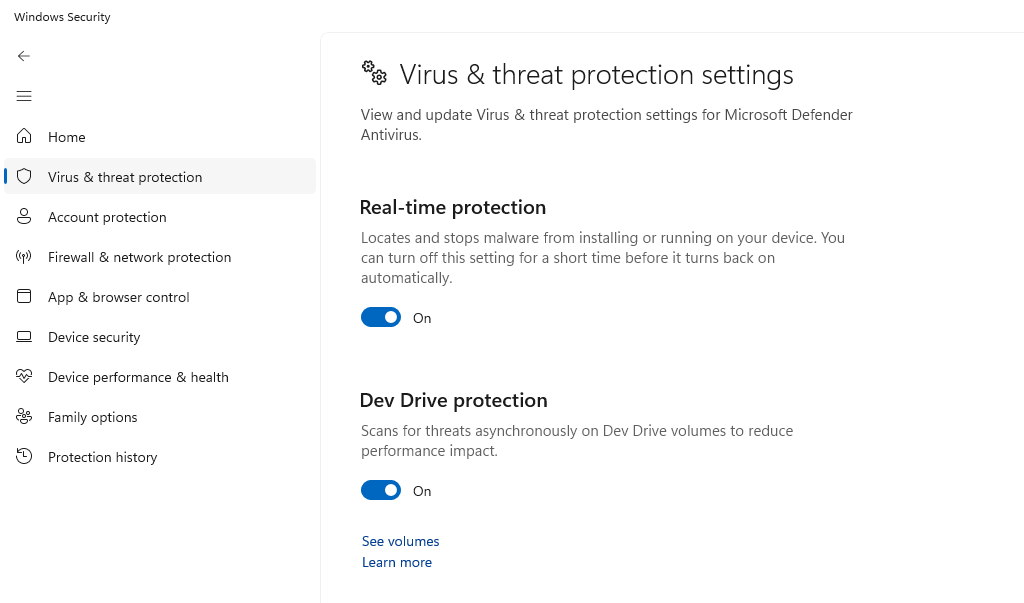
Windows Defender is built-in and free. Make sure it’s always running.
Steps to verify Defender is on:
- Open Start > Settings > Privacy & Security > Windows Security.
- Click Virus & threat protection.
- Under “Virus & threat protection settings,” ensure Real-time protection is toggled On.
- Also enable Cloud-delivered protection and Automatic sample submission for the best coverage.
Restrict Your Windows User Account
Running as a standard user (not an Administrator) limits what malware can do even if it gets in.
Steps to create and switch to a Standard User account on Windows 10/11:
- Go to Start > Settings > Accounts > Family & other users.
- Click Add account (Windows 11) or Add someone else to this PC (Windows 10).
- Follow the prompts to create a new Microsoft account or local account.
- Once created, click the new account and select Change account type.
- Set it to Standard User and click OK.
- Use this account for everyday browsing and tasks. Reserve the Administrator account only for installing software.
Be Cautious With Cloud App Permissions
LOTS attacks often rely on OAuth tokens or permissions you’ve unknowingly granted to malicious apps.
Steps to review app permissions:
- Visit myaccount.google.com/permissions for Google and revoke any apps you don’t recognize.
- For Microsoft, go to account.microsoft.com > Privacy > Apps and services and remove unknown entries.
- For Dropbox and other services, log in and check Settings > Connected Apps.
Use a DNS Filter or Secure DNS
Switching to a security-focused DNS provider can block connections to known malicious infrastructure, even when it’s hidden inside trusted services.
Steps to change DNS on Windows 10/11:
- Go to Start > Settings > Network & Internet.
- Click your connection type (Wi-Fi or Ethernet), then click Hardware properties (Windows 11) or click your network name (Windows 10).
- Next to DNS server assignment, click Edit.
- Switch to Manual, enable IPv4, and enter:
- Preferred DNS: 1.1.1.2 (Cloudflare for Families — blocks malware)
- Alternate DNS: 1.0.0.2
- Click Save.
Signs Your PC May Be Compromised by a LOTS Attack
- Unusual network activity even when you’re not actively using cloud apps
- Files in your OneDrive or Google Drive that you didn’t create
- Sluggish performance with no clear reason
- Your accounts are receiving unexpected login alerts
If you notice these signs, run a full scan with Windows Defender or a trusted tool like Malwarebytes Free, then change your passwords immediately from a separate, clean device.
Conclusion
Living off Trusted Services attacks are stealthy precisely because they weaponize tools you rely on every day. The good news is that basic security hygiene, keeping Windows updated, using a standard user account, reviewing app permissions, and enabling real-time protection, goes a long way toward keeping you safe. Stay skeptical of unexpected files, links, and app permission requests, even when they appear to come from familiar platforms.