SOLVED: Hidden Screen Recording on macOS and Windows
Discovering that someone has been secretly recording your screen can be alarming. Whether you’re concerned about privacy violations, unauthorized monitoring, or suspicious activity on your computer, understanding how hidden screen recording works and how to detect it is essential for protecting your digital privacy.
What Is Hidden Screen Recording?
Hidden screen recording occurs when software captures everything displayed on your monitor without your knowledge or explicit consent. Unlike legitimate screen recording tools that display clear indicators, malicious or unauthorized recording software operates silently in the background. This can include keystrokes, browsing activity, applications you use, and even sensitive information like passwords or banking details.
Common scenarios include spyware installed by someone with physical access to your device, remote access trojans (RATs), or poorly configured parental control software that lacks transparency.
How to Detect Hidden Screen Recording on Windows
Check Running Processes and Applications
Windows Task Manager reveals all active processes on your system, including hidden recording software.
Steps to Check Task Manager:
- Press Ctrl + Shift + Esc to open Task Manager
- Click the Processes tab to view all running applications
- Look for unfamiliar programs or suspicious names like “capture,” “record,” “monitor,” or “spy”
- Right-click any suspicious process and select Search online to identify it
- Check the Startup tab to see which programs launch automatically when Windows boots
Monitor System Resource Usage
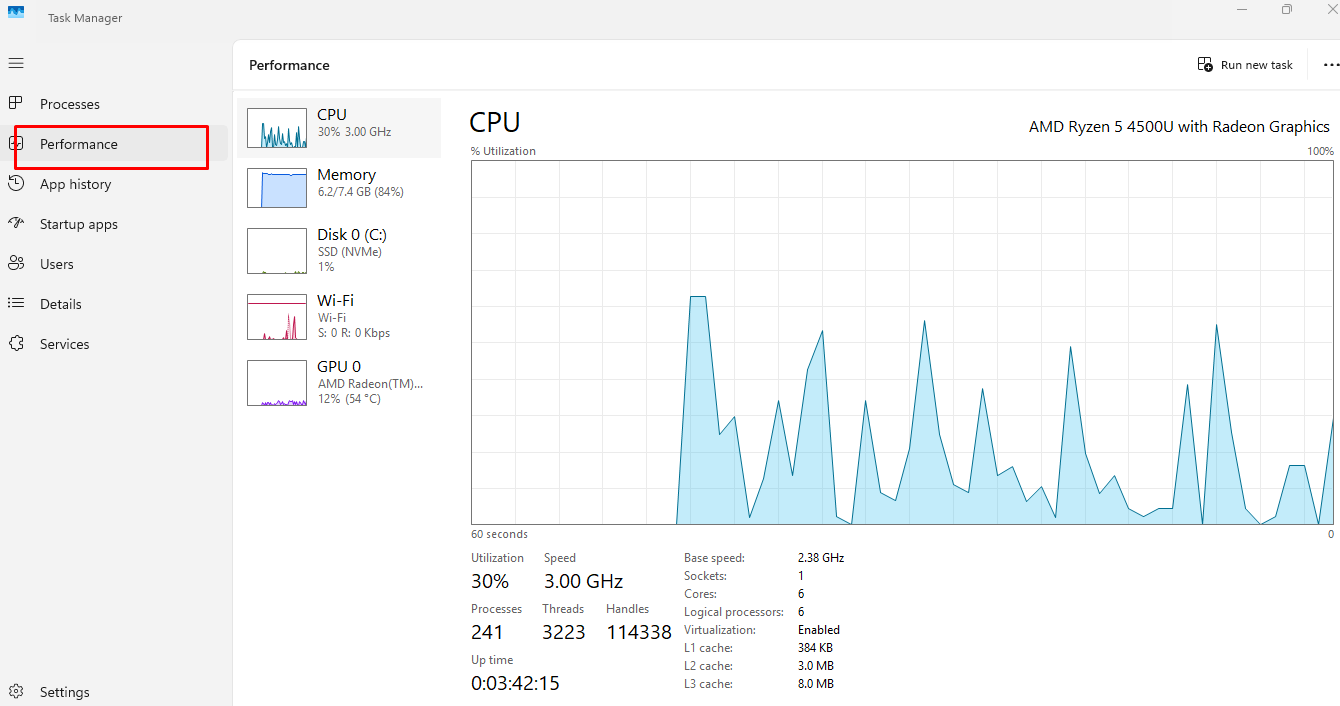
Screen recording software consumes significant CPU, memory, and disk resources. Unexplained high usage when your computer is idle often indicates background recording.
Steps to Monitor Resource Usage:
- Open Task Manager (Ctrl + Shift + Esc)
- Click the Performance tab
- Observe CPU, Memory, and Disk usage patterns
- Note any spikes or consistently high usage without active applications
- Click Open Resource Monitor at the bottom for detailed analysis
Review Installed Programs
Unknown or recently installed software could be recording your screen without permission.
Steps to Check Installed Programs:
- Press Windows + I to open Settings
- Navigate to Apps > Installed apps (Windows 11) or Apps > Apps & features (Windows 10)
- Sort the list by Install date to identify recent additions
- Research any unfamiliar programs online before uninstalling
- Remove suspicious applications by clicking the three dots and selecting Uninstall
How to Detect Hidden Screen Recording on macOS
Check Screen Recording Permissions
macOS requires applications to request permission before recording your screen, making detection easier than Windows.
Steps to Review Screen Recording Permissions:
- Click the Apple menu and select System Settings (or System Preferences on older versions)
- Navigate to Privacy & Security > Screen Recording
- Review the list of apps with screen recording access
- Uncheck any suspicious or unrecognized applications
- Remove apps you don’t recognize by clicking the minus (-) button
Monitor Activity Monitor
Activity Monitor shows all processes running on your Mac, including hidden recording tools.
Steps to Use Activity Monitor:
- Open Finder > Applications > Utilities > Activity Monitor
- Click the CPU tab and sort by CPU usage
- Look for unfamiliar processes consuming significant resources
- Use the search function to look for keywords like “screen,” “capture,” or “record”
- Select suspicious processes and click the X icon to quit them
Check for Recording Indicators
Recent macOS versions display an orange dot in the menu bar when your microphone is active and may show indicators for screen recording.
Preventing Unauthorized Screen Recording
Use Fortect for Comprehensive Protection
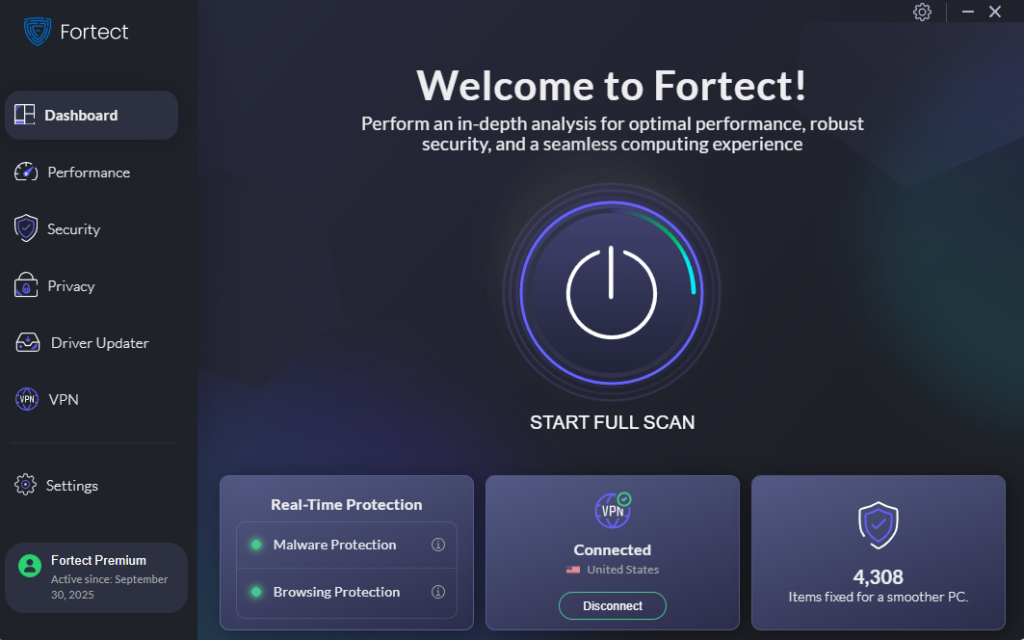
Fortect is a powerful and advanced anti-virus solution with real-time malware protection designed specifically for Windows users concerned about hidden screen recording threats. It automatically scans your PC for any malicious software, including spyware and screen recording tools, then removes them and optimizes your computer for peak performance.
What sets Fortect Premium apart is its built-in Driver Updater, which automatically scans your Windows PC for outdated or corrupted drivers and safely updates them from trusted sources. This feature is essential because faulty or obsolete drivers aren’t just performance risks; cybercriminals can exploit them to inject malware or gain system-level access, potentially causing severe instability or even a full system compromise.
By keeping your drivers updated, Fortect closes these security gaps while ensuring your PC runs smoothly. Once updates are applied, your computer is optimized for cleaner, faster, and more reliable performance, giving you both security and speed.
Download and install Fortect on your Windows systems now.
Fortect for Mac: Complete Protection for macOS Users
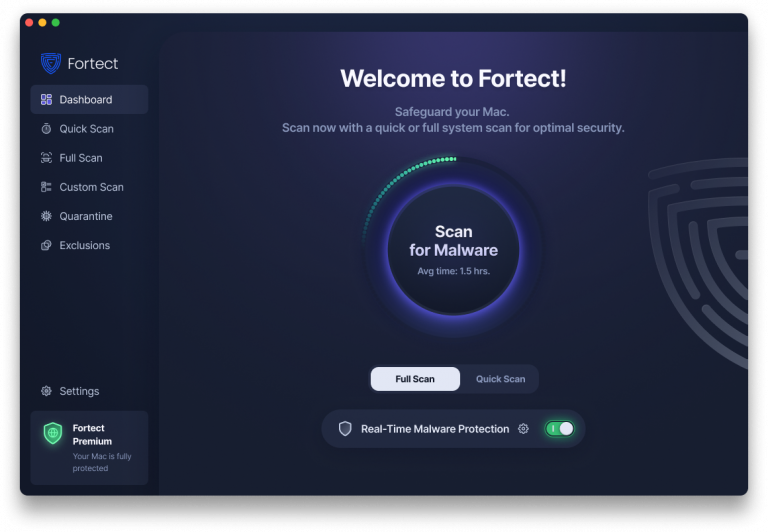
While macOS has a reputation for security, it’s no longer invincible against modern threats. New malware and screen recording spyware targeting Mac users emerge daily, and Apple’s built-in defenses can’t always keep pace. Fortect for Mac provides the advanced protection macOS users need with four essential features:
- Real-Time Malware Protection: Always-on monitoring that instantly detects and blocks threats, including hidden screen recording software, before they compromise your system
- Cloud-Based Security: Leverages cloud technology for instant threat updates and advanced detection capabilities that stay ahead of emerging malware
- Quick Smart Scan: Fast, intelligent scanning that identifies and resolves security issues in minutes without slowing down your Mac
- Full System Scan: Comprehensive deep scans that examine every corner of your system for complete protection against hidden threats
Whether you’re using Windows or macOS, Fortect delivers the multi-layered security you need to protect against unauthorized screen recording and other privacy threats.
Download and install Fortect for your MAC systems now.
Use Additional Antivirus and Anti-Malware Software
If you prefer alternatives, comprehensive security software can detect and remove spyware, keyloggers, and screen recording malware before they compromise your privacy.
Steps to Run a Security Scan:
- Install reputable antivirus software (Windows Defender is built into Windows)
- Update virus definitions to the latest version
- Run a Full System Scan rather than a quick scan
- Quarantine or delete any detected threats
- Schedule automatic weekly scans for ongoing protection
Keep Your Operating System Updated
Security patches fix vulnerabilities that allow unauthorized software installation.
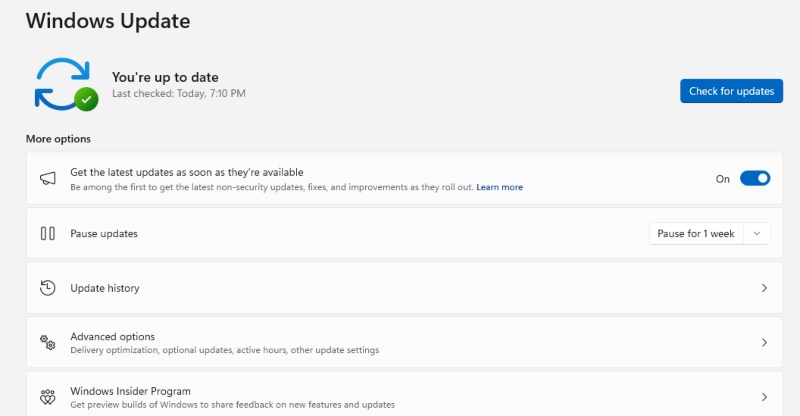
Steps to Update Windows:
- Press Windows + I to open Settings
- Click Windows Update in the left sidebar
- Click Check for updates
- Download and install all available updates
- Restart your computer when prompted
Enable Strong Account Security
Protect your device from unauthorized physical access and remote intrusions.
Security Measures to Implement:
- Create a strong password or PIN for your user account
- Enable two-factor authentication for remote access services
- Never share your login credentials
- Lock your computer when stepping away (Windows + L)
- Disable remote desktop features unless necessary
What to Do If You Find Hidden Recording Software
If you discover unauthorized screen recording software, take immediate action. Disconnect from the internet to prevent data transmission, document evidence by noting the software name and installation date, run a complete malware scan, change all passwords from a secure device, and consider reporting the incident to local authorities if you believe you’re a victim of stalking or harassment.
Conclusion
Protecting your privacy requires vigilance and proactive security measures. Regularly audit your system for suspicious software, maintain updated security tools, and stay informed about common surveillance tactics. Your digital privacy is worth defending.