Secure Enclave Bypass on macOS: How to Stay Protected
The Secure Enclave is one of Apple’s most trusted security technologies, a dedicated hardware component designed to protect sensitive data like Face ID, Touch ID, and encryption keys. But as with any security system, vulnerabilities exist. Understanding what a Secure Enclave bypass is, how it works, and what steps to take to stay protected can make a significant difference in keeping personal data safe.
What Is the Secure Enclave?

The Secure Enclave is a separate processor built into Apple devices, including Macs with Apple Silicon (M1, M2, M3 chips) and newer Intel Macs, that runs independently from the main CPU. Secure Enclave handles critical security tasks in an isolated environment, meaning even if the main operating system is compromised, the Secure Enclave theoretically remains protected.
What the Secure Enclave Protects
- Biometric data – Face ID and Touch ID templates never leave the Secure Enclave
- Encryption keys – Used for FileVault disk encryption and Keychain data
- Secure Boot validation – Verifies that the OS hasn’t been tampered with
- Apple Pay credentials – Payment tokens are stored and processed securely
What Is a Secure Enclave Bypass?
A Secure Enclave bypass refers to any technique, exploit, or vulnerability that allows an attacker to circumvent the protections enforced by the Secure Enclave, without necessarily “breaking into” it directly. Attackers rarely attack the Secure Enclave itself head-on. Instead, they exploit the communication pathways between the Secure Enclave and the rest of the system.
How Secure Enclave Bypass Attacks Work
Bypasses typically fall into a few categories:
1. Firmware and Boot-Level Exploits Attackers may attempt to inject malicious code during the boot process before the Secure Enclave can validate system integrity, sometimes referred to as a bootkit attack.
2. Side-Channel Attacks Side-channel attacks exploit indirect information, such as timing, power consumption, or electromagnetic emissions, to infer what the Secure Enclave is doing without directly accessing it. These are highly sophisticated and typically require physical access to the device.
3. Software Vulnerability Chaining Attackers can chain multiple software vulnerabilities together to escalate privileges to the point where Secure Enclave communication can be intercepted or manipulated. A vulnerability in macOS itself can serve as an entry point.
4. Hardware Interposers With physical access, advanced attackers have used hardware interposers, devices placed between chips, to intercept communications. This was notably demonstrated in earlier iPhone research affecting older Secure Enclave processors.
5. Social Engineering and Malware Many real-world “bypasses” don’t exploit the Secure Enclave at all, instead, attackers trick users into granting permissions that allow apps to request biometric authentication in misleading ways, or deploy malware that captures credentials after they’ve been unlocked.
Known Secure Enclave Vulnerabilities and Research
Security researchers have identified several notable issues over the years:
- The “unpatchable” Secure Enclave exploit (2020): Researchers from the Pangu Team discovered a vulnerability in older Apple Silicon (A5–A11 chips) that could allow attackers with physical access to decrypt Secure Enclave data. Apple acknowledged the flaw but noted it couldn’t be patched via software on affected older devices, highlighting the risk of using outdated hardware.
- SRD (Security Research Device) findings: Through Apple’s Security Research Device program, researchers have uncovered edge cases in how the Secure Enclave handles certain cryptographic operations.
- macOS privilege escalation chains: Multiple CVEs (Common Vulnerabilities and Exposures) have targeted macOS system components in ways that, when chained together, could weaken Secure Enclave protections indirectly.
These findings reinforce that while the Secure Enclave is robust, it is not immune, particularly on older or unpatched devices.
How to Stay Protected Against Secure Enclave Bypass Threats
While macOS users (unlike Windows users) interact with a different security architecture, the protection strategies below are critical for any Mac user concerned about Secure Enclave-related threats.
Strengthen Your Defense Beyond macOS with Fortect for Mac
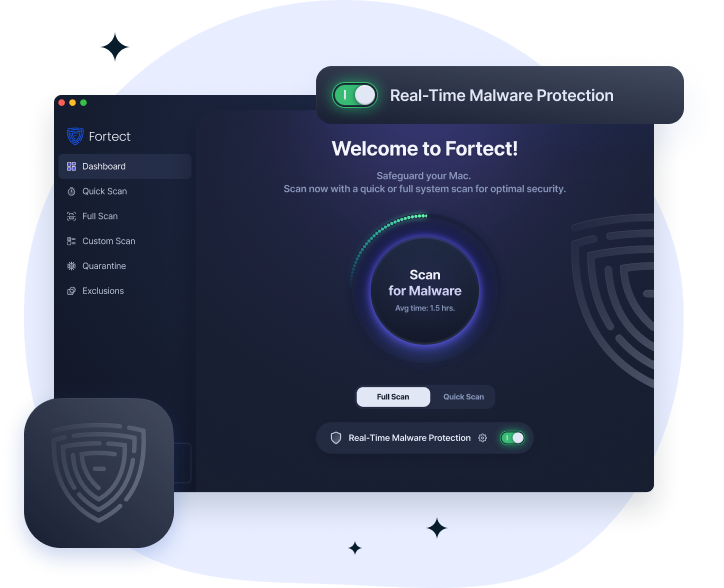
Cybercriminals are evolving fast, and they’re no longer targeting only Windows users. Fortect doesn’t just protect Windows from advanced cyber threats; Mac users are now fully supported as well, recognizing that modern ransomware, spyware, and stealth attacks are increasingly designed to bypass traditional macOS defenses, including attempts to exploit weaknesses surrounding the Secure Enclave. With threats becoming increasingly complex and frequent, relying solely on built-in security is no longer sufficient.
Fortect for Mac delivers intelligent, real-time protection that works alongside Apple’s native security rather than replacing it. It fills the critical gaps that attackers often exploit during a Secure Enclave bypass attempt and shields your system from threats you may not even be aware of.
Key Features:
- Real-Time Malware Defense – Always-on threat monitoring that instantly detects and blocks malicious activity without disrupting your workflow.
- Cloud-Based Threat Intelligence – Leverages cloud security analysis for rapid detection of new and emerging attack patterns.
- Quick Smart Scan – Fast and efficient scans to identify and resolve issues quickly.
- Full System Scan – Deep scanning across your entire machine for comprehensive protection and repair.
Keep macOS Updated

Keeping the operating system up to date is the single most effective defense. Apple regularly patches vulnerabilities that could be chained into a bypass.
How to update macOS:
- Click the Apple menu (top-left corner) and select System Settings
- Click General in the sidebar
- Select Software Update
- If an update is available, click Update Now or Upgrade Now
- Enter your administrator password if prompted and allow the update to complete
- Restart the Mac when requested
Enable Automatic Updates by toggling on “Automatically keep my Mac up to date” in the same Software Update screen.
Enable FileVault Disk Encryption
FileVault uses the Secure Enclave to protect encryption keys. Enabling it ensures that even if the device is stolen, data cannot be accessed without authentication.
Steps to enable FileVault:
- Open System Settings from the Apple menu
- Click Privacy & Security in the sidebar
- Scroll down to FileVault
- Click Turn On and follow the on-screen instructions
- Save the recovery key in a secure location (such as a password manager)
Use a Strong Login Password and Disable Auto-Login
A weak or absent login password undermines everything the Secure Enclave protects.
How to set a strong password:
- Go to System Settings > Users & Groups
- Click on your user account
- Select Change Password
- Set a strong, unique password of at least 12 characters
Disable auto-login:
- Go to System Settings > General > Login Options (or Users & Groups depending on macOS version)
- Set Automatic login to Off
Enable Lockdown Mode (for High-Risk Users)
For users who face elevated risks, such as journalists, activists, or those targeted by sophisticated threats, Apple’s Lockdown Mode significantly reduces the attack surface by restricting certain features.
How to enable Lockdown Mode:
- Open System Settings
- Click Privacy & Security
- Scroll to Lockdown Mode
- Click Turn On and confirm when prompted
- Restart the Mac to apply
Restrict Physical Access to Your Device
Since the most dangerous Secure Enclave bypass techniques require physical access, protecting the device physically is just as important as software hardening.
- Never leave a Mac unattended in public spaces without a screen lock
- Enable Require password immediately after screen saver begins: Go to System Settings > Lock Screen and set the screen saver delay to the shortest available option
- Consider a Kensington lock for desktop or shared workspace Macs
Be Cautious of Unauthorized Apps and Permissions
Many real-world attacks that “bypass” Secure Enclave protections do so through deception rather than technical exploits.
- Only install apps from the Mac App Store or verified developers
- Review app permissions regularly under System Settings > Privacy & Security
- Never approve biometric prompts from apps unless the action is expected and recognized
Signs Your Mac’s Security May Be Compromised
Awareness is a key part of staying protected. Watch for these warning signs:
- Unexpected authentication prompts or Face ID/Touch ID failures
- System processes running with unexpectedly high CPU usage
- New login items or startup agents appearing without explanation (check System Settings > General > Login Items)
- macOS security alerts about unknown kernel extensions
If any of these appear, running Malwarebytes for Mac (free version) or Apple’s built-in XProtect (which runs automatically) can help identify threats.
Conclusion
The Secure Enclave is a powerful security feature, but it operates within a broader ecosystem that requires active maintenance and awareness from users. A Secure Enclave bypass is a real threat, especially on older, unpatched hardware, and can be enabled by software vulnerabilities, physical access, or social engineering. Keeping macOS updated, enabling FileVault, using strong credentials, and limiting physical exposure are the most reliable defenses available to everyday Mac users today.
Security is not a one-time setup; it’s an ongoing habit.