Protect Mac From FlexibleFerret With Real-Time Security
FlexibleFerret has emerged as one of the most concerning adware threats targeting macOS users in 2025. This sophisticated malware infiltrates Mac systems through deceptive software bundles, browser extensions, and fake updates, compromising your online privacy and system performance. Unlike traditional adware, FlexibleFerret adapts its behavior to evade detection, making it particularly dangerous for everyday Mac users who rely on their devices for work, banking, and personal communication.
Understanding how FlexibleFerret operates and implementing robust real-time security measures is essential to protect your Mac from this persistent threat. This guide provides actionable steps to detect, remove, and prevent FlexibleFerret infections while maintaining optimal system security.
What Is FlexibleFerret and Why Is It Dangerous?

FlexibleFerret is a sophisticated adware variant that specifically targets macOS systems. Once installed, it hijacks browser settings, injects unwanted advertisements, tracks your browsing activity, and can redirect you to malicious websites. The malware often disguises itself as legitimate software or browser extensions, making it difficult for average users to identify.
Signs Your Mac Is Infected With FlexibleFerret
Common symptoms include unexpected browser redirects, excessive pop-up advertisements, changed homepage or search engine settings, sluggish system performance, and unfamiliar applications appearing in your Applications folder. You may also notice increased CPU usage or battery drain as the malware runs background processes to collect data and display ads.
How to Remove FlexibleFerret From Your Mac
Taking immediate action is crucial when you suspect a FlexibleFerret infection. Follow these comprehensive steps to eliminate the threat from your macOS system.
1: Quit Suspicious Applications
Open Activity Monitor by navigating to Applications > Utilities > Activity Monitor. Look for unfamiliar processes consuming significant resources. Common FlexibleFerret-related process names include random letter combinations or processes mimicking legitimate Apple services. Select the suspicious process and click the X button in the top-left corner, then choose Force Quit.
2: Remove Malicious Applications
Go to Finder > Applications and carefully review all installed applications. Look for programs you don’t remember installing, especially those installed around the time symptoms began. Right-click on suspicious applications and select Move to Trash. Don’t forget to check the ~/Library/Application Support folder for related files by opening Finder, clicking Go in the menu bar, holding Option, and selecting Library.
3: Clean Browser Extensions and Settings
For Safari, open Safari > Preferences > Extensions. Remove any unfamiliar extensions by clicking Uninstall. Then go to the General tab and verify your homepage setting. In the Search tab, confirm your preferred search engine is selected.
For Chrome, type chrome://extensions in the address bar. Remove suspicious extensions by clicking Remove. Then access Settings > Search engine to restore your preferred search provider.
For Firefox, click the menu button > Add-ons and themes > Extensions. Remove unknown extensions, then navigate to Settings > Home to reset your homepage and Settings > Search to verify your default search engine.
4: Delete FlexibleFerret Support Files
FlexibleFerret creates hidden support files throughout your system. Open Finder, click Go > Go to Folder, and search these locations:
- ~/Library/LaunchAgents
- /Library/LaunchAgents
- /Library/LaunchDaemons
- ~/Library/Application Support
Look for files with random names or those matching suspicious applications you removed. Delete these files by dragging them to the Trash. Remember to empty your Trash afterward by right-clicking the Trash icon and selecting Empty Trash.
5: Reset Browser Data
Clear your browsing history, cookies, and cache to remove any FlexibleFerret tracking data.
Safari, go to Safari > Clear History.
For Chrome, visit Settings > Privacy and security > Clear browsing data. In Firefox, access Settings > Privacy & Security > Cookies and Site Data > Clear Data.
6: Strengthen Your Mac Security With Fortect
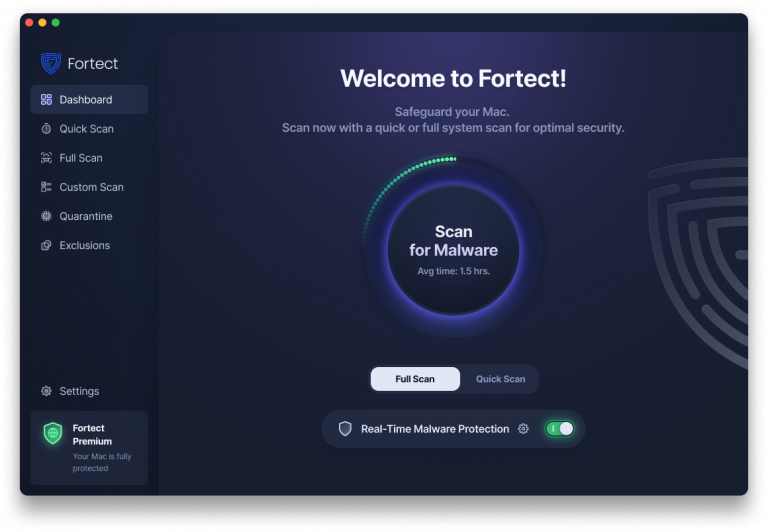
Cybercriminals are evolving fast, and they’re no longer targeting only Windows users. Fortect doesn’t just protect Windows from advanced cyber threats; Mac users are now fully supported as well, recognizing that modern ransomware, , and stealth attacks like FlexibleFerret are increasingly designed to bypass traditional macOS defenses. With threats becoming more complex and more frequent, relying solely on built-in security is no longer enough.
Fortect for Mac delivers intelligent, real-time protection that works alongside Apple’s native security rather than replacing it. It fills the critical gaps that attackers often exploit and shields your system from threats you may not even be aware of.
Key Features:
Real-Time Malware Defense: Always-on threat monitoring that instantly detects and blocks FlexibleFerret and similar malicious activity without disrupting your workflow.
Cloud-Based Threat Intelligence: Leverages cloud security analysis for rapid detection of new and emerging attack patterns targeting Mac systems.
Quick Smart Scan: Fast and efficient scans to identify and resolve FlexibleFerret infections quickly.
Full System Scan: Deep scanning across your entire machine for comprehensive protection against adware, spyware, and other threats.
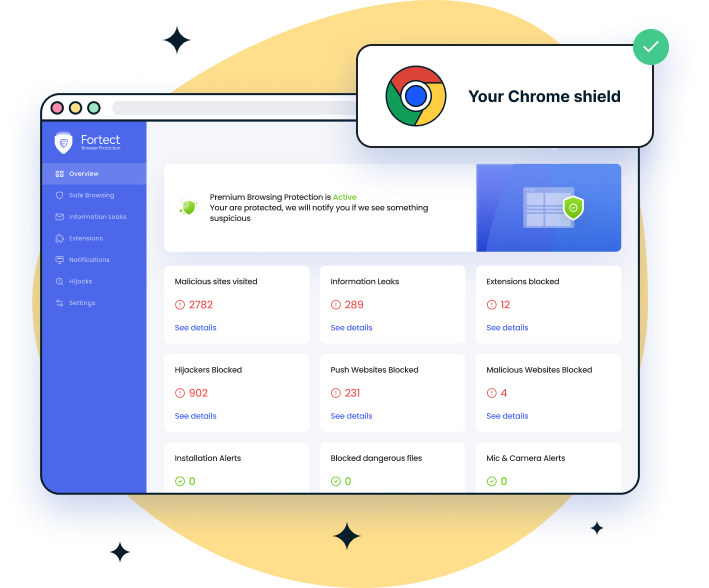
If you’re experiencing unexpected browser redirects, excessive pop-up ads, changed homepage or search engine settings, slow system performance, or unfamiliar apps in your Applications folder, FlexibleFerret may be affecting your Mac, especially if you use Chrome in addition to Safari. For Chrome users, Fortect Browsing Protection adds an extra layer of security by blocking dangerous websites before they load, flagging suspicious pages to help prevent scams, and removing harmful extensions that could put your data at risk.
Prevent Future FlexibleFerret Infections
Prevention is your best defense against FlexibleFerret. Only download software from the official Mac App Store or verified developer websites. Always choose “Custom” installation when installing software to deselect bundled applications. Keep macOS and all applications updated through System Preferences > Software Update. Enable macOS’s built-in security features, including Gatekeeper and XProtect, and regularly review installed applications and browser extensions.
Your Mac’s security depends on combining smart browsing habits with robust real-time protection. By following these steps and implementing comprehensive security solutions, you can effectively protect your Mac from FlexibleFerret and similar threats.