Malware Disguised as Legit Apps on Mac
Mac users have long enjoyed a reputation for superior security compared to other operating systems. However, cybercriminals are increasingly targeting macOS with sophisticated malware disguised as legitimate applications. These fake apps mimic trusted software, tricking users into downloading harmful programs that can steal personal data, encrypt files, or hijack system resources.
Understanding how these threats work and learning to protect yourself is essential on the internet. This guide will help you identify malicious applications, avoid common traps, and secure your Mac against evolving threats.
What Is Malware Disguised as Legitimate Applications?

Malware disguised as legitimate apps is malicious software that masquerades as trusted programs to deceive users into installation. Cybercriminals create fake versions of popular applications like Adobe Flash Player, system utilities, video players, or productivity tools. Once installed, these programs can perform various malicious activities without your knowledge.
These trojans often appear identical to genuine software, featuring similar logos, interfaces, and installation processes. The deception is so convincing that even tech-savvy users can fall victim. Common examples include fake antivirus programs, bogus software updaters, and counterfeit media players that promise enhanced functionality.
The malware can range from adware that bombards you with unwanted advertisements to spyware that monitors your keystrokes and steals passwords. More dangerous variants include ransomware that locks your files and cryptocurrency miners that drain your system resources.
How Malware Infiltrates Your Mac
Distribution Through Unofficial Sources
Most malware-laden applications reach users through unofficial download sites. Cybercriminals create websites that look professional and trustworthy, offering free versions of paid software or hard-to-find applications. These sites rank well in search results, making them easy targets for unsuspecting users.
Torrent sites and peer-to-peer networks are particularly risky. Files shared through these platforms often lack verification, allowing infected software to spread rapidly. Email attachments from unknown senders and suspicious links in messages also serve as common delivery methods.
Social Engineering Tactics
Attackers use psychological manipulation to convince users to install malware. Pop-up warnings claim your Mac is infected and urge immediate action. Fake security alerts prompt downloads of “essential” protection software. Some schemes impersonate Apple support, sending emails about account verification or system updates.
These tactics exploit fear and urgency, pushing users to make hasty decisions without proper verification. The messages often contain spelling errors, generic greetings, or suspicious sender addresses that reveal their fraudulent nature upon closer inspection.
Warning Signs of Fake Applications
Red Flags Before Installation
Several indicators can help you spot malicious apps before installation. Legitimate software comes from verified developers with digital signatures. If macOS displays warnings about unidentified developers or damaged files, proceed with extreme caution.
Check the download source carefully. Official applications come directly from the Mac App Store or the developer’s official website. Be wary of download buttons on third-party sites, especially those surrounded by advertisements. The file size can also be telling; if a simple utility is hundreds of megabytes, something is wrong.
Post-Installation Symptoms
After installing suspicious software, your Mac may exhibit unusual behavior. Slow performance, frequent crashes, and unexpected pop-ups indicate potential infection. Your browser might redirect to unfamiliar websites or display excessive advertisements. Unknown applications appearing in your login items or system preferences warrant immediate investigation.
Battery drain and overheating can signal that malware is consuming system resources. If you notice unfamiliar network activity or your firewall alerts increase, your Mac might be communicating with malicious servers.
How to Protect Your Mac from Fake Apps
Strengthen Your Mac Security with Fortect
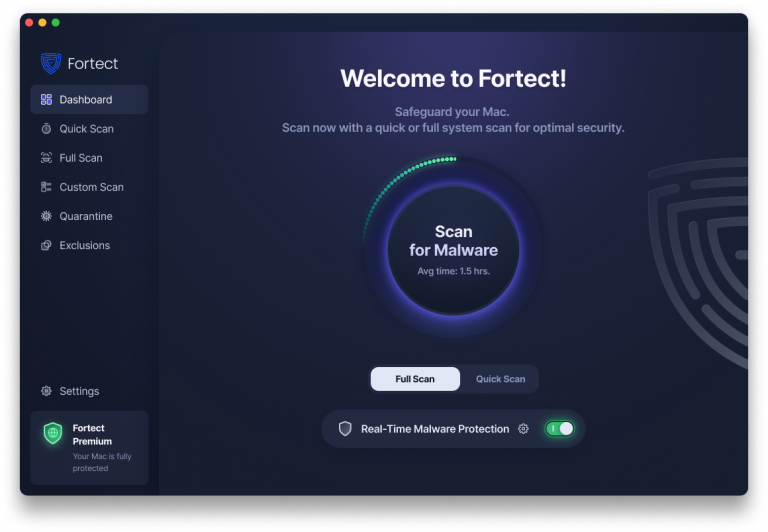
Malware disguised as legit apps has become one of the most dangerous threats facing Mac users today. Cybercriminals no longer target only Windows users; they’re actively developing sophisticated malware specifically designed to bypass macOS defenses. While Apple’s built-in security is robust, it can’t catch everything, especially when dealing with applications that mimic legitimate software down to the smallest detail.
Fortect for Mac delivers intelligent, real-time protection that works alongside Apple’s native security rather than replacing it. It fills the critical gaps that attackers often exploit and shields your system from threats you may not even be aware of. With threats becoming more complex and more frequent, relying solely on built-in security is no longer enough.
Key Features for Mac:
Real-Time Malware Defense: Always-on threat monitoring that instantly detects and blocks malicious activity without disrupting your workflow, catching fake applications before they can execute.
Cloud-Based Threat Intelligence: Leverages cloud security analysis for rapid detection of new and emerging attack patterns, staying ahead of malware disguised as legitimate apps.
Quick Smart Scan: Fast and efficient scans to identify and resolve issues quickly, perfect for regular security checks.
Full System Scan: Deep scanning across your entire machine for comprehensive protection and repair, uncovering hidden threats that manual searches might miss.
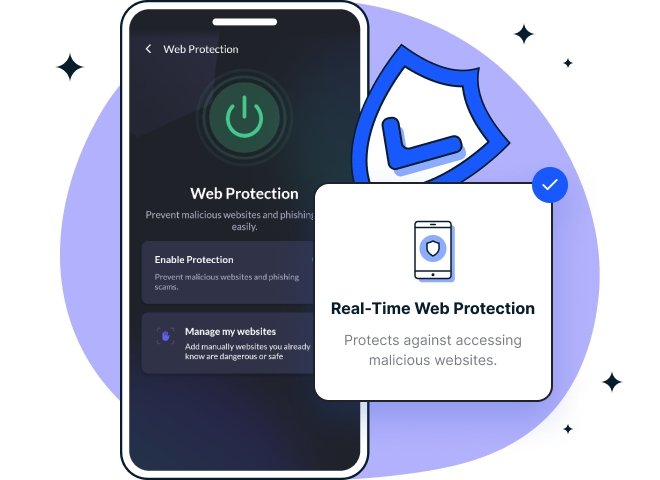
Fortect offers cross-platform security with Fortect Mobile Security for Android and iOS, providing seamless protection across all your devices. This includes real-time web protection, network safety alerts, data breach notifications, advanced antivirus, and system checks. It stands out with cloud-based scanning, automated issue resolution, a user-friendly dashboard, and a lightweight engine for fast, smooth performance.
Mobile Security Features for iPhones:
Web Protection: Blocks harmful and phishing sites in real time, preventing malicious downloads before they reach your device.
Network Advisor: Detects unsafe Wi-Fi networks that cybercriminals use to distribute fake apps and intercept data.
Data Breach Alerts: Notifies you if your email is found in a leak, helping you take action before stolen credentials are used against you.
With Fortect’s comprehensive protection suite, you can defend your Mac and mobile devices against malware disguised as legitimate apps and other evolving cyber threats.
Download Only from Trusted Sources
Stick to the Mac App Store for software downloads whenever possible. Apple reviews all App Store submissions, providing an additional security layer. For applications unavailable in the App Store, download exclusively from the developer’s official website.
Verify website URLs carefully before downloading. Cybercriminals create convincing fake sites with slight spelling variations in the domain name. Look for HTTPS connections and check for contact information, privacy policies, and professional design that legitimate companies maintain.
Enable Mac Security Features
macOS includes built-in protections that you should keep active. Gatekeeper prevents unsigned applications from running without your explicit permission. To verify your settings, open System Settings, navigate to Privacy & Security, and ensure “App Store and identified developers” is selected under security preferences.
Keep your operating system updated with the latest security patches. Apple regularly releases updates addressing newly discovered vulnerabilities. Enable automatic updates in System Settings under General, then Software Update, to ensure you receive critical patches promptly.
Use Verified Security Software
Install reputable antivirus software designed for Mac. While macOS has strong native protections, third-party security tools offer additional scanning capabilities and real-time monitoring. Choose established brands with positive reviews and avoid free antivirus programs advertised through pop-ups, as these are often malware themselves.
Run regular system scans to detect threats that may have slipped through initial defenses. Schedule weekly scans during times when you’re not actively using your Mac to minimize performance impact.
What to Do If You’ve Installed Malware
If you suspect you’ve installed malicious software, act quickly to minimize damage. Disconnect from the internet immediately to prevent data transmission to attackers and stop further malware downloads. This simple step can significantly limit the infection’s impact.
Restart your Mac in Safe Mode by holding the Shift key during startup. Safe Mode loads only essential system components, preventing malware from running. Once in Safe Mode, locate the suspicious application in your Applications folder and move it to the Trash. Empty the Trash and restart normally.
Run a comprehensive scan with trusted security software to identify remnants of the infection. Check your login items in System Settings under Users & Groups to remove any unknown startup programs. Review recently installed applications and browser extensions, deleting anything unfamiliar.
Change your passwords for important accounts, especially if you entered credentials after installing the suspicious app. Monitor your financial statements for unauthorized transactions and consider placing fraud alerts with credit bureaus if you suspect identity theft.
Staying Safe in the Long Term
Educating yourself about evolving threats is your best defense. Cybercriminals constantly develop new techniques to bypass security measures. Stay informed about current malware trends affecting Mac users through reputable technology news sources and security blogs.
Practice healthy skepticism when downloading software. If an offer seems too good to be true, such as expensive software being offered for free, it probably is. Take the time to research applications before installation, reading reviews from multiple sources, and verifying the developer’s credentials.
Your Mac’s security depends largely on your vigilance and informed decisions. By downloading only from trusted sources, maintaining updated security features, and recognizing warning signs, you can enjoy your Mac while keeping malware at bay.