Keychain Credential Extraction on macOS: Fix & Prevention
Keychain credential extraction is a growing concern as attackers continue finding ways to steal stored passwords, tokens, and sensitive login data. Even if you’re using a Windows PC, this type of threat still matters because credential theft techniques are often shared across platforms. We will walk you through what Keychain credential extraction is, how it works, and how you can fix and prevent similar threats on Windows 10/11 without overcomplicating things.
What Is Keychain Credential Extraction?

Keychain credential extraction happens when malware or unauthorized tools access stored credentials from macOS Keychain, which is designed to store login details, certificates, and private keys securely. Attackers usually exploit system permissions, trick users into granting access, or run malicious software disguised as legitimate apps. In some cases, fake authentication prompts are used to capture passwords directly. Once attackers extract these credentials, they can use them for account takeovers, identity theft, or even financial fraud.
Why Users Should Care
Cross-platform credential theft risks
Although this attack is specifically tied to macOS, the same concept applies to Windows systems. Tools that dump credentials from memory, extract saved browser passwords, or hijack sessions are widely used. If you’re using shared accounts like email, cloud storage, or banking apps, one compromised device can expose everything. That’s why understanding this threat gives you an advantage, even as a Windows user.
Signs Your Credentials May Be Compromised
Common red flags
Credential theft doesn’t always announce itself, but there are warning signs you shouldn’t ignore. You might notice unusual login alerts, passwords changing without your input, or repeated authentication prompts. Sometimes your browser’s autofill behaves strangely, or unknown processes run in the background. These small signals often point to something bigger happening behind the scenes.
How to Fix Credential Extraction Issues (Windows 10/11)
Run a full malware scan
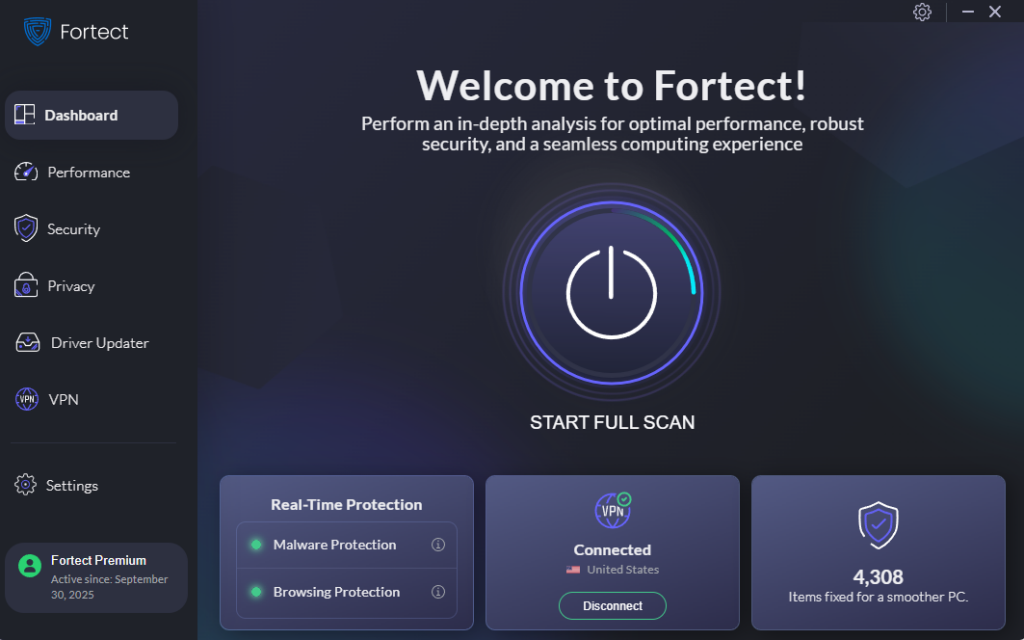
Malware is the most common entry point for credential extraction. To check your system, press Windows + I and open Settings, go to Privacy & Security, then Windows Security, click Virus & Threat Protection, choose Scan options, and run a Full scan. This helps detect hidden threats that may be accessing your credentials.
Remove suspicious apps and processes
If something feels off, checking running processes is a smart move. Open Task Manager using Ctrl + Shift + Esc, look for unfamiliar or resource-heavy processes, and end them if needed. Then go to Settings, open Apps, review installed programs, and uninstall anything you don’t recognize or trust.
Reset saved passwords
If credentials may have been exposed, don’t wait. Change your passwords immediately across important accounts like email, banking, and social platforms. Make sure each password is unique and enable Two-Factor Authentication wherever possible to add another layer of protection.
Clear stored browser credentials
Browsers are frequent targets for credential theft. In Chrome, open the menu, go to Settings, then Autofill & Passwords, access Password Manager, and remove stored passwords. Re-enter them only after you’re sure your system is clean.
Update Windows and Mac regularly
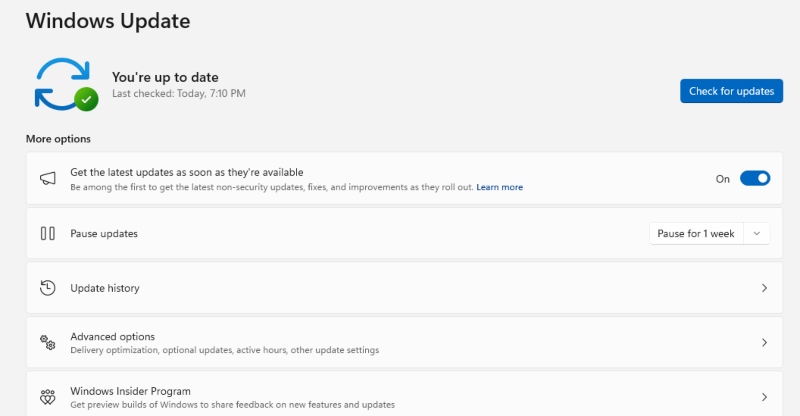
Outdated systems are easier to exploit. Open Settings, go to Windows Update, check for updates, install everything available, and restart your device. This ensures known vulnerabilities are patched.
Restrict user permissions
Using an admin account all the time increases risk. Go to Settings, open Accounts, select Family & other users, and switch regular users to Standard accounts. This limits what malicious programs can do if they get in.
Strengthen Your PC Security with Fortect
Fortect provides advanced real-time malware protection for both Windows and Mac users, helping safeguard your systems against a wide range of cyber threats. While Fortect cannot eliminate Keychain Credential Extraction on macOS, it adds an essential layer of defense by detecting suspicious behavior and malware that may attempt to exploit your system. It automatically scans for emerging threats, flags unusual activity in real time, and helps repair any system damage malware may cause, keeping your computer stable and secure.
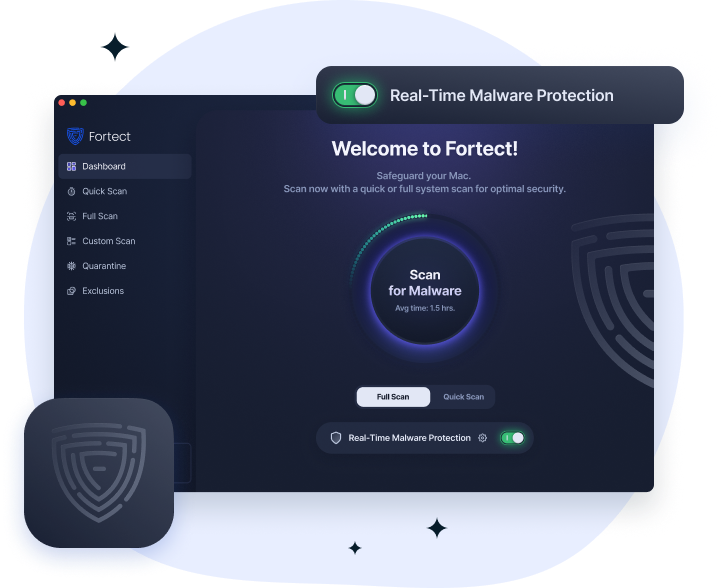
Fortect for Mac: Enhance Your Security Beyond Built-In Protections
Cyberattacks are increasingly sophisticated and platform-agnostic. Fortect works alongside macOS’s native protections to help identify potential threats, prevent malware from compromising other parts of your system, and maintain overall system integrity, providing peace of mind while staying proactive against evolving cyber risks.
How to Prevent Keychain Credential Extraction (and Similar Attacks)
Use real-time antivirus protection
A reliable antivirus with real-time monitoring, just like Fortect can stop threats before they access your credentials. Look for tools that detect behavior, not just known malware, since newer attacks often bypass traditional detection.
Avoid installing untrusted software
Most attacks start with something the user installs. Avoid downloading software from unknown sources, using cracked programs, or opening suspicious email attachments. These are common entry points for credential-stealing malware.
Use a secure password manager
Instead of relying on browsers, consider a dedicated password manager. It keeps your credentials encrypted, generates strong passwords, and reduces your exposure if malware targets browser storage.
Enable multi-factor authentication (MFA)
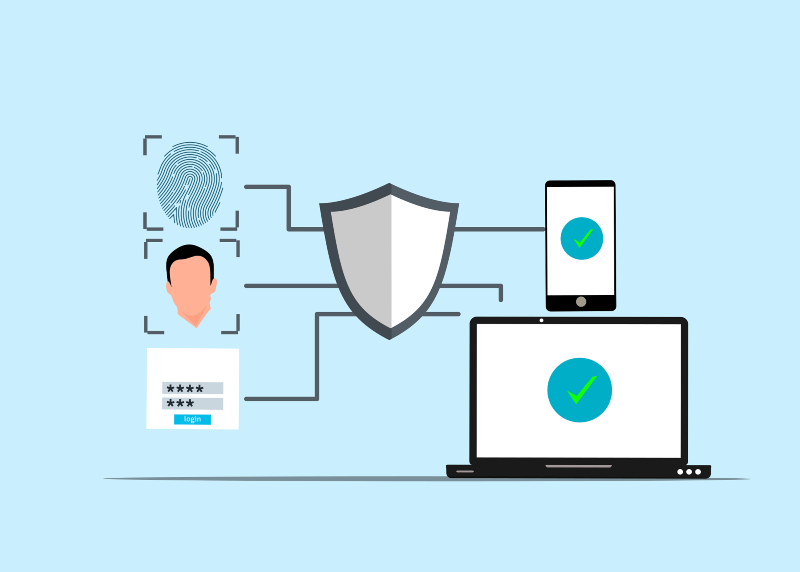
Even if attackers get your password, MFA can stop them. Using an authenticator app or another verification method adds a second layer that makes unauthorized access much harder.
Monitor account activity regularly
Make it a habit to check login history and device activity on your accounts. If something looks unfamiliar, act immediately by changing your password and logging out of all sessions.
Best Practices to Stay Protected
Build long-term security habits
From what I’ve seen, consistent habits make the biggest difference. Keep your system updated, avoid reusing passwords, back up important files, and stay cautious when browsing or downloading anything online. These small actions add up and significantly reduce your risk.
Conclusion
Keychain credential extraction may be a macOS-specific term, but the threat behind it affects everyone. Credential theft techniques are widely used across platforms, including Windows. Attackers are not targeting your operating system; they’re targeting your data. By applying the fixes and preventive steps above, you can reduce your exposure and stay ahead of these threats. A combination of awareness, system security, and good habits is what ultimately keeps your credentials safe.
Related Reads:
Credential Manager Not Working
Recover Your Privacy After Visiting Risky Websites
Remote Access Tools Are Installed Without Permission
Prevent & Stop Sideloaded App Malware