
Top Credential Breaches 2025 & How to Prevent Them
Credential breaches have reached unprecedented levels in 2025, putting millions of Windows users at risk. From massive password leaks to sophisticated phishing attacks, cybercriminals are exploiting weak authentication systems at an alarming rate. Understanding these threats and taking proactive steps can protect your personal data from falling into the wrong hands.
Major Credential Breaches That Shook 2025
The 16 Billion Credential Mega-Leak
The largest credential breach in history surfaced in June 2025, exposing over 16 billion login credentials from platforms including Google, Facebook, Apple, and Microsoft. This massive compilation originated from infostealer malware that extracted passwords stored in browsers, misconfigured cloud storage, and development tools.
Unlike previous breaches, much of this data was recent and highly usable by attackers. These credentials were aggregated from years of infostealer malware campaigns and previous breaches, creating a goldmine for cybercriminals conducting account takeover attacks.
Healthcare and Enterprise Attacks
Red Hat experienced a major breach in October 2025 when the Crimson Collective claimed to have stolen approximately 570GB of data from internal repositories, including credentials tied to enterprise clients. Healthcare providers weren’t spared either, with multiple facilities reporting ransomware incidents that compromised patient credentials and medical records.
Third-Party Vendor Compromises
Several luxury retailers, including Harrods, confirmed that credential theft had affected 430,000 customer records in September 2025, resulting from compromised third-party providers. These supply-chain attacks demonstrate how your credentials can be exposed even when you follow best practices.
Why Credential Breaches Are Skyrocketing
Credential theft surged by over 160% in 2025, with AI-powered phishing and malware-as-a-service making these attacks accessible to less experienced hackers. Credential abuse now accounts for 22% of all data breaches, making it the most common attack vector.
The rise of infostealer malware has been particularly devastating. These malicious programs silently harvest saved passwords from browsers, email clients, and password managers on infected devices. Once collected, credentials are sold on dark web forums where attackers use them for credential stuffing attacks across hundreds of websites.
How to Protect Your Credentials on Windows 10/11
Use Fortect for Complete Protection
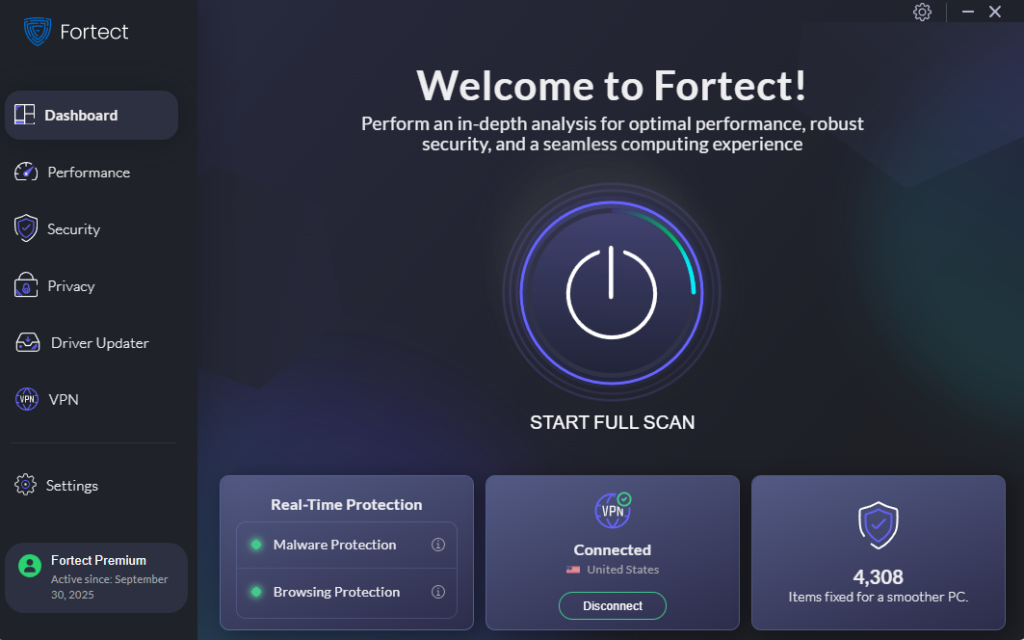
Fortect can help keep your system safe and performing at its best. It’s a powerful and reliable antivirus solution with real-time malware protection, designed to shield your Windows PC from modern threats, especially those that lead to credential breaches and other forms of infiltration, which are becoming increasingly advanced in 2025.
Fortect automatically scans your computer for vulnerabilities and emerging threats, safely removes harmful items tied to credential breach risks, and repairs system damage to maintain smooth performance. It closes security gaps proactively instead of waiting for issues to escalate, making prevention far more practical for everyday users like us.
Download and install Fortect today.
Fortect also includes Fortect Mobile Security, which protects your online credentials if you rely heavily on your mobile devices for transactions.
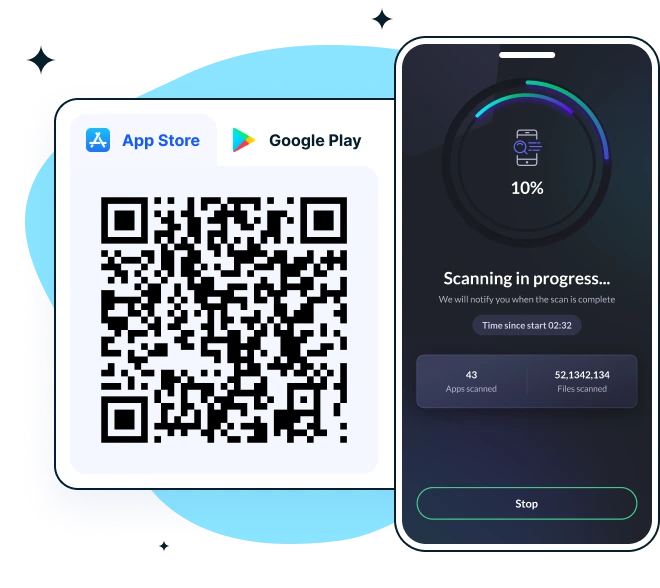
Fortect gives you reliable protection without the hassle, offering security features that fit your everyday mobile use.
Key features include:
- Web Protection for Android and iOS — blocks harmful and phishing sites in real time
- Network Advisor for Android and iOS
- Data Breach Alerts for Android and iOS
- Advanced Antivirus for Android — real-time defense, smart scans, and cloud-powered detection
- System Advisor for Android — checks screen locks, biometrics, and app updates
Available on Google Play (Android) and the App Store (iOS). Get yours now!
Enable Windows Credential Guard
Credential Guard is your first line of defense against advanced credential theft. This security feature uses virtualization-based security to isolate your login credentials from the rest of your system, making them inaccessible even to malware with administrative privileges.
To Enable Credential Guard on Windows 10/11 (Enterprise or Education editions):
- Press Windows Key + R to open the Run dialog
- Type gpedit.msc and press Enter to open Group Policy Editor
- Navigate to: Computer Configuration → Administrative Templates → System → Device Guard
- Double-click Turn On Virtualization Based Security
- Select Enabled from the dropdown menu
- Under “Credential Guard Configuration,” select Enabled with UEFI lock
- Click Apply, then OK
- Restart your computer to activate the protection
Note: Credential Guard requires Windows 10/11 Enterprise or Education editions. Starting with Windows 11 version 22H2, Credential Guard is enabled by default on compatible devices. Pro edition users should focus on the other security measures outlined below.
Keep Windows Updated Automatically
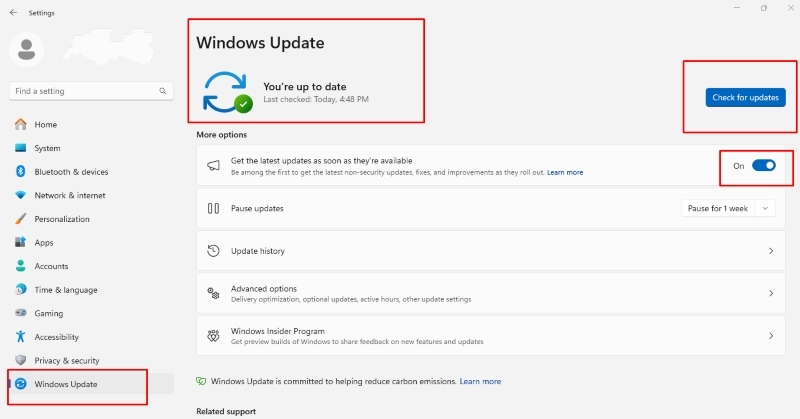
Security patches are critical for closing vulnerabilities that attackers exploit to steal credentials. Ensuring automatic updates are enabled keeps your system protected against the latest threats.
To Enable Automatic Updates on Windows 10:
- Click the Start button and select Settings (gear icon)
- Click Update & Security
- Select Windows Update from the left sidebar
- Click Advanced options
- Under “Choose how updates are installed,” ensure Automatic (recommended) is selected
- Return to the Windows Update page and click Check for updates to verify it’s working
To Enable Automatic Updates on Windows 11:
- Press Windows Key + I to open Settings
- Click Windows Update in the left sidebar
- Click Advanced options
- Ensure all toggle switches are enabled, particularly “Receive updates for other Microsoft products.”
- Return to Windows Update and click Check for updates
Windows 11 automatically downloads and installs critical security updates by default, but verifying these settings ensures you’re fully protected.
Use Strong, Unique Passwords
Password reuse is the attacker’s best friend. When one account gets breached, criminals attempt to use those same credentials across dozens of other websites, a technique called credential stuffing. Create unique passwords for every account, especially for email, banking, and social media.
Consider using a password manager to generate and store complex passwords. These tools encrypt your credentials and require only one master password to access your vault.
Enable Multi-Factor Authentication (MFA)
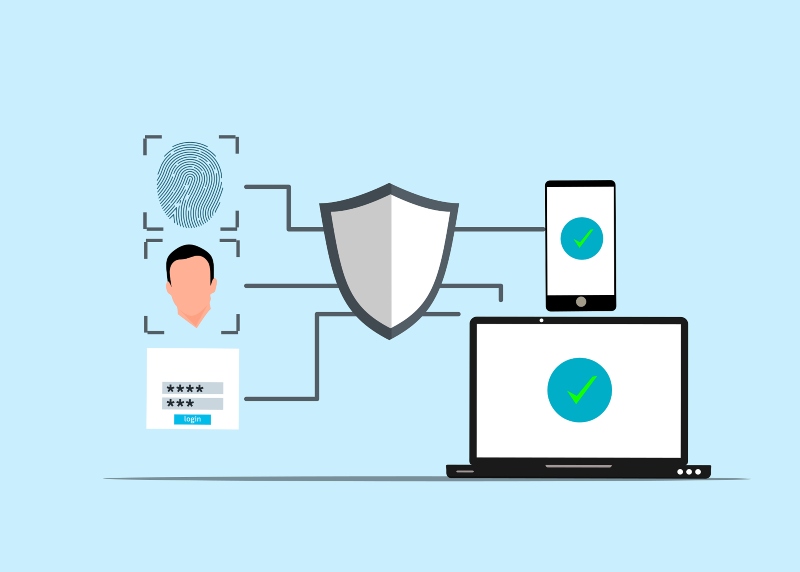
Multi-factor authentication adds an extra security layer beyond passwords. Even if attackers steal your credentials, they cannot access your account without the second verification factor.
Enable MFA on all accounts that support it, particularly:
- Email accounts (Gmail, Outlook, Yahoo)
- Social media platforms (Facebook, Instagram, Twitter)
- Banking and financial services
- Microsoft account
- Online shopping accounts
Use authentication apps like Microsoft Authenticator or Google Authenticator rather than SMS codes when possible, as text messages can be intercepted.
Scan for Compromised Credentials
Regularly check if your credentials have been exposed in data breaches. Visit haveibeenpwned.com and enter your email address to see if it appears in known breaches. If your credentials are compromised, immediately change your passwords on affected accounts.
Disable WDigest Authentication
WDigest is a legacy authentication protocol that stores passwords in plain text in system memory, making them easy targets for credential-harvesting tools.
To Disable WDigest on Windows 10/11:
- Press Windows Key + R to open Run
- Type regedit and press Enter
- Navigate to: HKEY_LOCAL_MACHINE\System\CurrentControlSet\Control\SecurityProviders\WDigest
- Right-click in the right pane and select New → DWORD (32-bit) Value
- Name it UseLogonCredential
- Double-click the new value and ensure it’s set to 0
- Click OK and restart your computer
This simple registry change prevents plaintext password storage and significantly reduces your credential theft risk.
Limit Cached Domain Credentials
If you use your Windows PC on a domain network (like at work), Windows caches your login credentials. While convenient, this creates a security risk if your device is compromised.
To Reduce Cached Credentials on Windows 10/11:
- Press Windows Key + R and type gpedit.msc
- Navigate to: Computer Configuration → Windows Settings → Security Settings → Local Policies → Security Options
- Find Interactive Logon: Number of previous logons to cache
- Double-click it and reduce the number from 10 to 2 or 0 (if you always have network access)
- Click OK and restart
This limits how many credentials Windows stores locally, reducing exposure if your system is attacked.
Stay Vigilant Against Phishing
Phishing has become the most common initial attack vector, accounting for 16% of data breaches in 2025. Be cautious of unsolicited emails requesting password resets or account verification. Legitimate companies never ask for passwords via email. Always navigate directly to websites by typing URLs rather than clicking email links.
Conclusion
Credential breaches are no longer rare events; they’re an everyday reality affecting millions of Windows users. The 16 billion credential leak of 2025 serves as a stark reminder that no one is immune to these threats. By enabling Credential Guard, keeping Windows updated, using unique passwords with MFA, and staying alert to phishing attempts, you can significantly reduce your risk of becoming the next victim.
Your digital security is in your hands. Take these steps today to protect your credentials before attackers exploit them tomorrow.





