
The Hidden Danger: Free VPNs and Botnet Infections
That “free” VPN you downloaded to watch region-locked content or protect your privacy might be doing the exact opposite. While free VPNs promise security and anonymity, many actually expose your Windows PC to botnet infections, turning your computer into a zombie device that cybercriminals control remotely.
What Are Botnets and How Do Free VPNs Spread Them?
A botnet is a network of infected computers controlled by hackers without the owners’ knowledge. These compromised devices, called “bots” or “zombies,” can be used for distributed denial-of-service (DDoS) attacks, cryptocurrency mining, spam distribution, or stealing sensitive data.
Free VPN providers often monetize their services through questionable methods. Since they’re not charging subscription fees, some resort to bundling malware with their applications. Others sell user bandwidth to third parties, essentially turning your device into an exit node for potentially malicious traffic. The most dangerous free VPNs install backdoors that allow botnet operators to take complete control of your system.
Warning Signs Your Free VPN Might Be Dangerous
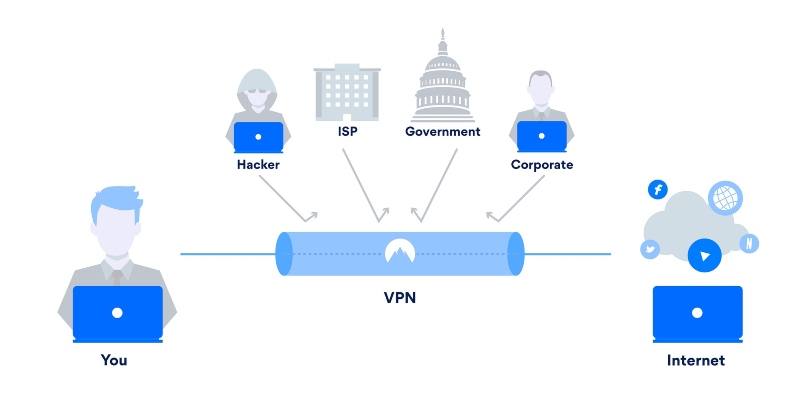
Watch for these red flags: excessive permissions requests during installation, unexplained system slowdowns, increased data usage when the VPN is idle, unfamiliar processes running in Task Manager, and your antivirus frequently blocking suspicious connections. If your Windows PC heats up unusually or the fan runs constantly even during light use, your device might be mining cryptocurrency for botnet operators.
Common Free VPN Threats Affecting Windows Users
Malware Distribution
Many free VPNs bundle their installers with trojans, spyware, and ransomware. These malicious programs exploit Windows vulnerabilities to establish persistent infections that survive reboots and system updates.
Data Harvesting and Privacy Violations
Ironically, free VPNs marketed as privacy tools often harvest your browsing history, passwords, and personal information. This data gets sold to advertisers, identity thieves, or used for targeted phishing attacks against Windows users.
Resource Hijacking
Some free VPNs use your computer’s processing power and internet bandwidth without permission. Your Windows PC becomes part of a residential proxy network or cryptocurrency mining operation, degrading performance and increasing electricity costs.
How to Protect Your Windows PC from VPN-Related Botnets
Step 1: Remove Suspicious Free VPNs from Windows 10/11
- Press Windows Key + I to open Settings
- Click Apps, then select Apps & features
- Scroll through the list and locate the free VPN application
- Click on the VPN app, then select Uninstall
- Follow the prompts to complete removal
- Restart your computer after uninstallation
Step 2: Run a Complete Malware Scan
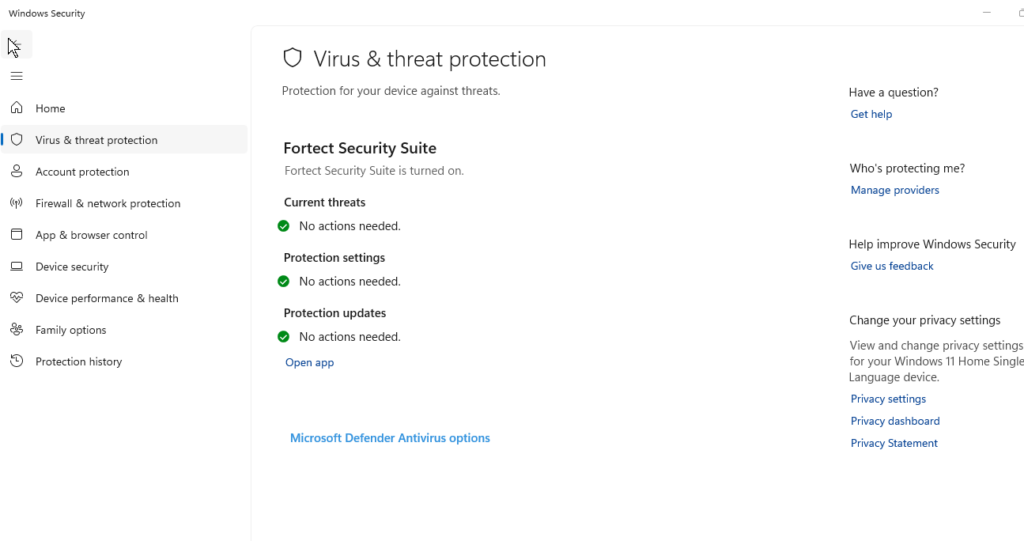
- Open Windows Security by searching for it in the Start menu
- Click Virus & threat protection
- Select Scan options under Current threats
- Choose Full scan and click Scan now
- Allow the scan to complete (this may take 1-2 hours)
- Follow prompts to remove or quarantine any detected threats
Consider downloading Malwarebytes Free for a second opinion scan, as it often catches threats Windows Defender misses.
Step 3: Update Windows to Patch Security Vulnerabilities
- Press Windows Key + I to open Settings
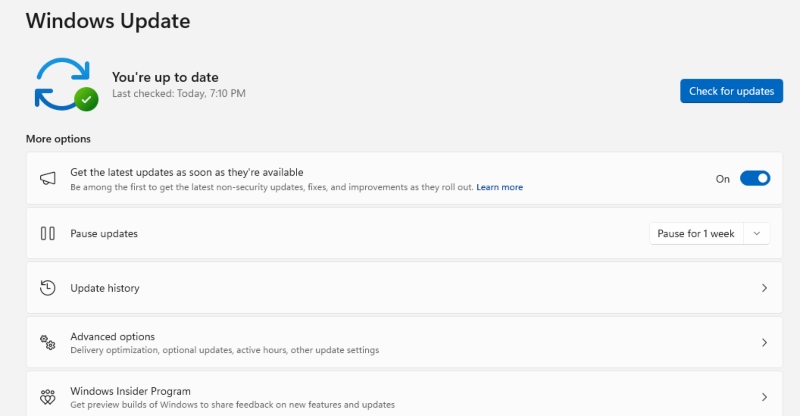
- Click Windows Update (or Update & Security in Windows 10)
- Click Check for updates
- Install all available updates, including optional ones
- Restart your computer when prompted
- Repeat this process until no updates remain
Step 4: Reset Network Settings
Botnet malware often modifies network configurations. Reset them by:
- Press Windows Key + I for Settings
- Select Network & Internet
- Scroll down and click Network reset
- Click Reset now and confirm
- Restart your computer
Comprehensive Protection with Advanced Security Tools
Fortect: All-in-One Security Solution for Windows
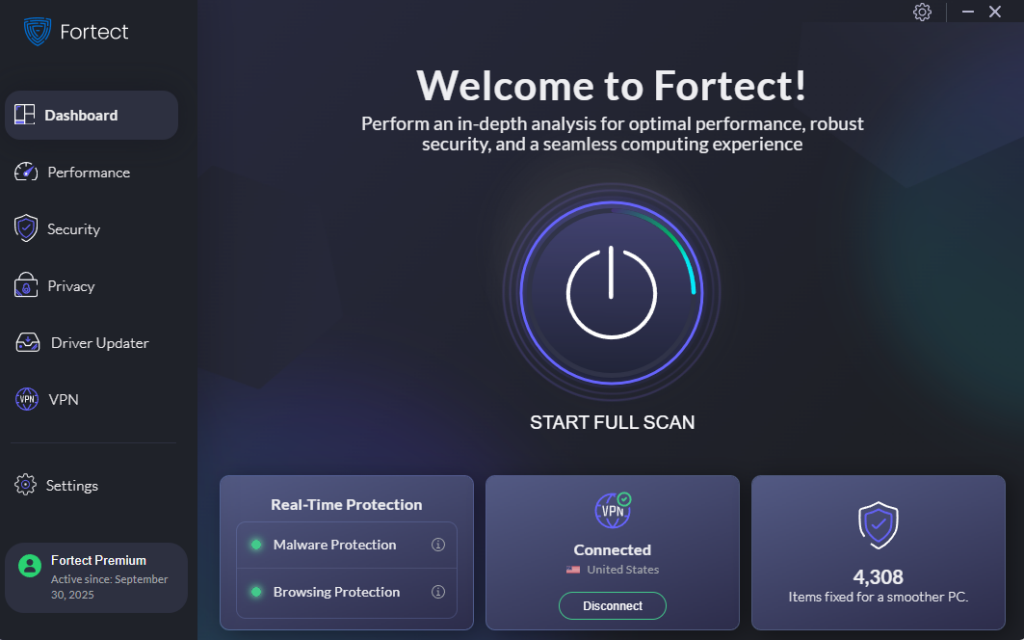
Instead of relying on dangerous free VPNs, consider Fortect, a powerful, advanced anti-virus with real-time malware protection specifically designed for Windows users. Fortect automatically scans your PC for threats like botnet infections, then fixes them and optimizes your computer’s performance.
Fortect Premium goes beyond basic antivirus with three critical security features:
Built-in Driver Updater: Automatically scans your Windows PC for outdated or corrupted drivers and updates them safely from trusted sources. This is crucial because corrupted or outdated drivers aren’t just a performance issue; hackers actively exploit them to inject malware into your system.
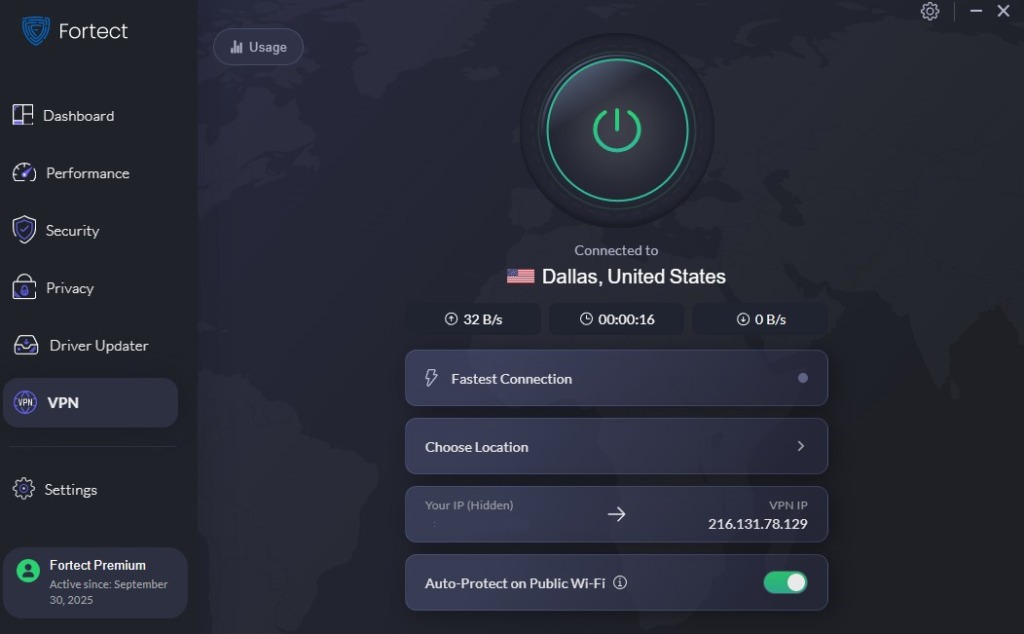
Integrated VPN with Auto-Protect: Fortect Premium now features a built-in VPN with Auto-Protect that automatically secures your connection on public Wi-Fi. It encrypts all your internet traffic to keep your data private and blocks hackers who target unsecured networks, a common gateway for zero-day exploits and network-based attacks.
Real-Time Threat Detection: Unlike free VPNs that may harbor malware, Fortect actively protects against botnets, trojans, and ransomware before they can compromise your system.
Download and install Fortect now.
Other Safe VPN Alternatives
If you prefer standalone VPN services, invest in reputable paid providers like NordVPN, ExpressVPN, or Surfshark. These services have transparent privacy policies, don’t log your activity, and undergo independent security audits. Expect to pay $3-12 monthly for legitimate VPN protection.
The Bottom Line on Free VPNs and Malware Risks
Free VPNs pose serious botnet infection risks to Windows users. The “free” service costs you in compromised security, stolen data, and degraded system performance. Your PC might become an unwitting participant in cyberattacks while your personal information gets sold to the highest bidder.
Protect yourself by removing free VPNs immediately, running thorough malware scans, keeping Windows updated, and investing in legitimate security solutions. Remember: when a VPN service is free, you’re not the customer, you’re the product.





