SOLVED: System Service Exception Error in Windows 10/11
The System Service Exception error in Windows 10/11 can be fixed by updating Windows and device drivers, repairing corrupted system files, and resolving software conflicts. This Blue Screen of Death (BSOD) error can cause your computer to freeze, crash, or restart unexpectedly. Running System File Checker (SFC), checking your disk for errors with CHKDSK, and testing your system memory can help identify and resolve the underlying cause.
What is a System Service Exception Error?
The System Service Exception error is a type of Blue Screen of Death (BSOD) error that occurs when a critical system service or driver encounters an issue. This error can be caused by hardware or software problems, typically resulting in your computer freezing or restarting unexpectedly.
Common Causes of SYSTEM_SERVICE_EXCEPTION Errors
- Graphic user interface errors: The System Service Exception error can occur due to issues with Windows’ graphical user interface (GUI) components. Conflicts with third-party software, outdated graphics drivers, or corruption in the GUI-related system files can cause this.
- Corrupted system files: Corrupt or missing system files can also trigger this error. System files are essential for Windows to function correctly, and if they become damaged or corrupted, it can lead to critical mistakes like the System Service Exception.
- Issues with outdated or corrupt drivers: Outdated or corrupt device drivers commonly cause the System Service Exception error. Drivers are software components that allow your operating system to communicate with hardware devices, such as graphics cards, network adapters, and peripherals. If these drivers are outdated, incompatible, or corrupted, they can cause conflicts and errors within the system.
Addressing these underlying issues is essential to resolving the System Service Exception error. This may involve updating your Windows installation, running system utilities to repair or replace corrupt files, and ensuring that all device drivers are up-to-date and compatible.
How to Fix a System Service Exception Error
1. Update Windows 10
One of the most common causes of the System Service Exception error is outdated or corrupt system files. To fix this, you should ensure that your Windows 10 operating system is up to date.
Follow these steps to update Windows 10:
- Open the Start menu and click on the Settings icon.
- Select “Update & Security.”
- Click on “Windows Update” and then “Check for updates.”
- Follow the on-screen instructions to download and install updates if updates are available.
2. Update System Drivers
Outdated or corrupt drivers can also cause the System Service Exception error. You can use a dedicated driver update tool like the one included in Fortect to update your system drivers.
Fortect’s Driver Updater feature scans your system for outdated and corrupted drivers and automatically installs the latest updates, while optimizing your Windows PC. It even offers a free trial version to install obsolete drivers manually.

Fortect is an all-in-one solution that addresses common causes of system service exception errors by optimizing your PC’s hardware, security, performance, and stability. It removes junk files, resolves issues with crashed programs, maintains peak performance levels, and enhances overall system stability.
Install and download Fortect now for safe and hassle-free browsing.
3. Uninstall Specific Programs
Specific programs, such as antivirus software (e.g., McAfee), games, webcam applications, and VPNs, can sometimes conflict with Windows 10 and cause the System Service Exception error. Try uninstalling these programs and see if the error is resolved.
How to look for Programs you want to uninstall on your Windows PC: follow these steps:
Start/Search bar >Apps > Installed Apps > Choose the app you want to uninstall > three dotted lines next to the app > right-click> Uninstall.
4. Run System File Checker
The System File Checker (SFC) is a built-in Windows utility that scans and repairs corrupt or missing system files.
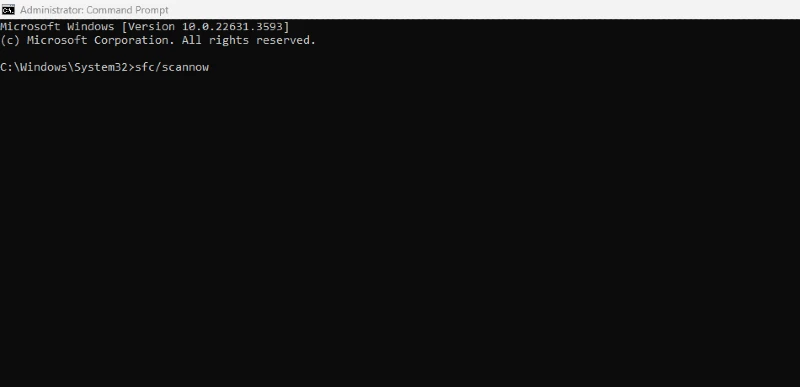
Run SFC by following these steps:
- Open the Start menu and search for “Command Prompt.”
- Right-click on “Command Prompt” and select “Run as administrator.”
- Type “sfc /scannow” in the Command Prompt window and press Enter.
- Wait for the scan to complete, and then restart your computer.
5. Run CHKDSK
The CHKDSK utility checks your hard drive for errors and attempts to fix them.
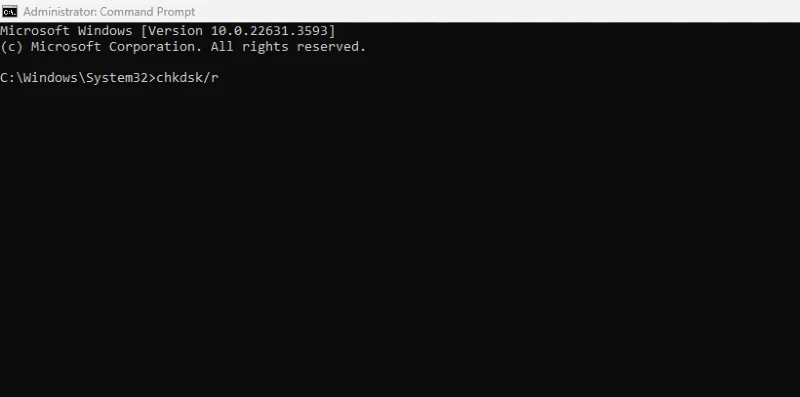
Here’s how to run CHKDSK:
- Open the Start menu and search for “Command Prompt.”
- Right-click on “Command Prompt” and select “Run as administrator.”
- Type “chkdsk /r” in the Command Prompt window and press Enter.
- Select “Y” to schedule the disk check on the next reboot if prompted.
- Restart your computer to run the disk check.
6. Uninstall Recently Installed Programs
If the System Service Exception error starts after you install a new program, try uninstalling it to see if it resolves the issue. The steps are the same as number 3- Uninstall Specific Programs; choose the most recently installed program to uninstall.
7. Run Windows Memory Diagnostic Tool
Faulty or corrupted system memory can also cause the System Service Exception error.
To check your computer’s memory, use the Windows Memory Diagnostic Tool:
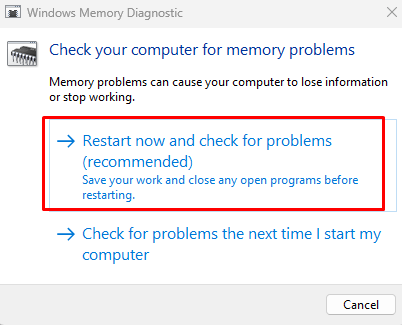
- Open the Start menu and search for “Windows Memory Diagnostic.”
- Select “Windows Memory Diagnostic” from the search results.
- Select “Restart now and check for problems in the Windows Memory Diagnostic window.”
- Your computer will restart and run the memory test.
- If any errors are detected, you may need to replace or reseat your memory modules.
8. Run Startup Repair
If none of the above solutions work, you can try running Startup Repair to fix any underlying issues with your Windows installation:
- Insert the Windows 10 installation media (USB or DVD) and restart your computer.
- When prompted, select “Repair your computer” or “Troubleshoot.”
- Choose “Advanced options” and then “Startup Repair.”
- Follow the on-screen instructions to complete the Startup Repair process.
You may also check our article How to Update Drivers on Windows 10/11 to learn about driver updates.
Frequently Asked Questions
The System Service Exception error is commonly caused by outdated or corrupted drivers, damaged system files, hardware problems, or software conflicts. Graphics drivers and recently installed programs can also trigger this BSOD error.
Update Windows and your device drivers, uninstall conflicting programs, and run System File Checker (SFC) to repair corrupted system files. You can also run CHKDSK to check for disk errors or use Startup Repair if Windows continues to crash.
Yes. Outdated, incompatible, or corrupted drivers can conflict with Windows and trigger a System Service Exception BSOD. Updating your graphics, network, and other device drivers may resolve the error and help prevent future crashes.
Keep Windows and your device drivers updated, remove incompatible software, and regularly check your system files and disk for errors. Monitoring your computer’s performance and addressing hardware problems early can also help reduce the risk of recurring BSOD errors.
Written by: Menzi Sumile
Reviewed by: Amit
Updated: October 2026