
SOLVED: Malware Abusing Windows Background Tasks for Crypto-Mining
Crypto-mining malware in background tasks can be removed by terminating malicious background processes. Delete the malware. Disable its scheduled tasks. Repair damaged system files. Scan your computer with trusted security software. These steps stop unauthorized crypto-mining and restore normal system performance.
Crypto-mining malware secretly uses your processor or graphics card to mine cryptocurrency. Attackers often hide these threats inside Windows background tasks. The malware launches automatically after every restart. Many users never notice the infection until their computer becomes unusually slow.
Key Takeaways
- Crypto-mining malware often hides in background tasks through scheduled tasks and startup entries.
- Removing only the mining process rarely eliminates the complete infection.
- Repair Windows system files after malware removal to restore stability.
- Keep Windows and drivers updated to reduce future attack opportunities.
- Audit your computer regularly to detect hidden miners before they cause long-term damage.
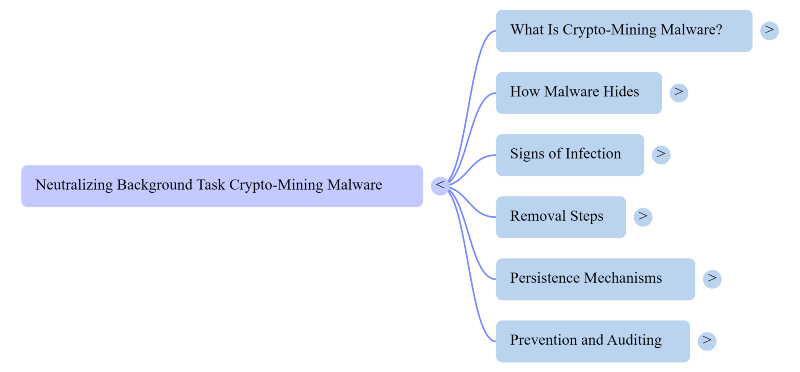
What Is Crypto-Mining Malware?
Crypto-mining malware is malicious software that mines digital currencies without your permission. It silently consumes your computer’s resources for someone else’s profit.
Unlike ransomware, this malware usually avoids obvious damage. It stays hidden to maximize mining time. That makes detection more difficult.
Common cryptocurrencies targeted include:
- Monero.
- Ethereum Classic.
- Ravencoin.
- Other privacy-focused digital currencies.
How Malware Hides Inside Windows Background Tasks
Windows runs many legitimate background tasks every day. Malware exploits this behavior to remain unnoticed.
Attackers often create:
- Fake scheduled tasks.
- Hidden Windows services.
- Startup entries.
- Background PowerShell scripts.
- Registry Run keys.
- Fake updater programs.
These components automatically restart the miner after every reboot.
Signs Your PC Has a Hidden Crypto Miner
Several symptoms may indicate an active crypto-mining infection.
- Constant High CPU Usage: Your processor stays above normal usage levels even while idle.
- GPU Running at Full Speed: Your graphics card fans remain loud during simple tasks.
- Slow System Performance: Programs open slowly. Games lose performance. Windows becomes less responsive.
- Higher Electricity Consumption: Mining software continuously uses hardware resources.
- Unexpected Background Processes: Task Manager shows unfamiliar applications consuming significant CPU or GPU power.
- Antivirus Keeps Detecting the Same Threat: The miner returns because another hidden task reinstalls it.
How to Remove Malware Abusing Windows Background Tasks
Follow these steps carefully.
1. Disconnect From the Internet
Disconnecting prevents communication with attacker servers.
2. Open Task Manager
- Press Ctrl + Shift + Esc.
- Look for unknown processes with high CPU or GPU usage.
- End suspicious processes.
3. Check Task Scheduler
- Open Task Scheduler: Search Task Scheduler on Search bar
- Review scheduled tasks carefully.
- Delete unfamiliar tasks that launch suspicious executables.
4. Review Startup Programs
- Open Startup Apps.
- Disable unknown entries.
- Restart your computer afterward.
5. Scan With Trusted Malware Removal Software
- Use reputable security software to detect hidden miners.
- Remove every detected threat.
6. Repair Windows System Files
- Open Command Prompt as Administrator.
- Run: sfc /scannow
- Next run: DISM /Online /Cleanup-Image /RestoreHealth
These commands repair corrupted Windows files.
7. Update Windows
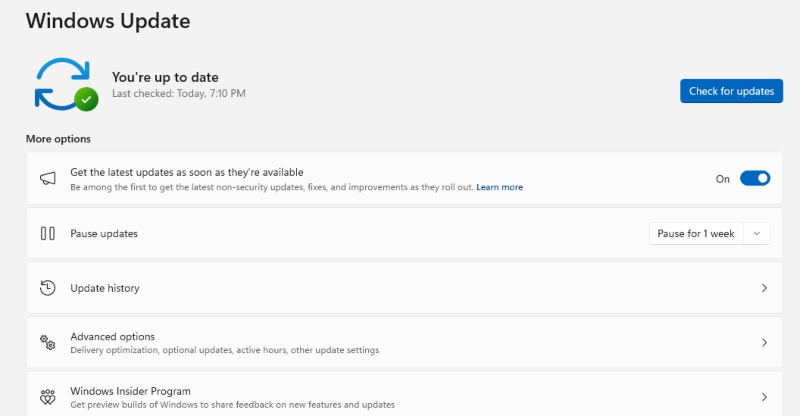
- Install the latest Windows security updates.
- Many attacks exploit outdated vulnerabilities.
Why Crypto-Mining Malware Keeps Returning
Some infections survive because attackers install multiple persistence mechanisms.
Common examples include:
- Scheduled tasks.
- Windows services.
- Registry entries.
- Startup folders.
- Malicious browser extensions.
- Remote access malware.
Removing only the mining process rarely solves the problem.
How to Prevent Future Crypto-Mining Malware
- Good security habits reduce your risk significantly.
- Always download software from trusted publishers.
- Keep Windows fully updated.
- Avoid cracked software.
- Do not disable real-time antivirus protection.
- Be cautious with email attachments.
- Monitor Task Manager occasionally for unusual resource usage.
Audit Your PC With Fortect
If you want to verify that nothing remains hidden after cleanup. Fortect offers another option worth considering.
Launch Fortect and click Scan to perform a complete system audit. It checks installed software. Drivers. Startup items. And system files for suspicious activity. It also identifies outdated or corrupted drivers that attackers often exploit.
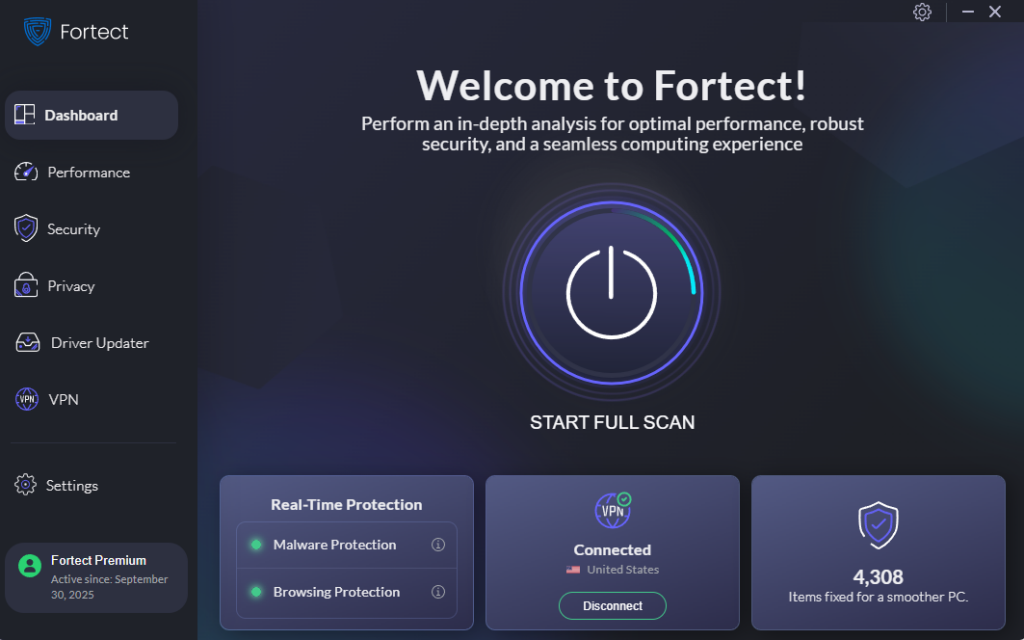
Its real-time malware protection detects threats, including crypto-mining malware in background tasks. It removes active infections and restores damaged Windows system files when possible. Beyond malware protection. Fortect also cleans junk files and removes leftovers from crashed programs to improve overall system performance.
If your computer feels unusually slow or repeatedly shows signs of infection. Running a full Fortect scan is a practical next step to identify hidden problems and restore your system safely.
Download and install Fortect now.
Frequently Asked Questions
Can Windows Defender detect crypto-mining malware?
Windows Defender detects many miners. However, sophisticated variants sometimes use advanced persistence methods. Running additional scans may uncover hidden components.
Is crypto-mining malware dangerous?
Yes. It shortens hardware lifespan through constant heavy usage. It also increases electricity costs and may install additional malware.
Can crypto miners steal personal data?
Some mining malware only mines cryptocurrency. Others include spyware or remote access tools that steal passwords and sensitive information.
Why is my CPU always at 100 percent?
Hidden crypto miners commonly cause constant processor usage. Other malware or failing software can produce similar symptoms.





