SOLVED: Indirect Prompt-Injection Attacks on AI Browsers
AI-powered browsers are revolutionizing the way we search, shop, and browse online. But there’s a hidden danger lurking beneath their convenience: indirect prompt-injection attacks. These sophisticated threats can trick your AI browser into executing malicious commands without your knowledge, compromising your privacy and security.
If you’re using AI features in Edge, Chrome, or other browsers on Windows, understanding these attacks and protecting yourself is crucial. Here’s everything you need to know to stay safe.
What Are Indirect Prompt-Injection Attacks?
Indirect prompt-injection attacks occur when malicious actors embed hidden instructions into web content that AI browsers read and process. Unlike direct attacks, where someone types commands into a chatbot, these attacks are invisible; they’re hidden in websites, emails, or documents you visit.
When your AI browser encounters this poisoned content, it follows the embedded instructions as if they were legitimate commands. This can lead to data theft, unauthorized actions, or manipulated search results that serve the attacker’s goals rather than yours.
How These Attacks Target Windows Users
Windows users face unique vulnerabilities because many AI-powered browsers integrate deeply with the operating system. Features like Copilot in Edge or AI assistants that access your files and settings create more attack surfaces. Hackers can exploit these integrations to access your documents, emails, or even execute system commands through cleverly crafted web content.
Real-World Risks You Need to Know
The dangers of prompt-injection attacks extend beyond theoretical concerns. Here’s what attackers can actually do:
- Data Exfiltration: Hidden prompts can instruct your AI browser to extract sensitive information from your browsing history, saved passwords, or personal files and send them to external servers.
- Malicious Redirects: Attackers can manipulate AI-generated search results to redirect you to phishing sites or malware-infected pages that look legitimate.
- Unauthorized Actions: Your AI assistant might be tricked into performing actions like sending emails, making purchases, or modifying system settings without your explicit permission.
- Privacy Violations: Embedded commands can force your AI browser to share your conversations, queries, or personal data with third parties.
How to Protect Your Windows PC from AI Browser Attacks
Securing your system against indirect prompt-injection attacks requires a multi-layered approach. Follow these practical steps to minimize your risk.
Strengthen Your PC Security with Fortect

Before diving into manual configurations, consider adding an extra layer of automated protection. Fortect delivers advanced real-time malware protection for Windows users. It automatically scans your PC for traditional and emerging threats, including indirect prompt-injection attacks, eliminates them safely, and restores damaged system files for improved performance. Its smart threat-detection engine monitors suspicious activity and alerts you before harmful actions can take place, helping keep your device secure and running efficiently.
Fortect also comes with Fortect Browsing Protection extension that can help protect against indirect prompt-injection attacks on AI browsers. By blocking dangerous websites before they load, alerting you to suspicious pages, and removing harmful extensions, it reduces the risk that malicious prompts or scripts could compromise your browser or data. For Chrome users, the extension acts as a proactive layer of defense, helping prevent attacks that try to manipulate AI assistants through unsafe web content.
Download and install Fortect today.
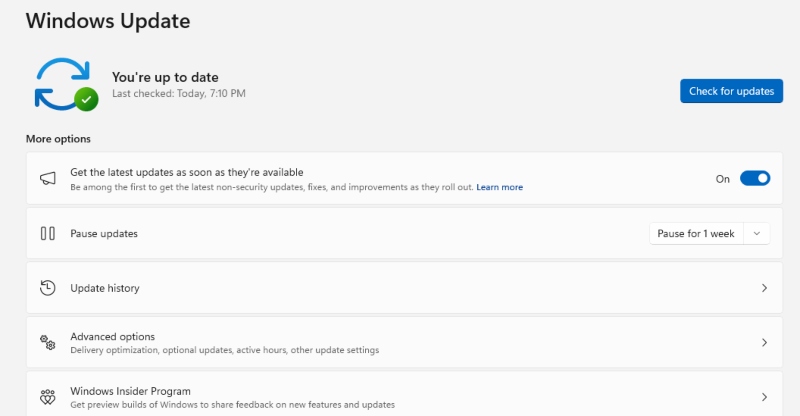
Step 1: Update Windows and Your Browser Regularly
For Windows 10:
- Click the Start button and select Settings (gear icon)
- Navigate to Update & Security
- Click Windows Update in the left panel
- Select Check for updates
- Install all available updates and restart your PC
For Windows 11:
- Press Windows + I to open Settings
- Click Windows Update in the left sidebar
- Select Check for updates
- Download and install all available updates
- Restart your computer when prompted
Keeping your system updated patches known vulnerabilities that attackers exploit for prompt-injection attacks.
Step 2: Configure AI Browser Security Settings
In Microsoft Edge:
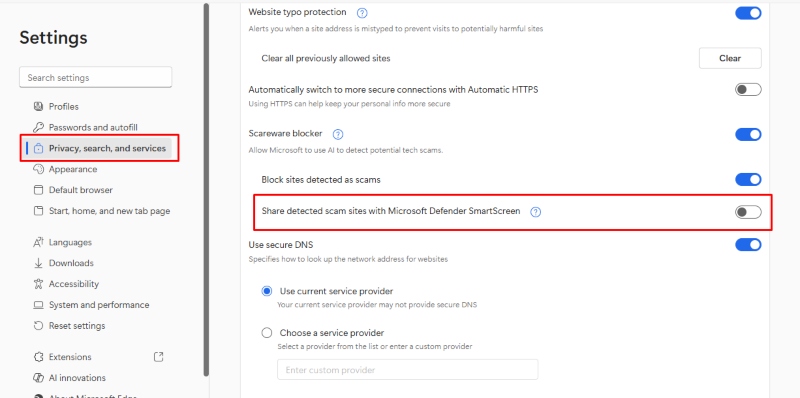
- Open Edge and click the three-dot menu (top-right corner)
- Select Settings
- Go to Privacy, search, and services
- Under Security, enable Microsoft Defender SmartScreen
- Scroll to Services and review AI feature permissions
- Disable any AI integrations you don’t actively use
In Chrome with AI Features:
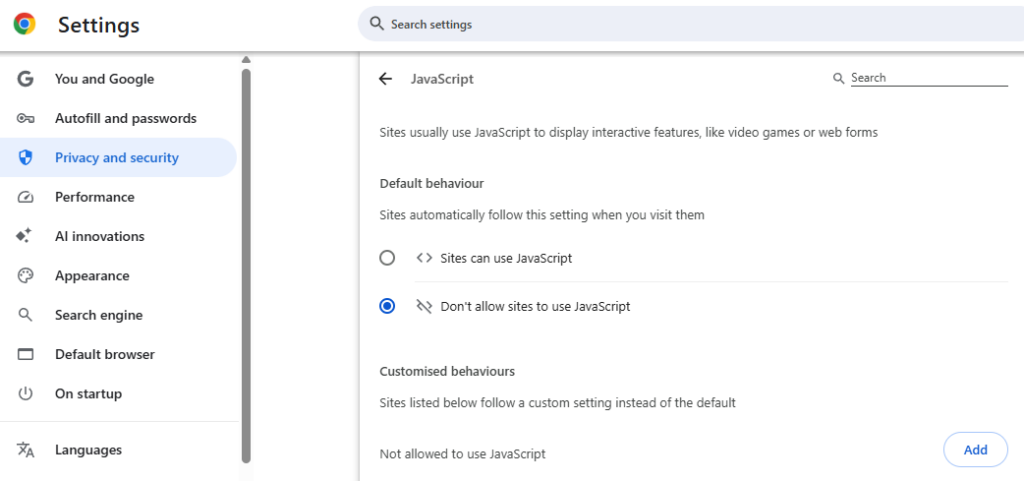
- Open Chrome and type chrome://settings in the address bar
- Click Privacy and security in the left menu
- Select Site Settings
- Review and restrict permissions for JavaScript and third-party cookies
- Under Additional permissions, limit AI assistant access
Step 3: Restrict Browser Access to Sensitive Data
Limit what your AI browser can access on your Windows PC:
- Open Settings (Windows + I)
- Navigate to Privacy & security
- Click App permissions in the left panel
- Review permissions for your browser under categories like:
- Documents
- Pictures
- File system
- Contacts
- Toggle off permissions your browser doesn’t need
Step 4: Use Content Filtering and Script Blocking
Install browser extensions that block suspicious scripts and content:
- uBlock Origin: Blocks malicious scripts and ads that may contain hidden prompts
- NoScript: Allows you to whitelist trusted sites while blocking JavaScript from unknown sources
- Privacy Badger: Prevents trackers that could inject malicious content
Enable these extensions to create an additional barrier against prompt-injection attacks.
Best Practices for Safe AI Browser Usage
Beyond technical configurations, adopt these habits to protect yourself:
- Verify AI Responses: Don’t blindly trust AI-generated answers, especially for sensitive tasks like financial transactions or sharing personal information.
- Limit AI Permissions: Only grant your AI browser access to features and data it absolutely needs to function.
- Use Separate Profiles: Create different browser profiles for work, personal browsing, and AI experimentation to compartmentalize potential damage.
- Stay Informed: Follow security news and updates about AI browser vulnerabilities affecting Windows users.
- Clear Browsing Data Regularly: Remove cookies, cache, and browsing history weekly to eliminate potentially compromised data.
The Future of AI Browser Security
As AI browsers evolve, so do the attacks targeting them. Microsoft, Google, and other developers are working on solutions like input sanitization, context isolation, and improved prompt validation. However, user vigilance remains your strongest defense.
By implementing these protections on your Windows PC, you can enjoy the benefits of AI-powered browsing while minimizing exposure to indirect prompt-injection attacks. Stay proactive, keep your systems updated, and remember: when it comes to AI security, prevention is always better than cure.