
Signs of Identity Theft and How to Recover on Windows
Identity theft affects millions of people every year, turning victims’ lives upside down as criminals exploit personal information for financial gain. Windows users are particularly vulnerable due to the operating system’s widespread use and the sensitive data stored on personal computers. Recognizing the warning signs early and knowing how to respond can mean the difference between minor inconvenience and devastating financial loss.
Warning Signs Your Identity Has Been Compromised
Unusual Financial Activity
The most obvious red flag is unauthorized transactions appearing on your bank statements or credit cards. You might notice unfamiliar charges, withdrawals you didn’t make, or accounts opened in your name. Check your financial statements regularly and set up alerts through your banking apps to catch suspicious activity immediately.
Unexpected Account Changes
If you receive password reset emails you didn’t request, notice your Windows login credentials no longer work, or find new user accounts on your computer, someone may have gained unauthorized access. Identity thieves often change passwords to lock you out while they harvest more information.
Strange System Behavior on Your PC
Your Windows computer might exhibit unusual behavior if compromised. This includes unexpected pop-ups, browser redirects to unfamiliar websites, slow performance, or programs launching automatically at startup. Your antivirus software might be disabled, or you might see security warnings you’ve never encountered before.
Communication Anomalies
Missing bills or statements could indicate someone has changed your mailing address. You might receive collection calls for debts you don’t recognize, or friends and family report receiving suspicious emails or messages supposedly from you.
Credit Report Irregularities
Accounts, inquiries, or addresses you don’t recognize on your credit report are serious warning signs. The Federal Trade Commission recommends checking your credit reports from all three bureaus annually at AnnualCreditReport.com.
Immediate Actions to Take When Identity Theft Occurs
Secure Your Windows Computer
Your priority is preventing further data exposure. Disconnect your computer from the internet immediately by disabling Wi-Fi or unplugging your ethernet cable. This stops malware from transmitting more data and prevents remote access.
Run a complete system scan using Windows Security:
Windows 10:
- Click the Start button and select Settings (gear icon)
- Navigate to Update & Security
- Click Windows Security in the left sidebar
- Select Virus & threat protection
- Click Scan options
- Choose Full scan and click Scan now
Windows 11:
- Click Start and select Settings
- Choose Privacy & security from the left menu
- Click Windows Security
- Select Virus & threat protection
- Click Scan options
- Select Full scan and click Scan now
Allow the scan to complete fully, even if it takes several hours. Remove any detected threats immediately.
Change All Passwords and PINs
After cleaning your system, update every password, starting with your Windows account, email, banking, and other financial accounts. Create strong, unique passwords for each account using a combination of letters, numbers, and symbols.
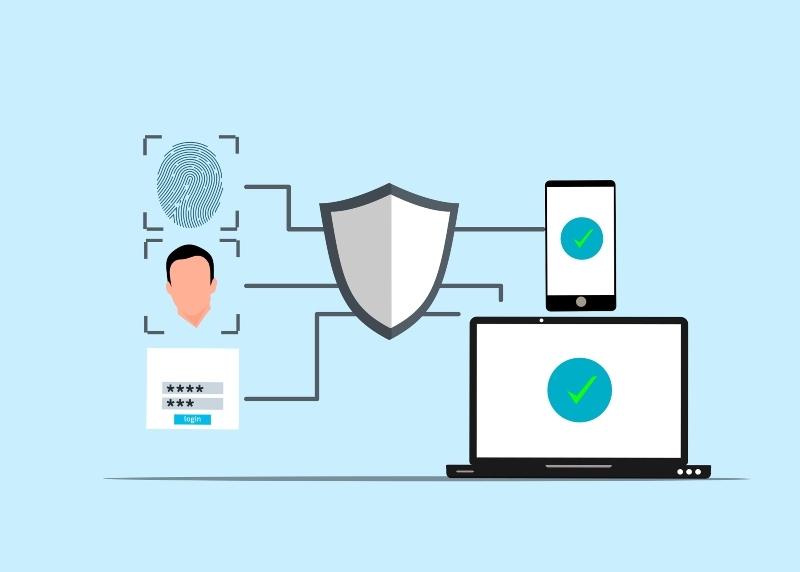
To change your Windows password:
Windows 10/11:
- Press Ctrl + Alt + Delete simultaneously
- Select Change a password
- Enter your current password
- Type your new password twice
- Click the arrow or press Enter
Enable two-factor authentication wherever available for an additional security layer.
Contact Financial Institutions
Call your bank and credit card companies immediately to report the theft and freeze your accounts. Request new cards with different numbers. Place a fraud alert or credit freeze with the three major credit bureaus: Equifax, Experian, and TransUnion. A credit freeze prevents criminals from opening new accounts in your name.
File Official Reports
Report the identity theft to the Federal Trade Commission at IdentityTheft.gov. This creates an official recovery plan and provides an Identity Theft Report. File a police report with your local law enforcement agency, bringing your FTC Identity Theft Report and any supporting documentation.
Long-Term Recovery and Prevention Strategies
Strengthen Your PC Security with Fortect
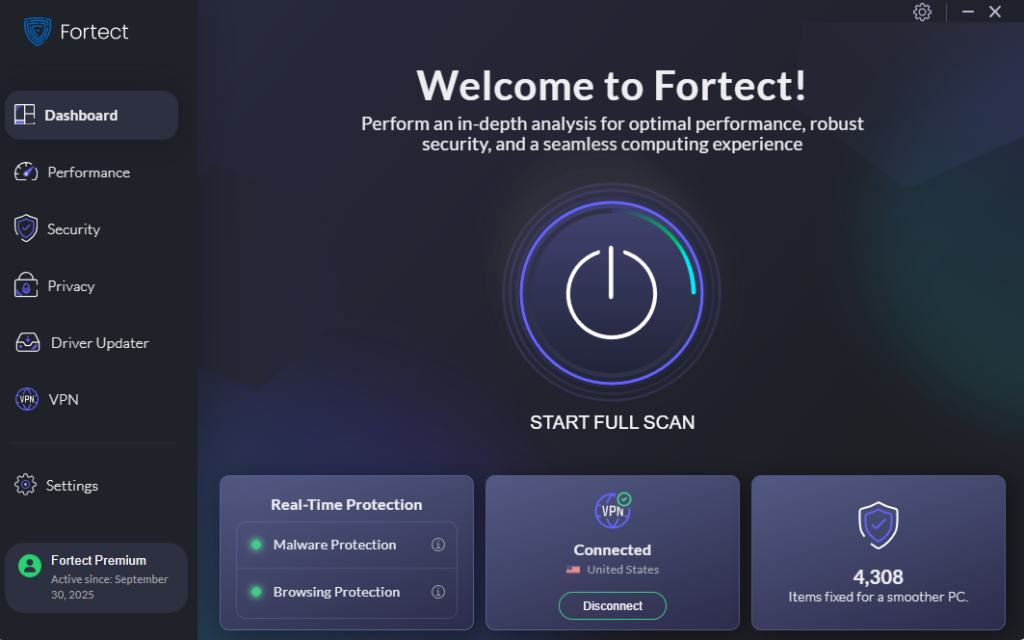
Fortect delivers advanced real-time malware protection for Windows users facing identity theft risks. It automatically scans your PC for traditional and emerging threats, including keyloggers, spyware, and data-stealing malware that enable identity theft, eliminates them safely, and restores damaged system files for improved performance. Its smart threat-detection engine monitors suspicious activity like unauthorized access attempts and credential harvesting, alerting you before harmful actions can compromise your personal information.
By keeping your device secure and running efficiently, Fortect provides an essential layer of defense against identity theft.
Download and install Fortect today.
Update and Protect Your Windows System
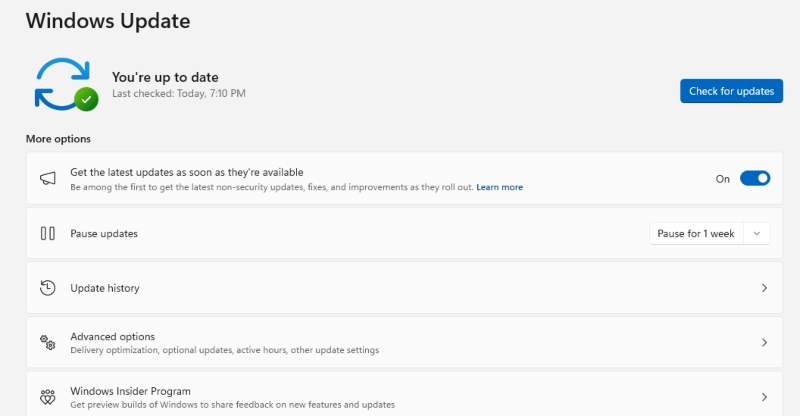
Keeping Windows updated closes security vulnerabilities that identity thieves exploit.
Windows 10:
- Open Settings from the Start menu
- Click Update & Security
- Select Windows Update
- Click Check for updates
- Install all available updates and restart if prompted
Windows 11:
- Open Settings
- Click Windows Update in the left panel
- Click Check for updates
- Install all updates and restart your computer
Enable automatic updates to ensure continuous protection.
Monitor Your Accounts and Credit
Review financial statements weekly and credit reports monthly during the recovery period. Consider enrolling in a credit monitoring service that alerts you to changes in your credit file. Keep detailed records of all communications with banks, creditors, and law enforcement.
Strengthen Windows Security Settings
Enable Windows Defender Firewall and ensure real-time protection remains active. Avoid saving passwords in browsers and consider using a reputable password manager instead.
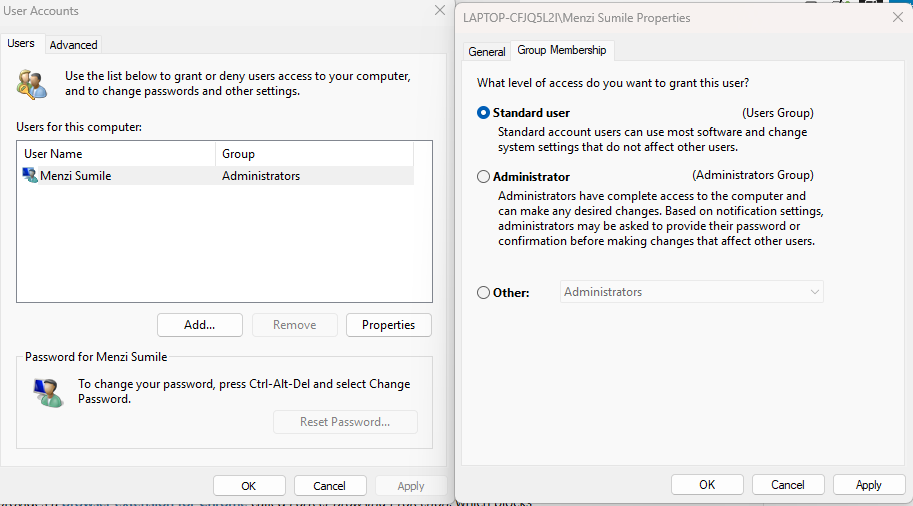
Restrict user permissions on your computer:
Windows 10/11:
- Open Settings
- Select Accounts
- Click Family & other users
- Review user accounts and remove any you don’t recognize
- Ensure your account type is Administrator
- Set other users as Standard User unless they need admin access
Practice Safe Computing Habits
Never click links or download attachments from unknown senders. Shop only on secure websites (look for “https” in the URL). Use secure, password-protected Wi-Fi networks, and avoid conducting financial transactions on public Wi-Fi. Back up important files regularly to an external drive or secure cloud storage.
Moving Forward After Identity Theft
Recovery from identity theft takes time, often several months to fully resolve all fraudulent accounts and restore your credit. Stay persistent, document everything, and don’t hesitate to seek help from identity theft recovery services or consumer protection agencies. The experience, while stressful, becomes manageable with systematic action and ongoing vigilance.
By recognizing warning signs quickly and following proper recovery procedures on your Windows computer, you can minimize damage and reclaim your identity. Remember that prevention through strong security practices and regular monitoring remains your best defense against future attacks.





