
Preventing Network Lateral Movement in Windows PCs
Network lateral movement is a sophisticated technique used by cybercriminals to spread malware, gain unauthorized access, and escalate privileges within a network. While often associated with enterprise attacks, Windows PC users are not immune. If a hacker gains access to your device, they can attempt to move laterally across your network, potentially compromising other connected devices, personal files, and sensitive accounts.
Understanding network lateral movement and learning how to prevent it is crucial for keeping your Windows PC secure.
What Is Network Lateral Movement?
Network lateral movement occurs when an attacker who has already breached a device tries to access other devices or systems within the same network. Instead of targeting multiple devices individually, hackers exploit vulnerabilities on one PC to move across the network, often using stolen credentials, malware, or remote access tools.
Common goals include stealing data, spreading ransomware, or using your system as a gateway to more valuable targets. Understanding these steps highlights why proactive prevention on your own Windows PC is critical.
How Hackers Use Lateral Movement
Attackers typically follow these steps during lateral movement: Initial compromise often starts with phishing emails, malicious downloads, or vulnerable software on a Windows PC. Hackers then escalate privileges to increase control over your system. They steal credentials using malware or keyloggers, and finally propagate across other connected devices, shared folders, or network drives. This is why securing a single PC can prevent wider network compromise.
Signs Your PC May Be Experiencing Lateral Movement
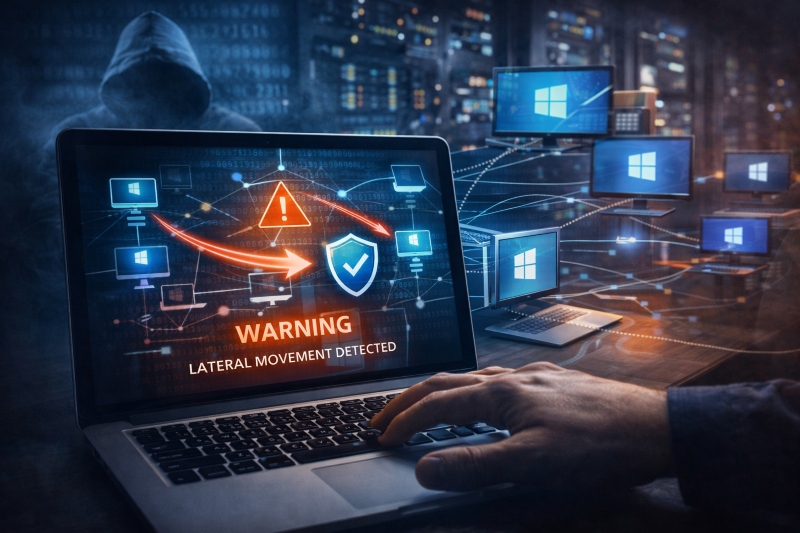
Detecting lateral movement early can limit damage. Common signs include unexplained slowdowns or system lag, unauthorized logins or failed login attempts, unknown programs running in the background, and unexpected changes in files or shared folders. If you notice any of these, it’s important to act quickly to secure your PC and network.
How to Prevent Network Lateral Movement on Windows 10/11
Preventing lateral movement involves combining proper system configuration, regular updates, and safe computing practices. Here’s a detailed guide for Windows users:
- Keep Your Windows PC Updated: Press Windows + I to open Settings. Click Update & Security (Windows 10) or Windows Update (Windows 11). Select Check for updates and install any available updates. Restart your PC if prompted to apply changes. Regular updates patch vulnerabilities that attackers exploit to move laterally.
- Enable Windows Firewall and Network Segmentation: Firewalls control incoming and outgoing traffic, reducing unauthorized access. Go to Control Panel > System and Security > Windows Defender Firewall. Ensure it’s on for both private and public networks. For advanced users, consider setting up separate networks for sensitive devices to limit lateral movement.
- Restrict User Accounts and Privileges: Limiting user access prevents malware from escalating privileges. Press Windows + X and select Computer Management. Click Local Users and Groups > Users. Right-click on accounts and choose Properties > Member Of. Assign Standard User roles for non-admin accounts. Only keep trusted accounts as Administrators.
- Use Strong Passwords and Multi-Factor Authentication: Strong, unique passwords make it harder for attackers to steal credentials. Press Windows + I, go to Accounts > Sign-in options. Enable Windows Hello or set up PIN/biometric authentication. For online accounts, use MFA to add an extra layer of security.
- Monitor and Limit Shared Folders: Shared folders are common targets for lateral movement. Right-click the folder, select Properties > Sharing > Advanced Sharing. Uncheck Share this folder if not needed. Click Permissions and limit access to specific accounts. This ensures malware cannot use shared folders to spread across your network.
- Install Reputable Security Software: A comprehensive antivirus or endpoint protection tool can block malicious software that facilitates lateral movement. Fortect delivers advanced real-time malware protection for Windows users, detecting threats including network lateral movement, removing them safely, and repairing any system damage. Using Fortect alongside these steps adds a critical layer of defense, helping stop attackers from moving laterally across your network.
Strengthen Your PC Security with Fortect
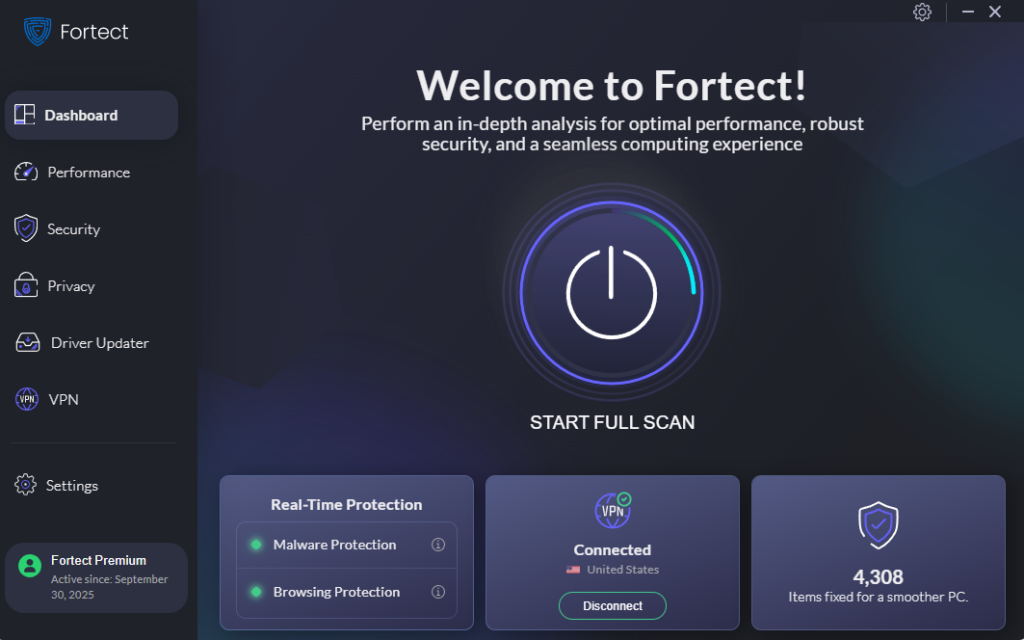
Fortect delivers advanced real-time malware protection for Windows users. It automatically scans your PC for traditional and emerging threats, including network lateral movement, eliminates them safely, and restores damaged system files for improved performance. Its smart threat-detection engine monitors suspicious activity and alerts you before harmful actions can take place, helping keep your device secure and running efficiently. Using Fortect alongside the steps above ensures that attempts to move laterally across your network are detected and blocked before they can cause damage.
Download and install Fortect today.
Best Practices to Reduce Risk
Even with security measures in place, personal habits play a crucial role: avoid clicking unknown links in emails or SMS messages, don’t download files from untrusted sources, use a separate network for IoT devices or guests, and regularly back up your files to an offline or cloud storage solution. These habits make it harder for attackers to exploit vulnerabilities and move laterally within your network.
Conclusion
Network lateral movement is a serious threat, even for personal Windows PC users. Attackers use compromised devices to gain access to connected systems, steal sensitive information, and deploy malware. By keeping your Windows system updated, limiting user privileges, monitoring shared folders, using strong passwords with MFA, and employing security tools like Fortect, you can significantly reduce the risk of lateral movement. Combining technical safeguards with safe computing practices ensures your PC and your network remain secure against evolving cyber threats.




