Malicious PDFs: How to Detect and Remove Them
PDF files have become a staple in our digital lives, but they’re also a favorite weapon for cybercriminals. A malicious PDF can infect your Windows computer with malware, steal your personal information, or compromise your entire system. Understanding how to identify and eliminate these threats is essential for protecting your data and privacy.
What Makes a PDF Malicious?
A malicious PDF is a document embedded with harmful code designed to exploit vulnerabilities in PDF readers or your operating system. These files often appear legitimate, arriving as email attachments, download links, or shared documents that seem harmless at first glance.
Common threats hidden in PDFs include ransomware that locks your files, spyware that monitors your activity, trojans that create backdoors for hackers, and phishing scripts that steal login credentials. Cybercriminals craft these documents to look authentic, making detection challenging without proper knowledge.
Warning Signs of a Suspicious PDF
Before Opening the File
Several red flags should make you pause before opening any PDF. Unexpected attachments from unknown senders represent a major warning sign, especially when the email creates urgency or uses scare tactics. File names with strange characters, random strings, or spelling errors often indicate malicious intent.
Check the file extension carefully. While legitimate PDFs end in .pdf, malicious files might use double extensions like “invoice.pdf.exe” to trick you. Additionally, files received through suspicious download links or unfamiliar websites deserve extra scrutiny.
After Opening the File
When you open a PDF, certain behaviors should raise immediate concerns. Legitimate documents rarely request permission to run scripts or macros. If a PDF prompts you to enable content, disable security settings, or install additional software, close it immediately.
Other suspicious activities include automatic downloads starting without your permission, your antivirus software triggering warnings, unexpected system slowdowns, or the PDF reader crashing repeatedly.
How to Scan and Detect Malicious PDFs on Windows 10/11
Using Windows Security
Windows 10 and 11 include built-in protection that can identify many PDF threats.
1: Right-click the suspicious PDF file in File Explorer.
2: Select “Scan with Microsoft Defender” from the context menu.
3: Wait for the scan to complete. Windows Security will alert you if threats are detected.
4: For a more thorough check, open Windows Security by pressing Windows key + I, then navigate to Privacy & Security > Windows Security > Virus & threat protection.
5: Click “Scan options” and select “Custom scan” to specifically target the folder containing your PDF.
Using Online Scanning Tools
For additional verification, upload suspicious PDFs to reputable online scanners like VirusTotal. These services analyze files using multiple antivirus engines, providing comprehensive threat detection. Never upload confidential documents containing personal information to public scanning services.
Strengthen Your PC Security with Fortect
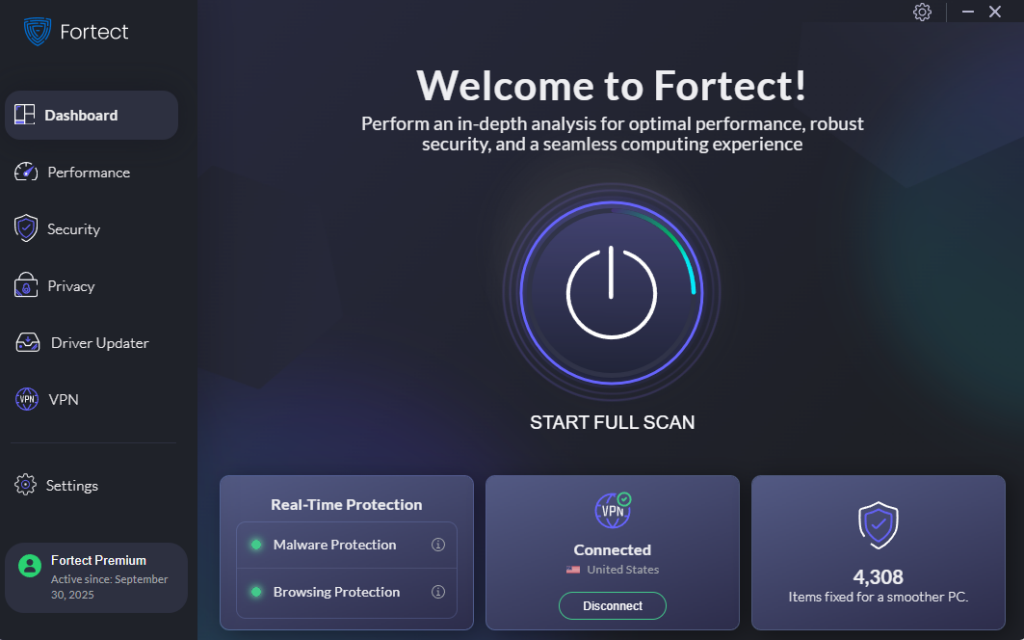
Fortect delivers advanced real-time malware protection specifically designed for Windows users facing document-based threats. It automatically scans your PC for traditional and emerging threats, including malicious PDFs, eliminates them safely, and restores damaged system files for improved performance. Its smart threat-detection engine monitors suspicious activity and alerts you before harmful actions can take place, helping keep your device secure and running efficiently while you handle everyday documents.
With malicious PDFs increasingly being used to deliver malware, keeping your online connections secure is more important than ever. The new Fortect Premium now includes a built-in VPN with Auto-Protect for public Wi-Fi, ensuring your internet connection stays safe even on open networks.
Encrypting your traffic, it protects your data from hackers who often exploit unsecured connections, a common way malicious PDFs and other threats can infiltrate your system. With Fortect Premium, you can download and open PDFs safely, browse, and work online without risking exposure to hidden malware or zero-day attacks.
Download and install Fortect now.
Fortect for Mac
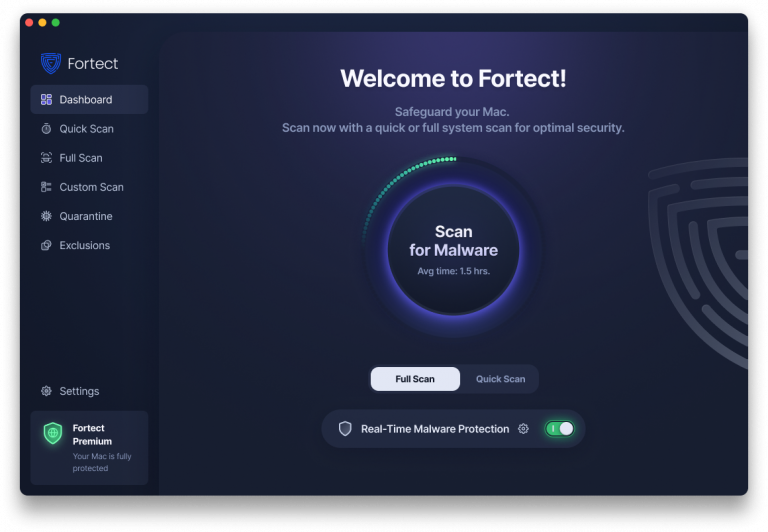
Cybercriminals are no longer targeting only Windows users. Mac users are increasingly at risk from sophisticated threats like malicious PDFs, ransomware, spyware, and stealth attacks designed to bypass macOS’s built-in defenses. A single infected PDF can compromise sensitive data, spread malware, or even deliver hidden ransomware. Relying solely on Apple’s native security is no longer enough to stay safe.
Fortect for Mac delivers intelligent, real-time protection that works alongside macOS security, filling critical gaps attackers often exploit. It shields your system from malicious files you may not even know exist, including dangerous PDFs downloaded from emails, cloud storage, or websites.
Fortect for Mac protection includes always-on real-time malware defense to instantly detect and block threats without slowing your workflow, cloud-based threat intelligence for rapid detection of new and emerging malware, quick smart scans for fast identification of risky files, and full system scans that thoroughly check your entire Mac to remove hidden malware and infected PDFs, providing complete peace of mind.
How to Remove Malicious PDFs from Windows
Quarantine and Delete the File
1: Do not open the suspicious PDF. If already open, close the PDF reader immediately.
2: Open Windows Security (Windows key + I > Privacy & Security > Windows Security).
3: Click “Virus & threat protection” and then “Protection history.”
4: Review detected threats. Any malicious PDF should appear here with recommended actions.
5: Select “Quarantine” to isolate the file, then choose “Remove” to permanently delete it.
6: Empty your Recycle Bin by right-clicking it and selecting “Empty Recycle Bin.”
Perform a Full System Scan
1: Open Windows Security from the Start menu.
2: Navigate to Virus & threat protection > Scan options.
3: Select “Full scan” and click “Scan now.”
4: This comprehensive scan checks all files and running programs, taking 30-60 minutes depending on your system.
5: Review the results and follow any recommended actions for detected threats.
Prevention: Keeping Your Windows PC Safe
Update Windows and PDF Readers Regularly
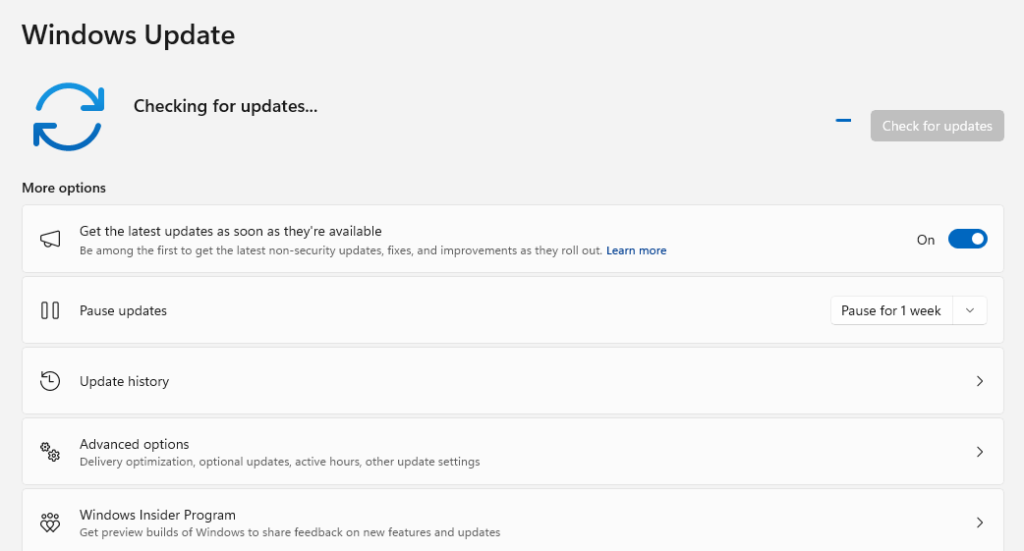
S1: Press Windows key + I to open Settings.
2: Click “Windows Update” in the left sidebar.
3: Click “Check for updates” and install all available updates.
4: Enable automatic updates by clicking “Advanced options” and ensuring “Receive updates for other Microsoft products” is turned on.
For your PDF reader, regularly check for updates within the application or download the latest version from the official website.
Practice Safe PDF Handling
Never open PDF attachments from unknown senders or unexpected sources. Verify sender authenticity before downloading files, even from familiar contacts whose accounts might be compromised. Keep your antivirus software active and updated, and avoid downloading PDFs from suspicious websites or pop-up advertisements.
Configure your PDF reader’s security settings to disable automatic execution of JavaScript and block external content loading. This adds an extra layer of protection against embedded threats.
In a Nutshell
Malicious PDFs represent a serious threat to Windows users, but awareness and proactive measures dramatically reduce your risk. By recognizing warning signs, scanning files before opening them, and maintaining updated security software, you can protect your computer and personal information from these digital dangers. Stay vigilant, trust your instincts, and never hesitate to delete questionable files.