
How to Stop the ClickFix Fake Windows Update Attack
The ClickFix attack has emerged as a serious cybersecurity threat targeting Windows users through deceptive fake update prompts. This malicious campaign tricks unsuspecting users into executing harmful PowerShell commands disguised as legitimate Windows updates. Understanding how this attack works and implementing protective measures is crucial for safeguarding your personal computer and data.
What is the ClickFix Attack?
ClickFix is a sophisticated social engineering attack that exploits user trust in Windows update notifications. Cybercriminals create convincing fake update windows that mimic legitimate Microsoft update prompts. When users click on these fraudulent notifications, they unknowingly execute malicious code that can compromise their system security, steal personal information, or install malware.
The attack typically arrives through phishing emails, compromised websites, or malicious advertisements. The fake update window appears authentic, complete with Microsoft branding and familiar update language, making it difficult for average users to distinguish between real and fake prompts.
How Does ClickFix Work?
The Infection Process
The ClickFix attack follows a multi-step process to compromise your system. First, attackers distribute malicious links through various channels, including email attachments, social media messages, or pop-up advertisements. When you click on these links, a webpage opens displaying what appears to be a legitimate Windows update notification.
The fake update prompt instructs you to copy and paste a command into PowerShell or Command Prompt to “fix” an issue or complete the update. This command actually downloads and executes malware on your computer. The malicious code can steal passwords, banking information, personal files, or install ransomware that locks your system.
Warning Signs of ClickFix
Several red flags can help you identify a ClickFix attack. Legitimate Windows updates never ask you to manually copy and paste commands into PowerShell. If an update prompt requests this action, it’s almost certainly malicious. Additionally, authentic Windows updates occur through the Windows Update settings panel, not through web browsers or email links.
Other warning signs include spelling errors in the update notification, urgent language pressuring you to act immediately, and update prompts appearing on websites unrelated to Microsoft.
How to Protect Yourself from ClickFix
Strengthen Your PC Security with Fortect
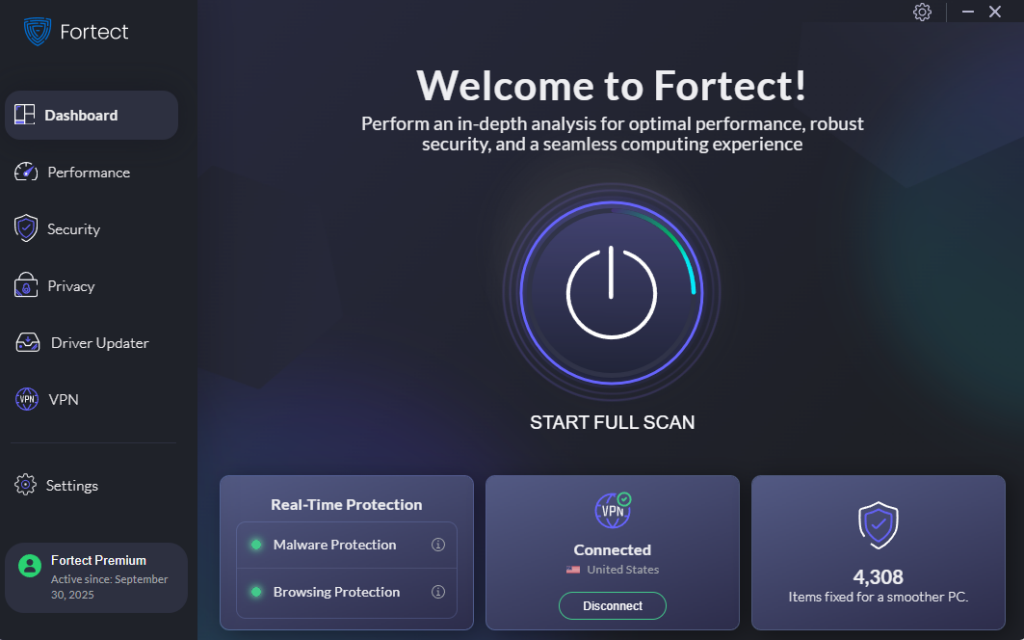
Fortect delivers advanced real-time malware protection for Windows users. It automatically scans your PC for traditional and emerging threats, including ClickFix malware, eliminates them safely, and restores damaged system files for improved performance. Its smart threat-detection engine monitors suspicious activity and alerts you before harmful actions can take place, helping keep your device secure and running efficiently. By integrating Fortect into your security strategy, you add an extra layer of defense against sophisticated attacks like ClickFix.
Download and install Fortect today.
Keep Windows Updated Through Official Channels
Steps to Update Windows 10/11:
- Press the Windows key and click on the gear icon to open Settings
- Select “Update & Security” (Windows 10) or “Windows Update” (Windows 11)
- Click “Check for updates”
- If updates are available, click “Download and install”
- Restart your computer when prompted to complete the installation
Never trust update prompts that appear outside this official Windows Update interface.
Enable Windows Defender and Keep It Updated
Windows Defender provides robust protection against malware and phishing attempts. Ensure it’s active and current by following these steps:
Steps to Check Windows Defender Status:
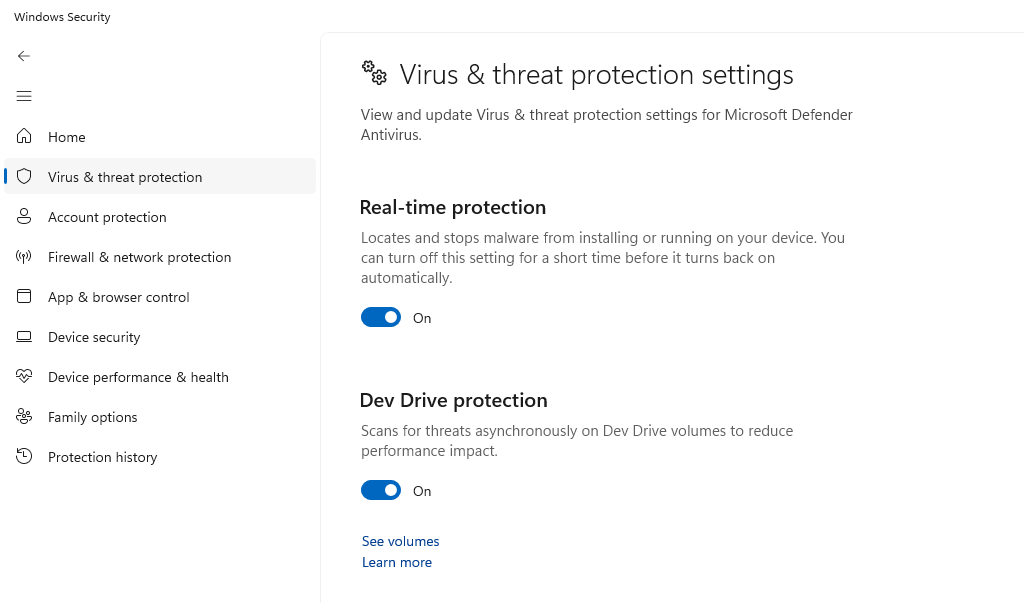
- Open Windows Security by typing “Windows Security” in the search bar
- Click “Virus & threat protection”
- Verify that real-time protection is turned on
- Click “Check for updates” under virus definitions
- Run a quick scan to ensure your system is clean
Configure PowerShell Execution Policy
Restricting PowerShell execution can prevent ClickFix attacks from running malicious scripts on your system.
Steps to Restrict PowerShell Execution:
- Right-click the Start button and select “Windows PowerShell (Admin)”
- Type the command: Set-ExecutionPolicy Restricted
- Press Enter and type “Y” to confirm
- Close the PowerShell window
This setting prevents unauthorized scripts from running, though it may affect legitimate scripts you want to run in the future.
Use a Reputable Antivirus Program
While Windows Defender offers solid protection, adding a third-party antivirus program provides an extra layer of security. Choose reputable security software from trusted vendors and keep it updated regularly.
Enable User Account Control (UAC)
UAC helps prevent unauthorized changes to your computer by prompting you before allowing programs to make system modifications.
Steps to Enable UAC:
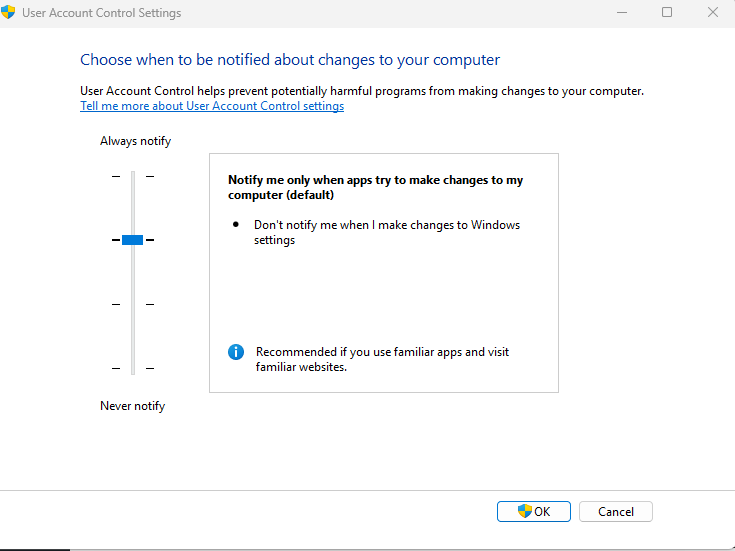
- Type “UAC” in the Windows search bar
- Click “Change User Account Control settings”
- Move the slider to at least the third notch from the bottom
- Click “OK” and restart your computer if prompted
Practice Safe Browsing Habits
Avoid clicking on suspicious links in emails, social media messages, or pop-up advertisements. Be particularly cautious of messages that create a sense of urgency or offer deals that seem too good to be true. Always verify the sender’s identity before clicking any links or downloading attachments.
What to Do If You’ve Been Targeted
Immediate Actions
If you suspect you’ve fallen victim to a ClickFix attack, disconnect your computer from the internet immediately to prevent further data theft or malware spread. Run a full system scan using Windows Defender or your antivirus software.
Change all your passwords from a different, secure device, especially for banking, email, and social media accounts. Monitor your financial statements closely for any unauthorized transactions.
System Recovery
Consider performing a system restore to a point before the infection occurred. If the infection is severe, you may need to perform a clean Windows installation after backing up important files to an external drive.
Contact Microsoft Support or a professional computer technician if you’re unable to remove the malware yourself or if you’ve lost access to important files.
Conclusion
The ClickFix fake Windows update attack represents a growing threat to Windows users, but awareness and proper security measures can protect you from falling victim. Remember that legitimate Windows updates never require you to execute PowerShell commands manually. Always update Windows through the official Settings panel, maintain current security software, and exercise caution when clicking links from unknown sources. By following these guidelines and staying vigilant, you can significantly reduce your risk of falling prey to ClickFix and similar cyberattacks.





