How to Stop Malicious Plug-and-Play Device Attacks
Your computer’s USB ports are convenient, but they’re also vulnerable entry points for cyber threats. Malicious plug-and-play devices can compromise your Windows PC in seconds, stealing data, installing malware, or taking control of your system. Understanding how these attacks work and implementing proper protections will keep your personal information secure.
What Are Malicious Plug-and-Play Devices?

A malicious plug-and-play device is any hardware that connects to your computer through USB or other ports with harmful intent. These dangerous gadgets disguise themselves as innocent peripherals like flash drives, charging cables, or keyboards. Once connected, they exploit your system’s automatic device recognition to execute unauthorized commands, bypass security measures, or inject harmful code.
Common examples include BadUSB attacks, where modified USB devices mimic keyboards to type malicious commands, and juice jacking devices that compromise your system through charging ports. Attackers also use weaponized flash drives containing auto-executing malware that activates the moment you plug them in.
How Plug-and-Play Attacks Compromise Your Windows PC
When you connect any device to your Windows computer, the operating system automatically recognizes it and installs drivers. Cybercriminals exploit this convenience by creating devices that pretend to be trusted hardware. Your computer unknowingly grants these fake devices access, allowing them to steal passwords, install ransomware, or create backdoors for remote access.
These attacks work quickly, often within seconds of connection. Some devices can even bypass your login screen or disable security software before you realize anything is wrong.
How to Protect Your PC from Malicious Device Attacks
Use Fortect for Complete Protection
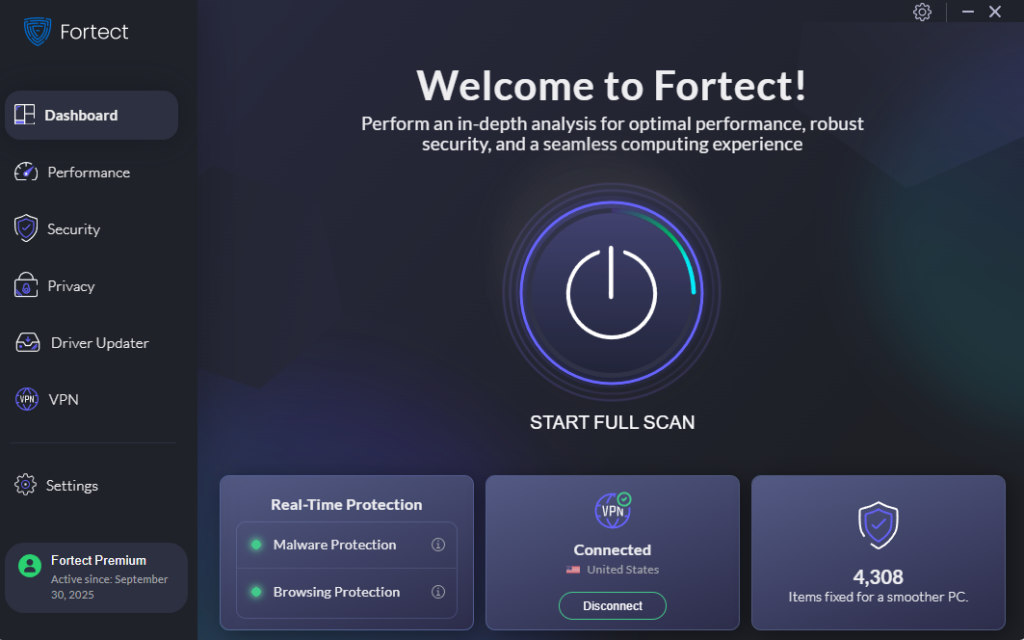
Fortect is a powerful and robust antivirus solution with real-time malware protection. It automatically scans your Windows PC for potential threats, such as malicious plug-and-play device attacks, removes them safely, and optimizes your system for smoother performance.
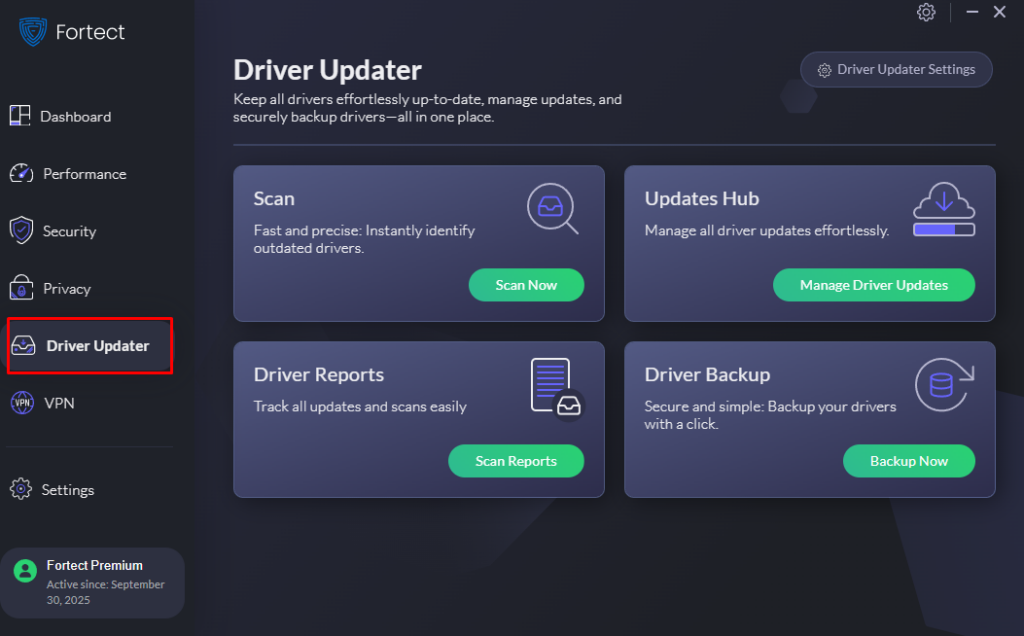
Fortect Premium also includes a built-in Driver Updater that automatically detects and replaces outdated or corrupted drivers with secure, verified versions from trusted sources. This matters a lot when dealing with malicious Plug-and-Play device attacks, because attackers often exploit vulnerable drivers to gain access or control over hardware components. By keeping every driver updated, stable, and protected, Fortect helps eliminate those security loopholes that could otherwise be abused. In my experience, maintaining clean and secure drivers not only strengthens your PC’s defenses but also keeps the system running faster, smoother, and far more reliably.
Download and install Fortect now.
Disable AutoPlay to Block Automatic Execution
AutoPlay automatically launches programs when you connect external devices, creating a dangerous vulnerability. Turning it off prevents malicious devices from running code without your permission.
Steps to Disable AutoPlay on Windows 10/11:
- Press the Windows key and type “AutoPlay settings”
- Click on “AutoPlay settings” from the search results
- Toggle the “Use AutoPlay for all media and devices” switch to Off
- Scroll down and set all device types to “Take no action”
- Close the settings window, changes save automatically
This simple adjustment adds a critical security layer by requiring manual approval before any connected device can execute programs.
Configure USB Device Restrictions Through Group Policy
Windows includes built-in controls that let you restrict which USB devices can connect to your computer. This prevents unauthorized hardware from functioning even when plugged in.
Steps to Restrict USB Devices on Windows 10/11 Pro:
- Press Windows key + R to open Run dialog
- Type “gpedit.msc” and press Enter
- Navigate to Computer Configuration > Administrative Templates > System > Device Installation > Device Installation Restrictions
- Double-click “Prevent installation of devices not described by other policy settings”
- Select “Enabled” and click Apply, then OK
- Return to Device Installation Restrictions folder
- Double-click “Allow installation of devices that match any of these device IDs”
- Click “Enabled,” then click “Show” to add trusted device IDs
- Click OK to save your settings
Note: Windows Home Edition doesn’t include Group Policy Editor. Home users should consider third-party USB management software or upgrade to Windows Pro for advanced security controls.
Keep Windows Updated Against Device Exploits
Microsoft regularly patches vulnerabilities that malicious devices exploit. Running outdated software leaves your system exposed to known attack methods that updates have already fixed.
Steps to Update Windows 10/11:
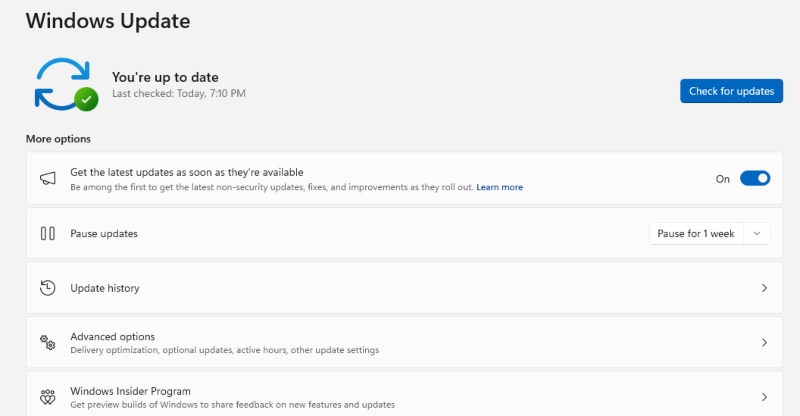
- Click the Start button and select Settings (gear icon)
- Click “Windows Update” (or “Update & Security” in Windows 10)
- Click “Check for updates”
- If updates are available, click “Download and install.”
- Restart your computer when prompted to completethe installation
- Enable automatic updates by clicking “Advanced options” and turning on “Receive updates for other Microsoft products.”
Set Windows to check for updates weekly to maintain protection against emerging threats targeting plug-and-play vulnerabilities.
Practice Safe Connection Habits
Technology alone isn’t enough; your behavior matters too. Never connect unfamiliar USB devices to your computer, even if you find them in public places or receive them as promotional gifts. Attackers often leave infected drives in parking lots, hoping someone will plug them in out of curiosity.
Use only your own charging cables and avoid public USB charging stations, which can be compromised with juice jacking hardware. When you must charge devices publicly, use AC adapters plugged directly into wall outlets instead of USB ports.
Before connecting any new device, scan it with updated antivirus software if possible. Consider using USB data blockers, small adapters that allow charging while preventing data transfer, when using unfamiliar charging stations.
Protect Your Personal Data Today
Malicious plug-and-play devices pose a real threat to Windows users, but these defenses significantly reduce your risk. Disable AutoPlay, configure device restrictions, maintain current updates, and stay cautious about what you connect. These straightforward measures create multiple security layers that protect your personal information from USB-based attacks. Take fifteen minutes today to implement these protections; your digital security is worth it.