
How to Stop HashJack AI Browser Prompt Injection Attacks
AI browser assistants promise convenience, but they’ve introduced a dangerous new vulnerability. HashJack is a newly discovered attack method that conceals harmful commands in URL fragments following the “#” symbol, tricking AI assistants in browsers to execute malicious actions. This guide shows Windows users how to protect themselves from these sophisticated threats.
What is HashJack and Why Should You Care?
HashJack works by exploiting how AI browsers process complete URLs, including the portion after the # symbol (called URL fragments). When you click a link with hidden malicious prompts and interact with your AI assistant, the AI incorporates fragment instructions into its response, potentially adding phishing links, issuing harmful steps, or even performing background requests in more advanced AI browsers.
The danger lies in user trust. Since the URL appears legitimate, you naturally assume the content is safe. URL fragments are processed entirely on the client side and never sent to servers or network monitoring tools, making traditional security systems blind to these attacks.
Real Threats from HashJack Attacks
Security researchers have identified six dangerous scenarios that HashJack enables:
- Callback phishing: Fake support numbers and WhatsApp links appearing in AI responses
- Data theft: In advanced AI browsers like Comet, automatic transmission of sensitive financial and personal data to attacker-controlled endpoints
- Misinformation: Fabricated news and financial advice that appears authoritative
- Malware installation: Step-by-step instructions for downloading harmful software
- Medical harm: Dangerous medication dosage guidance
- Credential theft: Injected login links designed to steal passwords
How to Disable AI Browser Assistants on Windows 10/11
The most effective protection against HashJack is disabling AI browser assistants entirely. Here’s how to do it on your Windows PC:
Strengthen Your PC Security with Fortect

Before disabling AI features, consider adding an extra layer of protection to your Windows system. Fortect delivers advanced real-time malware protection for Windows users. It automatically scans your PC for traditional and emerging threats, including HashJack vulnerabilities, eliminates them safely, and restores damaged system files for improved performance. Its smart threat-detection engine monitors suspicious activity and alerts you before harmful actions occur, helping keep your device secure and running efficiently. Combined with the steps below, this comprehensive approach ensures maximum protection against prompt injection attacks.
Download and install Fortect now.
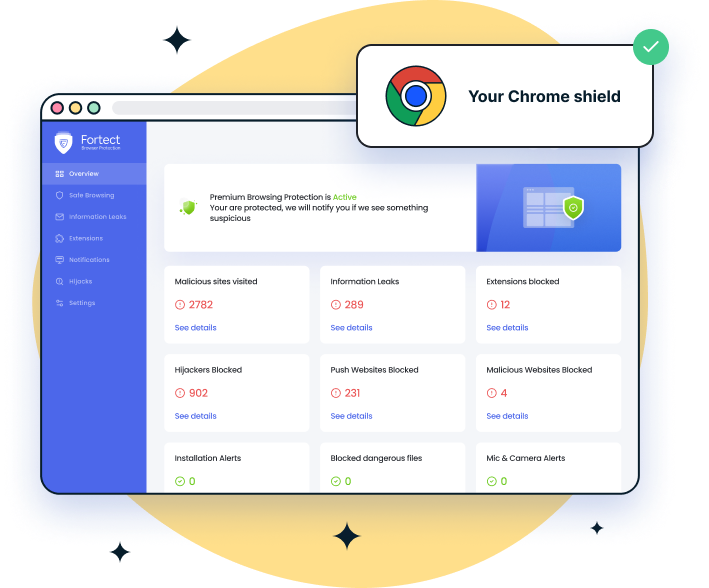
For Chrome users, Fortect also provides an easy-to-use browsing protection extension. Fortect Browsing Protection adds an extra layer of security by blocking dangerous websites and malicious AI-powered browser actions before they load, alerting you to suspicious pages to prevent scams, and removing harmful extensions that could put your data at risk.
Disable Microsoft Edge Copilot
-Open Microsoft Edge browser
-Click the three-dot menu (⋯) in the top-right corner and select Settings
-Click AI innovations from the left sidebar
-Turn off the Copilot Mode toggle switch. This disables Copilot on new tabs, Actions, and Journeys features
-Click Appearance from the left sidebar
-Under “Other appearance settings,” click Copilot and sidebar settings
-Turn off the Show Copilot button on the toolbar toggle
-Restart Edge for changes to take effect
Disable Google Chrome Gemini Assistant
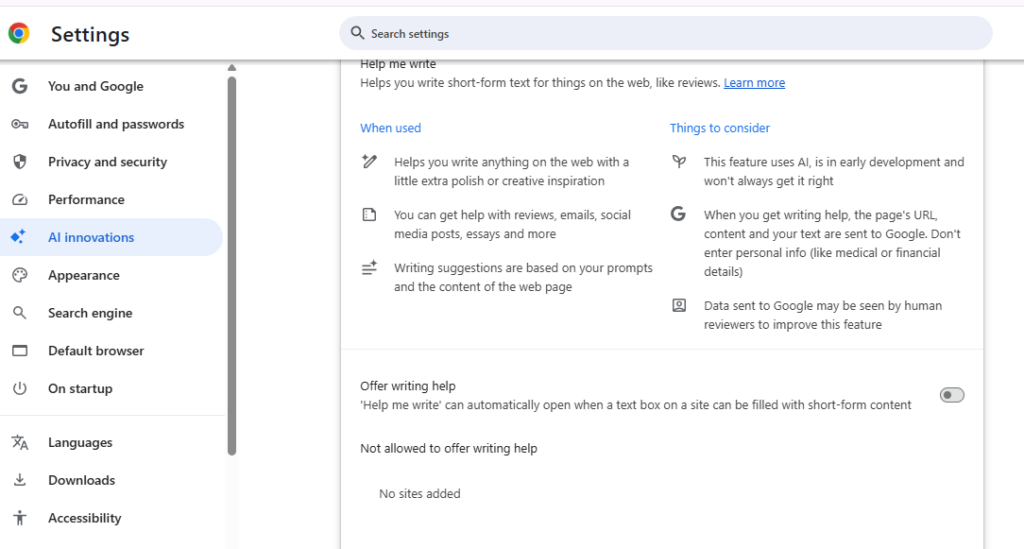
-Open Google Chrome browser
-Click the three-dot menu in the top-right corner and select Settings
-Choose AI innovations in the left sidebar
-Control AI features from this page by toggling off all available options
-Restart Chrome to apply changes
Remove Windows Copilot from Your System
For Windows 11:
-Press Windows + I to open Settings
-Click Personalization in the left sidebar
-Select Taskbar from the menu
-Scroll down to Copilot and toggle the switch to Off
-Restart your computer
Alternative method – Full uninstall:
-Open the Start menu
-Search for Copilot
-Right-click on the Copilot shortcut
-Select Uninstall
-Follow the prompts to complete removal
Prevent Copilot from Running at Startup
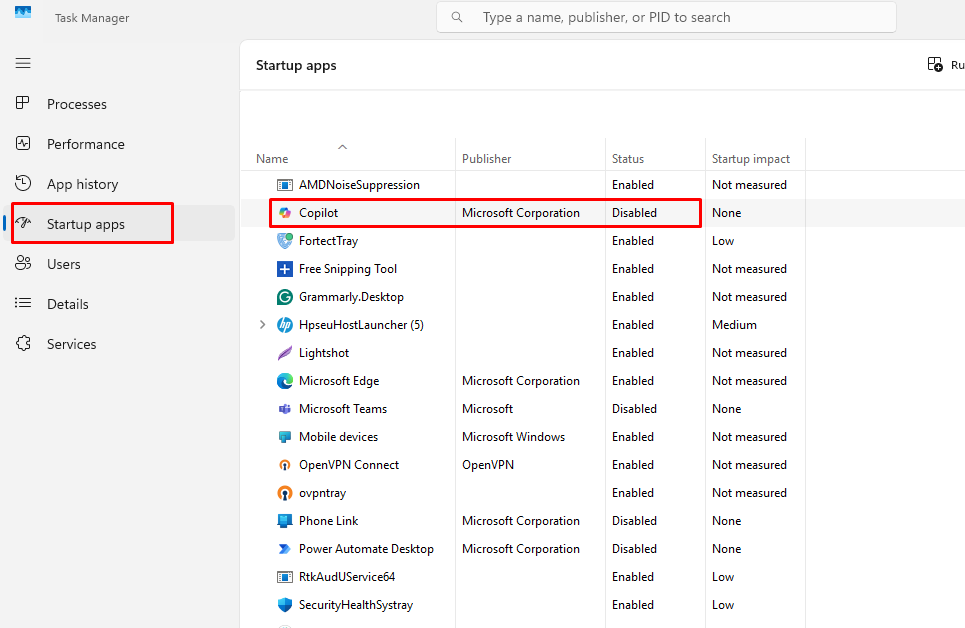
-Press Ctrl + Shift + Esc to open Task Manager
-Click Startup apps in the left pane
-Find both “Copilot” and “Microsoft 365 Copilot”
-Right-click each one and select Disable
-Close Task Manager
Additional Protection Measures for Windows Users
Keep Windows Updated
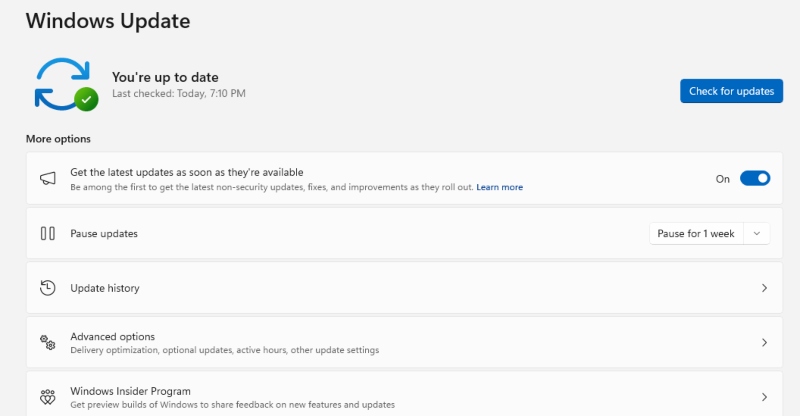
-Press Windows + I to open Settings
-Click Windows Update in the left sidebar
-Click Check for updates
-If updates are available, click Download & install
-Restart your computer when prompted
Microsoft responded quickly to HashJack by applying a fix for Copilot for Edge. Keeping Windows updated ensures you have the latest security patches.
Practice Safe Browsing Habits
Even with AI assistants disabled, follow these guidelines:
- Be skeptical of URLs shared via email or social media, especially those with unusual characters after the # symbol
- Avoid clicking links from unknown sources
- Verify website authenticity by checking the base URL before the # symbol
- Use traditional browsers without AI features for sensitive transactions
Use Traditional Web Browsers

Consider switching to browsers with minimal AI integration. Firefox offers limited AI features that can be easily disabled, providing a more traditional browsing experience with enhanced privacy.
Monitor Unusual Activity
Watch for these warning signs that may indicate a compromised system:
- Unexpected browser behavior or unfamiliar extensions
- Strange network activity or slow performance
- Unauthorized account access attempts
- Suspicious emails sent from your account
Understanding the Limitations of AI Browser Security
Google classified HashJack behavior as “intended” with low severity, while Perplexity and Microsoft applied fixes to their respective AI browsers. This inconsistent response from vendors highlights an important reality: AI browser security remains a work in progress.
Traditional security measures like firewalls and intrusion detection systems cannot see URL fragments since they never leave your device. This makes user awareness and proactive protection essential.
Stay Safe in the AI Era
HashJack represents a new class of security threats targeting AI-powered tools. By disabling AI browser assistants on your Windows 10 or 11 PC and following safe browsing practices, you significantly reduce your risk of falling victim to these sophisticated attacks.
Remember: convenience should never come at the cost of security. Until AI browser vendors implement robust defenses against prompt injection attacks, the safest approach is to avoid these features entirely or use them only on trusted, familiar websites.





