How to Remove Browser Extensions That Steal Personal Data
Browser extensions promise convenience, but some secretly harvest your passwords, browsing history, and personal information. Malicious extensions can track every keystroke, redirect your searches, and even steal credit card details. If you’re experiencing unexpected pop-ups, slow performance, or suspicious account activity, a rogue extension might be the culprit.
Understanding Malicious Browser Extensions
Browser extensions that steal personal data often disguise themselves as legitimate productivity tools, ad blockers, or shopping assistants. Once installed, these extensions request excessive permissions that allow them to access sensitive information across all websites you visit.
Common Warning Signs of Data-Stealing Extensions
Recognizing suspicious extension behavior helps you act quickly. Watch for browser slowdowns, unfamiliar toolbars appearing in your interface, or homepage changes you didn’t authorize. Unexpected ads on websites that normally don’t display them signal potential extension hijacking. If your search queries redirect to unknown search engines or you notice unauthorized purchases or account logins, investigate your extensions immediately.
How These Extensions Steal Your Data
Malicious extensions exploit browser permissions to monitor your online activity. They can capture form data, including usernames and passwords, track your browsing patterns to build detailed profiles, inject malicious scripts into legitimate websites, and intercept your communications with banking and shopping sites. Some extensions even access your clipboard, stealing copied passwords or credit card numbers.
How to Remove Harmful Extensions in Chrome (Windows 10/11)
Chrome remains the most popular browser, making it a prime target for malicious extensions. Follow these steps to remove suspicious extensions from your Windows system.
Chrome Extension Removal
-Open Google Chrome and click the three-dot menu icon in the top-right corner.
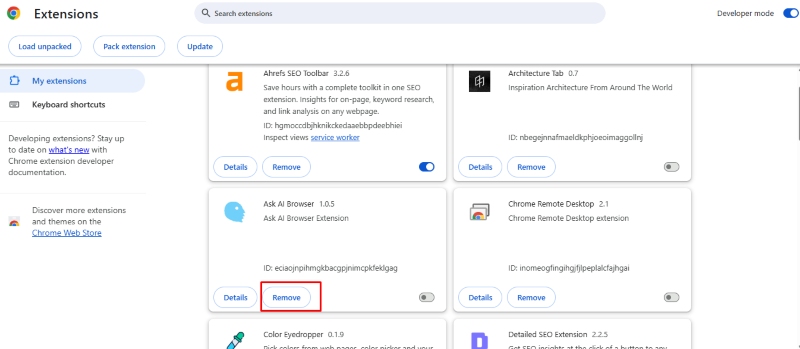
-Navigate to Extensions > Manage Extensions, or type chrome://extensions in the address bar and press Enter.
-Review the list of installed extensions carefully. Look for extensions you don’t remember installing or ones with vague names.
-For each suspicious extension, click the “Remove” button beneath it.
-In the confirmation dialog, click “Remove” again to confirm deletion.
-After removing suspicious extensions, click the three-dot menu again, select Settings, then navigate to Privacy and security.
-Click “Clear browsing data,” select “All time” as the time range, check all boxes, and click “Clear data” to eliminate any stored malicious code.
Strengthen Your PC Security with Fortect
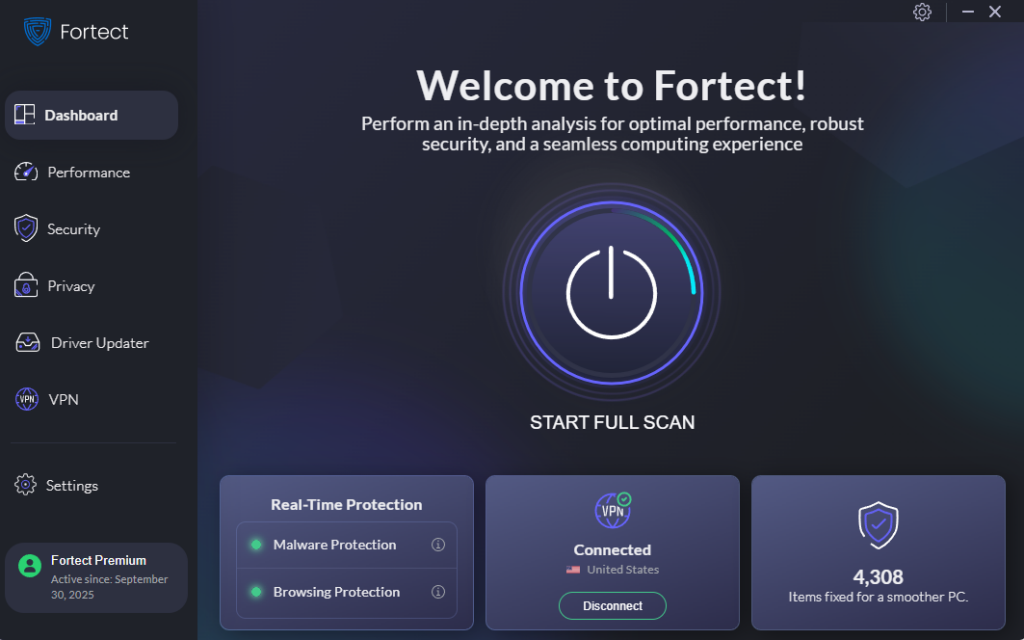
Beyond manual removal, protecting your system from browser extensions that steal personal data requires comprehensive security. Fortect delivers advanced real-time malware protection specifically designed for Windows users, detecting threats that traditional antivirus software might miss. It automatically scans your PC for sophisticated cyber threats, including malicious extensions that disguise themselves through phishing tactics and hide within your browser’s legitimate-looking add-ons. Fortect eliminates these hidden threats safely while restoring any damaged system files, ensuring your PC maintains optimal performance.
Its smart threat-detection engine continuously monitors suspicious activity, from data-harvesting extensions to keylogging scripts, and alerts you before harmful actions compromise your personal information, helping keep your device secure and running efficiently.
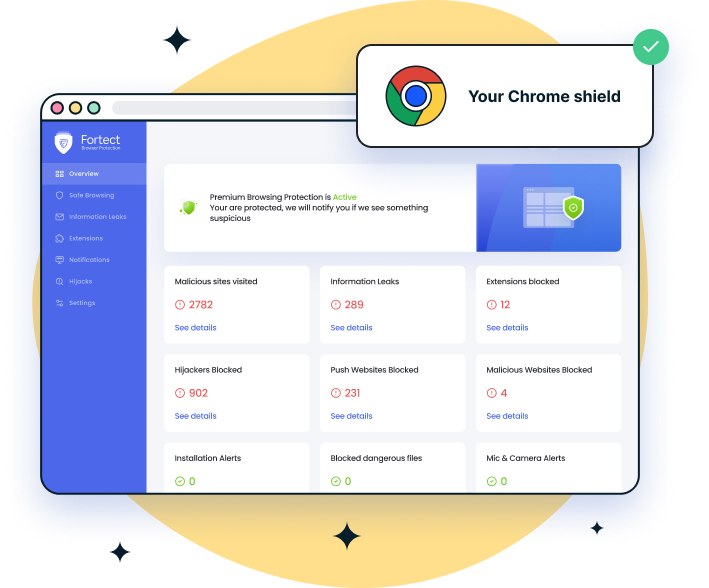
Chrome users can add another layer of defense with Fortect Browsing Protection, a lightweight extension designed specifically for browser security. This protection tool actively blocks malicious websites before they finish loading, instantly alerts you when you attempt to visit phishing pages or scam sites, and automatically identifies and helps remove dangerous extensions that attempt to steal your passwords, financial information, or browsing data. It works seamlessly alongside Chrome’s built-in security to catch threats that slip through standard protections.
Removing Malicious Extensions from Microsoft Edge (Windows 10/11)
Microsoft Edge uses Chromium architecture but has its own extension management system.
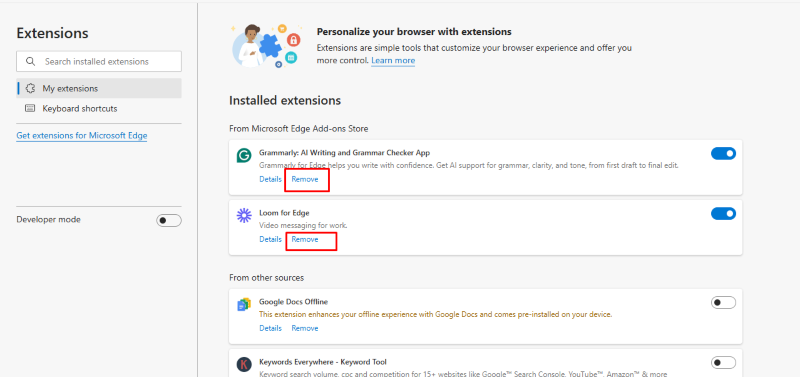
-Launch Microsoft Edge and click the three-dot menu in the top-right corner.
-Select Extensions from the dropdown menu.
-Click “Manage extensions” to view all installed add-ons.
-Examine each extension. Click the toggle switch to disable suspicious ones, then click “Remove” to uninstall them completely.
-Confirm removal when prompted.
-Go to Settings (three-dot menu > Settings), select Privacy, search, and services.
-Under “Clear browsing data,” click “Choose what to clear,” select all data types, and click “Clear now.”
Deleting Suspicious Extensions from Firefox (Windows 10/11)
Firefox offers robust privacy features, but isn’t immune to malicious extensions.
-Open Firefox and click the three-line menu icon in the top-right corner.
-Select “Add-ons and themes” or press Ctrl+Shift+A.
-Click the “Extensions” tab on the left sidebar.
-Review your extensions list. Click the three-dot menu next to any suspicious extension.
-Select “Remove” from the dropdown menu.
-Return to the main menu, select Settings, then click “Privacy & Security” in the left sidebar.
-Scroll to “Cookies and Site Data” and click “Clear Data.” Select both options and click “Clear.”
Advanced Removal: When Extensions Won’t Uninstall
Some malicious extensions resist standard removal methods by reinstalling themselves or hiding in your system.
Using Windows Safe Mode for Stubborn Extensions
-Press the Windows key and click the Power icon.
-Hold Shift and click “Restart” to access Advanced startup options.
-Select Troubleshoot > Advanced options > Startup Settings > Restart.
-Press 4 or F4 to boot into Safe Mode.
-Once in Safe Mode, open your browser and follow the standard removal steps outlined above. Safe Mode prevents malicious scripts from running, making removal easier.
Checking Windows Programs and Features
Extensions sometimes install companion programs on your system.
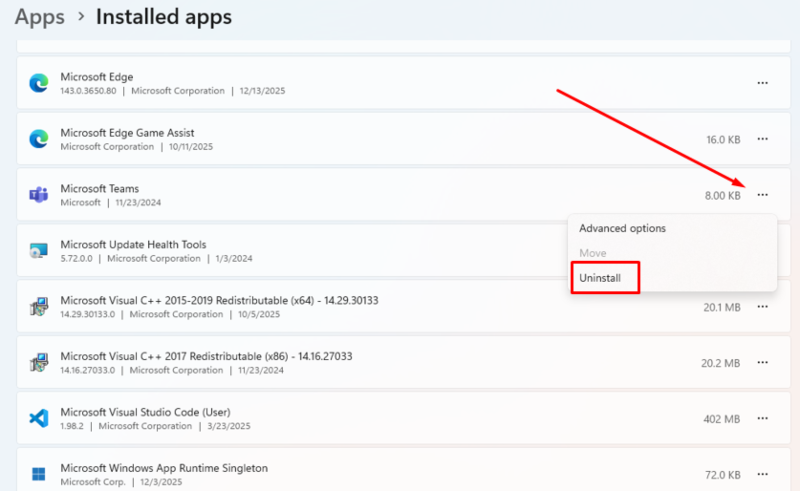
-Press Windows key + I to open Settings.
-Click “Apps” then “Apps & features.”
-Sort the list by install date to identify recently added programs.
-Look for unfamiliar programs installed around the same time you noticed browser issues.
-Click the program and select “Uninstall.”
-Follow the uninstallation wizard, and restart your computer.
Preventing Future Extension-Based Data Theft
Protection starts with smart installation practices. Only download extensions from official browser stores, and even then, verify the developer’s identity and read user reviews carefully. Check the number of users; legitimate extensions typically have thousands of installations. Review requested permissions before installing. If a simple calculator extension asks to read your browsing history, that’s a red flag.
Keep your browser updated to patch security vulnerabilities that malicious extensions exploit. Enable Windows Defender or third-party antivirus software to scan for threats. Consider using privacy-focused browsers or creating separate browser profiles for sensitive activities like online banking.
Securing Your Accounts After Removal
After removing data-stealing extensions, assume your credentials are compromised. Change passwords for all important accounts, starting with email and banking. Enable two-factor authentication everywhere possible. Monitor your bank statements and credit reports for unauthorized activity. Run a full system scan with updated antivirus software to check for additional malware that the extension may have downloaded.
Taking these steps protects your personal information and prevents future compromises. Stay vigilant about what you install, and regularly audit your browser extensions to maintain your digital security.