
How to Recover Your Privacy After Visiting Risky Websites
Accidentally clicking a suspicious link or visiting an unsafe website can feel unsettling. Whether you stumbled onto a phishing site, clicked a malicious ad, or visited questionable content, your privacy and security may be compromised. This guide shows you exactly how to clean up your digital footprint and protect your Windows computer after exposure to risky websites.
Understanding What Happens When You Visit Dangerous Sites
When you visit risky websites, several things can happen behind the scenes. These sites may install tracking cookies, deploy malware, harvest your browsing data, or attempt to steal passwords. Some malicious sites use drive-by downloads that automatically install harmful software without your knowledge.
Your browser stores information like cookies, cached files, and browsing history that could contain traces of these dangerous interactions. Additionally, some sophisticated threats may install keyloggers or spyware that monitor your activity even after you’ve closed the browser.
Clear Your Browser Data Immediately
Remove Browsing History and Cookies
Your first step is to eliminate all traces of your visit from your browser. Here’s how to do it in popular Windows browsers:
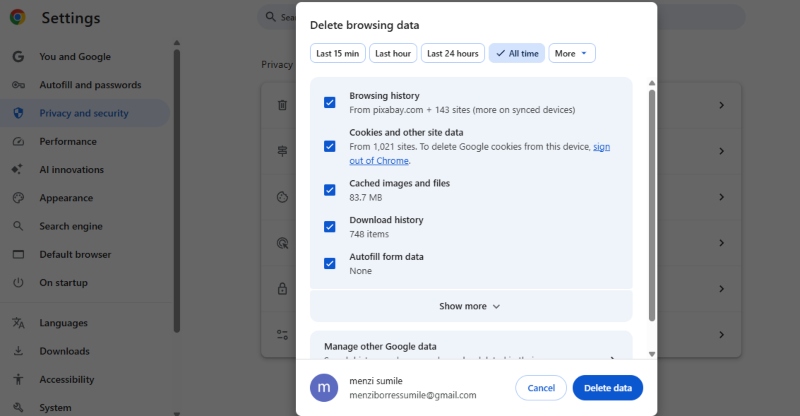
Google Chrome:
- Press Ctrl + Shift + Delete on your keyboard
- Select “All time” from the time range dropdown
- Check boxes for “Browsing history,” “Cookies and other site data,” and “Cached images and files.”
- Click “Clear data”
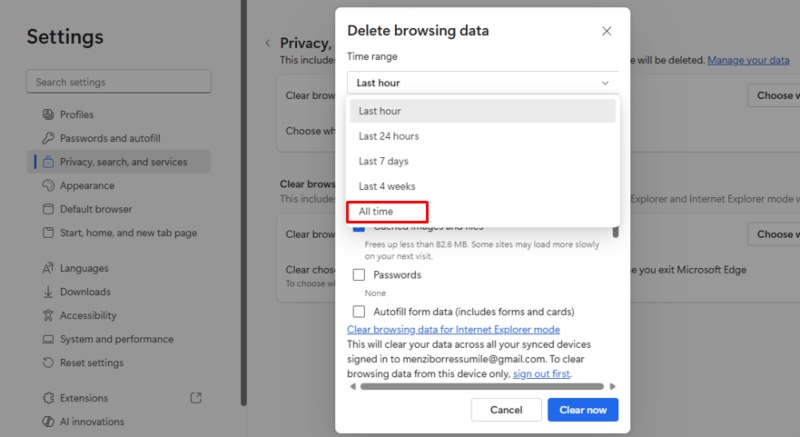
Microsoft Edge:
- Press Ctrl + Shift + Delete
- Choose “All time” as your time range
- Select “Browsing history,” “Cookies and other site data,” and “Cached images and files”
- Click “Clear now”
Mozilla Firefox:
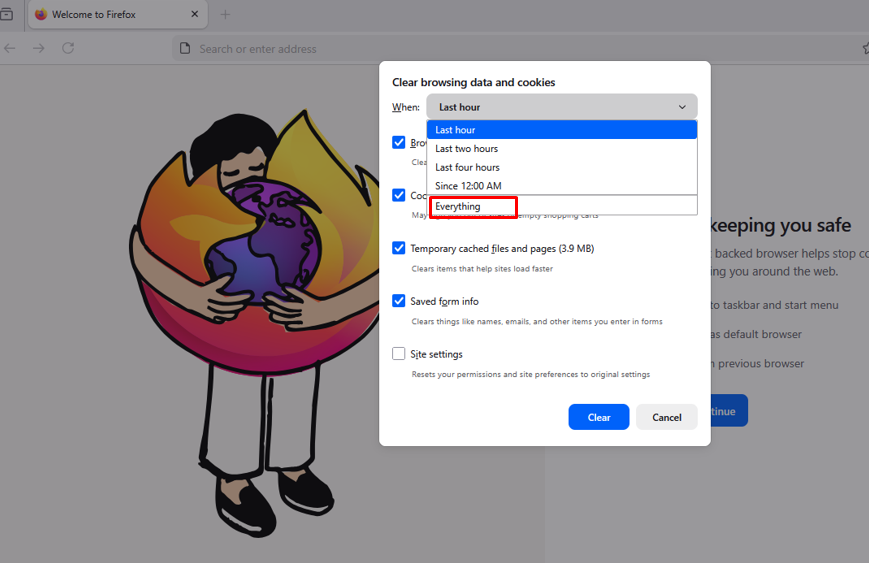
- Press Ctrl + Shift + Delete
- Select “Everything” in the time range
- Check all boxes including “Browsing & Download History,” “Cookies,” and “Cache”
- Click “Clear Now”
Reset Browser Settings to Default
Sometimes, malicious websites alter your browser configuration. Resetting removes unauthorized extensions and restores original settings:
Chrome Reset Steps:
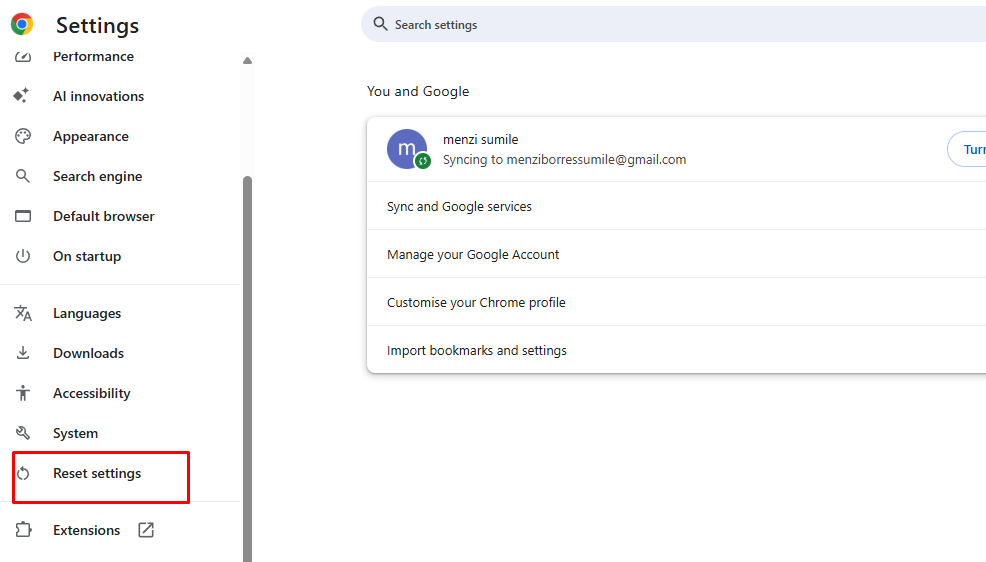
- Open Chrome and click the three dots in the top-right corner
- Select “Settings”
- Click “Reset settings” in the left sidebar
- Choose “Restore settings to their original defaults”
- Click “Reset settings” to confirm
Edge Reset Steps:
- Open Edge and click the three dots menu
- Go to “Settings”
- Select “Reset settings” from the left menu
- Click “Restore settings to their default values”
- Confirm by clicking “Reset”
Run a Complete Malware Scan
Windows Defender provides robust protection against most threats. Here’s how to perform a thorough security scan:
Strengthen Your PC Security with Fortect
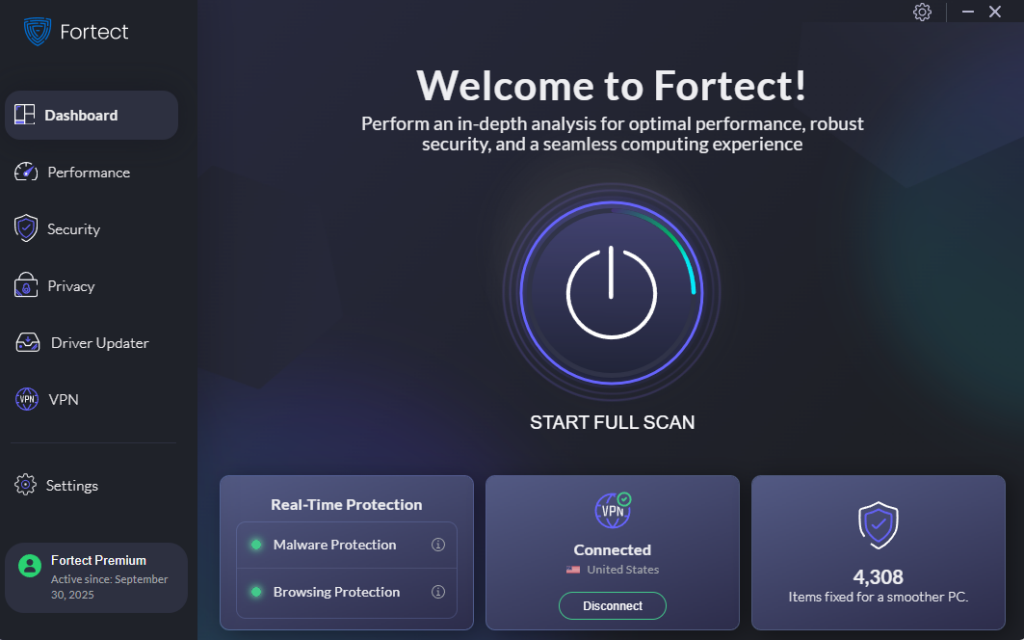
Fortect delivers advanced real-time malware protection for Windows users. It automatically scans your PC for traditional and emerging threats, including malware and trackers picked up from risky websites, eliminates them safely, and restores damaged system files for improved performance. Its smart threat-detection engine monitors suspicious activity and alerts you before harmful actions can take place, helping keep your device secure and running efficiently after exposure to dangerous sites.
Download and install Fortect now.
Perform a Windows Defender Full Scan
- Click the Start button and type “Windows Security”
- Open Windows Security from the results
- Click “Virus & threat protection”
- Select “Scan options”
- Choose “Full scan” (this scans your entire computer)
- Click “Scan now”
This process may take 30-60 minutes, but it checks every file on your system. If threats are found, Windows Defender will quarantine or remove them automatically.
Use Microsoft Defender Offline Scan
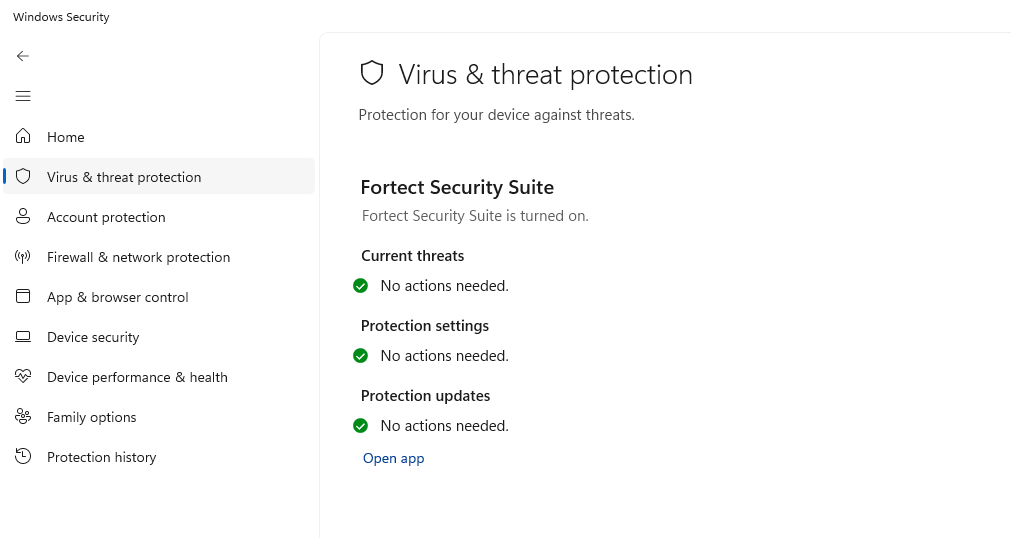
For persistent threats, use the offline scan feature:
- Open Windows Security
- Go to “Virus & threat protection”
- Click “Scan options”
- Select “Microsoft Defender Offline scan”
- Choose “Scan now”
- Your computer will restart and scan before Windows loads
Change Your Passwords and Enable Two-Factor Authentication
If you entered any credentials on risky websites, assume they’re compromised. Change passwords immediately, starting with critical accounts like email, banking, and social media.
Use strong, unique passwords for each account, ideally managed through Windows’ built-in password manager or a dedicated password manager application. Enable two-factor authentication wherever possible for an extra security layer.
Update Windows and Your Software
Outdated software contains security vulnerabilities that risky websites exploit. Keep everything current:
Update Windows 10/11
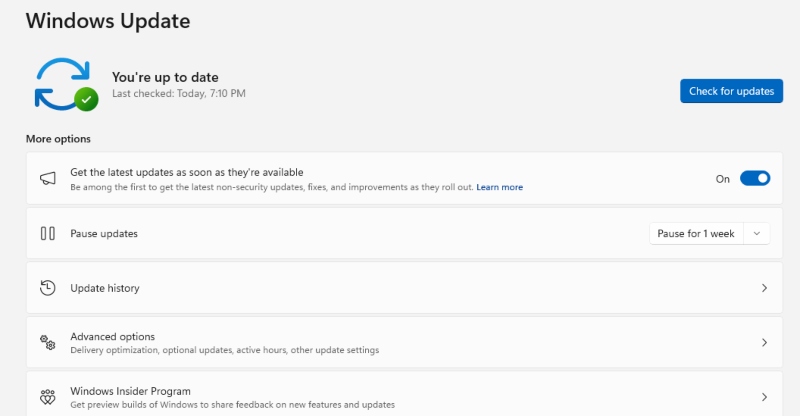
- Press Windows key + I to open Settings
- Click “Windows Update” (or “Update & Security” in Windows 10)
- Click “Check for updates”
- Install all available updates
- Restart your computer if prompted
Update Your Applications
Ensure your browser, antivirus software, and other programs are current. Most applications have an “About” or “Help” section where you can check for updates.
Monitor Your Accounts for Suspicious Activity
After visiting dangerous websites, watch for unusual activity. Check your bank statements, credit card transactions, and email account for unauthorized access. Consider placing a fraud alert on your credit reports if you suspect identity theft.
Review your installed programs regularly by pressing Windows key + I, selecting “Apps,” and removing anything unfamiliar or suspicious.
Strengthen Your Future Protection
Prevention beats recovery. Install a reputable ad blocker to prevent malicious ads from loading. Keep Windows Defender real-time protection enabled; it blocks most threats before they reach your system.
Consider using a VPN for additional privacy protection when browsing. Be cautious with links from emails, social media, or unfamiliar websites. When in doubt, don’t click.
Enable Windows’ built-in ransomware protection by opening Windows Security, selecting “Virus & threat protection,” and turning on “Controlled folder access” to protect your important files.
Conclusion
Recovering your privacy after visiting risky websites requires immediate action. Clear your browser data, scan for malware, update your system, and change compromised passwords. These steps restore your security and minimize potential damage. Stay vigilant with your browsing habits, keep your software updated, and maintain strong security practices to avoid future incidents. Your digital privacy is worth protecting. Take these steps today to secure your Windows computer.





