
How to Protect Windows from “Fake Patch” Exploits Pretending to Be Security Updates
Fake patch pretending to be security updates, attacks can be avoided by installing updates only through Windows Update or trusted software vendors. Never install unexpected update prompts from websites. Always verify the source before downloading any patch.
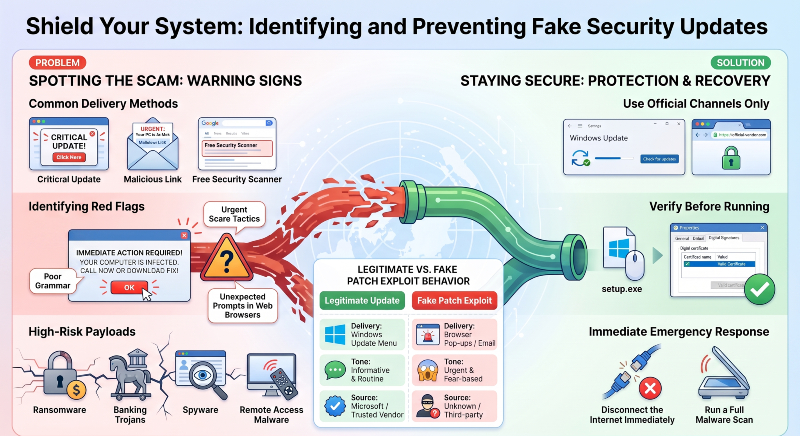
Cybercriminals often disguise malware as critical security updates. These fake patches convince users to install malicious files that compromise Windows. Once installed. The malware may steal passwords. Encrypt files. Install spyware. Or create backdoors for future attacks.
Key Takeaways
- Install Windows updates only through official Microsoft update channels.
- Ignore browser pop-ups claiming your computer needs emergency patches.
- Verify software downloads before running installers.
- Scan your computer immediately if you installed a suspicious update.
- Fake patches pretending to be security updates scams succeed by exploiting trust. Always verify every update before installing it.
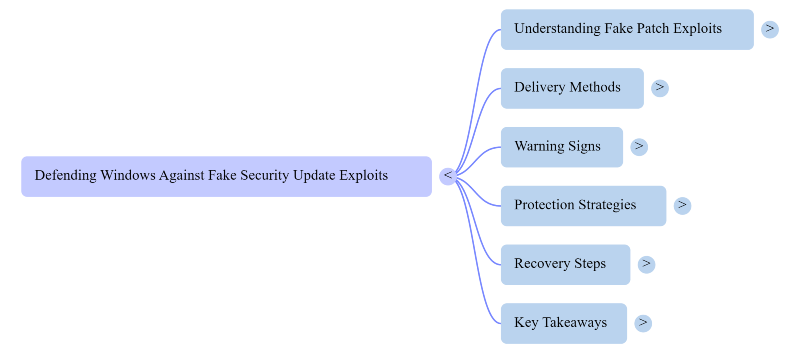
What Are Fake Patch Exploits?
Fake patch exploits are malicious programs disguised as legitimate software or Windows security updates.
Attackers create convincing pop-ups. Emails. And fake download pages. These messages pressure users into installing urgent updates.
Instead of fixing vulnerabilities. The installer infects the computer.
Common payloads include:
- Ransomware.
- Password stealers.
- Banking trojans.
- Spyware.
- Remote access malware.
- Cryptocurrency miners.
How Fake Security Updates Spread
Attackers use several delivery methods.
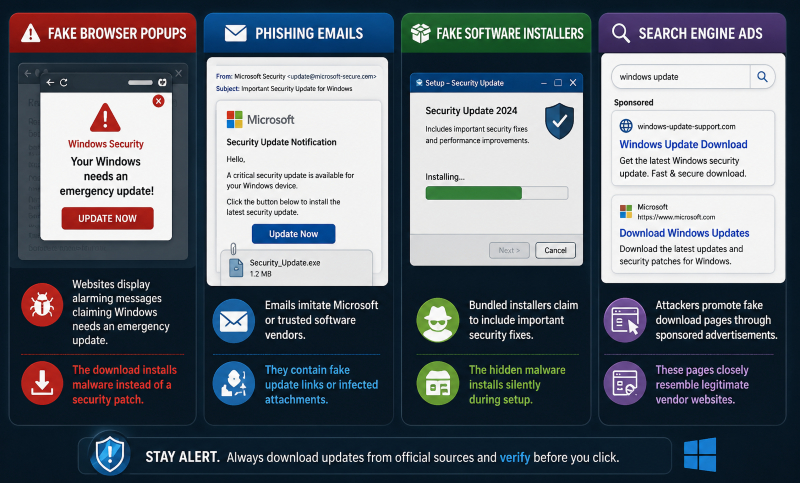
Fake Browser Popups
Websites display alarming messages claiming Windows needs an emergency update.
The download installs malware instead of a security patch.
Phishing Emails
Emails imitate Microsoft or trusted software vendors.
They contain fake update links or infected attachments.
Fake Software Installers
Bundled installers claim to include important security fixes.
The hidden malware installs silently during setup.
Search Engine Ads
Attackers promote fake download pages through sponsored advertisements.
These pages closely resemble legitimate vendor websites.
Warning Signs of a Fake Security Update
Watch for these common indicators.
- Unexpected Update Requests: Windows rarely asks you to install updates through a web browser.
- Poor Grammar: Many fake update messages contain spelling mistakes or awkward wording.
- Unknown Download Sources: Avoid downloading updates from unofficial websites.
- Urgent Scare Tactics: Attackers pressure users with fake warnings about immediate security risks.
- Suspicious File Names: Legitimate Windows updates do not arrive as random executable files from websites.
How to Protect Windows From Fake Patch Exploits
These practices greatly reduce your risk.
Install Updates Through Windows Update
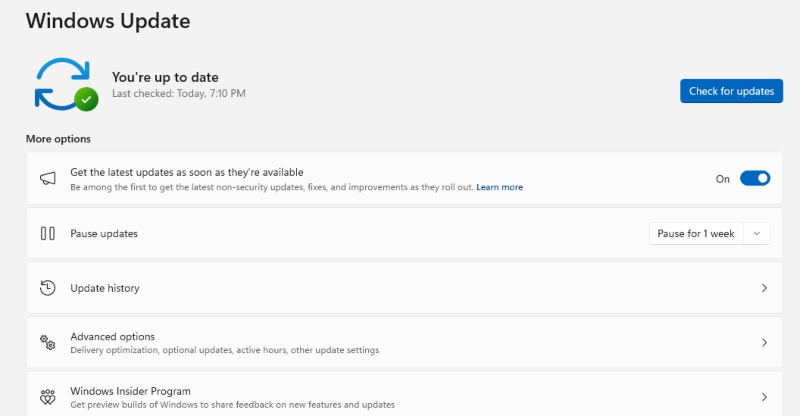
Use Windows Update for operating system patches.
Avoid downloading Windows updates manually unless Microsoft specifically instructs you.
Download Software From Official Websites
Always visit the software developer’s official website.
Avoid third-party download portals.
Verify Digital Signatures
- Right-click the installer.
- Open Properties.
- Check the Digital Signatures tab before running the file.
Keep Microsoft Defender Enabled
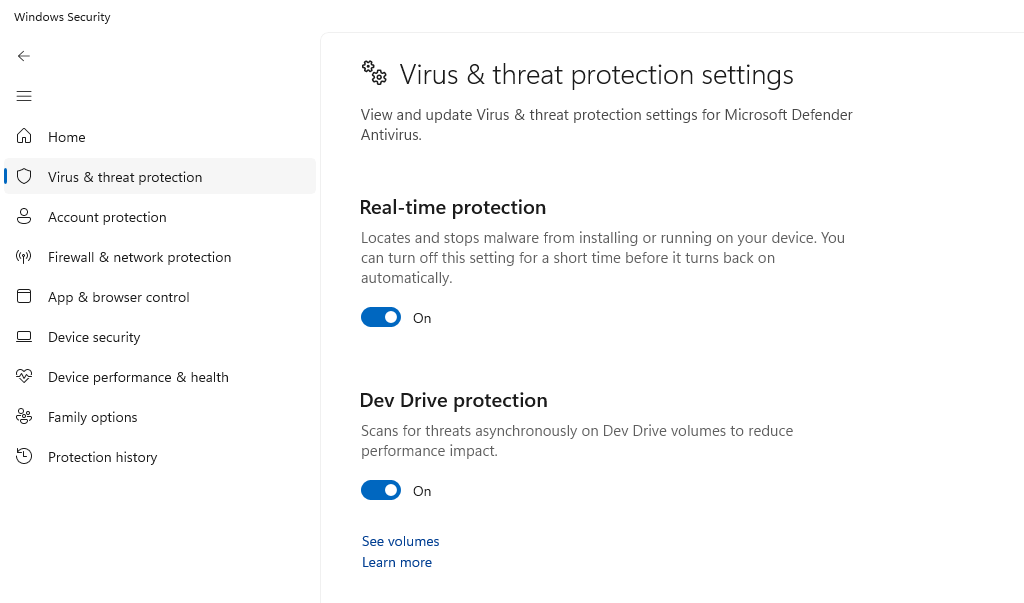
Real-time protection helps detect fake update installers before they execute.
Avoid Clicking Popup Warnings
Close suspicious browser tabs instead of downloading recommended updates.
Use a Standard User Account
Daily work should not require administrator privileges.
This limits malware installation attempts.
What to Do If You Installed a Fake Patch
- Disconnect your computer from the internet immediately.
- Run a complete malware scan.
- Remove detected threats.
- Change important passwords from a clean device.
- Review installed applications.
- Uninstall unknown software.
- Check startup programs and scheduled tasks for suspicious entries.
- Install legitimate Windows updates afterward.
Audit Your PC With Fortect
If you suspect your system installed a fake update. Fortect is one option worth considering for a thorough system audit.
Launch Fortect and click Scan. It checks installed software. Drivers. Startup items. And Windows system files for hidden threats. The scan also identifies outdated or corrupted drivers. It replaces them with verified versions that close security gaps attackers often exploit.
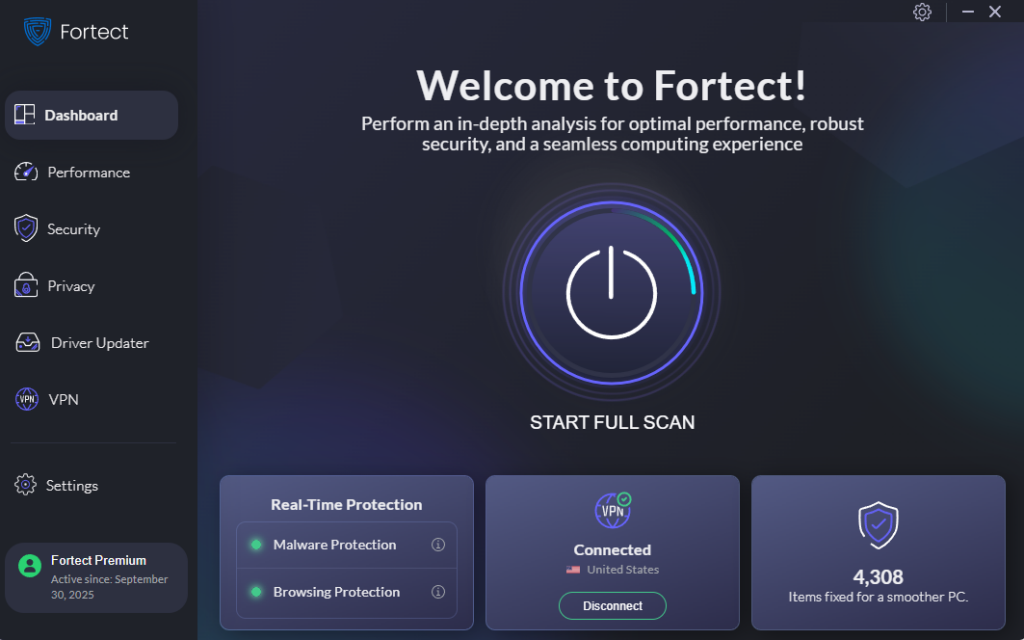
Its real-time malware protection detects threats such as fake patch pretending to be security updates attacks. It removes malicious files and helps restore damaged Windows system files. Fortect also clears junk files and leftover data from crashed programs. This improves overall performance and helps Windows run more smoothly.
If you want to confirm your system remains clean after a suspicious update. Running a Fortect scan offers a practical next step without changing your normal Windows update routine.
Download Fortect today.
Frequently Asked Questions
Does Microsoft send update links by email?
No. Microsoft normally delivers Windows updates through Windows Update.
Can fake updates install ransomware?
Yes. Many fake updates install ransomware or other dangerous malware.
Should I trust browser update pop-ups?
No. Update your browser through its built-in update feature or the official website.
How do I verify a Windows update?
Install Windows updates through the Windows Update settings menu.
Avoid unofficial download pages.





