How to Protect Against Printer Firmware Hacks
Your printer might seem like a harmless office device, but it’s actually a potential gateway for cybercriminals. Printer firmware, the software that controls your printer’s hardware, can be exploited by hackers to steal data, spread malware, or access your entire network. Understanding how to secure your printer firmware is essential for protecting your personal information and home network.
What Is Printer Firmware and Why Hackers Target It
Printer firmware is the embedded software that manages your printer’s operations, from processing print jobs to connecting to your network. Unlike regular software, firmware runs at a deep system level, making it an attractive target for cybercriminals.
Hackers exploit vulnerable printer firmware to install malicious code that can intercept documents, steal passwords, or use your printer as a launchpad to attack other devices on your network. Many home users never update their printer firmware, leaving security gaps that attackers can easily exploit.
How to Update Your Printer Firmware on Windows 10/11
Keeping your printer firmware updated is your first line of defense against security threats. Here’s how to update it on Windows:
Method 1: Automate Protection with Fortect
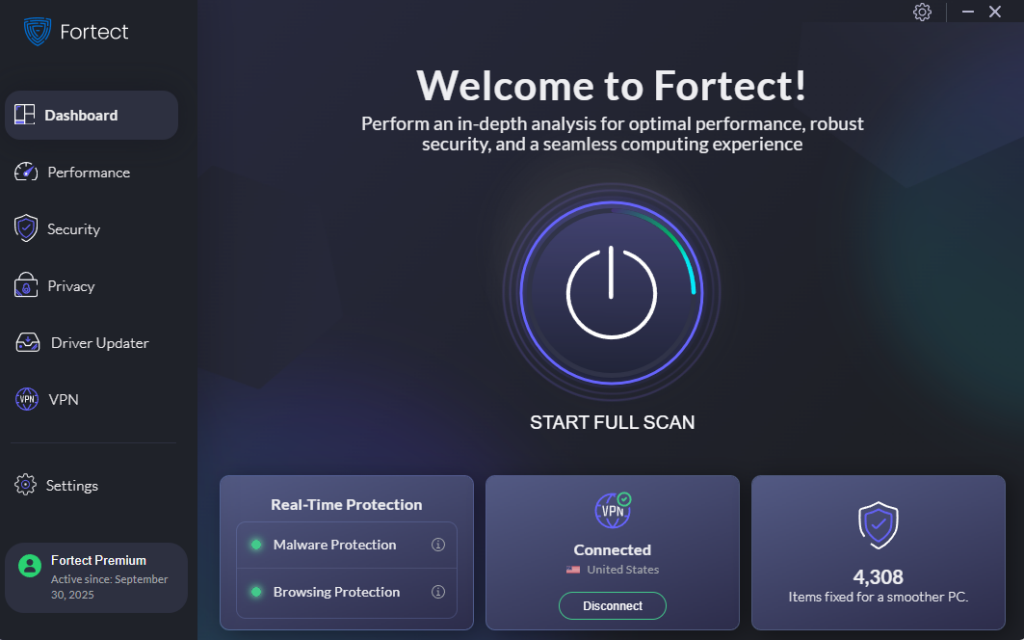
While manual updates are important, Fortect provides comprehensive, automated protection against printer firmware vulnerabilities and other system threats. This advanced security solution continuously monitors your Windows PC for potential risks, including compromised printer firmware, and neutralizes them before they can cause damage.
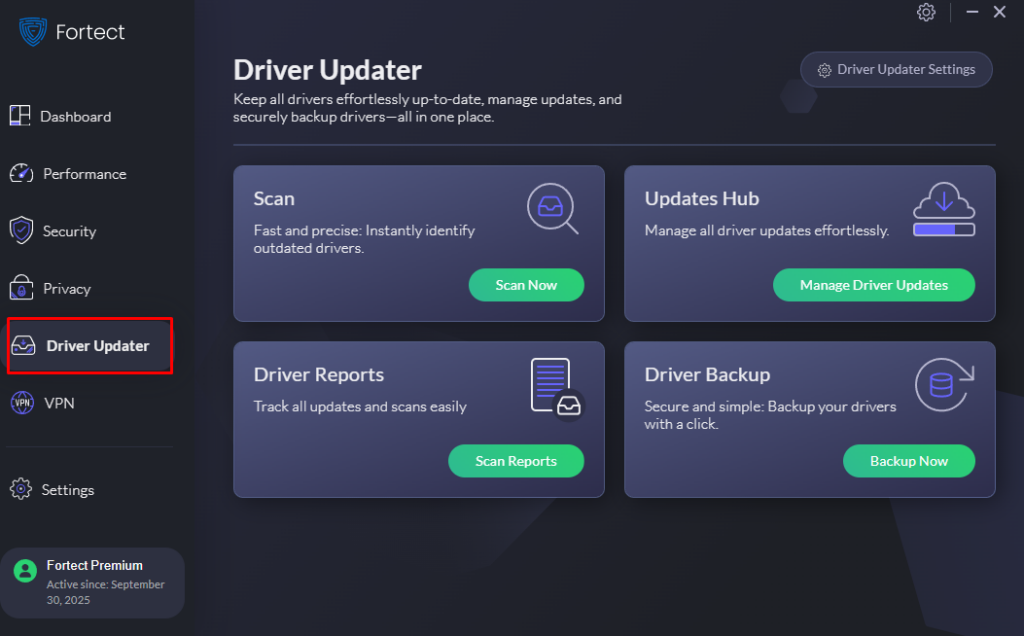
Fortect scans your system in real-time to detect malware that targets printer firmware exploits, removes threats safely, and optimizes overall performance. What sets Fortect Premium apart is its built-in Driver Updater that automatically identifies outdated or corrupted printer drivers, a common entry point for firmware attacks. It replaces vulnerable drivers with secure, verified versions from trusted sources, effectively closing security gaps that hackers exploit. By maintaining up-to-date, stable drivers alongside robust malware protection, Fortect strengthens your PC’s defenses and ensures your printer remains a safe, reliable device rather than a security liability.
Download and install Fortect now.
Method 2: Update Through Windows Settings
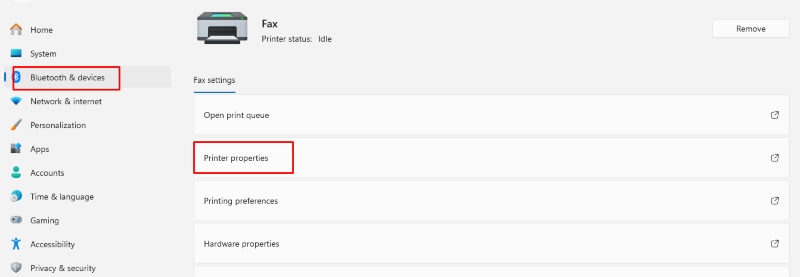
- Press Windows Key + I to open Settings
- Click on Bluetooth & devices (Windows 11) or Devices (Windows 10)
- Select Printers & scanners
- Click on your printer from the list
- Select Printer properties or Manage
- Look for a Firmware Update or Device Settings option
- Click Check for updates and follow the on-screen instructions
Method 3: Update Through Manufacturer Software
- Open the software provided by your printer manufacturer (e.g., HP Smart, Epson Connect, Canon PRINT).
- Navigate to the Settings or Printer Maintenance section
- Look for Firmware Update or Software Update
- Click Check for Updates
- Download and install any available firmware updates
- Restart your printer when prompted
Method 4: Manual Download from Manufacturer Website
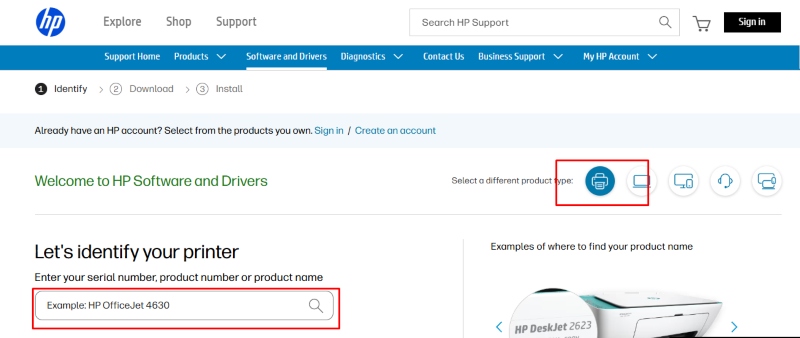
- Visit your printer manufacturer’s official support website
- Enter your printer model number in the search bar
- Navigate to the Drivers & Downloads section
- Select your Windows version (10 or 11)
- Download the latest firmware update file
- Run the downloaded file and follow the installation prompts
- Keep your printer powered on during the entire update process
Essential Security Settings to Enable
Beyond firmware updates, configuring proper security settings strengthens your printer’s defenses against attacks.
Disable Unused Network Protocols
Many printers support multiple connection methods that you might not need. Disabling unnecessary protocols reduces attack surfaces:
- Access your printer’s web interface by typing its IP address into your browser
- Log in using your admin credentials (check your printer manual for defaults)
- Navigate to Network Settings or Security
- Disable protocols like FTP, Telnet, or SNMP if you don’t use them
- Keep only essential services like HTTP and IPP enabled
- Save your changes and restart the printer
Change Default Administrator Passwords
Default passwords are publicly available and easily exploited:
- Access your printer’s settings through its web interface or control panel
- Find the Administrator or Security section
- Change the default admin password to a strong, unique password
- Use a combination of uppercase, lowercase, numbers, and symbols
- Store the password securely in a password manager
Network Security Best Practices
Your printer’s network connection can be either a security asset or a liability, depending on how it’s configured.
Use WPA3 Encryption
Ensure your wireless printer connects using the strongest available encryption:
- Access your router’s admin panel
- Navigate to Wireless Settings or WiFi Security
- Select WPA3 or WPA2-PSK (AES) as your security protocol
- Update your network password if needed
- Reconnect your printer using the new security settings
Enable Firewall Protection
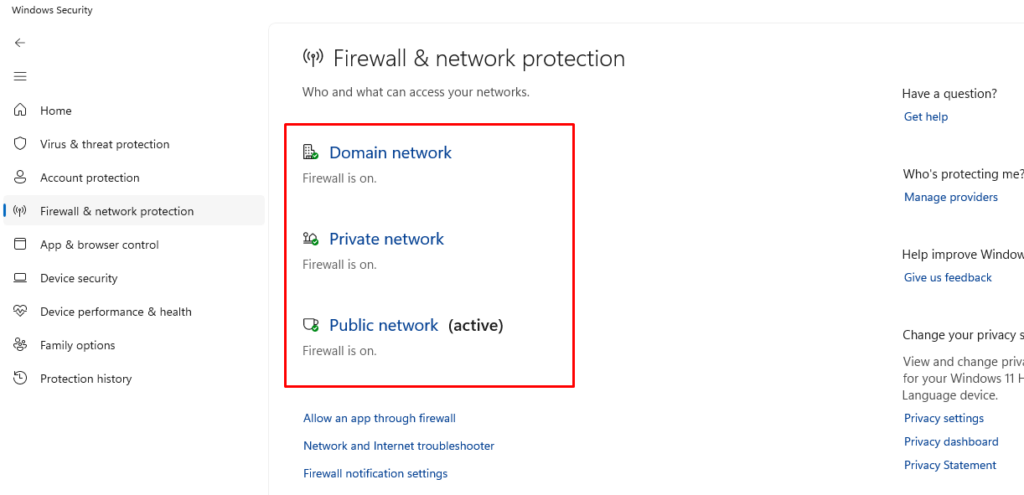
Windows Firewall helps block unauthorized access to your printer:
- Press Windows Key + I and open Privacy & Security
- Click Windows Security
- Select Firewall & network protection
- Ensure the firewall is turned on for your active network
- Click Allow an app through firewall
- Verify that only trusted printer software has network access
Monitor Your Printer Activity
Regular monitoring helps you detect suspicious behavior before it becomes a serious problem. Check your printer’s access logs monthly through its web interface, review recently printed documents for anything unfamiliar, and watch for unusual network traffic or unexpected print jobs.
Additional Protection Measures
Consider placing your printer on a separate guest network isolated from devices containing sensitive data. Enable print job authentication to require passwords before documents print, and physically disconnect your printer from the network when not in use for extended periods.
Printer firmware security isn’t just for businesses; home users also face real threats from cyberattacks. By keeping firmware updated, configuring strong security settings, and monitoring activity, you can significantly reduce your risk of becoming a victim of printer-based hacks.