
How to Prevent & Stop Sideloaded App Malware
Sideloading apps on your Mac might seem like a convenient way to access software outside the App Store, but it comes with serious security risks. Sideloaded app malware has become a growing threat to personal computers, compromising user data and system integrity. This guide will show you exactly how to protect yourself from malicious sideloaded applications.
What Is Sideloaded App Malware?
Sideloaded app malware refers to malicious software installed on your Mac through unofficial channels, bypassing the App Store’s security verification process. When you download apps from third-party websites or untrusted sources, you’re essentially opening your system to potential threats, including spyware, ransomware, and trojans.
Unlike verified App Store applications that undergo rigorous security checks, sideloaded apps can contain hidden malware that steals passwords, monitors your activity, or damages your files. Cybercriminals often disguise these threats as legitimate software, free game downloads, or cracked versions of paid programs.
How Sideloaded Apps Infect Your Mac

Understanding how infection occurs helps you avoid risky behavior. Most users unknowingly install sideloaded app malware through:
- Downloading .dmg or .pkg files from unverified websites
- Installing “cracked” or pirated software versions
- Clicking on email attachments from unknown senders
- Using unofficial app installers that promise free premium features
- Installing browser extensions from third-party sources
The malware typically activates immediately after installation, running silently in the background while harvesting your personal information or degrading system performance.
How to Block Sideloading on macOS
Preventing sideloaded app malware starts with leveraging macOS security features. Follow these steps to enable Gatekeeper protection:
Step 1: Click the Apple menu and select System Settings (or System Preferences on older macOS versions)
Step 2: Navigate to Privacy & Security
Step 3: Scroll down to the Security section
Step 4: Under “Allow applications downloaded from,” select App Store only for maximum protection, or App Store and identified developers for a balance of security and flexibility
Step 5: Enable FileVault disk encryption to protect your data if your Mac is compromised
This configuration prevents unauthorized software installations and requires explicit permission before running unverified applications.
Advanced Protection with Fortect
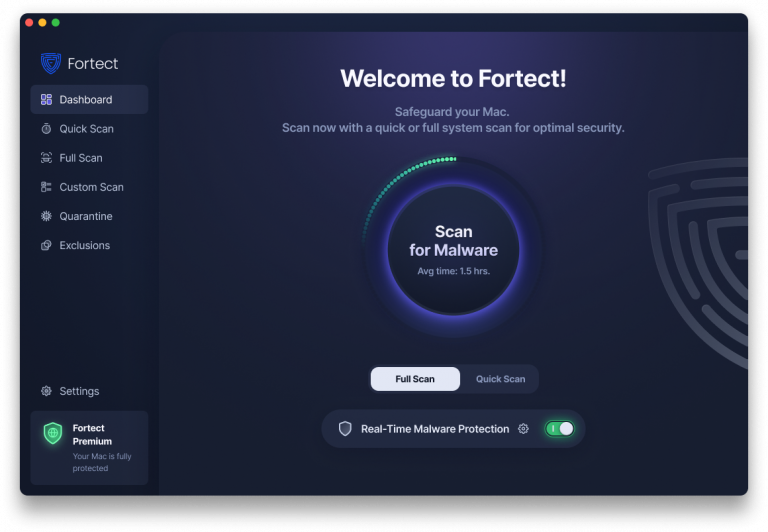
For comprehensive defense against sideloaded app malware and other evolving threats, consider Fortect, a powerful, advanced anti-virus solution with real-time malware protection that goes beyond basic macOS security.
Fortect for Mac: Protect What macOS Can’t See
While Apple’s Gatekeeper and App Store provide baseline security, Fortect closes critical security gaps against evolving threats, ransomware, and malware that bypass built-in protection. Stay protected with real-time malware defense designed specifically for Mac, and enjoy a safer digital experience.
4 Essential Features for Complete Security:
Real-Time Malware Protection – Continuous monitoring instantly detects and blocks sideloaded app malware threats as they attempt to infiltrate your system, ensuring ongoing security without manual intervention.
Full System Scan – Performs comprehensive scans of your entire system to identify hidden threats, infected files, and suspicious applications that may have already been sideloaded.
Quick Smart Scan – Delivers fast, intelligent scanning of critical system areas where sideloaded malware typically hides, perfect for regular security checks without system slowdown.
Cloud-Based Security – Leverages cloud-based technology for real-time updates and advanced threat detection, protecting you against the latest sideloaded app malware variants before they can cause damage.
Download and install Fortect for your Mac systems now.
Essential Security Measures Against Malware
Keep XProtect Updated
macOS includes XProtect, Apple’s built-in malware protection that updates automatically. Ensure your system stays current:
Step 1: Click the Apple menu and select System Settings
Step 2: Go to General > Software Update
Step 3: Enable Install macOS updates and Install application updates from the App Store automatically
Step 4: Click Check for updates regularly to ensure you have the latest security patches
Review Security & Privacy Settings
Step 1: Open System Settings > Privacy & Security
Step 2: Review which apps have access to sensitive data like your location, contacts, and files
Step 3: Remove permissions from apps you don’t recognize or no longer use
Step 4: Enable Firewall under the Firewall section for additional network protection
Safe Software Installation Practices

Avoiding sideloaded app malware requires smart downloading habits:
Download from official sources only. Always obtain software directly from the App Store or the developer’s verified website. Check the URL carefully; cybercriminals create fake sites that mimic legitimate ones.
Verify developer credentials. Before installing any application outside the App Store, research the developer. Legitimate developers have established reputations and transparent contact information.
Read user reviews. Before installing any application, research user experiences and check for red flags like excessive permission requests or suspicious behavior reports.
Avoid pirated software. “Free” versions of paid programs almost always contain malware. The temporary savings aren’t worth the security risks.
Check app signatures. Hold Control and click the app, select Show Package Contents, and verify the developer certificate is legitimate before installation.
Removing Existing Sideloaded Malware
If you suspect your Mac is infected:
Step 1: Disconnect from the internet to prevent data transmission
Step 2: Open Activity Monitor (in Applications > Utilities) and look for unfamiliar processes consuming excessive resources
Step 3: Navigate to Applications folder and drag suspicious apps to the Trash
Step 4: Empty Trash and restart your Mac in Safe Mode (hold Shift during startup)
Step 5: Check Login Items in System Settings and remove unknown startup programs
Step 6: Reset your passwords after removal, especially for financial accounts and email
Conclusion
Sideloaded app malware poses a serious threat to Mac users, but protection is straightforward. By restricting app installations to the App Store, maintaining updated security features, and practicing safe download habits, you can significantly reduce your risk. Remember: convenience never justifies compromising your digital security. Stick to verified sources, and your Mac will remain protected from malicious sideloaded applications.





