
How to Prevent NTP Time-Spoofing Attacks?
Preventing NTP time-spoofing attacks starts with securing how your PC syncs its clock, and pairing those steps with an all-in-one tool like Fortect to keep your system protected and running smoothly.
A Network Time Protocol attack tricks your computer into trusting a fake time source. Once that happens, your security certificates can be invalidated, your antivirus can be fooled, and attackers can slip malware past your defenses, all because your PC thinks it’s living in a different time.
What Makes NTP Server Spoofing So Dangerous
Time is the backbone of digital trust. Every time your browser connects to a secure site, your PC checks that the security certificate is still valid, and that check depends on an accurate clock.
In a time synchronization attack, a hacker intercepts your PC’s connection to an NTP server and feeds it a false timestamp. This is a form of spoofing attack similar in logic to ARP spoofing; your device is deceived into trusting something it shouldn’t.
The result? Expired certificates appear valid, phishing sites slip through filters, and security tools can malfunction, all without a single suspicious pop-up on your screen.
How to Prevent NTP Time-Spoofing Attacks on Windows
Follow these steps to lock down your time synchronization settings and reduce your exposure to NTP time spoofing attacks.
- Use a trusted NTP server. Open Settings > Time & Language > Date & Time. Make sure “Set time automatically” is on. Windows defaults to time.windows.com — that’s a reliable starting point.
- Switch to a secure NTP provider. In the search bar, type “Control Panel” and open Date and Time > Internet Time > Change Settings. Replace the server with time.cloudflare.com or pool.ntp.org, both of which support authenticated time sync.
- Enable Windows Firewall rules for NTP. NTP uses port 123 (UDP). Make sure your firewall allows outbound connections on this port to your trusted time server only, and blocks connections to unknown ones.
- Update Windows and keep drivers current. Many time spoofing cybersecurity vulnerabilities are patched in routine Windows updates. Go to Settings > Windows Update and install all available updates.
- Monitor for clock drift. If your PC’s clock regularly jumps forward or backward without a clear reason, that’s a red flag. Cross-check your system time against a second device or a trusted time site.
- Run a security and optimization scan. Malware can tamper with time settings to cover its tracks. A full system scan after any suspected attack is essential; more on this below.
Keep Your PC Protected Against Time-Based Threats
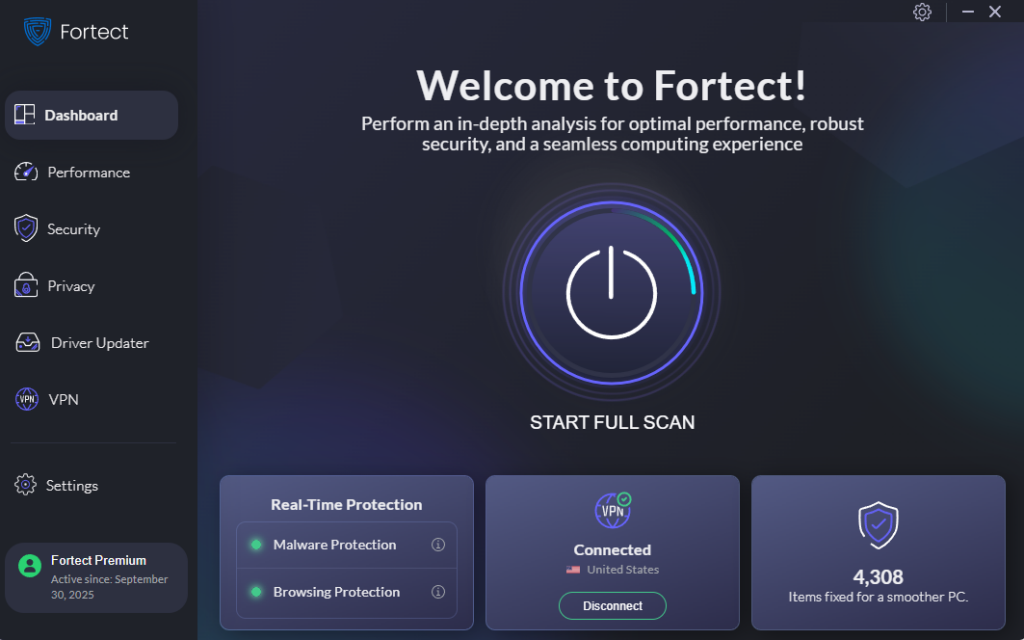
Fortect is built for exactly this kind of threat. Its real-time protection actively monitors your system for NTP time-spoofing attacks and similar intrusions, removes any threats it finds, and restores system files that were damaged in the process, so your PC recovers fully, not just partially.
Beyond security, Fortect cleans up junk files and clears out crashed or stalled programs that slow your machine down. The result is a PC that’s not only safer, but genuinely faster.
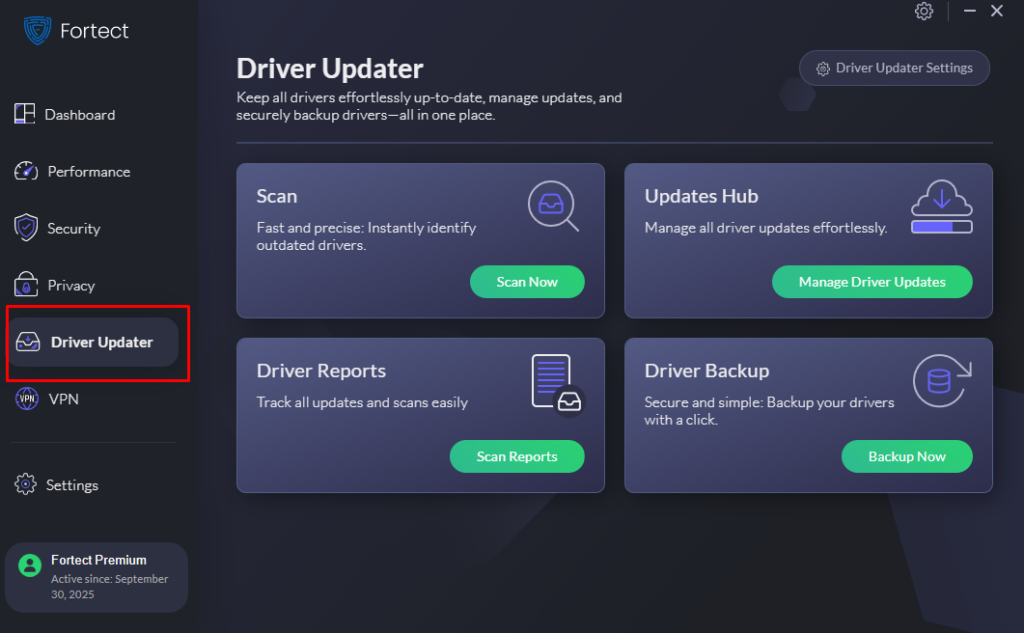
Fortect also includes a built-in Driver Updater that replaces outdated or corrupted drivers with verified versions. Outdated drivers are a common entry point for attackers; keeping them current closes security gaps before they can be exploited.
If you want one tool that covers your security and your PC’s performance, Fortect is worth trying. Start with a free scan and see exactly what’s running under the hood.
Download Fortect today.
Final Thoughts
NTP time-spoofing attacks are quiet, technical, and easy to miss, which is exactly what makes them effective. But with the right settings and a reliable security tool in place, they’re also preventable.
Use a trusted NTP server, keep Windows updated, watch for unexplained clock changes, and let a tool like Fortect handle the deeper layer of protection. Your PC’s security depends on more than your password; it depends on accurate time, too.




