
How to Prevent Fake Giveaway Scams on Windows
Fake giveaway scams have become increasingly sophisticated, targeting Windows users with promises of gift cards, electronics, or software licenses. These fraudulent schemes trick victims into sharing personal information, downloading malware, or paying unexpected fees. Understanding how to identify and prevent these scams protects your computer, privacy, and financial security.
What Are Fake Giveaway Scams?

Fake giveaway scams are fraudulent schemes where scammers pose as legitimate companies or influencers offering prizes. These scams appear as pop-up ads, social media posts, phishing emails, or suspicious websites claiming you’ve won something valuable. Scammers exploit urgency and excitement to bypass your critical thinking, convincing you to act quickly before verifying legitimacy.
Common fake giveaway tactics include prize notification scams, social media impersonation giveaways, survey scams requesting personal data, and tech support scams disguised as software giveaways. Each variation aims to steal your information, install malicious software, or extract payment for shipping or processing fees.
How to Recognize Fake Giveaway Scams on Windows
Warning Signs of Fraudulent Giveaways
Legitimate companies never ask for payment to claim prizes. If a giveaway requests credit card information, wire transfers, or gift cards for taxes or shipping, it’s a scam. Authentic prizes don’t require upfront fees.
Suspicious URLs are another red flag. Scammers create websites that mimic legitimate brands with slight misspellings or unusual domain extensions. Always verify the web address matches the official company website before entering any information.
Unsolicited prize notifications via email or pop-ups are typically fraudulent. If you didn’t enter a contest, you can’t win it. Scammers use excitement to cloud judgment, but genuine giveaways only contact participants who actively entered.
Poor grammar, spelling errors, and unprofessional design indicate scam content. Legitimate corporations employ professional marketing teams and maintain quality standards across all communications.
Pop-Up and Browser-Based Giveaway Scams
Windows users frequently encounter fake giveaway pop-ups while browsing. These aggressive advertisements claim you’ve won prizes from Google, Amazon, or Microsoft. The pop-ups use countdown timers, creating false urgency, and may be difficult to close, sometimes opening multiple windows simultaneously.
These browser-based scams often result from adware infections or visiting compromised websites. They collect personal information through fake claim forms or redirect users to malicious sites that install additional malware.
How to Protect Your Windows Computer from Giveaway Scams
Strengthen Your PC Security with Fortect
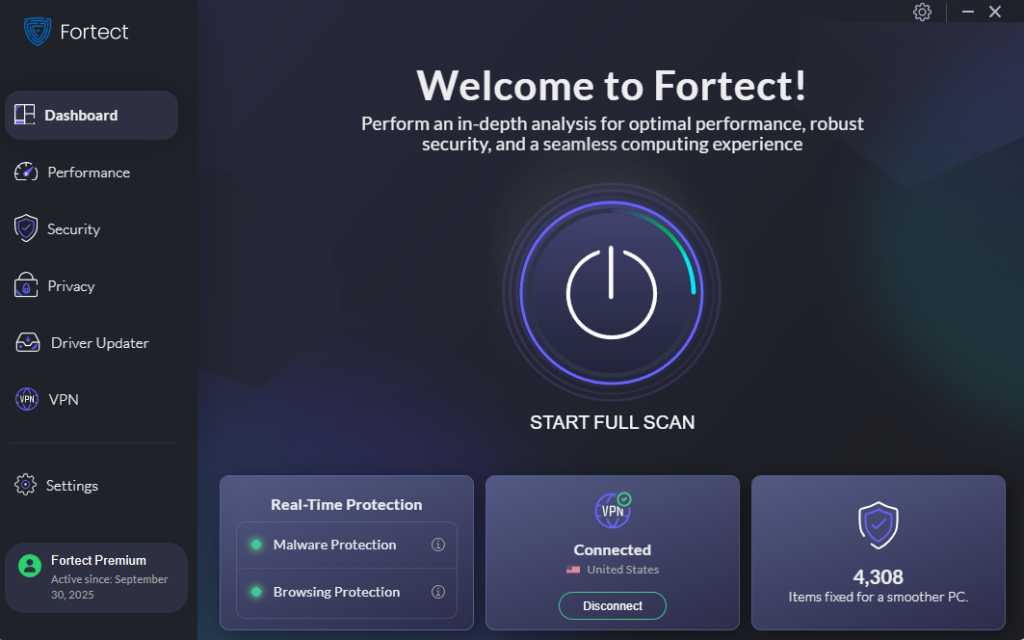
Fortect delivers advanced real-time malware protection for Windows users. It automatically scans your PC for traditional and emerging threats, including adware and malicious programs that generate fake giveaway scams, eliminates them safely, and restores damaged system files for improved performance. Its smart threat-detection engine monitors suspicious activity and alerts you before harmful actions can take place, helping keep your device secure and running efficiently. This comprehensive protection is especially valuable against browser hijackers and potentially unwanted programs that bombard users with fraudulent prize notifications.
Enable Windows Security Features
Windows 10 and 11 include built-in protection against malicious websites and downloads. Ensure Windows Security is active and updated:
Steps to Check Windows Security Status:
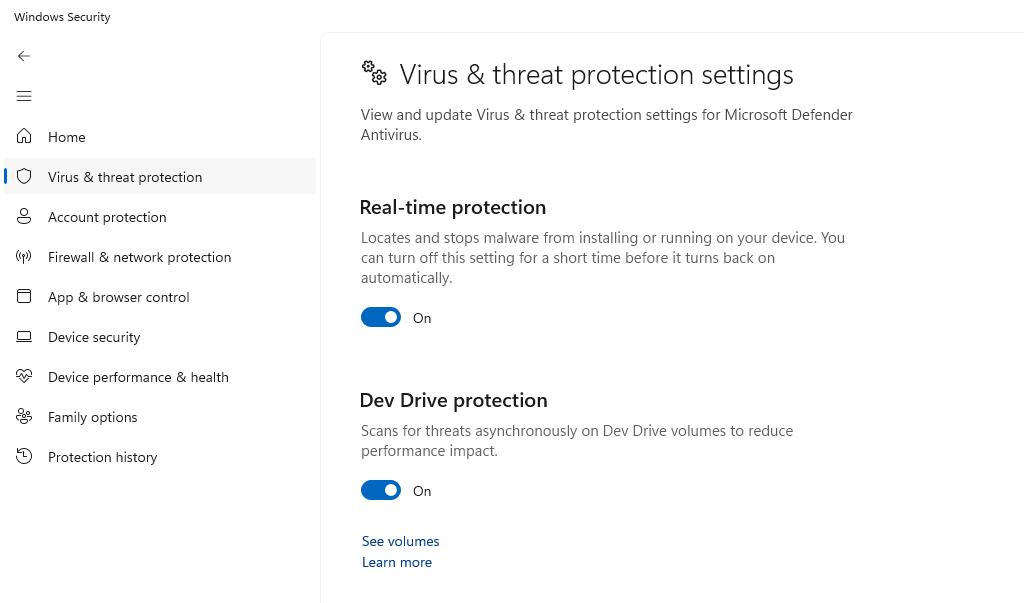
- Press the Windows key and type “Windows Security”
- Click on “Windows Security” from the search results
- Select “Virus & threat protection” from the left menu
- Verify that “Real-time protection” is turned ON
- Click “Protection history” to review any recent threats
- Navigate to “App & browser control”
- Ensure “Reputation-based protection” is enabled
Steps to Update Windows Defender Definitions:
- Open Windows Security
- Go to “Virus & threat protection”
- Click “Check for updates” under “Virus & threat protection updates”
- Allow Windows to download and install the latest definitions
Configure Browser Security Settings
Modern browsers offer protection against deceptive sites and dangerous downloads. Configure these settings properly:
For Microsoft Edge (Windows 10/11):
- Open Microsoft Edge
- Click the three-dot menu in the top-right corner
- Select “Settings”
- Click “Privacy, search, and services” in the left sidebar
- Ensure “Microsoft Defender SmartScreen” is turned ON
- Scroll to “Security” section
- Enable “Block potentially unwanted apps”
- Turn ON “Warn me about password breaches”
For Google Chrome:
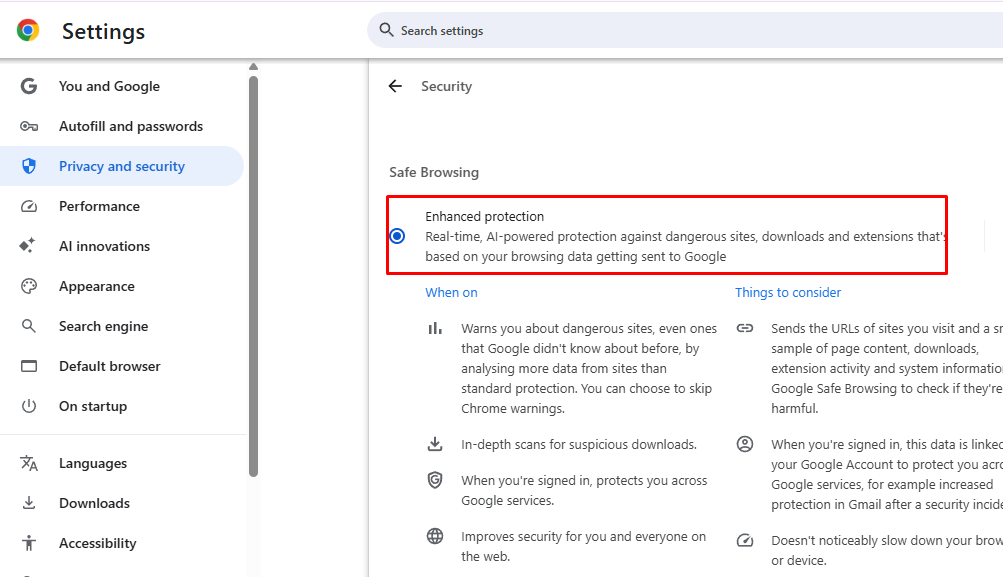
- Open Chrome and click the three-dot menu
- Select “Settings”
- Click “Privacy and security” from the left menu
- Select “Security”
- Choose “Enhanced protection” or “Standard protection.”
- Enable “Warn you if passwords are exposed in a data breach.”
Block Pop-Ups and Suspicious Notifications
Preventing pop-ups reduces exposure to fake giveaway scams significantly.
Steps to Block Pop-Ups in Microsoft Edge:
- Open Edge and go to Settings
- Select “Cookies and site permissions.”
- Click “Pop-ups and redirects.”
- Toggle the switch to “Blocked (recommended).”
- Return to “Cookies and site permission.”
- Click “Notifications”
- Toggle “Ask before sending (recommended)” to ON
- Review the list and remove any suspicious sites
Steps to Disable Notification Permissions:
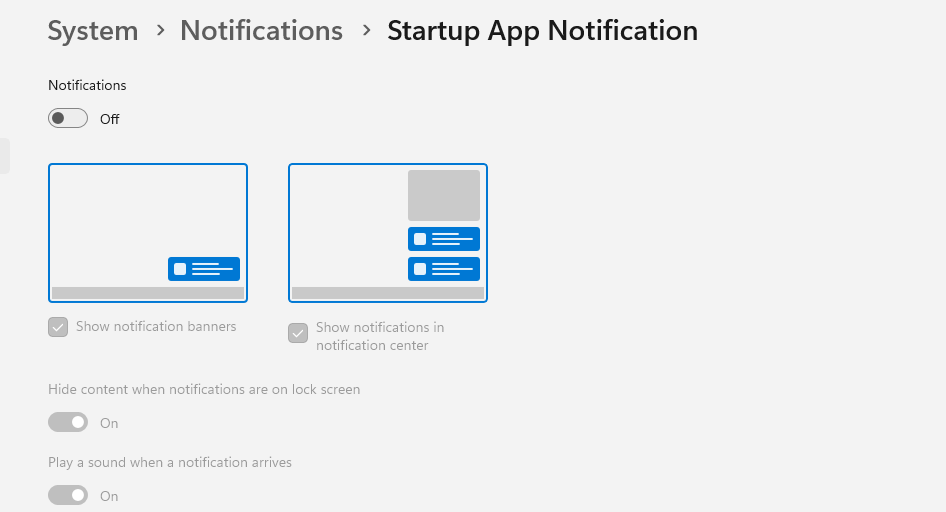
- Press Windows key + I to open Settings
- Select “System”
- Click “Notifications”
- Scroll to “Notifications from apps and other senders.”
- Review the list and turn OFF notifications from unknown applications or browsers showing suspicious alerts
Remove Adware and Potentially Unwanted Programs
Adware generates fake giveaway pop-ups and redirects your browser to scam websites.
Steps to Uninstall Suspicious Programs (Windows 10/11):
- Press Windows key + I to open Settings
- Click “Apps”
- Select “Apps & features” or “Installed apps”
- Sort by install date to identify recent additions
- Look for unfamiliar programs installed around the time problems began
- Click the suspicious program
- Select “Uninstall” and follow the prompts
- Restart your computer after removal
Steps to Run Windows Security Full Scan:
- Open Windows Security
- Click “Virus & threat protection”
- Select “Scan options”
- Choose “Full scan”
- Click “Scan now”
- Allow the scan to complete (may take 30-60 minutes)
- Follow prompts to remove any detected threats
What to Do If You’ve Fallen for a Giveaway Scam
If you’ve provided personal information or payment details to a fake giveaway, act immediately. Change passwords for all accounts, especially email and banking. Monitor your bank statements and credit reports for unauthorized activity. Contact your financial institution to report potential fraud and consider placing a fraud alert on your credit file.
Run a comprehensive antivirus scan on your Windows computer to detect malware that may have been installed. Reset your browser settings to defaults and clear all cookies, cache, and saved data.
Report the scam to the Federal Trade Commission at ReportFraud.ftc.gov and to the legitimate company being impersonated. Your report helps authorities track scammers and protect other potential victims.
Stay Vigilant Against Online Scams
Preventing fake giveaway scams requires awareness, skepticism, and proper security configuration on your Windows device. Remember that legitimate giveaways never require payment, sensitive personal information, or immediate action under pressure. When something seems too good to be true, it usually is. Keep your Windows system updated, maintain active security software, and think critically before clicking links or providing information online. Your vigilance is the strongest defense against scammers.
You can also check out our article on online dating scams and holiday scams to stay informed if you’re exploring opportunities online





