
How to Prevent Attacks on Shared Networks
Shared networks in coffee shops, libraries, airports, and apartment complexes expose your Windows PC to cybersecurity risks. When multiple users connect to the same Wi-Fi network, hackers can intercept your data, deploy malware, or gain unauthorized access to your device. Understanding how to secure your connection is essential for protecting your personal information.
What Makes Public Wi-Fi Dangerous?
Shared networks lack individual user authentication, making them prime targets for cyberattacks. Man-in-the-middle attacks, packet sniffing, and rogue hotspots are common threats on public Wi-Fi. Hackers can monitor unencrypted traffic, steal login credentials, and inject malicious code into your browsing sessions.
Common Attack Types on Shared Networks
Man-in-the-middle attacks occur when hackers position themselves between your device and the network router, intercepting all data transmitted between them. Evil twin attacks involve creating fake Wi-Fi hotspots that mimic legitimate networks. Packet sniffing enables attackers to intercept data packets traveling across the network, thereby revealing passwords and sensitive information.
Essential Security Settings for Windows Users
Enable Windows Firewall
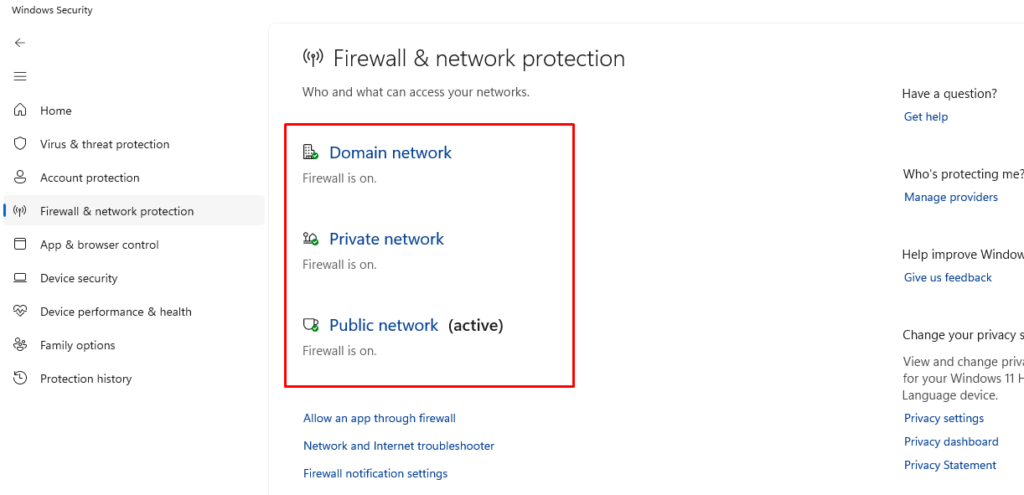
Your firewall acts as the first line of defense against network intrusions.
Steps for Windows 10/11:
- Press Windows + I to open Settings
- Click Privacy & Security (Windows 11) or Update & Security (Windows 10)
- Select Windows Security from the left menu
- Click Firewall & network protection
- Ensure firewall is turned On for all network types (Domain, Private, Public)
Set Your Network to Public

Windows treats public networks with stricter security protocols, limiting device discoverability.
Steps for Windows 10/11:
- Open Settings (Windows + I)
- Navigate to Network & Internet
- Click Wi-Fi and select your connected network
- Under Network profile type, choose Public
This prevents other network users from seeing your PC and accessing shared files.
Implement Encryption and VPN Protection
Use a Virtual Private Network
VPNs encrypt all internet traffic between your device and the VPN server, making intercepted data unreadable to attackers. Select reputable VPN providers that offer no-log policies and adhere to strong encryption standards.
How to configure a VPN on Windows 10/11:
- Download and install your chosen VPN application
- Launch the VPN software
- Sign in with your credentials
- Select a server location
- Click Connect before accessing any websites or services
Always enable your VPN before connecting to shared networks, not after.
Enable HTTPS Everywhere
HTTPS encrypts communication between your browser and websites, protecting login credentials and personal data. Modern browsers automatically prefer HTTPS connections, but you can enhance this protection.
Install browser extensions that force HTTPS connections on all compatible websites. Avoid entering sensitive information on sites displaying “Not Secure” warnings in the address bar.
Update Windows Regularly
Microsoft releases security patches that address vulnerabilities exploited by network attackers.
Steps to update Windows 10/11:
- Press Windows + I for Settings
- Click Windows Update (left sidebar in Windows 11) or Update & Security (Windows 10)
- Click Check for updates
- Install all available updates
- Restart your computer when prompted
Enable automatic updates to receive critical security patches immediately.
Use Fortect for Complete Protection
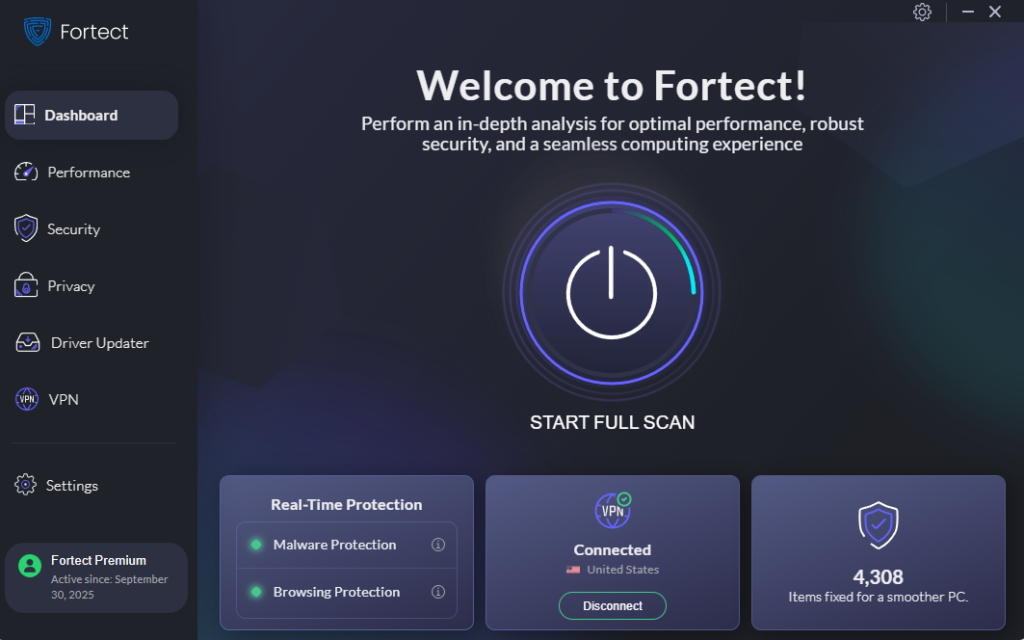
Fortect is a powerful and advanced antivirus solution with real-time malware protection. It automatically scans your Windows PC for potential threats, such as attacks on shared networks, removes them safely, and optimizes your system for smoother performance.
Shared and public networks are frequent targets for cybercriminals. Guidance from CISA highlights that open Wi-Fi makes it easy for attackers to intercept data, steal login credentials, and deploy zero-day exploits. Strong encryption is essential for preventing unauthorized access on shared networks.
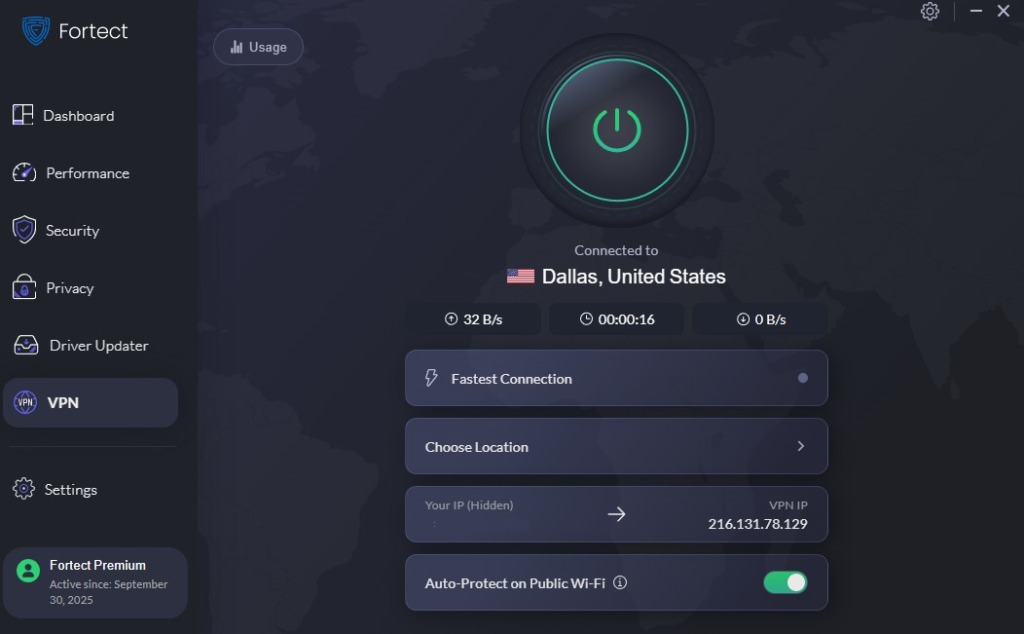
Fortect Premium now includes a built-in VPN with Auto-Protect for public Wi-Fi, encrypting your traffic the moment you connect. This shields sensitive information and blocks attackers who exploit unsecured networks. Automatic protection reduces risk in cafés, airports, and other shared hotspots, ensuring safe browsing without manual configuration.
Download and install Fortect now.
Disable Sharing and Remote Access
Turn Off File and Printer Sharing
Sharing features convenient for home networks can become security risks on public Wi-Fi.
Steps for Windows 10/11:
- Open Settings (Windows + I)
- Go to Network & Internet
- Click Advanced network settings
- Select Advanced sharing settings
- Under Public networks, turn off Network discovery and File and printer sharing
- Click Save changes
Disable Remote Desktop
Steps for Windows 10/11:
- Press Windows + I for Settings
- Navigate to System
- Click Remote Desktop (left menu)
- Toggle Remote Desktop to Off
This prevents remote access attempts through the shared network.
Practice Smart Browsing Habits
Avoid accessing banking websites, making online purchases, or entering passwords on shared networks unless using a VPN. Disable automatic Wi-Fi connections to prevent your device from joining untrusted networks without permission. Log out of accounts when finished rather than simply closing browser tabs.
Monitor your device for unusual activity, including unexpected pop-ups, slow performance, or unfamiliar programs. These symptoms may indicate successful network attacks.
Conclusion
Protecting yourself from attacks on shared networks requires combining technical security measures with cautious behavior. Configure your Windows firewall, use public network settings, enable VPN encryption, and keep your system up to date. Disable sharing features and practice safe browsing habits to minimize exposure. These straightforward steps significantly reduce your vulnerability to cyber threats when using public or shared Wi-Fi connections.





