
How to Fix GPU Driver Issues Causing Stutter or FPS Drops
GPU driver issues can transform smooth gaming sessions into frustrating experiences filled with stuttering and frame rate drops. When your graphics card driver malfunctions, even high-end hardware struggles to deliver consistent performance. This guide walks you through proven solutions to resolve graphics driver problems and restore optimal frame rates on Windows 10 and 11.
Understanding Graphics Card Driver Problems
Your GPU relies on driver software to communicate with Windows and applications. Outdated, corrupted, or incompatible drivers frequently cause performance degradation, including micro-stuttering, sudden FPS drops, screen tearing, and game crashes. These issues often emerge after Windows updates, new game releases, or interrupted driver installations.
Update Your Graphics Drivers Properly
Keeping your GPU drivers current resolves most performance issues and ensures compatibility with recent games.
NVIDIA Drivers
- Press Windows + X and select Device Manager
- Expand Display adapters and right-click your NVIDIA graphics card
- Select Update driver then Search automatically for drivers
- Alternatively, visit the NVIDIA website, download GeForce Experience, and use it to install the latest Game Ready drivers
- Restart your computer after installation completes
AMD Drivers
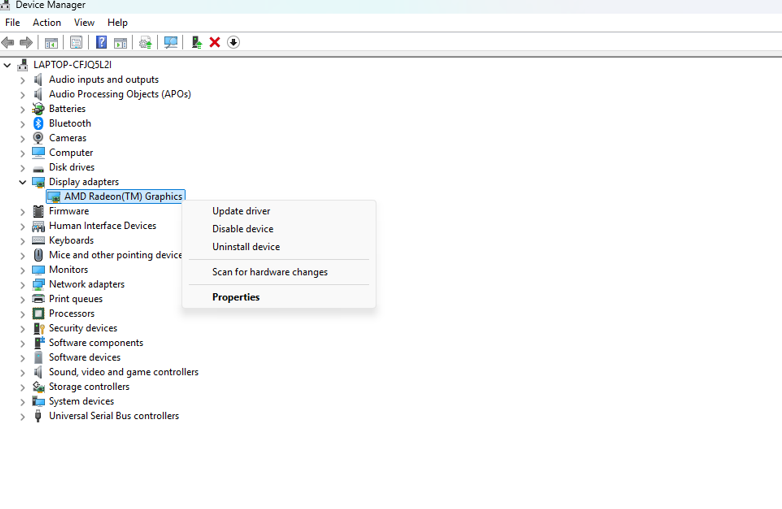
- Open Device Manager using Windows + X
- Right-click your AMD graphics card under Display adapters
- Choose Update driver and let Windows search for updates
- For better results, download AMD Software: Adrenalin Edition from AMD’s official website
- Run the installer and select Express Installation
- Reboot your system when prompted
Update Intel Graphics Drivers
- Launch Device Manager through Windows + X
- Locate your Intel graphics adapter under Display adapters
- Right-click and select Update driver
- Download Intel Driver & Support Assistant from Intel’s website for automatic updates
- Install the tool and follow on-screen instructions
- Restart after updating
Perform a Clean Graphics Driver Installation
Residual files from previous driver versions can conflict with new installations, causing stuttering and frame drops.
Automate Driver Updates and System Optimization with Fortect
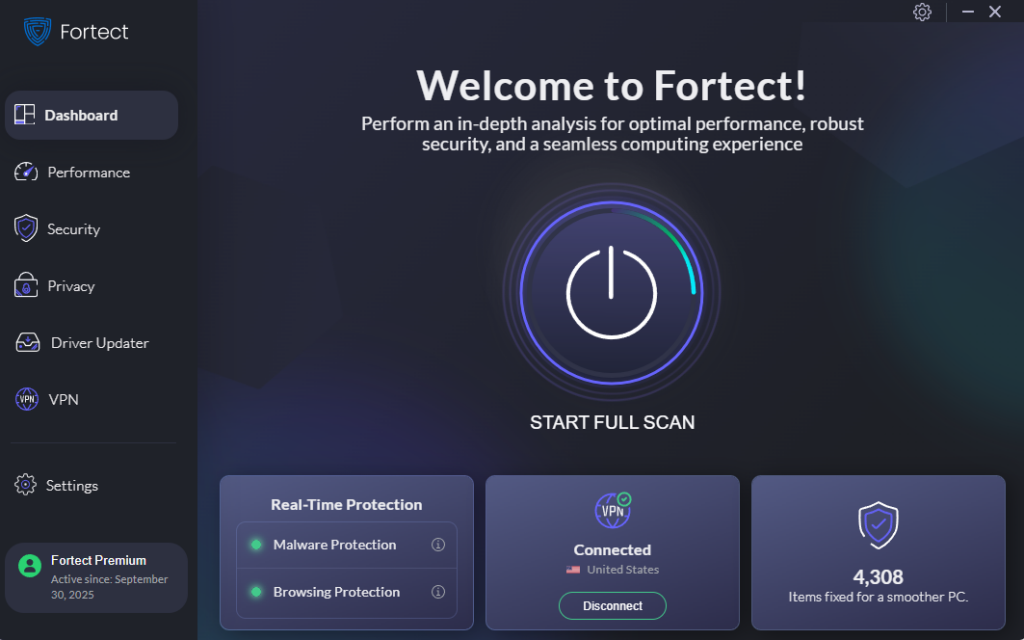
Managing GPU driver issues manually can be time-consuming and technical. Fortect simplifies this process by automatically identifying and replacing outdated or corrupted graphics drivers with verified versions from trusted sources. This automation is crucial because problematic GPU drivers not only cause stuttering and FPS drops but can also create system vulnerabilities.
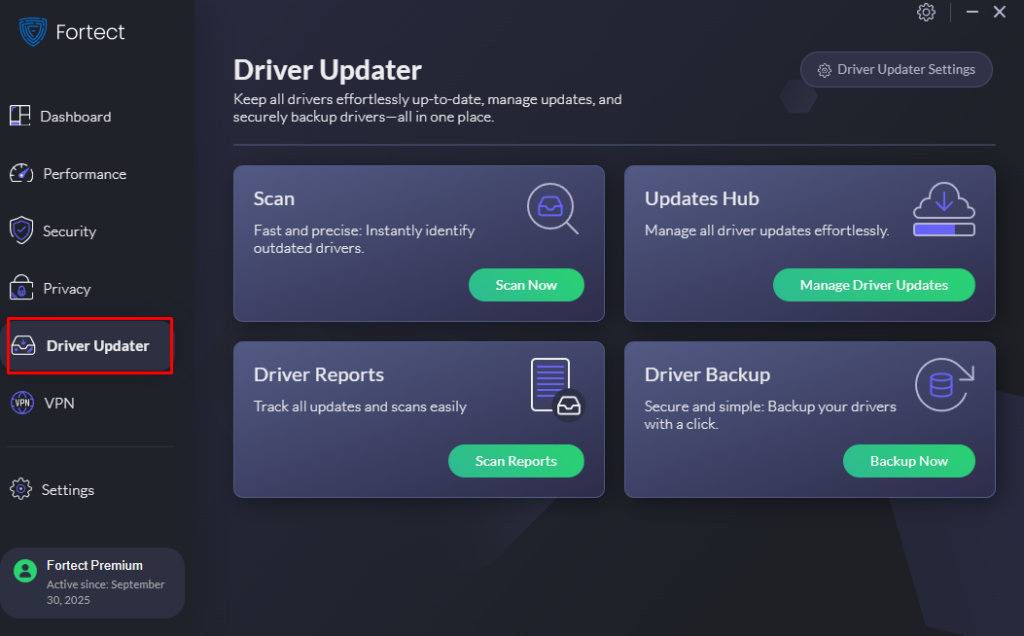
Fortect is a robust anti-virus solution with real-time malware protection. Its Premium account includes a comprehensive Driver Updater that scans your entire system for driver-related problems, including graphics card drivers that may be causing performance issues. The software eliminates corrupted driver files, restores damaged system components, and ensures your GPU always runs with stable, compatible drivers. By maintaining up-to-date drivers across your system, Fortect prevents the conflicts and instabilities that lead to frame rate drops while strengthening your PC’s overall performance and security.
The platform’s real-time monitoring continuously watches for driver conflicts and system file corruption that commonly trigger stuttering in games. When GPU driver issues are detected, Fortect addresses them automatically, saving you from manual troubleshooting and ensuring consistent gaming performance without the technical hassle.
Download and install Fortect today.
How to Use DDU (Display Driver Uninstaller)
- Download Display Driver Uninstaller from the official website
- Boot Windows into Safe Mode by pressing Windows + I, selecting Update & Security, clicking Recovery, and choosing Restart now under Advanced startup
- Click Troubleshoot > Advanced options > Startup Settings > Restart
- Press 4 or F4 to enter Safe Mode
- Run DDU and select your GPU manufacturer from the dropdown
- Click Clean and restart
- After rebooting, install the latest drivers from your GPU manufacturer’s website
Adjust Graphics Card Settings for Stability
Incorrect settings in your GPU control panel can trigger performance issues even with updated drivers.
NVIDIA Control Panel Adjustments
- Right-click your desktop and select NVIDIA Control Panel
- Navigate to Manage 3D settings
- Set Power management mode to Prefer maximum performance
- Change Low Latency Mode to On
- Disable Vertical sync if you experience input lag
- Click Apply to save changes
AMD Radeon Settings Optimization
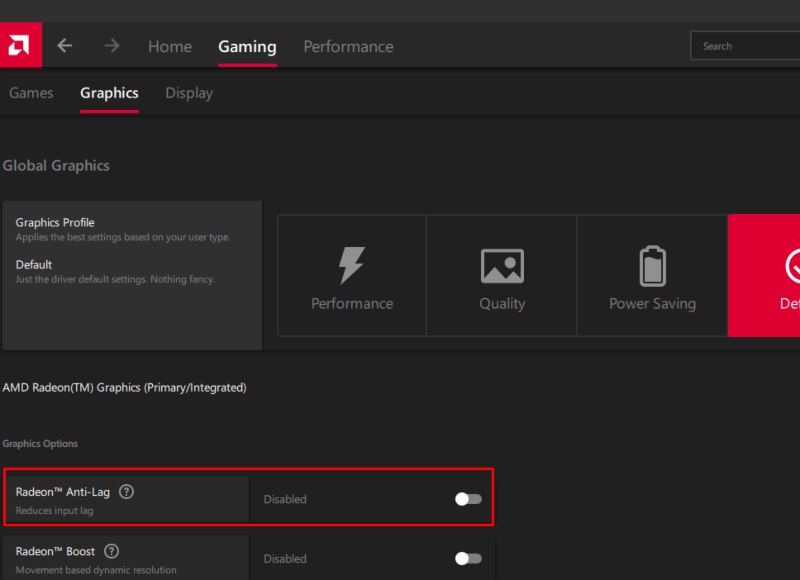
- Right-click your desktop and open AMD Software
- Click Gaming then Graphics
- Enable Radeon Anti-Lag for reduced latency
- Set Texture Filtering Quality to Performance
- Disable Radeon Chill if frame rates fluctuate unpredictably
- Apply your settings and test performance
Disable Windows Game Mode and DVR
Windows’ built-in gaming features sometimes conflict with graphics drivers, causing unexpected stuttering.
Disable Game Features
- Press Windows + I to open Settings
- Select Gaming from the menu
- Click Game Mode and toggle it Off
- Navigate to Captures in the left sidebar
- Toggle Record in the background while I’m playing to Off
- Disable Record audio when I record a game
- Close Settings and restart your system
Check for Overheating and Hardware Issues
Driver problems sometimes mask underlying hardware failures. Overheating GPUs throttle performance, creating symptoms similar to driver issues.
Monitor GPU Temperature
- Download monitoring software like MSI Afterburner or HWMonitor
- Run the program while gaming and observe GPU temperatures
- If temperatures exceed 85°C consistently, clean dust from your case and GPU fans
- Ensure proper airflow and consider reapplying thermal paste if temperatures remain high
- Check that all power connectors are firmly seated in your graphics card
Roll Back Problematic Driver Updates
Occasionally, new driver releases introduce bugs that cause worse performance than previous versions.
How to Revert to Previous Drivers
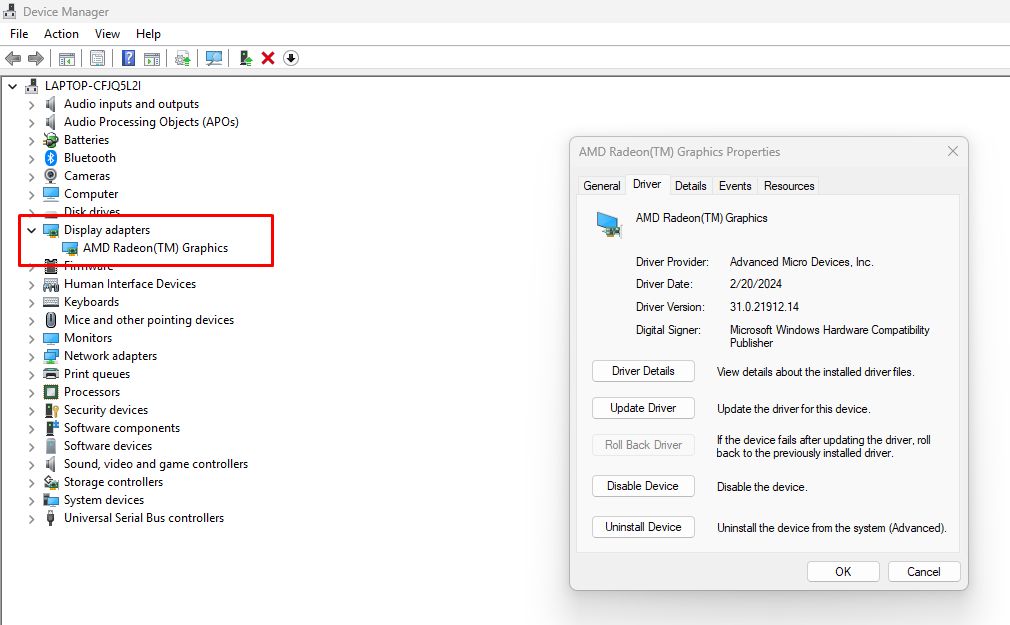
- Open Device Manager by pressing Windows + X
- Expand Display adapters
- Right-click your GPU and select Properties
- Navigate to the Driver tab
- Click Roll Back Driver if the option is available
- Select a reason for rolling back and click Yes
- Restart your computer after the process completes
Disable Background Applications
Resource-hungry programs competing for GPU resources create stuttering regardless of driver condition.
Close Unnecessary Programs
- Press Ctrl + Shift + Esc to open Task Manager
- Click the GPU column to sort by graphics usage
- Right-click any non-essential program using GPU resources
- Select End task
- Navigate to the Startup tab
- Disable programs you don’t need running at boot
- Restart to apply changes
Verify Game and System File Integrity
Corrupted game files or Windows system files can mimic GPU driver problems, causing identical symptoms.
Check System File Health
- Press Windows + X and select Windows PowerShell (Admin)
- Type sfc /scannow and press Enter
- Wait for the scan to complete, which may take 15-30 minutes
- If errors are found, run DISM /Online /Cleanup-Image /RestoreHealth
- Restart your computer after both scans finish
Conclusion
Resolving GPU driver issues requires systematic troubleshooting, starting with driver updates and clean installations. By adjusting graphics settings, eliminating software conflicts, and monitoring hardware health, you can eliminate stuttering and restore consistent frame rates. Most driver-related performance problems respond to these solutions, returning your gaming experience to smooth, enjoyable sessions.





