How to Detect and Stop Stalkerware on Windows
Stalkerware is malicious software designed to secretly monitor your activities on your computer without your knowledge or consent. Unlike legitimate parental control or employee monitoring tools, stalkerware operates covertly, tracking your keystrokes, browsing history, messages, location data, and even accessing your webcam. If you suspect someone has installed spyware on your Windows device, this guide will help you detect and remove it.
Understanding Stalkerware and Its Warning Signs
Stalkerware, also known as spouseware or monitoring software, is a form of surveillance malware that allows someone to spy on your digital activities. This invasive software often gets installed by someone with physical access to your device, such as a partner, family member, or acquaintance.
Common Symptoms of Stalkerware Infection
Your Windows computer may be infected with stalkerware if you notice unusual behavior. Your device might run slower than normal or experience unexpected battery drain even when idle. You may see unfamiliar applications in your program list or notice strange background processes consuming resources. Other red flags include receiving unexpected text messages with codes, noticing that someone knows information they shouldn’t have access to, or finding settings changed without your input.
How Stalkerware Gets Installed
Most stalkerware requires physical access to your device for installation. Attackers typically need your login credentials or administrator privileges to install monitoring software. Some advanced stalkerware can be delivered through phishing emails, malicious downloads, or compromised websites, making it crucial to practice safe browsing habits.
How to Detect Stalkerware on Windows 10/11
Detecting surveillance software requires a systematic approach to uncover hidden monitoring tools.
Step 1: Check Installed Programs
Press Windows Key + I to open Settings. Navigate to Apps > Installed apps (Windows 11) or Apps > Apps & features (Windows 10). Scroll through the complete list and look for unfamiliar applications, especially those with vague names like “System Service,” “Update Manager,” or programs you don’t remember installing. Common stalkerware names include mSpy, FlexiSPY, Spyzie, and Hoverwatch, though many operate under generic titles to avoid detection.
Step 2: Review Background Processes
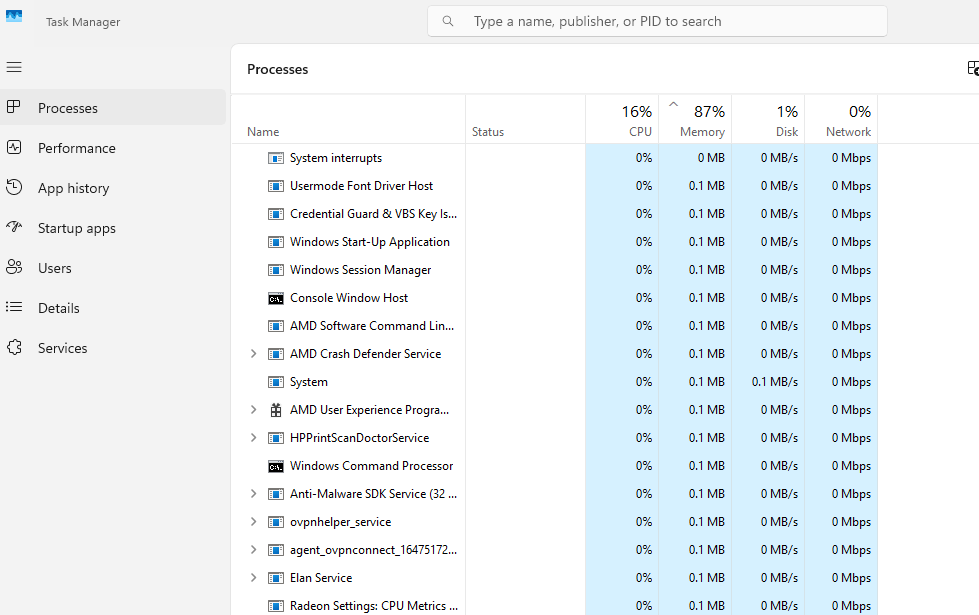
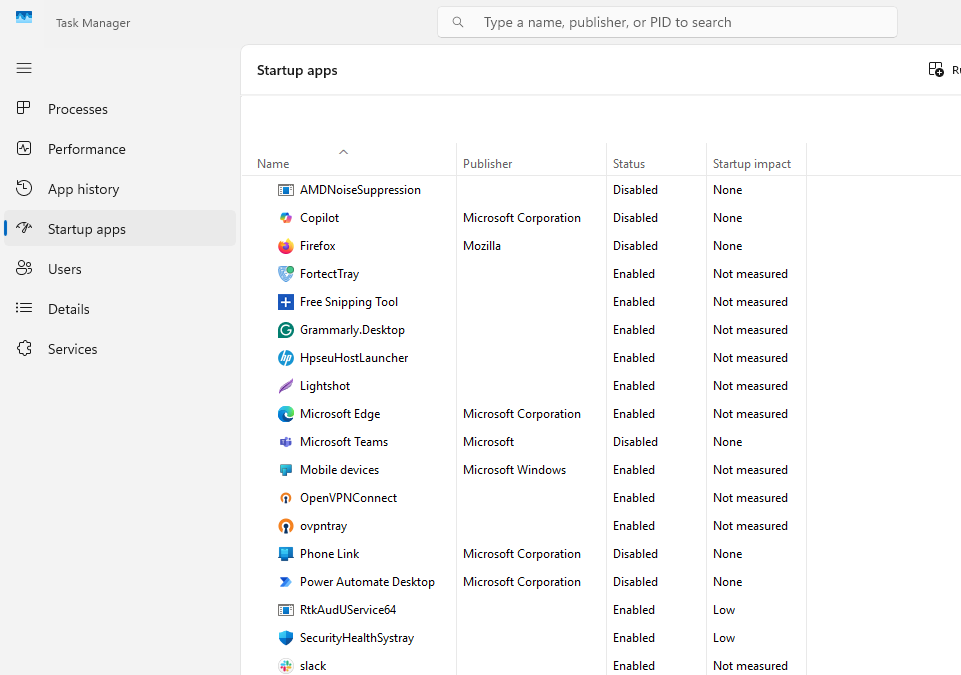
Right-click the taskbar and select Task Manager, or press Ctrl + Shift + Esc. Click the Processes tab and examine running applications. Look for suspicious processes consuming unusual amounts of CPU, memory, or network resources. Click the Startup tab to see which programs launch automatically when you boot your computer. Disable any unfamiliar or suspicious entries by right-clicking them and selecting Disable.
Step 3: Examine Startup Programs Using System Configuration
Press Windows Key + R, type msconfig, and press Enter. Navigate to the Startup tab (this will redirect you to Task Manager in modern Windows versions) or use the Services tab to check for suspicious services running in the background. Look for services from unknown publishers or those with generic names.
Step 4: Check for Remote Access Software
Press Windows Key + I to open Settings. Go to System > Remote Desktop and ensure Remote Desktop is turned off unless you specifically use it. Navigate to Privacy & security > Windows Security > Firewall & network protection and click Advanced settings. Review inbound rules for any unauthorized remote access permissions.
Step 5: Use Anti-Malware Software
Run a comprehensive scan using Windows Defender or reputable third-party anti-malware software. Press Windows Key + I, select Privacy & security > Windows Security > Virus & threat protection, then click Quick scan or Scan options for a full scan. Many stalkerware programs are detected as potentially unwanted programs (PUPs) or spyware by security software.
How to Remove Stalkerware from Your Windows Device
Once you’ve identified suspicious software, take immediate action to remove it and secure your device.
Strengthen Your PC Security with Fortect
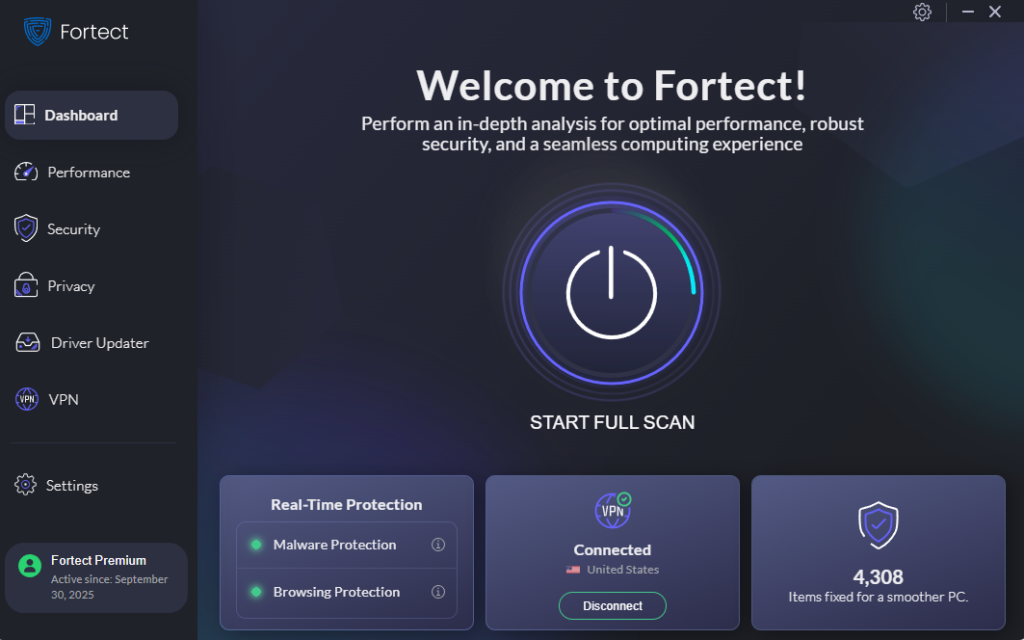
Detecting stalkerware manually can be challenging, especially when sophisticated monitoring software disguises itself as legitimate system processes. Fortect delivers advanced real-time malware protection specifically designed for Windows users facing these threats. It automatically scans your PC for both traditional malware and emerging surveillance threats, including stalkerware, and eliminates them safely without compromising your system stability.
Beyond detection and removal, Fortect restores damaged system files that stalkerware may have corrupted, ensuring your device returns to optimal performance. Its intelligent threat-detection engine continuously monitors suspicious activity and alerts you before harmful actions can take place, providing an essential layer of protection that complements the manual detection methods outlined in this guide.
Download and install Fortect now.
Uninstall Suspicious Applications
Press Windows Key + I and navigate to Apps > Installed apps. Find the suspicious program, click the three-dot menu next to it, and select Uninstall. Follow the prompts to complete the removal. Some stalkerware may require you to enter administrator credentials during uninstall, which the installer may have changed.
Perform a Clean Boot to Remove Persistent Threats
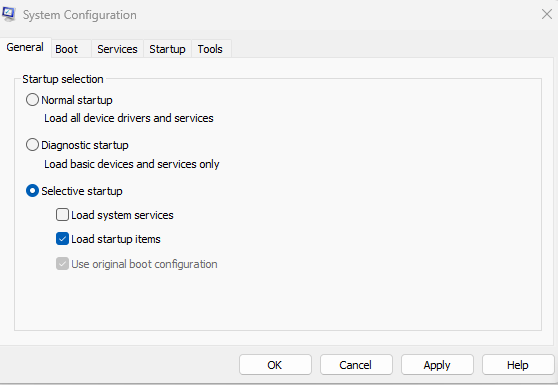
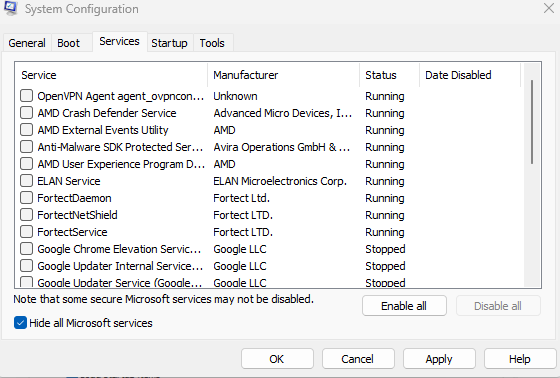
Press Windows Key + R, type msconfig, and press Enter. In the General tab, select Selective startup and uncheck Load startup items. Navigate to the Services tab, check Hide all Microsoft services, then click Disable all. Click Apply and restart your computer. This boots Windows with minimal drivers and services, making it easier to identify and remove persistent stalkerware.
Reset Windows Security Settings
After removing stalkerware, restore your security settings. Press Windows Key + I, go to Privacy & security > Windows Security, and review each section, including Virus & threat protection, Firewall & network protection, and App & browser control. Ensure all protections are enabled and current.
Protecting Your Windows Computer from Future Stalkerware
Prevention is your strongest defense against surveillance software.
Strengthen Your Account Security
Change your Windows password immediately. Press Windows Key + I, navigate to Accounts > Sign-in options, and select Password to update it. Create a strong, unique password containing uppercase and lowercase letters, numbers, and special characters. Never share your login credentials with anyone.
Consider switching to a PIN or biometric login (fingerprint or facial recognition) for added security. Navigate to Accounts > Sign-in options and set up Windows Hello if your device supports it.
Enable User Account Control
Press Windows Key + R, type useraccountcontrol, and press Enter. Move the slider to the highest level to require administrator approval for any software installation or system changes. This prevents unauthorized installations even if someone has physical access to your unlocked device.
Keep Windows Updated
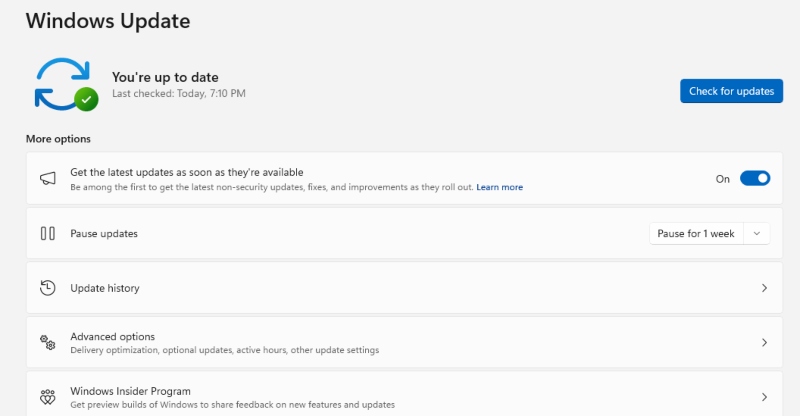
Press Windows Key + I and select Windows Update. Click Check for updates and install all available updates. Enable automatic updates by clicking Advanced options and ensuring Receive updates for other Microsoft products is turned on. Updates patch security vulnerabilities that stalkerware exploits.
Use Strong Privacy Settings
Navigate to Settings > Privacy & security and review each category, including Camera, Microphone, Location, and App permissions. Disable access for applications that don’t need these permissions. Under General, turn off advertising ID and tracking options.
Physically Secure Your Device
Never leave your Windows computer unattended and unlocked. Set a short screen timeout period by going to Settings > System > Power & battery > Screen and sleep and selecting a brief timeout period (1-5 minutes). Use a lockscreen password or PIN that you change regularly.
When to Seek Professional Help
If you’ve followed these steps but still suspect stalkerware is present, or if you’re in a situation where confronting the installer might put you at risk, seek professional assistance. Contact local domestic violence resources, cybersecurity professionals, or law enforcement for guidance. Organizations like the National Domestic Violence Hotline provide support and resources for stalkerware victims.
Remember, stalkerware is illegal in many jurisdictions when installed without consent. Removing it and securing your device protects your privacy and personal safety.