How to Detect and Prevent Clone Phishing on Windows
Online scams are getting smarter, and clone phishing has become one of the most deceptive tricks cybercriminals use to steal information. Unlike regular phishing, this scam uses a real email or website you’ve interacted with before, but replaces links or attachments with malicious ones. If you’re a Windows user, knowing how clone phishing works and learning to detect and prevent it can help you avoid data theft, identity fraud, or malware infections.
What Is Clone Phishing?
Clone phishing happens when a hacker copies a legitimate email or website and tweaks it slightly to make it harmful. They might change a safe link to a malicious one or replace a file with malware. Because the clone looks almost identical to the real thing, it’s easy for unsuspecting users to fall for it.
Common examples include receiving an email that looks like it’s from Microsoft or PayPal but contains a fake link, getting a cloned login page that asks for your credentials, or downloading an “update” that secretly installs malware on your PC.
How to Detect Clone Phishing Attempts on Windows
Spotting clone phishing can be tough, but there are signs you can look for to protect yourself.
1. Inspect the Sender’s Email Address
Always double-check the sender’s full email address. Attackers often create look-alike domains, like [email protected] instead of [email protected], to trick you.
2. Hover Over Links Before Clicking
On Windows, hover your mouse over a link before clicking it. The real URL will appear in the bottom-left corner of your browser or screen. If it doesn’t match the official site or looks suspicious, don’t open it.
3. Watch for Unexpected Attachments or Requests
If someone “resends” a message or file you already received, be cautious. This is a common clone phishing tactic to get you to download malware.
4. Check HTTPS and SSL Certificates
Before entering any personal information, make sure the website uses HTTPS and has a valid SSL certificate. Click the padlock icon beside the web address to confirm its legitimacy.
5. Use Windows Security Tools
Windows 10 and 11 come with Windows Security (Defender), which helps block phishing-related malware. To ensure it’s active, go to Start > Settings > Privacy & Security > Windows Security, select Virus & threat protection, and make sure Real-time protection is turned on.
How to Prevent Clone Phishing on Windows
While detection helps, prevention is your best defense against clone phishing.
1. Keep Windows and Apps Updated
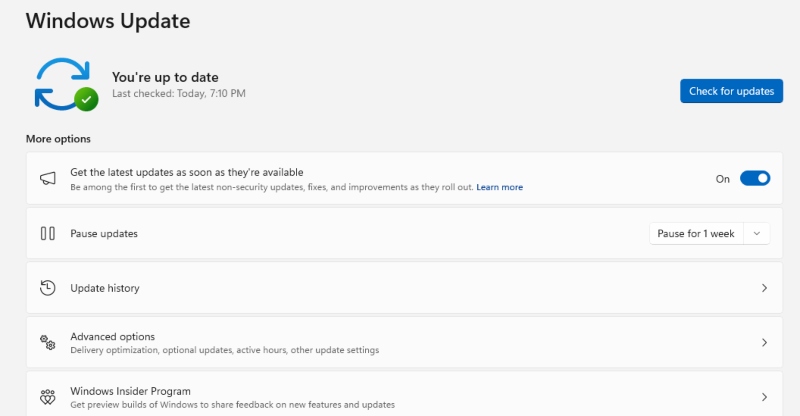
Updates close security holes that hackers exploit.
To update Windows 10 or 11:
- Go to Start > Settings > Update & Security (Windows 10) or Windows Update (Windows 11).
- Click Check for updates.
- Install all available updates.
- Restart your computer once done.
2. Enable Multi-Factor Authentication (MFA)
Even if an attacker gets your password, MFA stops them from logging in without your second verification step, such as a text message or fingerprint scan.
3. Use a Password Manager
A password manager fills in credentials only on legitimate sites, preventing you from entering details on cloned pages.
4. Avoid Public Wi-Fi for Important Accounts
Public Wi-Fi is unsafe for logging into banking or email accounts. If you must use it, connect through a VPN or use your phone’s hotspot instead.
5. Use a Comprehensive anti-virus with Real-Time Malware Protection

Fortect is a powerful antivirus and system repair tool that provides real-time protection against phishing-related malware. It automatically scans your PC for any suspicious activity, including clone phishing payloads, and repairs system vulnerabilities that attackers could exploit.
With Fortect Premium, you also get a built-in Driver Updater that detects outdated or corrupted drivers and updates them safely from trusted sources. Outdated drivers aren’t just a performance issue; they can open security holes hackers use to inject malware into your system. Since drivers communicate directly with your Windows kernel, any compromise can lead to system instability or full control by an attacker.
By keeping your drivers updated and your system optimized, Fortect helps ensure your PC runs securely, efficiently, and free from the hidden risks that clone phishing campaigns often carry.
The new Fortect Premium also includes a built-in VPN, allowing you to connect securely even when using public Wi-Fi. It encrypts your internet traffic, keeping your data private and protecting you from hackers or snoopers on unsecured networks.
Download and install Fortect today.
5. Educate Yourself Continuously
Cybercriminals evolve their tactics constantly. Stay informed by checking resources like the Microsoft Security Blog, CISA.gov, or educational institutions’ cybersecurity articles. Awareness is one of the best defenses you can have.
Conclusion
Clone phishing is dangerous because it preys on your trust in familiar messages and brands. Learning to recognize its warning signs and strengthening your PC’s defenses can help you avoid falling victim. Keep your Windows updated, verify suspicious messages, and rely on comprehensive protection tools like Fortect to stay secure.
One careless click can cause serious harm, but staying cautious and protected ensures your personal data and privacy remain safe.