
How to Delete Hidden Malware That Reinstalls After Reboot
Persistent malware that returns after every restart is one of the most frustrating security threats Windows users face. This hidden malware embeds itself deep within your system, exploiting startup processes and registry keys to survive reboots. Understanding how to identify and permanently remove these stubborn infections will protect your personal data and restore your computer’s performance.
Understanding Why Hidden Malware Keeps Coming Back
Hidden malware uses several persistence mechanisms to survive system restarts. These infections typically embed themselves in Windows startup folders, registry run keys, scheduled tasks, or system services. Rootkit malware can hide even deeper by modifying system files or operating at the kernel level, making detection extremely difficult with standard antivirus scans.
The malware often disguises itself as legitimate Windows processes, making manual identification challenging. Some variants create multiple backup copies across your system, ensuring that if you delete one instance, another automatically reinstalls it.
How to Boot Into Safe Mode with Networking
Safe Mode prevents most malware from loading at startup, giving you a clean environment to remove infections.
Steps for Windows 10/11
- Press Windows key + I to open Settings
- Navigate to System > Recovery
- Under Advanced startup, click Restart now
- When your PC restarts, select Troubleshoot > Advanced options > Startup Settings
- Click Restart again
- When the Startup Settings screen appears, press 5 or F5 to select Safe Mode with Networking
Alternatively, hold Shift while clicking Restart from the Start menu to access recovery options directly.
How to Scan and Remove Persistent Malware Infections
Strengthen Your PC Security with Fortect
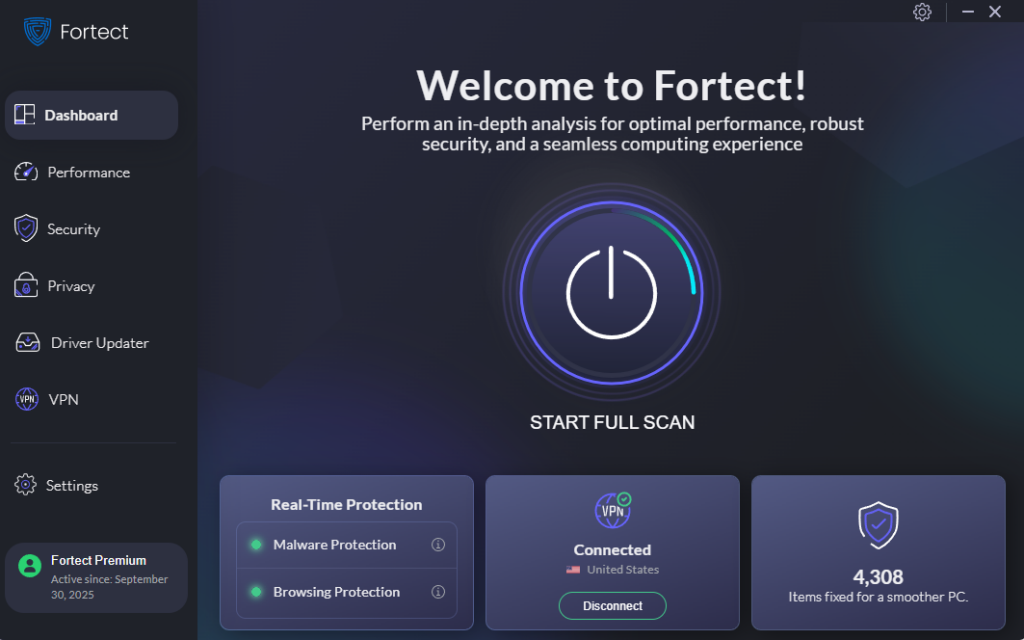
Fortect delivers advanced real-time malware protection specifically designed for Windows users dealing with persistent threats. It automatically scans your PC for traditional and emerging threats, including hidden malware that reinstalls after reboot, eliminates them safely, and restores damaged system files for improved performance.
Its cutting-edge threat-detection engine monitors suspicious activity and alerts you before harmful actions can take place, helping keep your device secure and running efficiently. This proactive approach is particularly effective against rootkits and stealth malware that standard antivirus programs often miss.
Download and install Fortect today to be protected from different types of malware.
Check for Rootkit Infections
Rootkits require specialized removal tools:
- Download GMER or Kaspersky TDSSKiller
- Run the rootkit scanner with default settings
- Allow the tool to remove any detected rootkit components
- Restart your computer after removal
How to Clean Registry Keys and Startup Programs
Malware commonly hijacks Windows startup locations to reinstall itself.
Remove Malicious Registry Entries
- Press Windows key + R, type regedit, and press Enter
- Navigate to these common persistence locations:
- HKEY_CURRENT_USER\Software\Microsoft\Windows\CurrentVersion\Run
- HKEY_LOCAL_MACHINE\Software\Microsoft\Windows\CurrentVersion\Run
- Look for suspicious entries with random names or unfamiliar file paths
- Right-click suspicious entries and select Delete
- Always create a registry backup before making changes
Disable Suspicious Startup Programs
- Press Ctrl + Shift + Esc to open Task Manager
- Click the Startup tab
- Review all enabled programs
- Right-click any unfamiliar or suspicious entries and select Disable
- Note the file location of suspicious items for further investigation
How to Check for Malicious Scheduled Tasks
Hidden malware often creates scheduled tasks to reinstall itself automatically.
Steps to Remove Malicious Tasks
- Press Windows key + R, type taskschd.msc, and press Enter
- Click Task Scheduler Library in the left panel
- Review all tasks for suspicious entries (random names, unusual triggers)
- Select suspicious tasks and check their Actions tab
- If a task runs an unknown executable, right-click and select Delete
- Pay special attention to tasks that run at startup or every few minutes
How to Reset Your System If Malware Persists
When infections prove too stubborn, a system reset may be necessary.
Windows 10/11 Reset Steps
- Press Windows key + I to open Settings
- Go to System > Recovery
- Under Reset this PC, click Reset PC
- Choose Remove everything for a thorough clean
- Select Local reinstall or Cloud download based on preference
- Follow the on-screen instructions to complete the reset
This process reinstalls Windows while giving you the option to keep personal files, though removing everything provides the cleanest result.
Prevent Future Malware Infections
After removing hidden malware, strengthen your defenses:
- Keep Windows and all software updated through Windows Update
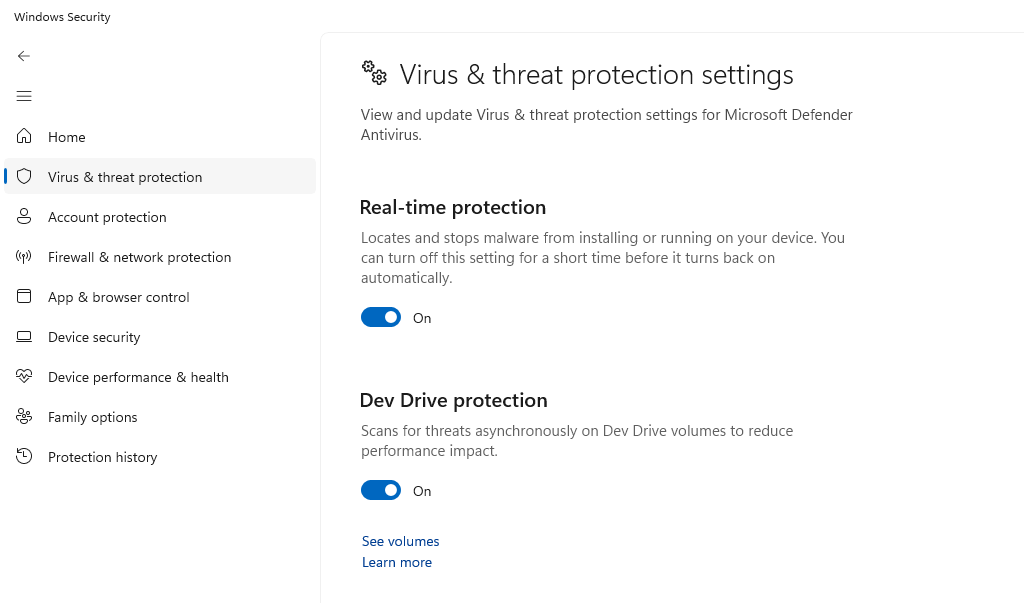
- Enable real-time protection in Windows Security
- Avoid downloading software from untrusted sources
- Use a standard user account for daily activities instead of an administrator account
- Create regular system backups to external drives
Persistent malware requires patience and thoroughness to eliminate completely. By following these steps systematically, you can remove even the most stubborn infections and prevent future compromises of your Windows system.





