
How to Choose the Best Antivirus Software for Home Use
The best antivirus software for home use combines real-time threat detection, minimal system impact, and intuitive controls that don’t require a cybersecurity degree to operate, and the right choice depends on your specific Windows setup, budget, and how much you actually use your PC.
Choosing the wrong one means either leaving your system exposed or bogging it down with a bloated program that slows everything to a crawl. Here’s what you actually need to know before downloading anything.
Key Takeaways
- The best antivirus software for home use offers real-time threat detection, low system impact, and ransomware protection, not just a high feature count on the marketing page.
- Independent lab scores from AV-TEST or AV-Comparatives are your most reliable measure of actual protection quality; check them before reading a single product review.
- Free tools like Windows Defender work for cautious users, but paid solutions offer stronger defenses for households with shared devices or sensitive stored data.
- Look beyond virus scanning, phishing protection, driver security, and performance impact; all affect how safe and usable your PC actually is day-to-day.
- Always trial before buying; 30-day trials reveal performance issues and usability problems that feature lists never will.
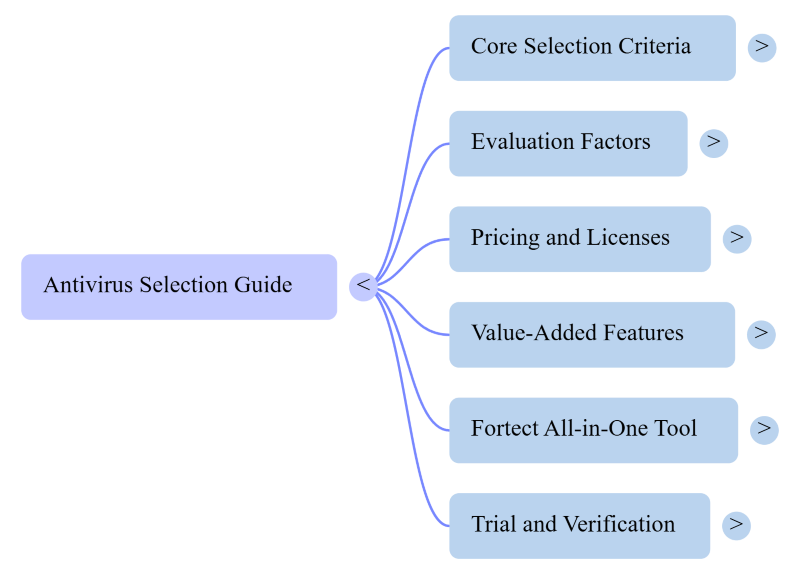
What Makes Antivirus Software Worth Installing?
Not all antivirus programs are created equal. Some catch malware but miss phishing links. Others offer broad protection but eat up RAM like it’s an all-you-can-eat buffet. The key is finding software that does its job without becoming a problem itself.
Before narrowing down your options, understand what a solid antivirus program should do at a minimum:
- Detect and block malware, ransomware, spyware, and trojans in real time
- Scan downloads, email attachments, and external drives automatically
- Update its threat database frequently, ideally daily
- Run efficiently in the background without slowing your PC to a halt
- Provide a clear, readable dashboard even for non-technical users
If a product can’t do all five consistently, it’s not worth your money or your storage.
Key Factors to Evaluate Before You Buy
1. Protection Accuracy
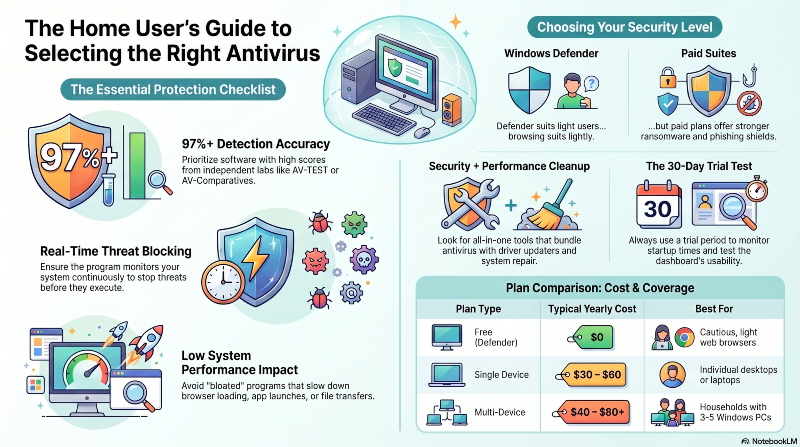
This is non-negotiable. Look for antivirus solutions that score well in independent lab testing from organizations like AV-TEST or AV-Comparatives. These labs regularly run real-world threat simulations and publish detection rates. A product with 97%+ detection accuracy in current tests is worth considering; anything below 95% should raise a flag.
2. System Performance Impact
A security tool shouldn’t punish your hardware for existing. Test reviews typically measure CPU and memory usage during scans. If a program consistently slows down file transfers, browser loading, or app launches, even during background scans, that’s a deal-breaker for everyday home users.
3. Real-Time vs. On-Demand Scanning
Real-time protection monitors your system continuously, blocking threats before they execute. On-demand scanning only checks when you manually trigger it. You want both, but real-time protection is the foundation. Don’t settle for software that only scans when you remember to run it.
4. Ransomware and Phishing Defense
Ransomware encrypts your files and demands payment for the key. Phishing attacks trick you into handing over login credentials through fake websites or emails. Both are among the most common and damaging threats targeting Windows users today. Make sure your antivirus explicitly lists protection against both, not just general “malware detection.”
5. Pricing and Renewal Terms
Free antivirus tools can cover the basics, but they often lack real-time protection, firewall integration, or technical support. Paid plans typically run $30–$60 per year for a single device, sometimes less if you grab a first-year promotional price. Just watch the renewal rates; some jump significantly after year one.
6. Number of Devices Covered
If you have more than one Windows PC at home, or a laptop in addition to a desktop, look for multi-device licenses. Covering three to five devices under one subscription usually costs only slightly more than a single-device plan and saves you the headache of managing separate accounts.
7. Extra Features That Actually Matter
Some antivirus suites bundle in features that genuinely add value:
- VPN access for safer browsing on public networks
- Password managers to reduce credential exposure
- Parental controls for households with kids
- Firewall integration beyond what Windows Defender already provides
- Driver and software updaters to close security gaps from outdated programs
Evaluate these based on your actual needs, not on which product has the longest feature list.
Free vs. Paid: The Honest Answer
Windows 11 comes with Microsoft Defender built in, and it’s no longer the underperforming afterthought it once was. In recent AV-TEST evaluations, Defender has scored competitively against paid alternatives. For light users who browse cautiously, stick to mainstream sites, and don’t download much, Defender, plus good browsing habits, may be enough.
That said, paid antivirus software typically offers stronger ransomware shields, more advanced behavioral detection, dedicated phishing filters, and customer support when something goes wrong. If you work from home, store sensitive documents locally, or share your PC with family members who click on everything, paid protection is worth the investment.
Consider an All-in-One Security and Optimization Tool
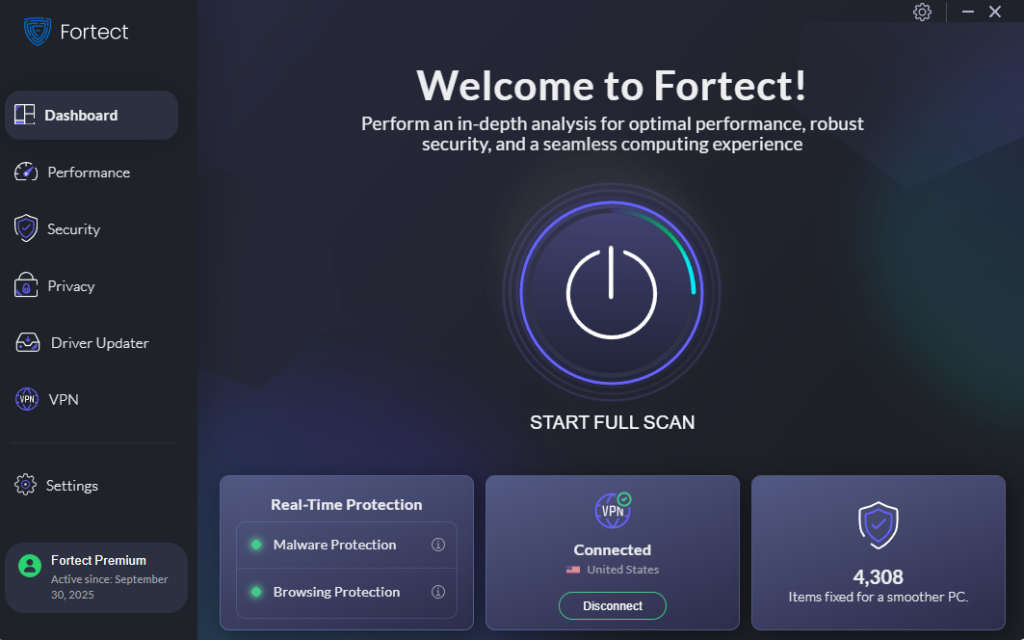
If you want a security solution that goes beyond basic virus scanning, it may be worth looking at Fortect as part of your evaluation.
Fortect operates as a comprehensive PC security and repair tool designed for Windows users. Rather than just detecting threats, it works in layers, scanning for malware and other security risks in real time while simultaneously cleaning up junk files, removing crashed program remnants, and freeing system resources that slow your PC down over time. That combination of security and performance cleanup in one package can be especially useful if your Windows machine has started feeling sluggish alongside the usual security concerns.
One feature that stands out is Fortect’s built-in Driver Updater. Outdated or corrupted drivers are a commonly overlooked attack surface; cybercriminals actively exploit driver vulnerabilities to gain system access. Fortect replaces outdated drivers with verified versions automatically, closing those gaps without requiring the user to hunt down manufacturer update pages manually.
Fortect Premium now features a built-in VPN with Auto-Protect on public Wi-Fi. It secures your connection by encrypting internet traffic, helping reduce the risk of network-based attacks.
If you’re evaluating options and want something that handles antivirus protection alongside system health maintenance, rather than juggling separate tools for each, Fortect is a practical option worth trying. You can run an initial scan to see what it finds on your current system before committing to anything.
Download Fortect today.
How to Test Before You Commit
Most reputable antivirus providers offer a 30-day free trial. Take advantage of it. During the trial period:
- Run a full system scan and check what it flags
- Monitor how much the software affects startup times and browser speed
- Test how its interface handles a simulated download of an EICAR test file (a safe, standard security test file) to confirm it catches active threats
- Check whether the support team is reachable if something goes wrong
If it passes those checkpoints without making your PC feel like it’s trudging through mud, that’s a strong signal you’ve found the right fit.





