
How to Avoid Pop-Up Phishing Attacks on Windows and Mac
Pop-up phishing attacks remain one of the most dangerous threats facing Windows users today. These deceptive messages trick you into revealing passwords, downloading malware, or giving scammers remote access to your computer. Understanding how to avoid pop-up phishing can save you from identity theft, financial loss, and compromised personal data.
What Are Pop-Up Phishing Attacks?
Pop-up phishing scams appear as legitimate-looking windows, claiming that your computer is infected, your subscription has expired, or your account needs verification. These fake alerts mimic Microsoft, antivirus companies, or trusted brands to create panic and rush you into making poor decisions.
Common pop-up phishing tactics include fake virus warnings, fraudulent tech support messages, bogus prize notifications, and counterfeit security alerts. Cybercriminals design these pop-ups to look authentic, using official logos and urgent language to bypass your natural skepticism.
Enable Windows Built-In Pop-Up Protection
Windows 10 and 11 include powerful tools to block malicious pop-ups before they reach your screen.
Turn On Microsoft Defender SmartScreen
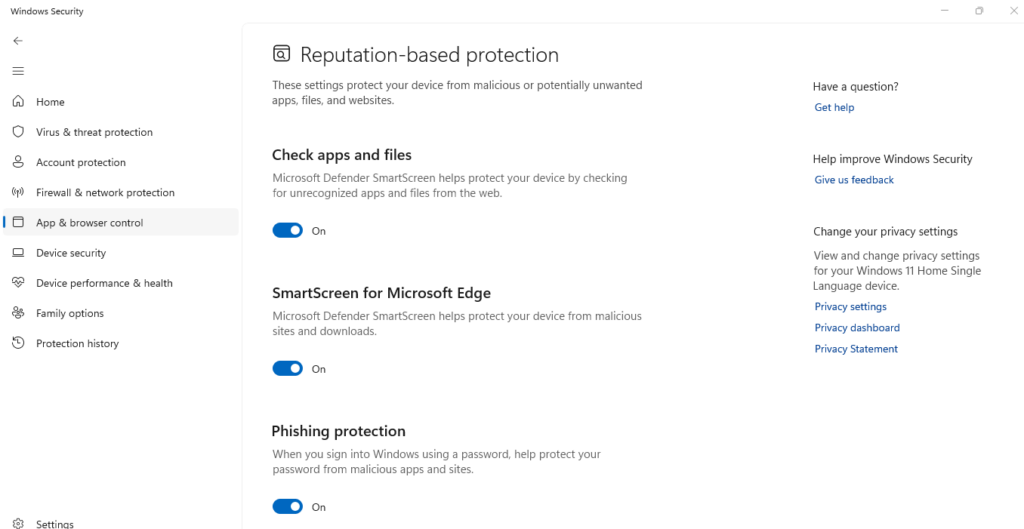
For Windows 10:
- Click the Start menu and select Settings
- Navigate to Update & Security
- Click Windows Security, then select App & browser control
- Under Reputation-based protection, ensure all toggles are turned on
- Click “Reputation-based protection settings” and enable all SmartScreen options
For Windows 11:
- Open Settings from the Start menu
- Select Privacy & security from the left sidebar
- Click Windows Security, then open App & browser control
- Enable all options under Reputation-based protection
- Turn on SmartScreen for Microsoft Edge, apps, and files
Configure Browser Pop-Up Blockers
Microsoft Edge Steps:
- Open Edge and click the three-dot menu
- Select Settings, then choose Cookies and site permissions
- Click Pop-ups and redirects
- Toggle “Block” to the on position
- Add trusted sites to exceptions only when necessary
Google Chrome Steps:
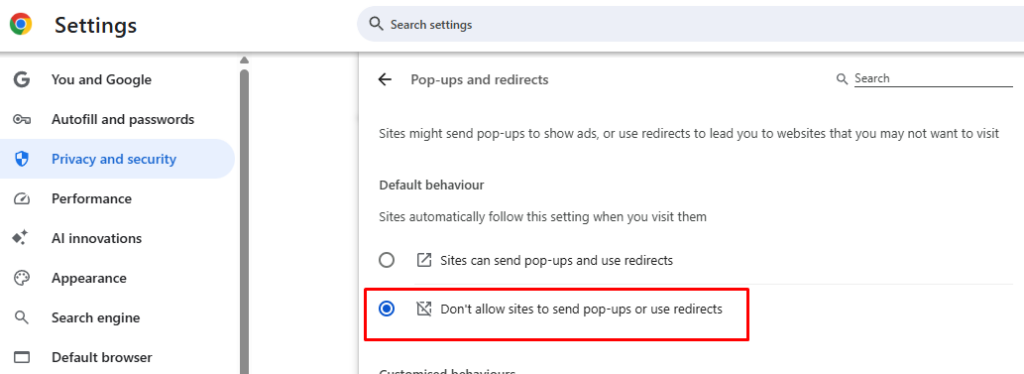
- Launch Chrome and access Settings
- Click Privacy and security
- Select Site Settings, then Pop-ups and redirects
- Choose “Don’t allow sites to send pop-ups or use redirects”
Keep Your Windows System Updated
Outdated software creates vulnerabilities that phishing attacks exploit. Regular updates patch security holes and strengthen your defenses.
Update Windows 10/11
Windows 10:
- Press Windows key + I to open Settings
- Select Update & Security
- Click Windows Update
- Press “Check for updates”
- Install all available updates and restart when prompted
Windows 11:
- Open Settings (Windows key + I)
- Click Windows Update from the left panel
- Select “Check for updates”
- Download and install all updates
- Restart your computer to complete the installation
Enable automatic updates to ensure continuous protection without manual intervention.
Recognize Phishing Pop-Up Warning Signs
Identifying fake pop-ups protects you from falling victim to scams. Legitimate Microsoft notifications never ask for passwords through pop-ups, request remote access, or demand immediate payment.
Watch for these red flags: spelling and grammar errors, countdown timers creating false urgency, requests for personal information, unfamiliar phone numbers or websites, and threats of immediate consequences. Real Windows security alerts appear through the Action Center, not random browser windows.
Install Reliable Anti-Phishing Software
Windows Defender provides solid baseline protection, but dedicated security software offers enhanced phishing detection and comprehensive threat removal.
Protect Your PC with Fortect
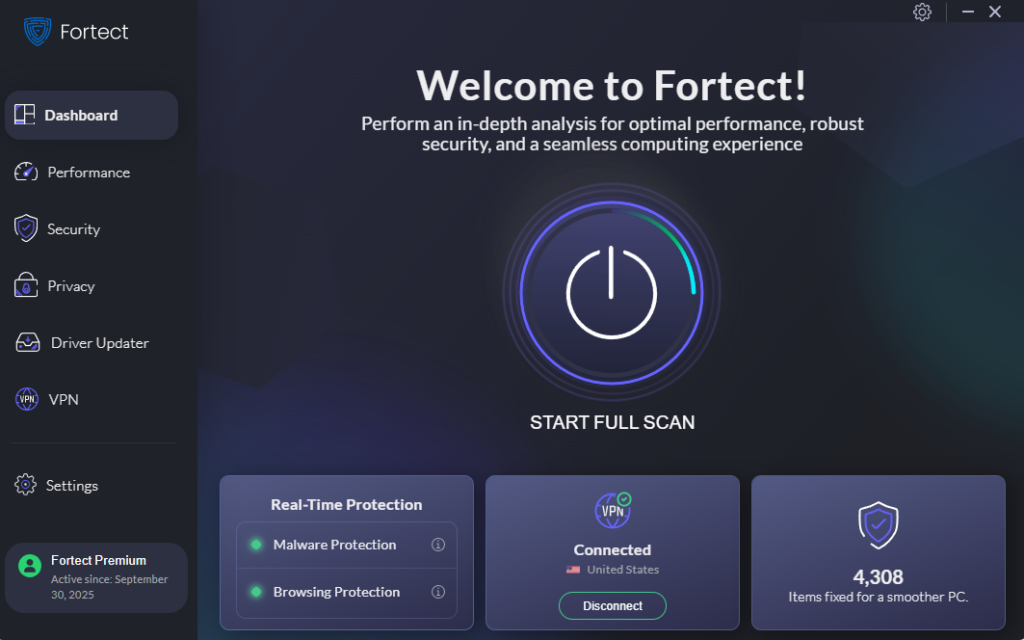
Pop-up phishing attacks often disguise themselves as fake alerts, software updates, or security warnings, tricking users into downloading malware or revealing personal information. Fortect offers advanced real-time protection that automatically detects and blocks these malicious pop-ups before they can compromise your Windows PC.
Beyond phishing protection, Fortect Premium includes a built-in Driver Updater that scans for outdated or corrupted drivers and safely updates them from verified sources. Outdated drivers can create security gaps that attackers exploit to deliver malware through deceptive pop-ups or system vulnerabilities.
By keeping your drivers current and your system clean, Fortect strengthens your PC’s defenses against pop-up phishing and other online threats, while ensuring faster, smoother, and more stable performance overall.
Download and install Fortect on your Windows system today.
Fortect Mac Suite: Protection Against Pop-Up Phishing
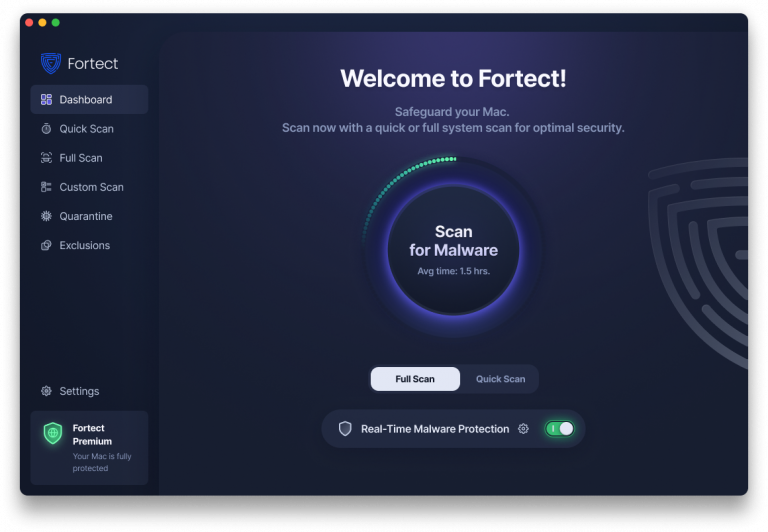
Pop-up phishing doesn’t just target Windows users anymore; macOS users are now at risk, too. As the number of Mac users continues to grow, cybercriminals have shifted their focus toward this once-secure platform, launching more sophisticated and deceptive pop-up scams.
The good news is that Fortect now supports Mac through its Fortect Mac Suite, providing next-level protection against malware, phishing, and performance slowdowns. Once installed, it’s ready to activate instantly and perform a full system scan across supported macOS versions.
With real-time monitoring and cloud-based threat analysis, Fortect Mac Suite can detect and block malicious pop-ups before they load, minimizing the risk of pop-up phishing attacks that trick users into revealing sensitive data or downloading harmful software.
It’s an all-in-one solution that enhances both security and performance, keeping your Mac running smoothly while staying protected from evolving online threats.
Download and install Fortect on your Mac system today.
Practice Safe Browsing Habits
Your behavior online determines your vulnerability to pop-up phishing. Never click links in suspicious pop-ups. Close them using Task Manager if necessary. Avoid downloading software from unverified websites, and never call phone numbers displayed in pop-up warnings.
Type website addresses directly into your browser instead of clicking links. Verify requests by contacting companies through their official websites, not through pop-up contact information. When in doubt, close the pop-up and restart your browser.
What to Do If You’ve Been Targeted
If you clicked a phishing pop-up, act immediately. Disconnect from the internet to prevent data transmission, run a full system scan with Windows Defender, change your passwords from a different device, and monitor your bank accounts for unauthorized activity.
Consider enabling two-factor authentication on all important accounts for additional security. Report the phishing attempt to Microsoft through their security portal to help protect other users.
Conclusion
Avoiding pop-up phishing attacks requires combining Windows security features, updated software, and cautious online behavior. Enable SmartScreen protection, configure pop-up blockers, maintain current updates, and stay alert for warning signs. By implementing these strategies, you’ll significantly reduce your risk of falling victim to phishing scams and keep your Windows computer secure from evolving threats.





