
How to Avoid Getting Hacked Through Browser Autofill
Browser autofill is one of those conveniences most of us barely think about. It remembers passwords, addresses, and payment details, saving time with every login or checkout. On Windows systems, especially Windows 10 and Windows 11, this feature is widely used across Chrome, Edge, and Firefox. However, what makes autofill convenient also makes it attractive to cybercriminals. If abused, it can silently expose sensitive information without you typing a single character.
Understanding how autofill works and how attackers exploit it is essential if you want to reduce your risk of account compromise and identity theft. This guide explains browser autofill vulnerabilities and shows you exactly how to secure your Windows PC.
Understanding Browser Autofill Vulnerabilities
Browser autofill stores sensitive information either locally on your device or synced through cloud accounts. While browsers encrypt this data, attackers don’t always need to break encryption to steal it.
What Makes Autofill Dangerous?
Autofill can be exploited in several ways. Hidden form field attacks allow malicious websites to insert invisible fields into pages. Your browser automatically fills them in, sending your personal data to attackers without your awareness. Keylogging malware captures data the moment it appears in a form field. Even if you don’t press “submit,” the information can still be stolen. Local access abuse happens when someone gains physical or remote access to your unlocked PC and views saved passwords or payment details directly from browser settings.
Common Autofill Attack Scenarios
Many autofill attacks start with phishing. A convincing email leads you to a fake website designed to trigger autofill. In other cases, legitimate websites become compromised and inject scripts that quietly harvest autofilled data from visitors. Because these attacks don’t always look suspicious, users often don’t realize anything went wrong until accounts are accessed without permission.
How to Disable Autofill in Popular Browsers on Windows
Reducing your exposure starts with limiting what your browser stores and fills automatically.
Disabling Autofill in Google Chrome
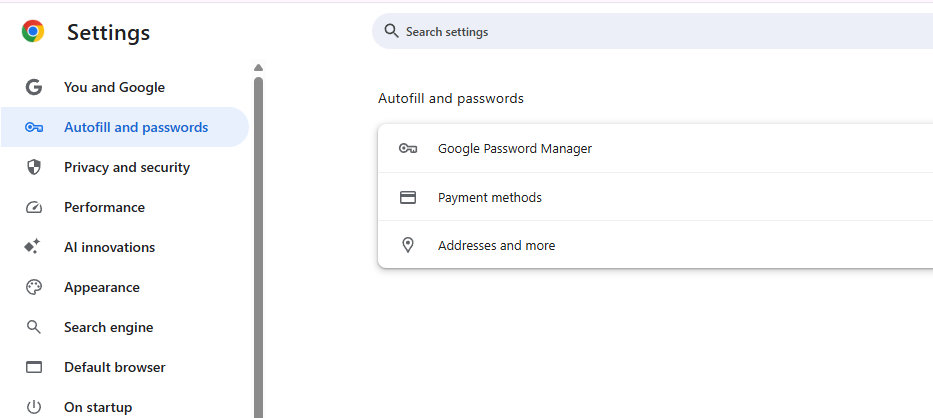
Click the three-dot menu, open Settings, select Autofill and passwords, open Google Password Manager, click the gear icon, turn off Offer to save passwords, return and open Payment methods, disable Save and fill payment methods, open Addresses and more, and disable Save and fill addresses.
Disabling Autofill in Microsoft Edge
Click the three-dot menu, open Settings, select Profiles, open Passwords, disable Offer to save passwords and Automatically sign in, return to Profiles, open Payment info, disable saving and filling, open Addresses and more, and turn off autofill.
Disabling Autofill in Mozilla Firefox
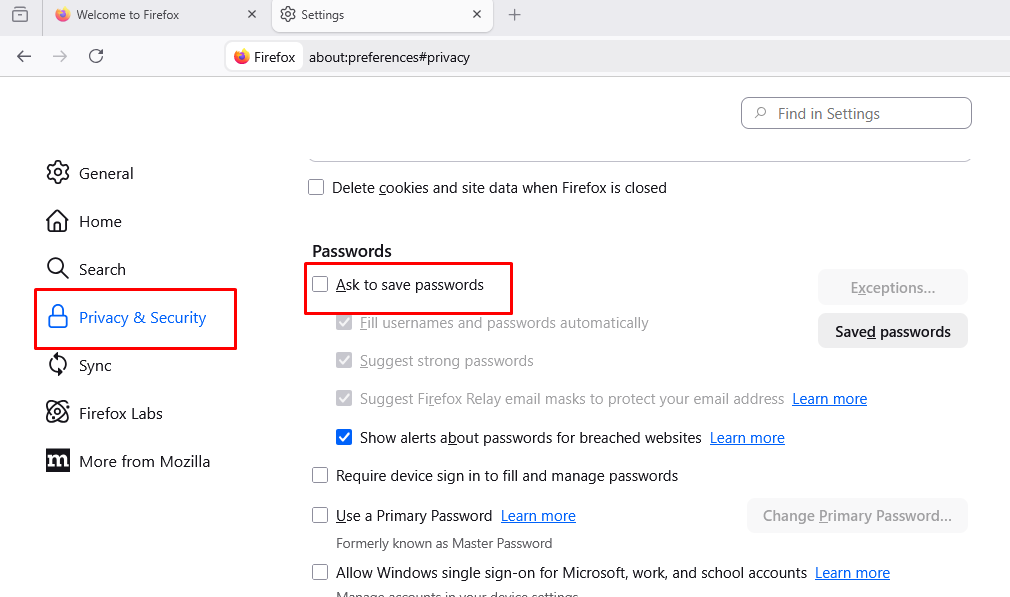
Open the menu, select Settings, go to Privacy & Security, scroll to Logins and Passwords, uncheck Ask to save passwords, scroll to Forms and Autofill, and disable autofill for addresses and credit cards.
How-to Guide: Reducing Autofill-Related Security Risks
Disabling autofill lowers your exposure, but it does not eliminate the underlying threats that target browsers on Windows systems.
Strengthen Your PC Security with Fortect
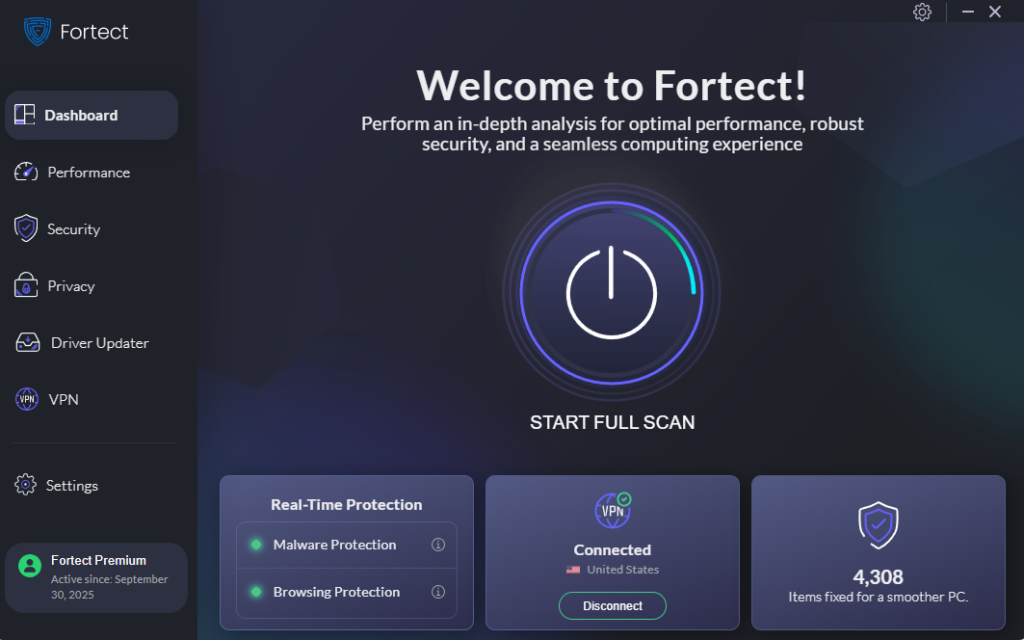
Autofill attacks often rely on malware already present on the system, such as keyloggers or browser-level threats running quietly in the background. Fortect delivers advanced real-time malware protection for Windows users by continuously scanning your PC for traditional and emerging threats, including attacks that exploit browser autofill data. It safely removes malicious components, repairs damaged system files, and restores system stability. Fortect’s smart threat-detection engine monitors suspicious behavior and alerts you before harmful actions can occur, helping keep your system secure and running efficiently.
Download and install Fortect today.
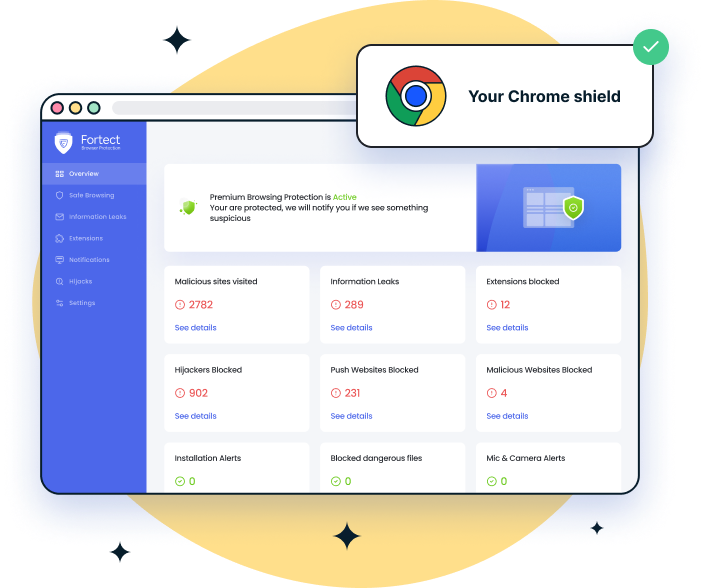
For Chrome users, Fortect Browsing Protection adds an extra layer of security by blocking dangerous sites before they load, alerting you to suspicious pages, and removing harmful extensions that could put your data at risk.
Best Practices for Browser Security on Windows
Use a Dedicated Password Manager
Instead of browser autofill, I recommend using a trusted password manager like Bitwarden, 1Password, or Dashlane. These tools offer stronger encryption, better access controls, and safer autofill behavior.
Enable Two-Factor Authentication
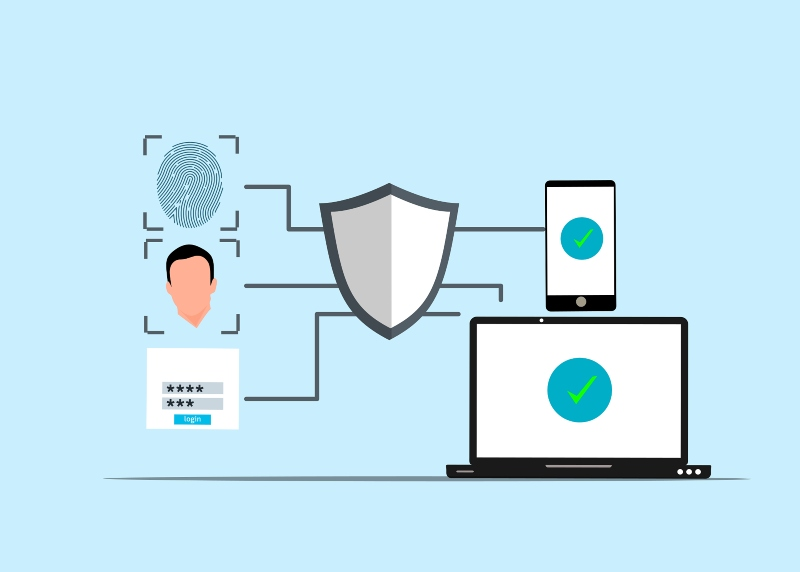
Two-factor authentication significantly limits damage even if login data is stolen. Many attacks fail once an extra verification step is required.
Keep Windows Fully Updated
Outdated systems are easier to exploit. Open Settings with Windows + I, select Windows Update, check for updates, install all security patches, and restart if required.
Clear Saved Autofill Data Regularly
If autofill was previously enabled, remove stored data manually from browser settings to ensure old credentials are not left behind.
Use Private Browsing on Shared Devices
Incognito, InPrivate, and Private windows prevent browsers from storing autofill data or session history, reducing exposure on shared or public computers.
Additional Security Measures for Windows Users
Windows Defender provides solid baseline protection, but modern threats often require layered security. Real-time monitoring, browser protection, and malware removal tools play an important role in stopping attacks that target stored browser data. Avoid clicking links in unsolicited emails, lock your PC when stepping away using Windows + L, and review installed browser extensions regularly. Many autofill attacks begin with small oversights that escalate quickly.
Conclusion
Browser autofill saves time, but it introduces real security risks for Windows users. By disabling unnecessary autofill features, strengthening browser hygiene, and protecting your system against malware, you significantly reduce the risk of silent data theft. A few simple changes today can prevent account takeovers, identity theft, and long-term damage tomorrow. Taking control of your browser security is one of the most effective ways to stay safe online.





