
How Attackers Exploit Your PC Through Sleep Mode
Your computer’s sleep mode seems harmless, a convenient way to pause work and save energy. However, cybercriminals have discovered ways to exploit PC through sleep mode, turning this everyday feature into a security vulnerability. Understanding these threats and implementing proper safeguards can protect your Windows device from unauthorized access.
How Sleep Mode Creates Security Vulnerabilities

Sleep mode keeps your computer in a low-power state while maintaining active RAM. This design allows quick resumption but creates openings for exploitation. When your PC enters sleep, it doesn’t fully shut down security processes, leaving certain attack vectors open.
Active Network Connections During Sleep
Modern Windows computers maintain network connectivity during sleep through Wake-on-LAN (WoL) functionality. Attackers can send specially crafted network packets to wake your device remotely, potentially gaining access when you’re away. USB devices also remain partially powered, enabling physical attacks through malicious hardware left in ports.
Memory-Based Attack Vectors
Your RAM retains sensitive information during sleep mode, including encryption keys, passwords, and active session data. Sophisticated attackers using cold boot attacks can extract this data by quickly accessing memory before it degrades. This vulnerability particularly affects laptops left in public spaces or shared environments.
Unpatched Systems and Sleep Mode Risks
Computers in sleep mode often miss critical security updates. Windows Update typically requires full system availability to install patches. If your PC consistently enters sleep before updates complete, you’re leaving known vulnerabilities unaddressed, making it easier for attackers to exploit outdated security measures.
Common Sleep Mode Exploits and Attack Methods
Evil Maid Attacks
This physical security threat occurs when someone gains brief access to your sleeping laptop. Attackers can install keyloggers, modify boot configurations, or extract data while your device appears untouched. Hotel rooms, coffee shops, and airports present prime opportunities for these attacks.
Wake-on-LAN Exploitation
Cybercriminals on your local network can abuse WoL features to wake your computer remotely. Once awake, they can attempt to breach security measures, install malware, or access shared folders. This risk increases significantly on public Wi-Fi networks where multiple unknown devices connect.
USB-Based Attacks
Malicious USB devices can exploit power management features to wake computers and execute unauthorized code. BadUSB attacks involve modified USB controllers that masquerade as trusted devices, bypassing security software while your PC transitions from sleep mode.
How to Protect Your Windows PC from Sleep Mode Exploits
Strengthen Your Windows Defense with Fortect

Fortect is a powerful and reliable antivirus solution with real-time malware protection designed to defend your Windows PC against both common and advanced cyber threats. It automatically scans your system for vulnerabilities, detects malicious activity, removes threats safely, and helps repair system damage to maintain smooth, stable performance.
Cybercriminals continue to develop creative ways to infiltrate devices, even when a computer is in sleep mode, making it easier for them to inject malware or exploit a PC through sleep mode weaknesses. With Fortect guarding your system, you gain an additional layer of proactive protection that helps stop these attacks before they compromise your data or security.
Download and install Fortect on your Windows system today.
Fortect for Mac: Strengthen Your Defense Beyond macOS
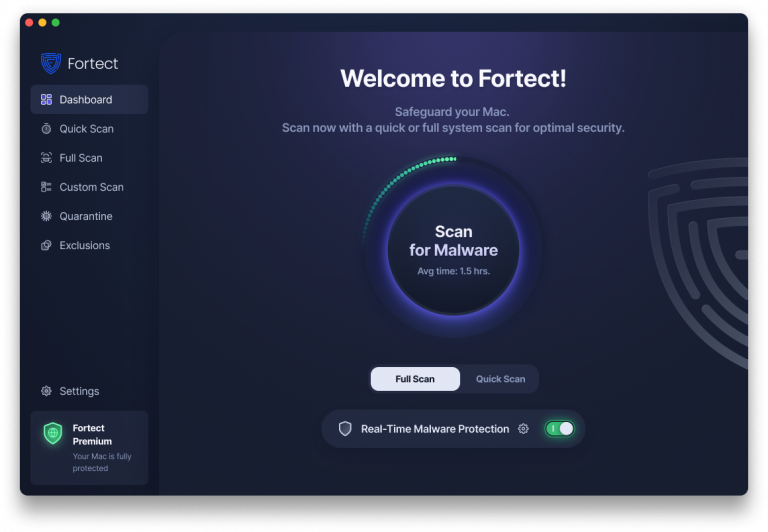
Cybercriminals are evolving fast, and they’re no longer targeting only Windows users. Fortect doesn’t just protect Windows from advanced cyber threats; Mac users are now fully supported as well, recognizing that modern ransomware, spyware, and stealth attacks are increasingly designed to bypass traditional macOS defenses. With threats becoming more complex and more frequent, relying solely on built-in security is no longer enough.
Fortect for Mac delivers intelligent, real-time protection that works alongside Apple’s native security rather than replacing it. It fills the critical gaps that attackers often exploit and shields your system from threats you may not even be aware of.
Key Features
- Real-Time Malware Defense: Always-on threat monitoring that instantly detects and blocks malicious activity without disrupting your workflow.
- Cloud-Based Threat Intelligence: Leverages cloud security analysis for rapid detection of new and emerging attack patterns.
- Quick Smart Scan: Fast and efficient scans to identify and resolve issues quickly.
- Full System Scan: Deep scanning across your entire machine for comprehensive protection and repair.
Download and install Fortect today on your Mac.
Disable Wake-on-LAN in Windows 10/11
- Press Windows + X and select Device Manager
- Expand Network adapters and right-click your network adapter
- Select Properties, then click the Power Management tab
- Uncheck Allow this device to wake the computer
- Click the Advanced tab
- Find Wake on Magic Packet and set it to Disabled
- Click OK to save changes
Configure Secure Sleep Settings
- Open Settings (Windows + I)
- Navigate to System > Power & sleep
- Click Additional power settings on the right panel
- Select Change plan settings next to your active power plan
- Click Change advanced power settings
- Expand Sleep > Allow wake timers and set to Disable
- Apply the changes and close the window
Enable BitLocker Drive Encryption
Full-disk encryption protects your data even if someone accesses your sleeping device:
- Open Settings > Privacy & security > Device encryption (Windows 11) or System > About (Windows 10)
- If available, turn on Device encryption or BitLocker
- Follow the prompts to save your recovery key securely
- Complete the encryption process (this may take several hours)
Keep Windows Updated
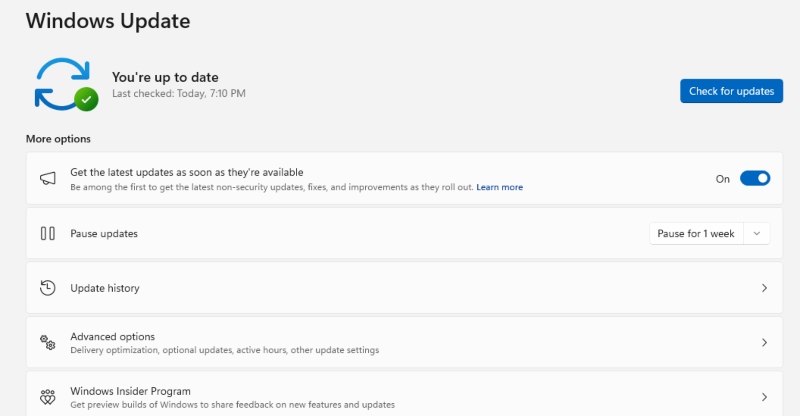
Ensure automatic updates install properly:
- Open Settings > Windows Update
- Click Advanced options
- Enable Receive updates for other Microsoft products
- Set Active hours to match your work schedule
- Enable Download updates over metered connections if needed
- Click Check for updates and install any pending patches
- Restart your PC to complete the installation
Best Practices for Sleep Mode Security
Use hibernation instead of sleep when leaving your device unattended for extended periods. Hibernation saves your session to disk and fully powers down, eliminating memory-based attacks. Set a strong password or PIN that activates immediately upon waking, and avoid biometric-only authentication in high-risk environments.
Physical security matters equally; never leave your laptop sleeping in public spaces, and remove all USB devices before putting your computer to sleep. Consider disabling sleep mode entirely on desktop computers that don’t require power savings, opting instead for automatic screen locking.
Regular security audits help identify vulnerabilities. Check your event logs periodically for unexpected wake events, monitor installed USB devices, and review network activity to ensure optimal performance. Combining these protective measures significantly reduces the risk that attackers can exploit your PC through sleep mode, keeping your personal data and privacy intact.





