
Fake Alerts vs Real Security Threats: What’s the Difference?
Your computer suddenly flashes a bright red warning: “VIRUS DETECTED! Your system is at risk!” Your heart races as you wonder whether to click the flashing “Fix Now” button. But wait, is this alert genuine, or are you being scammed?
Understanding the difference between fake virus alerts and real security threats could save you from malware infections, data loss, and financial fraud. Let’s break down how to identify genuine warnings and protect your Windows PC effectively.
What Are Fake Virus Alerts?

Fake virus alerts, also called scareware, are deceptive pop-ups designed to trick you into downloading malicious software or paying for unnecessary services. Cybercriminals create these convincing warnings to exploit your fear and urgency.
Common Characteristics of Fake Alerts
Visual red flags include excessive exclamation marks, flashing animations, countdown timers, and aggressive language like “IMMEDIATE ACTION REQUIRED!” Legitimate Windows security notifications never use scare tactics or demand instant payment.
Browser-based warnings that appear while surfing the web are almost always fake. Real antivirus software doesn’t communicate through your browser unless you’re accessing its web-based dashboard. These pop-ups often claim your computer has dozens of infections discovered in seconds, an impossibility for genuine scans.
Suspicious call-to-action buttons saying “Download Now” or “Call Tech Support” should raise immediate concerns. Microsoft and legitimate antivirus companies never ask you to call phone numbers displayed in pop-up alerts.
Recognizing Genuine Security Threats
Real security threats on Windows come through official channels and have distinct characteristics that distinguish them from impostors.
Windows Security Center Notifications
Authentic Windows Defender alerts appear in the bottom-right corner of your screen through the Action Center. They use clean, professional formatting without flashy graphics or countdown timers. These notifications typically include the specific threat name, affected files, and recommended actions.
Legitimate notification locations include:
- Windows Security app (accessible via Start menu)
- Action Center notifications (bottom-right taskbar)
- Windows Update alerts for security patches
How to Verify a Security Alert in Windows 10/11
1: Don’t click anything in the suspicious pop-up. Instead, close your browser completely using Task Manager (press Ctrl + Shift + Esc).
2: Open Windows Security manually by clicking Start, typing “Windows Security,” and selecting the app.
3: Click “Virus & threat protection” to view your protection status and scan history.
4: Run a Quick Scan or Full Scan to check for actual threats independently.
5: Review the “Protection history” section to see if Windows Defender detected any genuine issues.
If Windows Security shows “No current threats” and your protection is up to date, the alert you received was likely fake.
Real Security Threats You Should Worry About
Malware and Ransomware
Unlike fake alerts, real malware operates quietly. Ransomware encrypts your files and demands payment, while trojans steal personal information without flashy warnings. Your antivirus software detects these threats through actual scans, not browser pop-ups.
Phishing Attempts
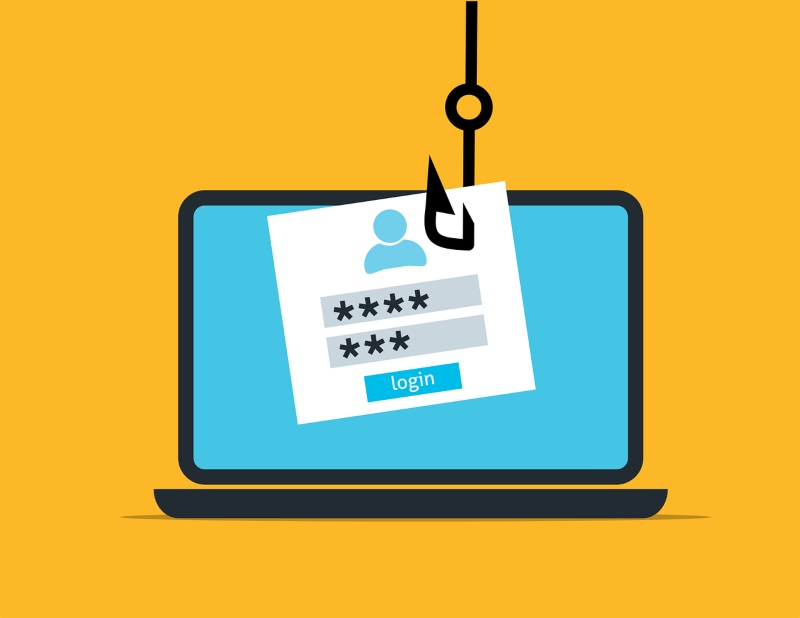
Phishing emails impersonate legitimate companies to steal your credentials. These real threats don’t announce themselves; they disguise themselves as trustworthy communications from banks, retailers, or even Microsoft.
Outdated Software Vulnerabilities
Unpatched Windows systems are genuine security risks. Hackers exploit known vulnerabilities in outdated software to gain unauthorized access to your computer.
How to Keep Your Windows PC Secure
Strengthen Your PC Security with Fortect
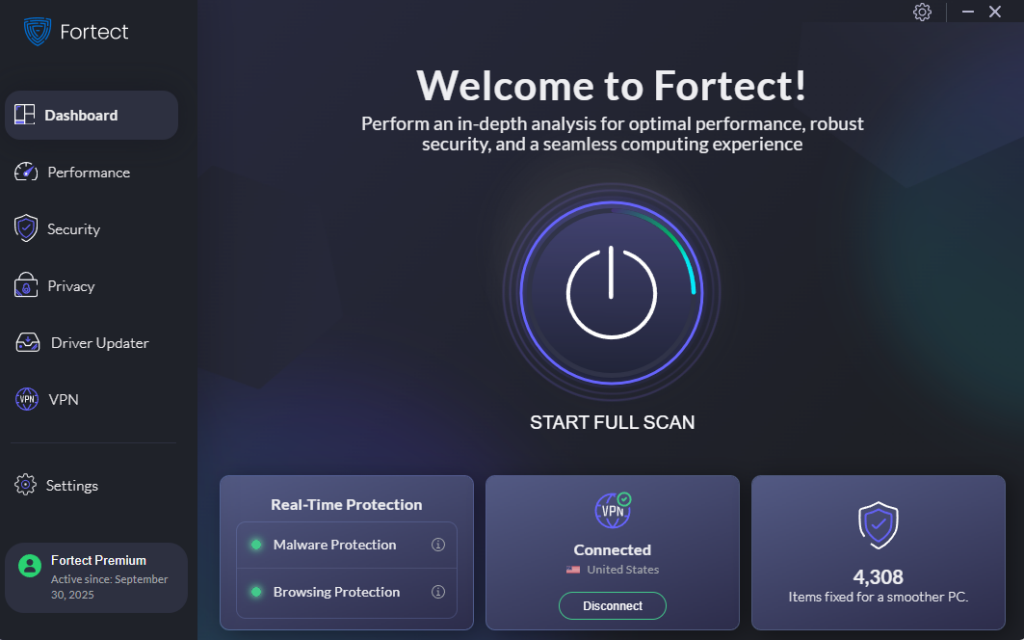
Fortect delivers advanced real-time malware protection for Windows users. It automatically scans your PC for traditional and emerging threats, including virus alerts vs real security threats, eliminates them safely, and restores damaged system files for improved performance. Its smart threat-detection engine monitors suspicious activity and alerts you before harmful actions can take place, helping keep your device secure and running efficiently.
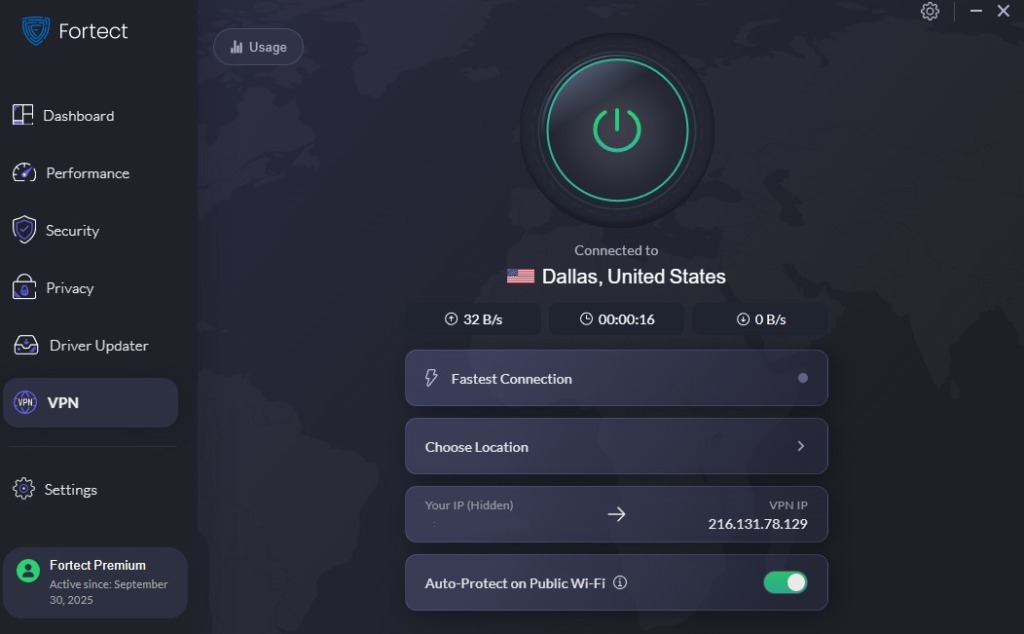
The new Fortect Premium now includes a built-in VPN with Auto-Protect on public Wi-Fi, keeping your connection secure on open networks. Encrypting your internet traffic, it helps block virus threats and real-time malware infiltration, protecting your data from hackers who exploit unsecured connections, a common gateway for zero-day attacks and other network-based threats.
Download and install Fortect today.
Update Windows Regularly
1: Press Windows key + I to open Settings.
2: Click “Windows Update” (or “Update & Security” in Windows 10).
3: Click “Check for updates” and install all available updates.
4: Enable automatic updates by clicking “Advanced options” and ensuring “Receive updates for other Microsoft products” is toggled on.
Enable Windows Defender Real-Time Protection
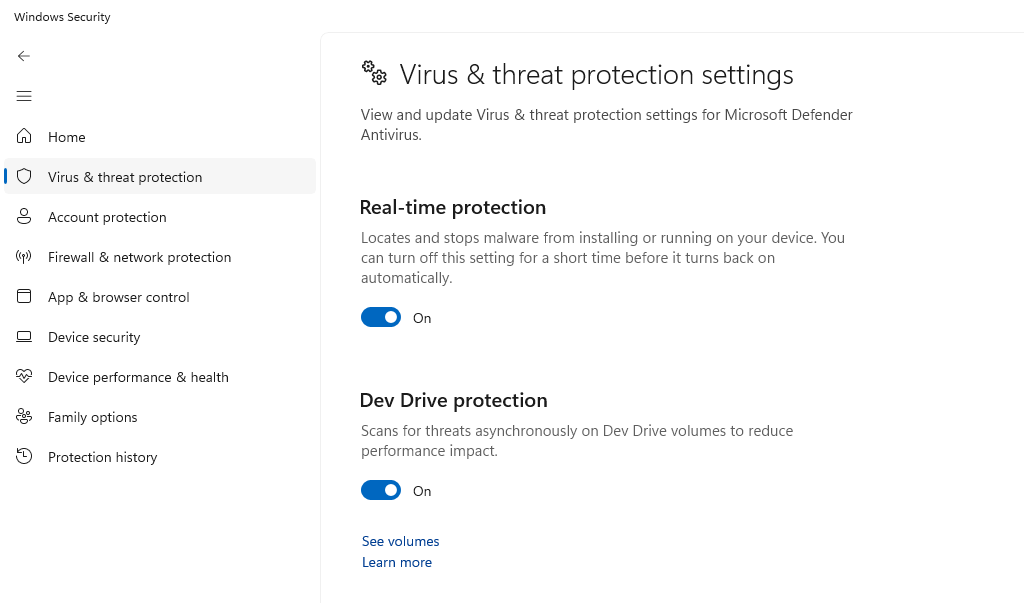
1: Open Windows Security from the Start menu.
2: Navigate to “Virus & threat protection.”
3: Under “Virus & threat protection settings,” click “Manage settings.”
4: Toggle “Real-time protection” to ON if it’s disabled.
5: Ensure “Cloud-delivered protection” and “Automatic sample submission” are also enabled for maximum protection.
Practice Safe Browsing Habits
Avoid clicking suspicious links in emails or pop-ups. Download software only from official websites or the Microsoft Store. Use strong, unique passwords for different accounts and enable two-factor authentication wherever possible.
What to Do If You Clicked a Fake Alert
If you accidentally clicked a suspicious warning, disconnect from the internet immediately, run a full system scan with Windows Defender, and check your installed programs for unfamiliar applications. Consider changing your passwords from a different device if you entered any credentials.
The Bottom Line
Virus alerts vs real security threats come down to source verification and calm assessment. Fake alerts prey on panic with exaggerated claims and urgent demands. Real threats are detected through legitimate security software running quietly in the background. Trust Windows Security, keep your system updated, and never let fear-based pop-ups dictate your actions. Your best defense is knowledge, patience, and healthy skepticism toward unexpected warnings.





