
Browser Fingerprinting on Windows: How It Works
Browser fingerprinting has become one of the most sophisticated ways websites track users online without relying on cookies. Unlike traditional tracking methods, browser fingerprinting collects unique information from your device and browser to identify and monitor your activity across the web. For Windows users, understanding this technology is essential for protecting privacy and maintaining control over personal data.
What Is Browser Fingerprinting?
Browser fingerprinting is a technique used by websites and advertisers to gather information about your computer and browser setup. This data can include:
- Browser type and version
- Operating system and its version (Windows 10/11)
- Screen resolution and color depth
- Installed fonts and plugins
- Time zone and language settings
- Hardware details, like CPU and GPU specifications
Combined, these details create a unique “fingerprint” of your device, making it possible for websites to recognize you even if cookies are blocked or cleared.
Why Browser Fingerprinting Matters
While browser fingerprinting can be used for legitimate purposes like fraud detection or website optimization, it also raises significant privacy concerns. It allows advertisers, data brokers, and potentially malicious websites to track users without consent. This can lead to targeted ads, behavioral profiling, or even identity theft if your fingerprint is combined with other data.
How Browser Fingerprinting Works on Windows
On Windows 10 or 11, browser fingerprinting works by running scripts in your browser that collect system and software information. These scripts use APIs like Canvas, WebGL, and AudioContext to gather unique device characteristics. Even minor details like installed fonts, browser extensions, and battery status can make your fingerprint more distinctive.
Some advanced tracking methods also use techniques such as:
- Canvas Fingerprinting: Draws hidden graphics on your device to detect hardware differences.
- WebGL Fingerprinting: Uses 3D graphics capabilities to identify your GPU.
- Font Enumeration: Checks installed fonts to identify unique combinations.
- Plugin Detection: Determines which browser plugins you use, like Adobe Flash or PDF readers.
All this data is combined to create a fingerprint that can persist across multiple browsing sessions, even in incognito or private modes.
How to Guide
For Windows users, there are practical steps to minimize the risk of browser fingerprinting:
Restrict Browser Data Access
- Use privacy-focused browsers like Mozilla Firefox or Brave, which have built-in fingerprint protection.
- Disable or limit JavaScript on unknown websites via browser settings or extensions.
- Turn off WebGL and Canvas features if your browser allows it.
Keep Windows and Browsers Updated

- Update Windows 10/11:
- Press Windows + I → Update & Security → Windows Update → Check for updates.
- Install any pending updates to patch vulnerabilities that can be exploited for fingerprinting.
- Press Windows + I → Update & Security → Windows Update → Check for updates.
- Update Your Browser:
- Open your browser → Settings → About → Check for updates.
- Keep your browser updated to prevent exploitation through old APIs.
- Open your browser → Settings → About → Check for updates.
Limit User Profiling
- Block third-party cookies: Settings → Privacy & Security → Cookies and Site Data → Block third-party cookies.
- Use VPNs or proxy servers to mask your IP address.
- Regularly clear browsing data, including cookies, cache, and history.
Use Fortect for Complete Protection
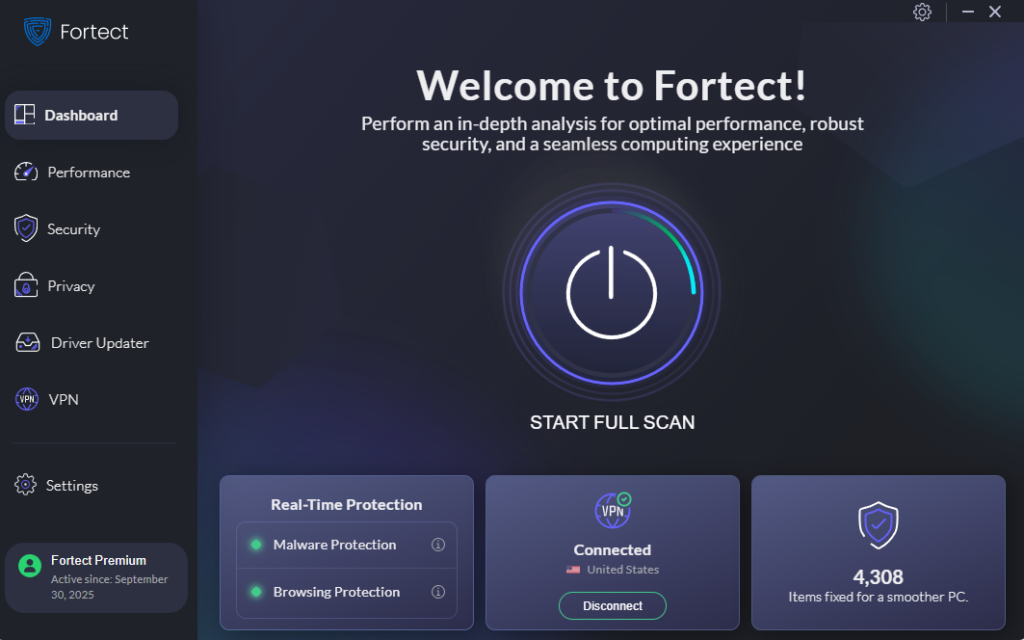
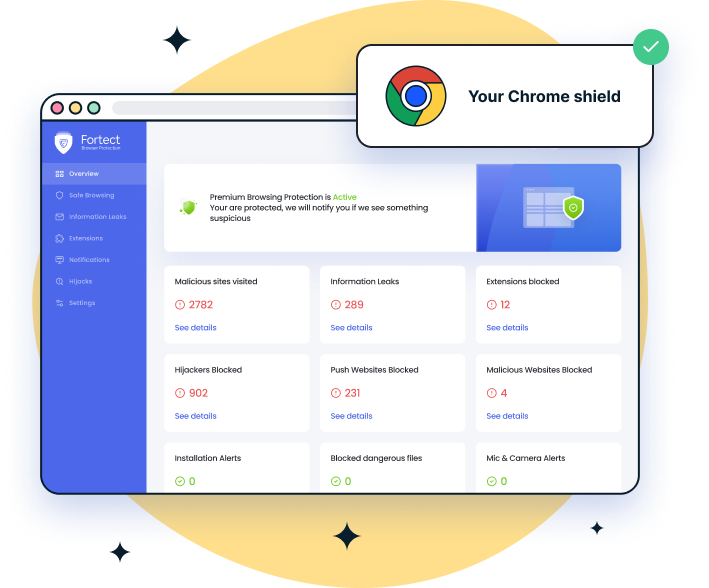
Fortect is a robust antivirus solution with real-time malware protection. It automatically scans your Windows PC for potential threats, including malware that can arise from browser fingerprinting, removes them safely, and optimizes your system for better performance. For Chrome users, the Fortect Browsing Protection extension adds an extra layer of security by blocking dangerous websites before they load, alerting you to suspicious pages to prevent scams, and removing harmful extensions that could compromise your data.
Download and install Fortect today.
Conclusion
Browser fingerprinting is a silent, persistent form of online tracking that affects every Windows user. While it can serve legitimate purposes, the privacy risks are real, especially when combined with other tracking methods. By taking steps to limit data exposure, keeping Windows and browsers updated, and using solutions like Fortect, you can significantly reduce your fingerprintability and maintain better control over your online privacy.





