Wi-Fi Snooping in Shared Networks: Protect Your Device from Packet Sniffers
Public Wi-Fi may be convenient, but it’s also a playground for hackers who use Wi-Fi snooping to intercept your data. If you’ve ever connected to a café or airport hotspot, your sensitive information, such as passwords, browsing history, and emails, could be at risk. Understanding how snooping works and learning how to secure your Windows device is essential to keeping your data safe.
What Is Wi-Fi Snooping?
Wi-Fi snooping happens when a hacker uses a technique called packet sniffing to monitor and capture data transmitted over shared networks. Tools like Wireshark or Cain & Abel allow cybercriminals to “sniff” data packets as they travel between your device and the Wi-Fi router. While some packet sniffers are used legitimately by IT professionals for network diagnostics, cybercriminals often exploit them to steal login credentials, banking details, and personal files. This type of cyberattack is especially common on unsecured or public Wi-Fi networks that lack encryption (like open hotspots).
How Wi-Fi Snooping Works?
When your device connects to a shared Wi-Fi network, it sends and receives data packets without always encrypting them. Hackers within range can intercept this traffic using sniffing tools. These intercepted packets may reveal websites you visit, messages you send, or even account logins. Attackers may also use “man-in-the-middle” (MITM) techniques to secretly reroute your connection through their own system, allowing them to see everything you do online.
Risks of Wi-Fi Snooping
- Stolen personal information: Hackers can collect usernames, passwords, and credit card details.
- Malware injection: Compromised networks can inject malware into your computer.
- Session hijacking: Cybercriminals may gain control of active sessions, like your email or social media.
- Privacy loss: Your browsing history and personal files can be tracked or copied without consent.
How to Protect Your Windows PC from Wi-Fi Snooping
Even though public Wi-Fi is risky, you can still use it safely by strengthening your computer’s security settings. Follow these essential steps:
1. Turn Off Automatic Wi-Fi Connections
Windows often reconnects automatically to previously used networks, which can expose you to fake hotspots mimicking real ones. Steps to disable automatic Wi-Fi connection: 1. Go to Settings > Network & Internet > Wi-Fi. 2. Click Manage known networks. 3. Select the network you don’t trust. 4. Turn off Connect automatically when in range.
2. Enable Windows Firewall
Your firewall acts as a shield, blocking unauthorized access to your network. To enable it: 1. Open Control Panel > System and Security > Windows Defender Firewall. 2. Select Turn Windows Defender Firewall on or off from the left pane. 3. Make sure both private and public network settings are turned On.
3. Keep Windows Updated

Outdated Windows versions can have unpatched vulnerabilities that hackers exploit through shared networks. To update Windows 10/11: 1. Press Windows + I to open Settings. 2. Go to Update & Security > Windows Update. 3. Click Check for updates, then follow the on-screen instructions to install any available patches.
4. Use a VPN Connection
A Virtual Private Network (VPN) encrypts your online traffic, making it unreadable to anyone trying to intercept it. Avoid free VPNs, as they can compromise your privacy; opt for reputable ones with strong encryption.
5. Restrict Network Sharing Settings
File and printer sharing should always be disabled when connected to public networks. To disable sharing: 1. Open Control Panel > Network and Sharing Center. 2. Click Change advanced sharing settings. 3. Under Public network, turn off Network discovery and File and printer sharing.
Fix and Protect Against Wi-Fi Snooping with Fortect
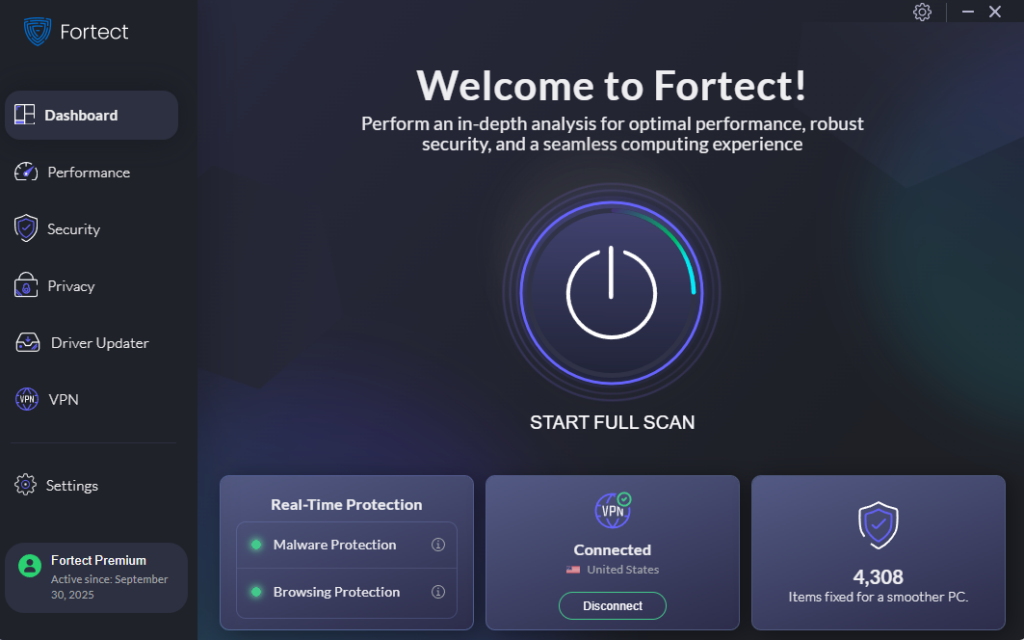
Fortect is a powerful and advanced antivirus with real-time protection against threats like Wi-Fi snooping and packet sniffing. It automatically scans your Windows PC for security weaknesses and fixes them while optimizing your system’s performance.

Why Fortect is effective:
- Real-time malware protection: Detects and removes threats hiding in your system.
- Driver Updater: Keeps drivers updated to prevent malware injection through outdated components.
- Built-in VPN with Auto-Protect: Fortect Premium users benefit from secure browsing on public Wi-Fi with automatic VPN protection.
- System optimization: Repairs system files and improves stability for smoother performance. With Fortect Premium, you get the perfect combination of antivirus protection, VPN security, and performance optimization, all in one tool.
Download and install Fortect now and experience complete security on your Windows devices.
Additional Tips to Stay Safe on Shared Networks
Always log out of websites when finished. Avoid logging into banking or payment sites on public Wi-Fi. Use two-factor authentication (2FA) on all important accounts. Regularly scan your device for malware and spyware.
Conclusion
Wi-Fi snooping is a silent but dangerous threat lurking in shared networks. Packet sniffers can easily capture sensitive information if your system lacks protection. By keeping Windows updated, enabling your firewall, using a VPN, and scanning your device regularly with a reliable tool like Fortect, you can ensure your data stays private and secure, no matter where you connect.