SOLVED: Malware Delivered Through Geo-Targeted Phishing
Cybercriminals are getting smarter, and geo-targeted phishing has become one of their most dangerous weapons. This attack method delivers malware by customizing phishing emails based on your location, making them frighteningly convincing. If you’ve clicked a suspicious link or opened a strange attachment, don’t panic. We will help you identify, remove, and prevent geo-targeted phishing malware on your Windows PC.
What Is Geo-Targeted Phishing and Why Should You Care?
Geo-targeted phishing is a cyberattack where hackers send fake emails tailored to your specific location. Unlike generic spam, these messages reference local businesses, government agencies, or regional events you’d recognize. The email might appear to come from your bank, a delivery service you use, or even your local tax office.
When you click the malicious link or download the infected attachment, malware installs on your computer. This can steal passwords, lock your files for ransom, or turn your PC into a zombie for cybercriminals to control.
The location-specific details make these attacks particularly effective. Your brain recognizes familiar names and logos, lowering your guard. According to recent data, geo-targeted phishing campaigns have a 45% higher success rate than standard phishing attempts.
How to Identify Geo-Targeted Phishing Attempts
Before malware infects your system, you need to spot the warning signs. Geo-targeted phishing emails often share these characteristics:
- Urgent language with local references: Messages claiming your “regional tax refund is pending” or “local delivery failed” create artificial pressure to act quickly without thinking.
- Slightly off sender addresses: The email might say “[email protected]” but the actual address reads “[email protected]” or contains subtle misspellings.
- Unexpected attachments or links: Legitimate organizations rarely send unsolicited attachments, especially .zip, .exe, or .scr files.
- Generic greetings despite personal details: The email mentions your city or region but addresses you as “Dear Customer” instead of using your actual name.
- Poor grammar in otherwise professional emails: Phishing emails often contain awkward phrasing or grammatical errors that legitimate companies wouldn’t send.
How to Remove Geo-Targeted Phishing Malware from Windows 10/11
If you suspect you’ve been infected, act immediately. Here’s your step-by-step removal process:
Disconnect from the Internet
Press Windows key + I to open Settings. Click Network & Internet, then select your connection type (Wi-Fi or Ethernet). Toggle the connection to Off. This prevents the malware from communicating with its command server or spreading to other devices.
Boot into Safe Mode
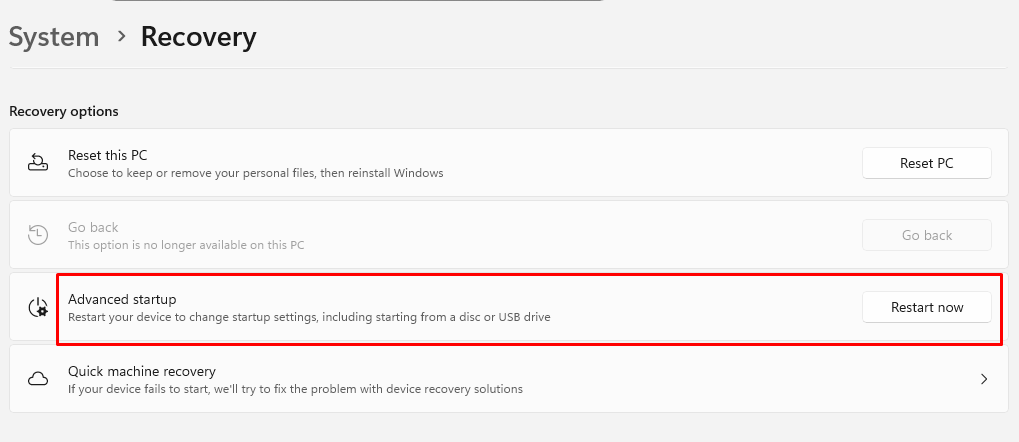
- Press Windows key + I and select Update & Security (Windows 10) or System > Recovery (Windows 11)
- Click Recovery from the left panel
- Under Advanced startup, click Restart now
- When your PC restarts, choose Troubleshoot > Advanced options > Startup Settings > Restart
- Press 4 or F4 to select Safe Mode with Networking
Run Windows Defender Full Scan
- Press Windows key + I to open Settings
- Navigate to Update & Security > Windows Security (Windows 10) or Privacy & security > Windows Security (Windows 11)
- Click Virus & threat protection
- Select Scan options
- Choose Full scan and click Scan now
- Let the scan complete—this may take 30-60 minutes
- Follow prompts to quarantine or remove any detected threats
Use Fortect to Strengthen Your Security

While Windows Defender provides basic protection, geo-targeted phishing attacks are increasingly sophisticated and often require advanced security solutions. Fortect offers comprehensive real-time malware protection specifically designed for Windows users facing modern threats.
This powerful tool automatically scans your PC for both traditional malware and emerging threats, such as malware delivered via geo-targeted phishing. Once detected, Fortect safely eliminates these infections and repairs any damaged system files to restore optimal performance. Its intelligent threat-detection engine continuously monitors suspicious activity in the background, alerting you before harmful actions can compromise your data or system.
Beyond malware removal, Fortect includes a built-in performance scanner that optimizes your PC by identifying and removing junk files, fixing crashed programs, and clearing system clutter. This ensures your computer maintains peak performance, enhanced stability, and a smoother overall computing experience, even after recovering from a malware infection.
Download and install Fortect today.
Geo-targeted phishing campaigns often rely on browser-based attacks, especially targeting Chrome users with location-specific fake pages that look legitimate. A practical way to reduce that risk is by adding a browser-level defense.
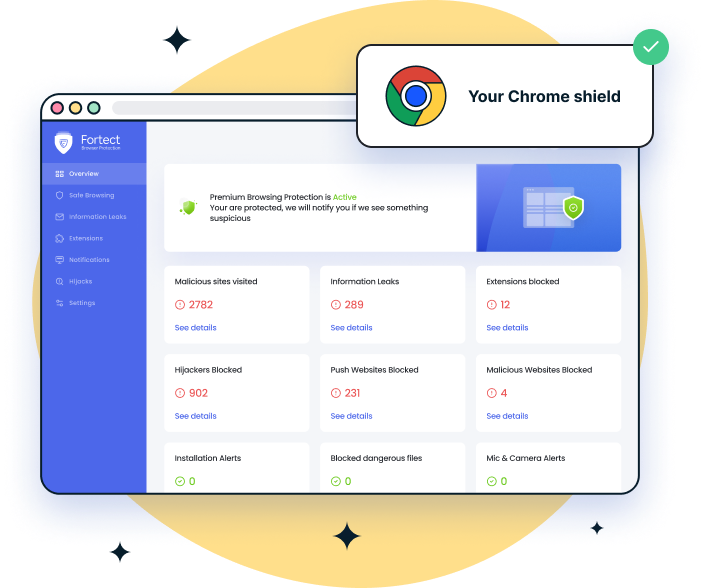
Fortect Browsing Protection, a lightweight Chrome extension, helps stop these threats before they escalate. It blocks malicious websites before they fully load, warns you when a page appears suspicious or deceptive, and detects unsafe extensions that may expose your personal data. Filtering out harmful content at the browser level reduces the likelihood that geo-targeted phishing attempts will deliver malware to your system.
Malware Delivered Through Geo-Targeted Phishing
Geo-targeted phishing campaigns are no longer limited to Windows environments. Many now specifically profile macOS users, delivering location-based fake login pages, software updates, or regional service alerts designed to install spyware, ransomware, or other hidden threats. Because these attacks are tailored and often browser-driven, they can slip past basic built-in protections.
Fortect for Mac: Reinforced Protection for Modern Threats

As cybercriminal tactics become more precise and region-specific, relying only on default macOS security layers may leave gaps. Fortect for Mac strengthens your defenses by adding advanced, real-time monitoring that works alongside Apple’s native safeguards rather than replacing them. It’s built to detect and stop sophisticated threats that exploit phishing links, malicious downloads, and deceptive browser activity.
Key Capabilities
- Real-Time Malware Protection
Continuously monitors your system and immediately blocks suspicious or malicious behavior without slowing down performance. - Cloud-Powered Threat Detection
Uses up-to-date cloud intelligence to recognize new and evolving phishing-driven malware campaigns. - Smart Scan
Quickly checks critical system areas to identify hidden threats and performance-impacting issues. - Full System Scan
Performs a comprehensive deep scan across your Mac to uncover and remove embedded malware or compromised components.
By reinforcing browser and system-level defenses, Fortect for Mac helps reduce the risk of malware infections delivered through geo-targeted phishing schemes.
Check for Suspicious Programs
- Press Windows key + I and select Apps
- Sort by Install date to see recently added programs
- Uninstall any unfamiliar applications, especially those installed around the time of infection
- Right-click the suspicious program and select Uninstall
Reset Browser Settings
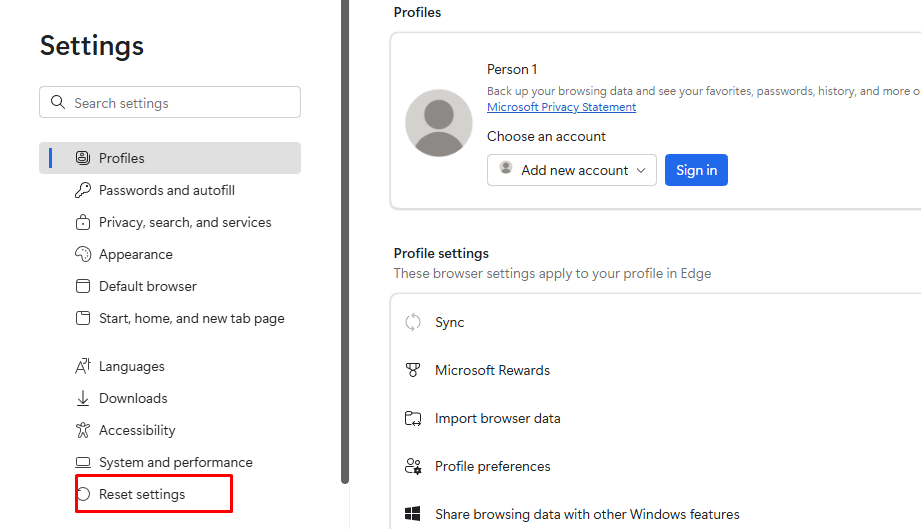
Malware often hijacks browser settings. For Microsoft Edge:
- Open Edge and click the three dots in the upper right
- Select Settings > Reset settings
- Click Restore settings to their default values
- Confirm by clicking Reset
Change Your Passwords
Once you’ve removed the malware, change passwords for all important accounts, email, banking, and social media, from a clean device or after confirming your PC is clean.
How to Protect Yourself from Future Geo-Targeted Phishing Attacks
Prevention is always easier than recovery. Here’s how to keep your Windows PC secure:
Keep Windows Updated
- Press Windows key + I to open Settings
- Select Update & Security (Windows 10) or Windows Update (Windows 11)
- Click Check for updates
- Install all available updates
- Enable Automatic updates to ensure you receive security patches immediately
Enable Real-Time Protection
- Open Windows Security from Settings
- Go to Virus & threat protection
- Ensure Real-time protection is toggled On
- Enable Cloud-delivered protection and Automatic sample submission
Use Email Filtering
Configure your email client’s spam filters to maximum sensitivity. Most phishing emails get caught before reaching your inbox when filters are properly configured.
Enable Two-Factor Authentication

Add an extra security layer to your accounts. Even if malware steals your password, attackers can’t access accounts protected by two-factor authentication without your phone or security key.
Think Before You Click
When you receive unexpected emails referencing local events or services, verify them through official channels. Call your bank directly, visit the official website by typing the URL yourself, or contact the organization through known legitimate methods.
The Bottom Line
Geo-targeted phishing malware represents a sophisticated threat, but you’re not helpless. By recognizing the warning signs, knowing how to remove infections, and implementing preventive measures, you can protect your Windows PC and personal information. Stay vigilant, keep your system updated, and remember, when something feels off about an email, it probably is. Trust your instincts and verify before you click.