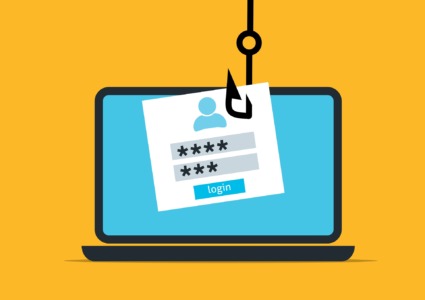
SOLVED: Compromised Online Forms Stealing Login Credentials
Online forms have become a common entry point for cybercriminals. Compromised web forms can silently steal your usernames, passwords, and sensitive data without your knowledge.
What Are Compromised Online Forms?
Compromised online forms are legitimate-looking login pages or data entry fields that have been hijacked by hackers. These malicious forms intercept everything you type, including passwords, credit card numbers, and personal details, before sending the information directly to cybercriminals.
How Attackers Compromise Web Forms
Hackers use several techniques to inject malicious code into websites. They exploit vulnerabilities in content management systems, compromise third-party plugins, or use formjacking scripts that capture keystrokes. These forms often appear completely normal, making them nearly impossible to detect without proper security measures.
Common Warning Signs
Watch for these red flags: HTTPS missing from the URL, unusual website behavior like unexpected redirects, forms that don’t submit properly, or browser security warnings. If a website suddenly looks different or asks for unusual information, stop immediately.
How to Protect Your Login Credentials on Windows 10/11
Strengthen Your PC Security with Fortect
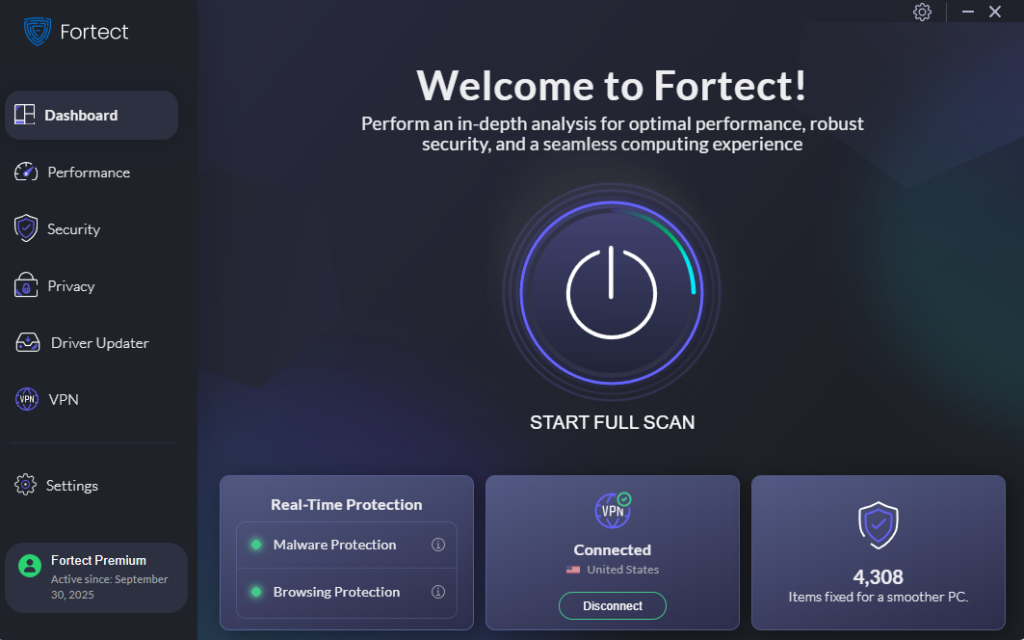
Fortect delivers advanced real-time malware protection for Windows users. It automatically scans your PC for traditional and emerging threats, including compromised online forms stealing login credentials, eliminates them safely, and restores damaged system files for improved performance. Its smart threat-detection engine monitors suspicious activity and alerts you before harmful actions can take place, helping keep your device secure and running efficiently.
Download and install Fotect today.
Compromised online forms are often designed to look legitimate while secretly capturing usernames, passwords, and other sensitive information entered by users. These malicious forms can appear on fake login pages, phishing websites, or even be injected into otherwise trustworthy sites, making them difficult to detect. Once credentials are stolen, cybercriminals can gain unauthorized access to personal accounts, financial platforms, or business systems.
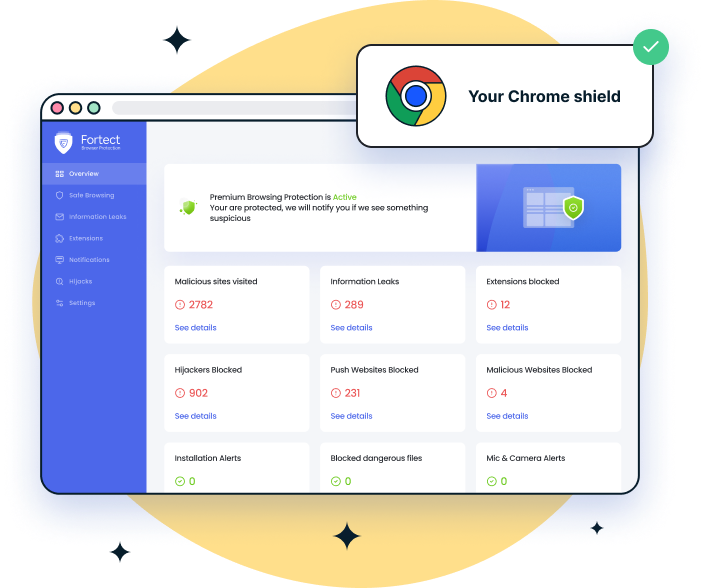
For Chrome users, using a reliable security tool can help reduce this risk. Fortect Browsing Protection is a user-friendly Chrome extension that adds another layer of defense by blocking harmful websites before they fully load. It also warns users when a page shows signs of phishing or credential harvesting and helps detect and remove suspicious browser extensions that may monitor or steal sensitive data entered into online forms.
Update Windows Security Features
Keeping your system updated is your first line of defense against credential theft.
For Windows 10:
- Click the Start button and select Settings (gear icon)
- Navigate to Update & Security
- Click Windows Update in the left sidebar
- Select Check for updates
- Install all available updates, including optional updates
- Restart your computer when prompted
For Windows 11:
- Press Windows key + I to open Settings
- Click Windows Update in the left panel
- Select Check for updates
- Click Download & install for any available updates
- Restart your PC to complete installation
Enable Windows Defender Browser Protection
Windows includes built-in protection against malicious websites and phishing attempts.
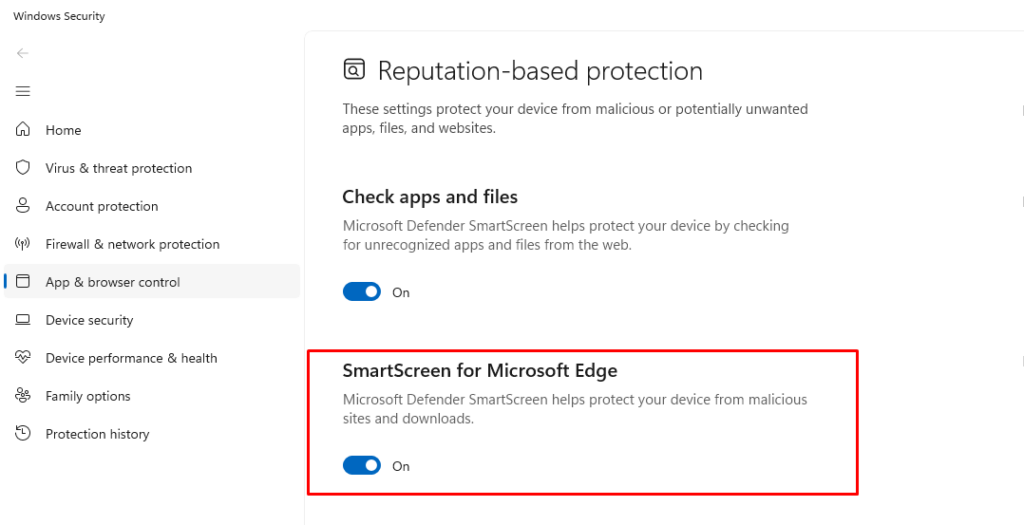
For Windows 10/11:
- Open Windows Security (search for it in the Start menu)
- Click App & browser control
- Select Reputation-based protection settings
- Toggle on “Check apps and files”
- Enable “SmartScreen for Microsoft Edge”
- Turn on “Phishing protection”
- Enable “Warn me about password reuse”
Use a Password Manager
Instead of typing passwords directly into forms, use Windows Credential Manager or a third-party password manager.
To access Windows Credential Manager:
- Type “Credential Manager” in the Windows search bar
- Click Credential Manager from the results
- Select Web Credentials
- Add your frequently used website credentials
- Your browser will auto-fill these securely without exposing them to keystroke loggers
Enable Two-Factor Authentication
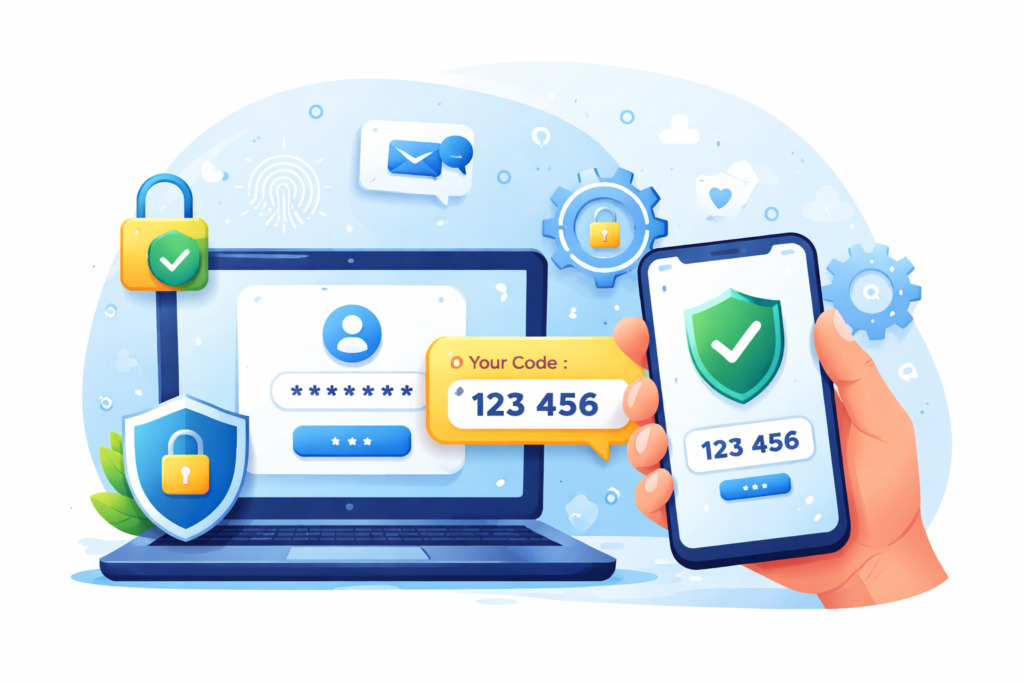
Add an extra security layer to all your important accounts. Even if a compromised form steals your password, attackers won’t have your second authentication factor.
Best Practices for Safe Online Form Use
Verify Website Authenticity
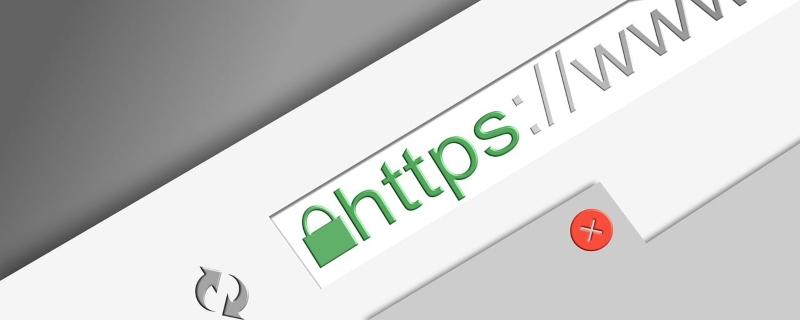
Always check the URL carefully before entering credentials. Look for HTTPS in the address bar with a padlock icon. Avoid clicking links in emails. Instead, type the website address directly into your browser.
Use Different Passwords for Each Account
Password reuse is dangerous. If one compromised form captures your credentials, attackers will try them on other popular websites. Create unique passwords for every account, especially for banking, email, and social media.
Keep Your Browser Updated
Modern browsers include anti-phishing technologies that detect compromised forms. Enable automatic updates for Chrome, Firefox, or Edge to ensure you have the latest security patches.
To update Microsoft Edge on Windows 10/11:
- Open Microsoft Edge browser
- Click the three dots (menu) in the top-right corner
- Select Help and feedback
- Click About Microsoft Edge
- Edge will automatically check and install updates
- Restart the browser when prompted
To update Chrome browser:
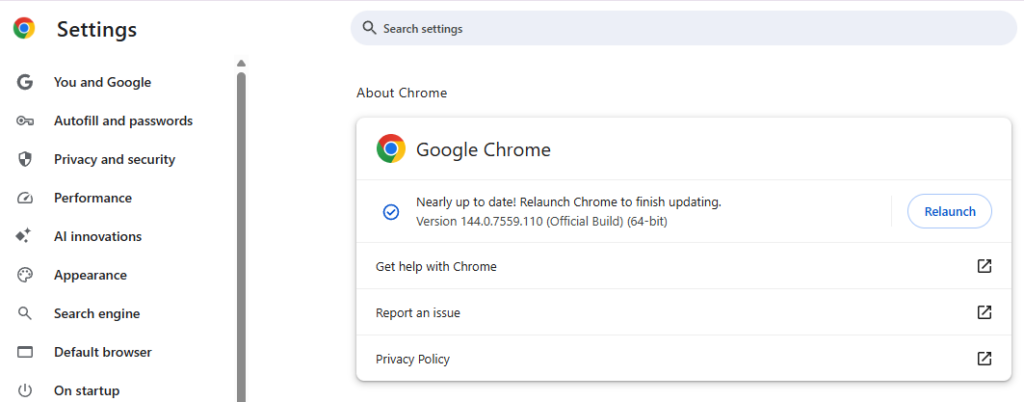
Open Google Chrome on your computer.
-Click the three-dot menu in the top-right corner.
-Hover over Help and select About Google Chrome.
-Chrome will automatically check for updates and start downloading if any are available.
-Once the update finishes, click Relaunch to apply the latest version.
-After relaunch, Chrome will confirm “Google Chrome is up to date.”
Monitor Your Accounts Regularly
Check your bank statements and account login histories weekly. Quick detection minimizes damage from stolen credentials.
What to Do If Your Credentials Are Stolen
Act immediately if you suspect compromise. Change passwords for critical accounts like email and banking first. Run a full Windows Defender scan, enable account alerts, and consider placing fraud alerts on your credit reports. Contact the affected website’s support team to report the security issue.
Conclusion
Compromised online forms pose a serious threat, but you can protect yourself. Keep Windows updated, use password managers, enable browser protection, and stay vigilant about website authenticity. Your credentials are valuable; treat them like your physical wallet and make security a daily habit.