SOLVED: Browser Extension Prompt-Injection Attacks on Windows
Browser extensions can be convenient tools, enhancing productivity, adding features, and customizing your browsing experience. However, they can also serve as a gateway for cybercriminals to launch Browser Extension Prompt-Injection Attacks on Windows. These attacks exploit vulnerabilities in your extensions or browser, tricking users into executing malicious commands or leaking sensitive information.
We’ll explain what these attacks are, how they work, the risks they pose, and practical steps to protect your Windows 10/11 PC.
What Are Browser Extension Prompt-Injection Attacks?
Browser Extension Prompt-Injection Attacks occur when a malicious script manipulates prompts, alerts, or other input/output fields in your browser through a compromised or malicious extension. These attacks can steal login credentials or personal information, inject malicious commands that run on your system, redirect you to phishing sites or fake login pages, or install additional malware or spyware without your consent. Extensions with broad permissions, like reading and modifying data on websites you visit, are particularly risky. Even legitimate extensions can become dangerous if their updates are hijacked by attackers.
How Do These Attacks Work?
Cybercriminals usually exploit one of three main vectors:
1) Compromised Extension Updates – Attackers hijack legitimate extension updates to insert malicious scripts. Users unknowingly install the update, giving attackers access to sensitive data.
2) Social Engineering Through Prompts – Malicious prompts trick users into entering passwords, authentication codes, or executing unsafe commands. These appear as normal browser pop-ups, making them hard to distinguish from legitimate prompts.
3) Cross-Site Scripting (XSS) Exploits – Some browser extensions interact with websites dynamically. If attackers inject code into these sites, the extension may execute harmful scripts, creating a backdoor on your system.
Risks for Windows Users
While browser extensions affect all operating systems, Windows users are often targeted due to the popularity of browsers like Chrome and Edge on Windows devices.
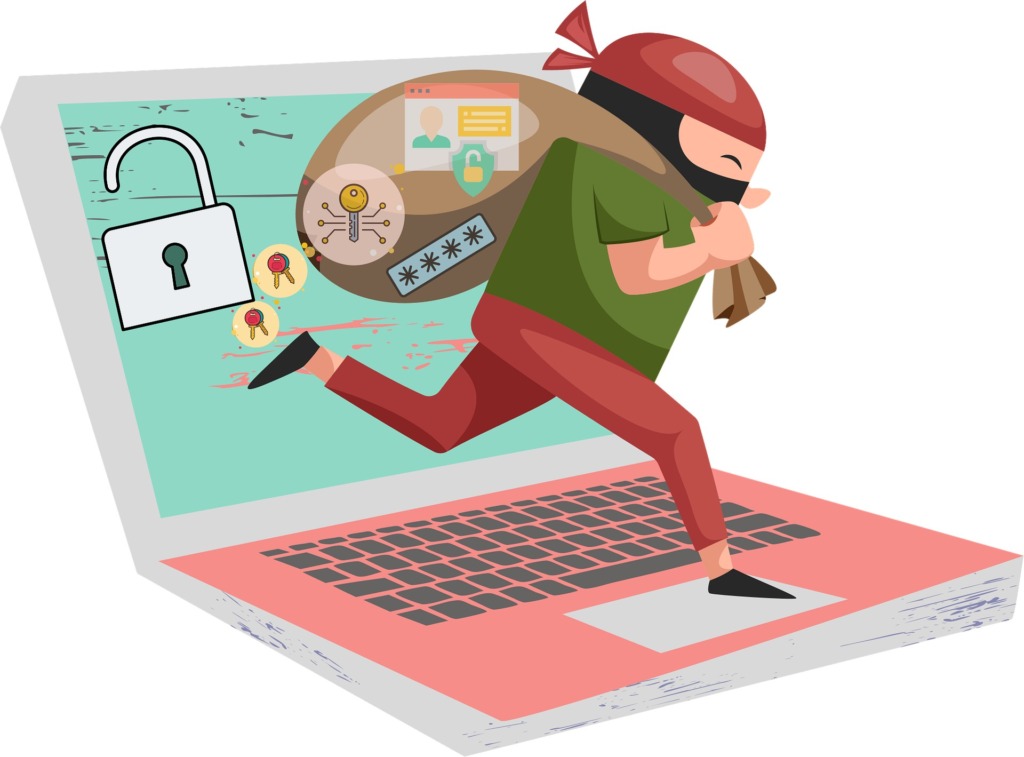
The main risks include:
- Data Theft – Hackers can capture passwords, credit card information, or saved autofill details.
- System Compromise – Malicious scripts can run commands on your Windows PC, including installing ransomware.
- Identity Theft – Stolen personal information can be used to impersonate you online.
- Financial Loss – Fake prompts or redirected payments can lead to fraudulent transactions.
How to Identify Malicious Browser Extensions
Recognizing risky extensions is essential to preventing direct or indirect-injection attacks. Look for extensions requesting unnecessary permissions (e.g., access to all websites when it’s not needed), poor reviews or a lack of recent updates on the Chrome Web Store or Microsoft Edge Add-ons, unknown developers or extensions from unverified sources, and unexpected pop-ups or browser prompts requesting sensitive information.
How to Remove or Disable Suspicious Extensions on Windows 10/11
- Google Chrome – Open Chrome and click the three-dot menu → More Tools → Extensions. Review the list of installed extensions. Click Remove on any suspicious or unused extension. Restart Chrome.
- 2. Microsoft Edge – Open Edge and click the three-dot menu → Extensions. Toggle off or remove any extension you do not trust. Restart Edge to apply changes.
- 3. Check for Hidden or System-Wide Extensions – Some extensions can install themselves globally. Check C:\Users\[YourUsername]\AppData\Local\Google\Chrome\User Data\Default\Extensions and delete unknown folders carefully.
Restrict Users and Permissions in Windows
Create Standard User Accounts – Avoid using an administrator account for daily browsing: Settings → Accounts → Family & other users → Add someone else to this PC.
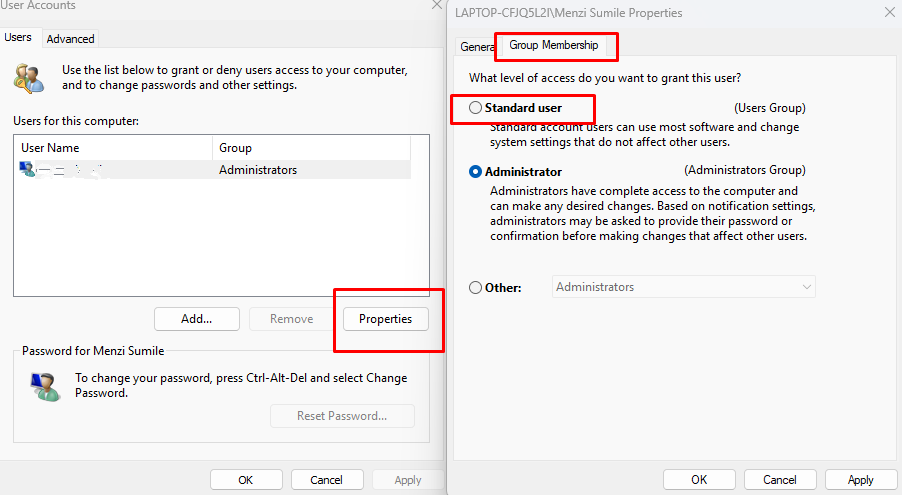
Assign them Standard User privileges. Restrict App Installations – Only allow installations from trusted sources: Settings → Apps → Apps & Features →
Choose Install apps from Microsoft Store only. Enable Controlled Folder Access – Open Windows Security → Virus & threat protection → Manage ransomware protection → Turn on Controlled folder access.
Keep Windows and Browsers Updated
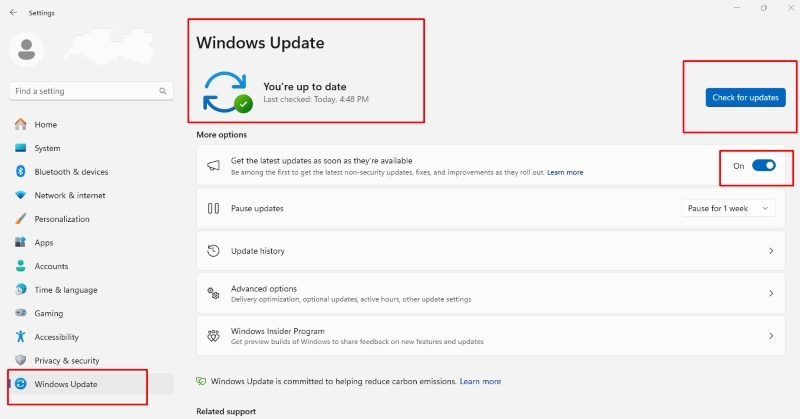
Cybercriminals exploit outdated software, so keeping Windows and your browsers updated is critical:
1) Update Windows 10/11 – Settings → Update & Security → Windows Update → Check for updates → Install updates.
2) Update Google Chrome – Click the three-dot menu → Help → About Google Chrome → Chrome will check for updates automatically.
3) Update Microsoft Edge – Edge menu → Help & feedback → About Microsoft Edge → Updates will install automatically.
4) Update Browser Extensions – Chrome: Extensions → Enable “Developer mode” → Click Update. Edge: Extensions → Manage → Check for updates.
Use Fortect for Complete Protection
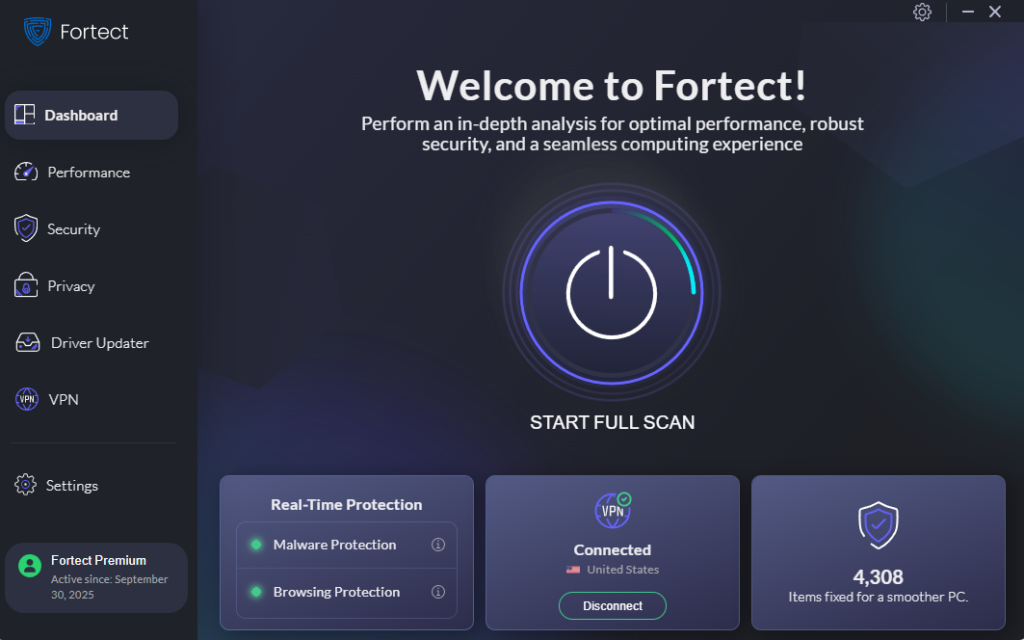
Fortect is an advanced antivirus solution with real-time malware protection. It automatically scans your Windows PC for potential threats, such as Browser Extension Prompt-Injection Attacks, removes them safely, and optimizes your system for smoother performance. Fortect also comes with a Chrome extension. The Fortect Browsing Protection offers an extra layer of security by blocking dangerous websites before they load, alerting you to suspicious pages to help prevent scams, and removing harmful extensions that could compromise your data. With Fortect, you gain proactive protection that works alongside your existing Windows security to prevent attacks before they happen.
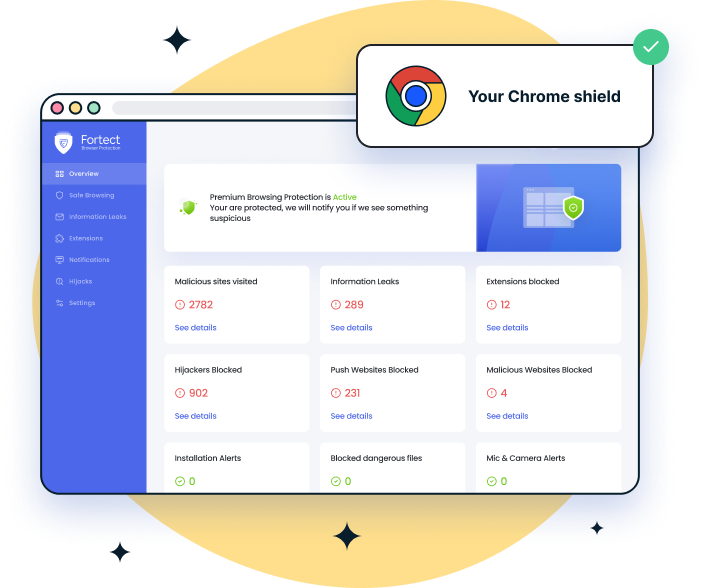
Download and install Fortect today for complete protection.
Additional Tips to Prevent Browser Extension Prompt-Injection Attacks
- Install Extensions Sparingly – Only use extensions you absolutely need.
- Check Reviews and Ratings – Stick to well-reviewed and frequently updated extensions.
- Avoid Unknown Links – Never click links in emails or pop-ups requesting sensitive information.
- Use Strong Passwords and MFA – Even if an extension tries to steal credentials, multi-factor authentication can block access.
- Regularly Scan Your System – Use reliable antivirus tools like Fortect to detect malware early.
Conclusion
Browser Extension Prompt-Injection Attacks are a growing threat for Windows users, exploiting both human error and software vulnerabilities. By identifying malicious extensions, keeping Windows and browsers updated, restricting user permissions, and using tools like Fortect for proactive protection, you can drastically reduce your risk. Your data, privacy, and system performance matter; don’t wait for an attack to happen. Taking these preventive measures today ensures that your Windows PC remains secure, smooth, and protected from modern cyber threats.
You can also check out our article on being hacked through browser autofill to gain a broader understanding of browser issues and how to fix them.