How Hackers Use Personal Calendars to Spread Malware
Your digital calendar might seem like an innocent productivity tool, but cybercriminals have discovered a clever way to exploit it. Calendar-based malware attacks are on the rise, targeting unsuspecting Windows users through seemingly harmless meeting invitations and event notifications.
What Are Calendar-Based Malware Attacks?

Calendar malware attacks occur when hackers send malicious calendar invitations to your email address. These fake appointments automatically populate your Outlook, Google Calendar, or other calendar applications, delivering harmful links and infected attachments directly to your schedule.
Unlike traditional phishing emails that land in spam folders, calendar invites bypass email filters and appear as legitimate events. Users often click on suspicious links embedded in event descriptions, thinking they’re joining a meeting or accessing important information.
Common Calendar Attack Methods
Cybercriminals use several tactics to weaponize your personal calendar:
Fake meeting invitations containing malware-laden attachments or phishing links disguised as video conference URLs. These calendar spam messages often impersonate trusted brands or colleagues.
Event description exploits that hide malicious code within seemingly normal appointment details. Clicking these links can install ransomware, spyware, or credential-stealing trojans on your Windows PC.
Calendar injection attacks automatically add events to your calendar without requiring acceptance, flooding your schedule with spam and dangerous content.
How to Protect Your Windows Calendar from Hackers
Securing your personal calendar requires proactive measures and smart digital hygiene practices.
Adjust Calendar Privacy Settings in Outlook
For Windows 10/11 Outlook Users:
- Open Outlook and click File in the top menu
- Select Options from the left sidebar
- Navigate to Calendar settings
- Under “Calendar options,” uncheck Automatically accept meeting requests and process cancellations
- Enable Delete meeting requests and notifications from the Inbox after responding
- Click OK to save changes
This prevents unauthorized calendar events from appearing automatically on your schedule.
Configure Google Calendar Security
- Open Google Calendar in your web browser
- Click the Settings gear icon in the upper right
- Select Settings from the dropdown menu
- Choose Event settings from the left menu
- Under “Automatically add invitations,” select No, only show invitations to which I have responded
- Scroll down and disable Show events automatically created by Gmail
Keep Windows Security Updated
Update Windows Defender (Windows 10/11):
- Press Windows key + I to open Settings
- Click Update & Security (Windows 10) or Windows Update (Windows 11)
- Select Check for updates
- Click Download and install for any available updates
- Restart your computer when prompted
Regular security updates patch vulnerabilities that hackers exploit to deliver calendar malware.
Strengthen Your PC Security with Fortect
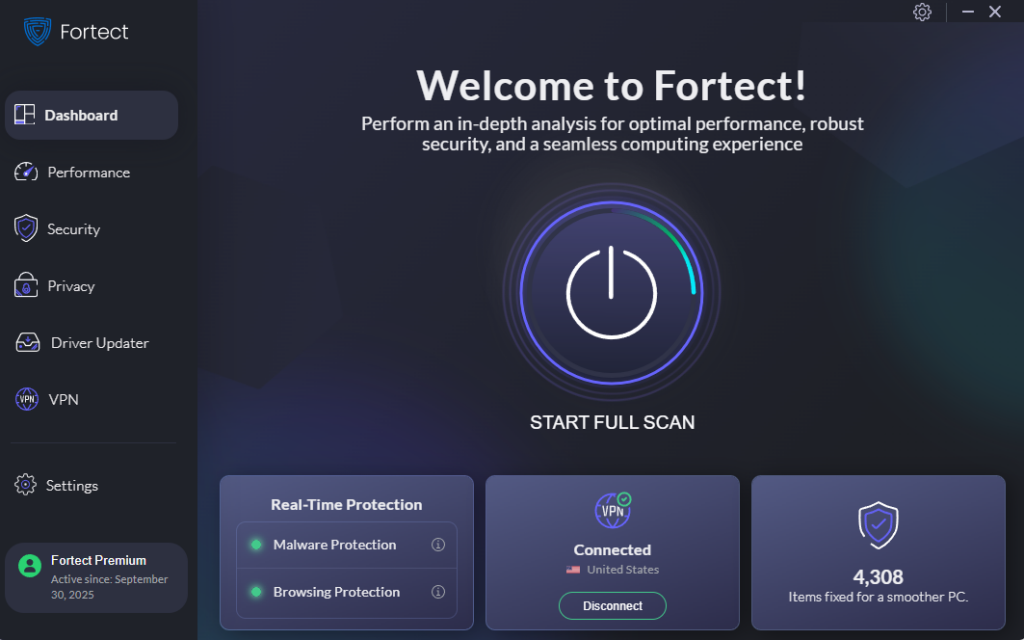
While manual security measures provide essential protection, calendar-based malware attacks are becoming increasingly sophisticated. Fortect delivers advanced real-time malware protection specifically designed for Windows users facing modern threats. It automatically scans your PC for traditional and emerging threats, including malware spread via calendar invitations, eliminates them safely, and restores damaged system files to improve performance. Its smart threat-detection engine monitors suspicious activity and alerts you before harmful actions can take place, helping keep your device secure and running efficiently even when calendar exploits attempt to bypass standard defenses.
Download and install Fortect now.
Cybercriminals are increasingly abusing personal calendar invites to distribute malware links. These links often appear legitimate, arriving via shared events or auto-added invitations, making them easy to overlook, especially for Chrome users who rely heavily on browser-based tools. Once clicked, a single calendar link can redirect users to phishing pages, fake updates, or malware-hosting sites.
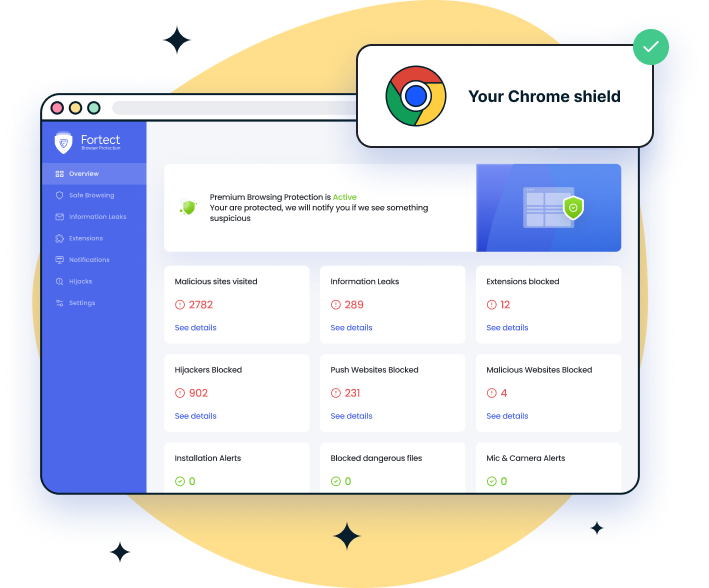
For added protection, Fortect Browsing Protection, a lightweight Chrome extension, helps block dangerous websites before they load, warns you about suspicious pages, and removes harmful extensions that could quietly put your data at risk.
Recognizing Malicious Calendar Invitations
Learning to spot fake calendar events protects you from clicking dangerous links.
Red Flags to Watch For
- Unknown senders with suspicious email addresses that don’t match legitimate domains. Hackers often use slight misspellings of trusted company names.
- Urgent or threatening language pressuring you to click immediately, such as “Account suspension” or “Immediate action required.”
- Unexpected meeting requests for events you didn’t schedule, especially those requiring you to download files or enter passwords.
- Poorly written content with grammatical errors, unusual formatting, or generic greetings instead of personalized messages.
- Suspicious links that don’t match the supposed meeting platform. Hover over links (without clicking) to preview the actual URL destination.
What to Do If You Click a Malicious Calendar Link
If you accidentally interact with a suspicious calendar invitation, act quickly to minimize damage.
Immediate Response Steps
- Disconnect from the internet immediately by disabling Wi-Fi or unplugging your Ethernet cable to prevent malware from spreading or communicating with hacker servers.
- Run a full system scan using Windows Defender or your preferred antivirus software to detect and remove any downloaded threats.
- Change your passwords for email, banking, and other critical accounts, especially if you entered credentials on a suspicious website.
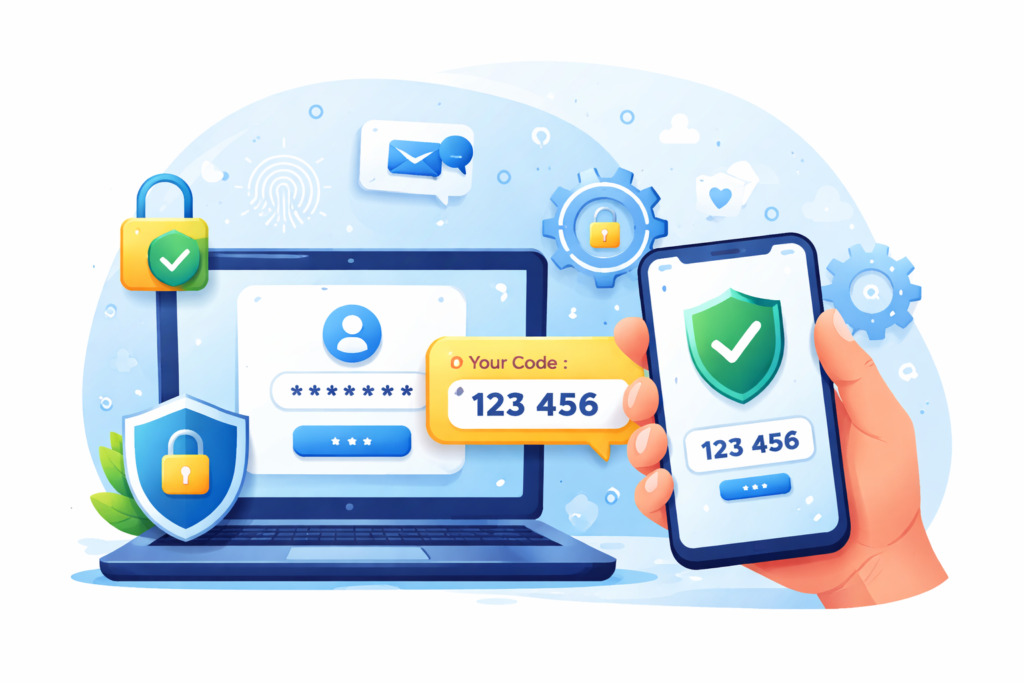
Enable two-factor authentication on all accounts that support it for an extra security layer against unauthorized access.
Best Practices for Calendar Security
Prevention remains your strongest defense against calendar-based cyberattacks.
Never accept calendar invitations from unknown sources. Delete suspicious events immediately rather than clicking “Decline,” which confirms your email address to attackers.
Use separate calendars for personal and professional appointments to isolate potential threats. Review your calendar regularly for unauthorized entries.
Enable email filtering to catch malicious invitations before they reach your calendar. Most email providers offer enhanced phishing protection in their security settings.
Stay informed about emerging calendar attack techniques by following trusted cybersecurity blogs and installing only verified calendar applications from official sources.
Your personal calendar should organize your life, not compromise your security. By implementing these protective measures and staying vigilant, you can keep hackers out of your schedule and your Windows computer safe from calendar-based malware threats.