From Ransomware to Credential Theft and Extortion
Cybercriminals are shifting their tactics. While ransomware once dominated headlines, today’s attackers increasingly focus on credential theft and extortion, a more insidious threat that targets your personal information. Understanding how these attacks work and how to protect yourself is essential for every Windows user.
What Is Credential Theft and How Does It Lead to Extortion?
Credential theft occurs when hackers steal your usernames, passwords, email addresses, and other login information. Unlike ransomware that locks your files, credential theft operates silently in the background, harvesting your digital identity.
How Attackers Steal Your Credentials
Cybercriminals use multiple methods to capture your login information:
Phishing emails trick you into entering credentials on fake websites that mimic legitimate services like Microsoft, banking portals, or social media platforms. These emails often create urgency, claiming your account will be suspended unless you verify your information immediately.
Keyloggers and malware record every keystroke you type, including passwords and credit card numbers. These malicious programs install themselves through infected downloads, compromised websites, or malicious email attachments.
Data breaches expose millions of credentials when companies experience security failures. Hackers then sell these credentials on dark web marketplaces or use them to access your other accounts through credential stuffing attacks.
The Extortion Component
Once criminals obtain your credentials, extortion follows. They may threaten to expose sensitive information found in your accounts, sell your data to other criminals, or lock you out of your own accounts and demand payment for restoration. Some attackers access personal photos, financial records, or private messages and threaten public exposure unless you pay.
Why Credential Theft Is More Dangerous Than Traditional Ransomware
Credential theft attacks are harder to detect than ransomware. Your computer appears normal while attackers quietly drain bank accounts, make unauthorized purchases, or impersonate you online. Recovery is complex and time-consuming, often requiring you to change dozens of passwords across multiple services.
The financial impact extends beyond immediate theft. Identity theft resulting from stolen credentials can damage your credit score, lead to fraudulent accounts opened in your name, and create legal complications that take years to resolve.
How to Protect Your Windows 10/11 Computer from Credential Theft
Strengthen Your Defense Against Credential Theft and Extortion with Fortect
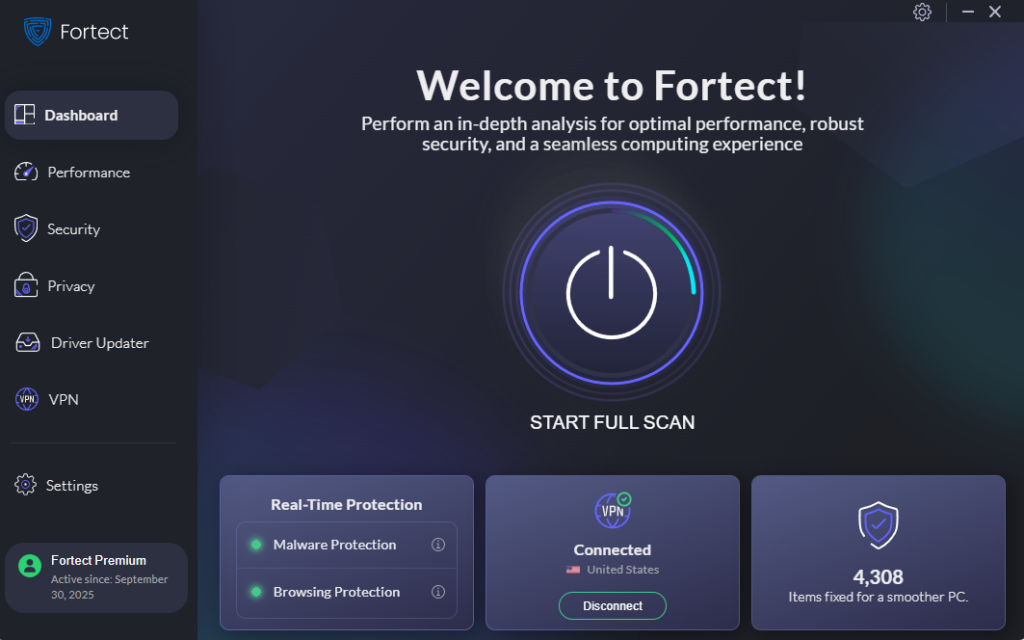
Add an extra layer of automated protection before manual security steps. Fortect provides comprehensive real-time malware defense specifically designed for Windows users facing modern threats like credential theft and extortion schemes. The software continuously scans your system for both established and emerging threats, automatically eliminating malicious programs that steal your login credentials before they can transmit your data to attackers.
What makes Fortect particularly valuable is its ability to repair system damage caused by credential-stealing malware. Even after removing the threat, malware often leaves corrupted files that create security vulnerabilities. Fortect restores these damaged system components, closing the gaps that criminals exploit for credential theft and extortion attacks. Its intelligent threat-detection system monitors suspicious behavior patterns in real-time, alerting you to potential credential harvesting attempts before your passwords are compromised.
Download and install Fortect today.
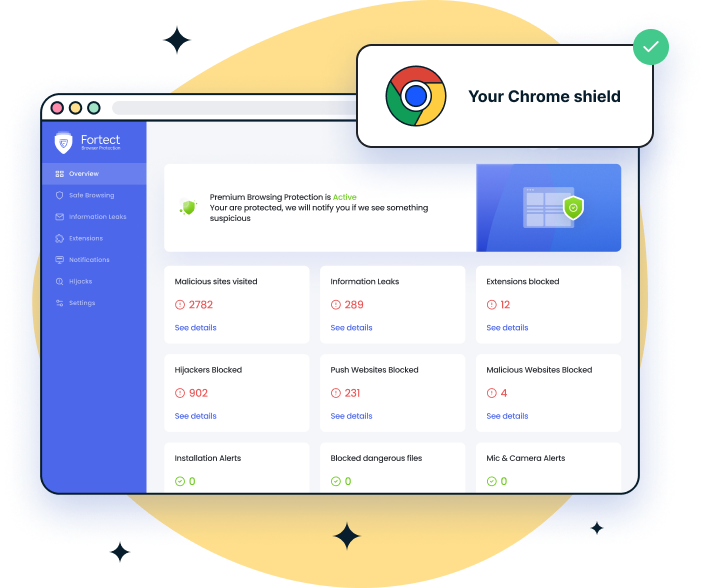
For those who use Chrome as their primary browser, a common target for phishing attacks and credential theft, the Fortect Browsing Protection extension adds critical security at the browser level. This lightweight tool blocks malicious websites designed to steal your credentials before they even load on your screen. It actively alerts you when you’re about to visit suspicious pages commonly used in credential theft and extortion schemes, and automatically removes harmful extensions that keyloggers often disguise as legitimate browser add-ons.
Enable Windows Security Features
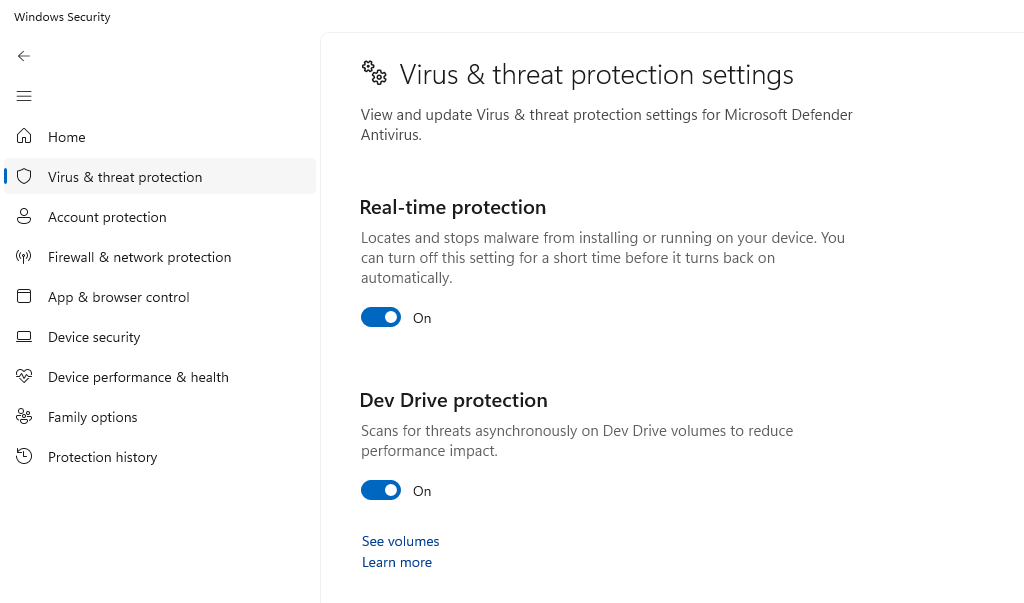
Windows 10 and 11 include robust built-in protection that many users overlook.
Step 1: Click the Start menu and type “Windows Security”
Step 2: Select “Windows Security” from the results
Step 3: Click “Virus & threat protection”
Step 4: Ensure “Real-time protection” is turned ON
Step 5: Click “Manage settings” and verify “Cloud-delivered protection” and “Automatic sample submission” are enabled
Step 6: Return to Windows Security home and select “Firewall & network protection”
Step 7: Ensure your firewall is active for all network types (Domain, Private, and Public)
Keep Windows Updated Against Security Vulnerabilities
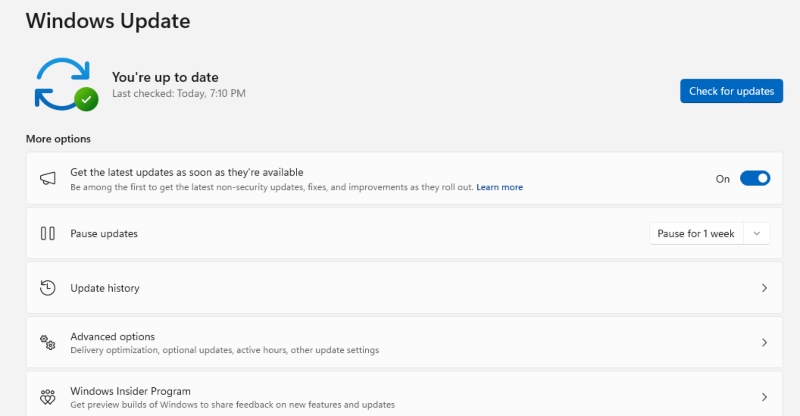
Outdated systems contain security holes that credential thieves exploit.
Step 1: Press Windows key + I to open Settings
Step 2: Click “Windows Update” (in Windows 11) or “Update & Security” then “Windows Update” (in Windows 10)
Step 3: Click “Check for updates”
Step 4: Install all available updates, including optional updates
Step 5: Click “Advanced options”
Step 6: Enable “Receive updates for other Microsoft products” to keep Office and other software protected
Step 7: Set “Active hours” to prevent update interruptions during your typical work time
Use Strong Authentication Methods
Password managers generate and store complex, unique passwords for every account. Windows 11 includes password manager integration through Microsoft Edge, or you can use third-party solutions like Bitwarden or KeePass.
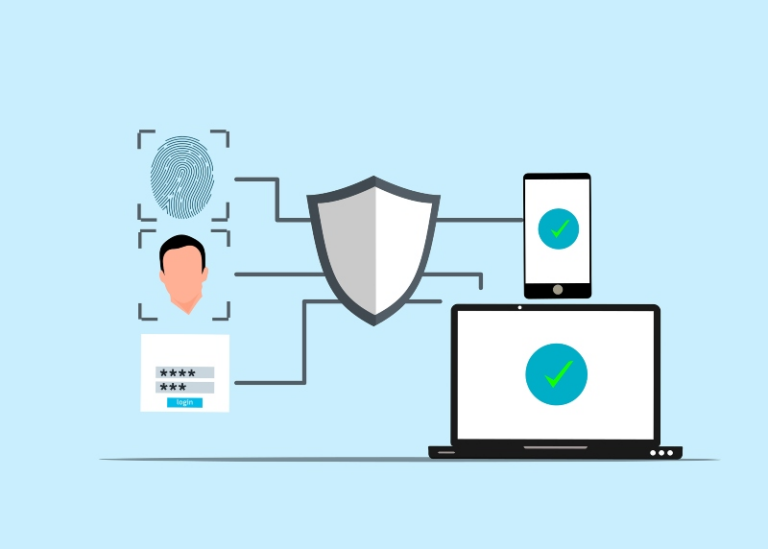
Enable two-factor authentication (2FA) on all accounts that support it. Even if criminals steal your password, they cannot access your account without the second verification step from your phone or authentication app.
Restrict User Account Permissions
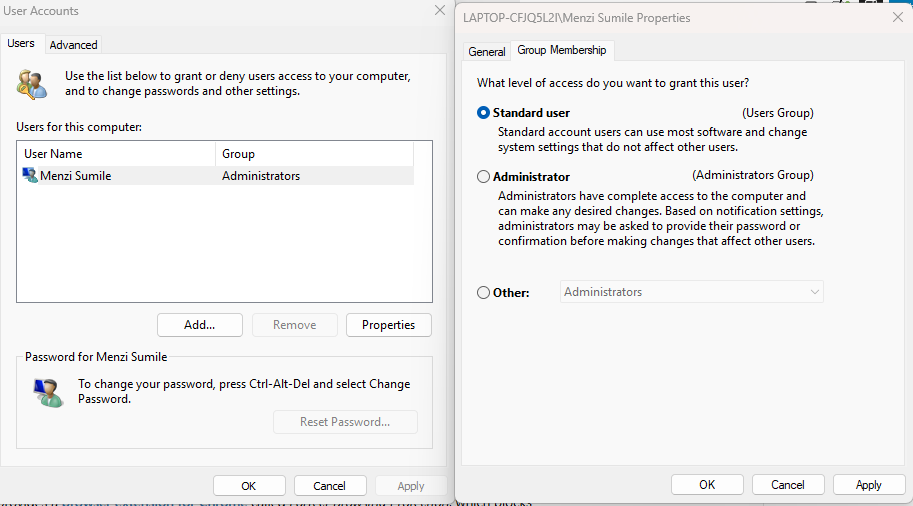
Running your computer with standard user privileges instead of administrator rights limits malware’s ability to install credential-stealing software.
Step 1: Press Windows key + I to open Settings
Step 2: Select “Accounts”
Step 3: Click “Family & other users”
Step 4: Under “Other users,” click “Add account”
Step 5: Create a new standard user account
Step 6: Log into this new account for daily activities
Step 7: Only use your administrator account when installing trusted software or changing system settings
Recognize and Avoid Phishing Attempts
Inspect email sender addresses carefully; criminals use addresses that closely resemble legitimate ones. Hover over links before clicking to reveal the actual destination URL. Legitimate companies never request passwords through email or urgent threats about account suspension.
What to Do If You Suspect Credential Theft
Act immediately if you notice suspicious account activity, unexpected password reset emails, or unfamiliar transactions. Change passwords for all affected accounts using a different device if possible. Enable 2FA on compromised accounts. Run a full system scan using Windows Security and consider additional scans with Malwarebytes or similar tools.
Contact your financial institutions if banking credentials were compromised. Monitor your credit report for signs of identity theft through free services like AnnualCreditReport.com. Document everything and file reports with local authorities if extortion occurs.
Staying Safe Online
Credential theft and extortion represent the evolution of cybercrime, quieter, more profitable, and harder to detect than ransomware. Your best defense combines Windows security features, updated software, strong authentication practices, and vigilant awareness of social engineering tactics. By implementing these protections today, you significantly reduce your risk of becoming another victim in the growing credential theft epidemic.