Exposing Fake AI Websites: Risks and How to Stay Safe
The rise of artificial intelligence has brought incredible tools and websites, but it’s also opened doors for cybercriminals to create fake AI websites that trick everyday users. These sites can steal personal information, deliver malware, or manipulate users into scams. For Windows 10 and 11 users, knowing how to recognize these websites and protect your system is essential.
What Are Fake AI Websites?

How They Operate
Fake AI websites are online platforms that imitate legitimate AI services. They often promise advanced tools like AI image generators, chatbots, or content creation platforms, but their primary goal is malicious. These sites can collect your login credentials, install malware, or redirect you to phishing pages.
Why They’re Dangerous
Even casual visits can put your personal information at risk. Common dangers include identity theft, malware infections, and phishing attempts. Cybercriminals design these websites to look convincing, using real logos, fake testimonials, and interactive features to gain your trust.
Common Signs of Fake AI Websites
URL and Domain Red Flags
Always check the web address. Fake AI websites often use domains that look similar to trusted sites but may include extra characters, misspellings, or unusual domain extensions like .xyz or .top.
Content Quality and Promises
Be cautious if a site offers AI tools for free that normally cost money, contains broken links or poorly written content, or requests personal information before allowing any use.
Security Warnings
Modern browsers will often flag unsafe sites. Watch for “Not secure” warnings in the browser’s address bar, unexpected download prompts, or pop-ups asking for personal data.
Risks for Windows Users
Malware and Viruses
Clicking on links from Fake AI websites can introduce malware, ransomware, or spyware onto your system. These threats may slow down your computer, compromise files, or steal sensitive information.
Phishing and Identity Theft
Some fake websites ask for login credentials, credit card numbers, or other personal data under the guise of account creation or tool access. Once submitted, this information can be misused or sold on the dark web.
Social Engineering Exploits
Fake AI websites may use chatbots or automated forms to manipulate users into sharing personal or financial details. Windows users need to remain vigilant even with built-in protections.
How to Protect Yourself on Windows 10/11
Keep Windows Updated
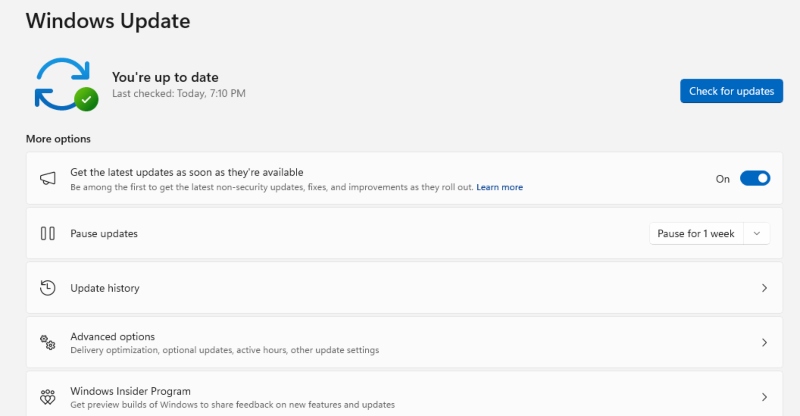
Updating your system ensures you have the latest security patches against malware or exploit attempts.
Steps to Update Windows: 1. Press Windows + I to open Settings 2. Click Update & Security 3. Select Windows Update 4. Click Check for updates 5. Install available updates and restart your PC
Enable Built-In Security Features
Windows Defender provides real-time protection against malicious sites and downloads.
Steps to Enable Microsoft Defender: 1. Open Settings 2. Go to Privacy & Security 3. Click Windows Security 4. Select Virus & Threat Protection 5. Ensure Real-time protection is ON
Avoid Suspicious Downloads
Do not download tools or files from unverified AI websites. Only use official sources and trusted platforms.
Restrict App Permissions
Malicious AI websites may trick you into installing software that accesses your camera, microphone, or location. Limiting these permissions reduces exposure.
Steps to Restrict Permissions: 1. Open Settings 2. Go to Privacy & Security 3. Select Camera, Microphone, or Location 4. Disable access for apps or programs you do not trust
Strengthen Your Account Security
Use unique passwords and enable two-factor authentication for any accounts you create on AI websites.
Strengthen Your PC Security with Fortect
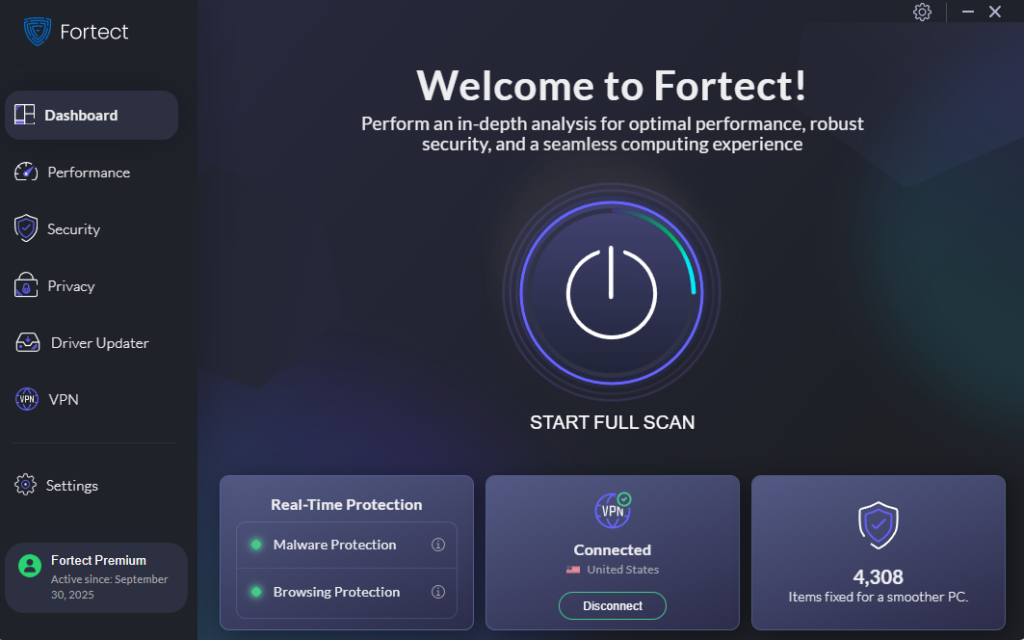
Fortect delivers advanced real-time malware protection for Windows users. It automatically scans your PC for traditional and emerging threats, including fake AI websites, eliminates them safely, and restores damaged system files for improved performance. Its smart threat-detection engine monitors suspicious activity and alerts you before harmful actions can take place, helping keep your device secure and running efficiently.
Download and install Fortect today for your Windows systems.
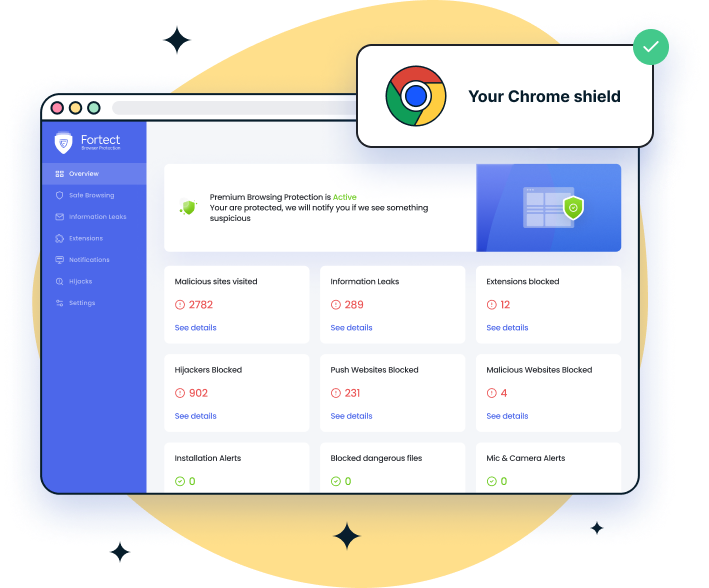
For Chrome users, this easy-to-use extension adds an extra layer of protection against fake AI websites. Fortect Browsing Protection blocks malicious sites before they load, alerts you to suspicious pages to help prevent scams, and removes harmful extensions that could put your personal data at risk.
Fortect for Mac: Protect Against Fake AI Websites
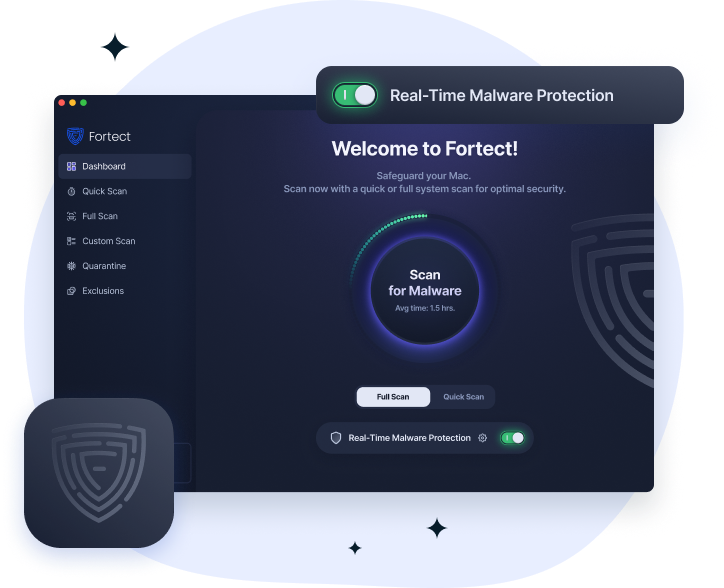
Cybercriminals are evolving quickly, and Mac users are increasingly targeted by fake AI websites that spread malware, steal data, or trick users into scams. Fortect doesn’t just protect Windows; it now fully supports Mac, providing intelligent, real-time protection that works alongside Apple’s built-in security.
It closes the gaps attackers exploit, shielding your system from threats you might not even notice. Fortect for Mac monitors suspicious activity continuously, detects and blocks malicious behavior instantly, and repairs compromised system files, keeping your Mac safe while you browse AI tools or explore online platforms.
How to Report Fake AI Websites
Most browsers and antivirus platforms allow reporting suspicious sites. This helps protect other users from falling victim. In Chrome or Edge, click the three dots in the top-right corner, choose Help and Feedback, then Report Unsafe Site. Include the URL and any suspicious activity observed.
Conclusion
Fake AI Websites are a growing threat targeting everyday users. From malware and phishing to social engineering, these platforms can compromise your Windows PC and personal data if you’re not careful. By keeping your system updated, using built-in security tools, restricting permissions, and practicing safe browsing habits, you can protect yourself effectively. Awareness and vigilance remain your best defense against online scams and malicious AI platforms.