Everyday Online Habits That Expose Your Computer to Malware
Your daily internet activities might be inviting dangerous malware into your Windows computer without you realizing it. Cybercriminals exploit common online behaviors to deploy viruses, ransomware, spyware, and trojans that can steal your personal information, corrupt files, or hold your data hostage. Understanding these risky habits and implementing protective measures can significantly reduce your vulnerability to cyber threats.
Clicking Suspicious Email Links and Attachments
Phishing emails remain one of the most effective malware distribution methods. These deceptive messages often appear legitimate, mimicking banks, government agencies, or popular services to trick you into clicking on malicious links or downloading infected attachments.
How to Identify Phishing Attempts
Watch for urgent language demanding immediate action, generic greetings like “Dear Customer,” spelling errors, mismatched email addresses, and unexpected attachments. Legitimate organizations rarely request sensitive information via email or include unsolicited attachments.
Before clicking any link, hover your mouse over it to preview the actual URL. If the destination doesn’t match the sender’s claimed identity, delete the email immediately. Never download attachments from unknown senders, especially executable files (.exe, .bat, .msi) or compressed archives (.zip, .rar).
Downloading Software from Unverified Sources
Installing programs from unofficial websites or third-party download platforms exposes your Windows PC to bundled malware, adware, and potentially unwanted programs (PUPs). Free software from untrusted sources often contains hidden threats that install alongside the desired application.
How to Update Windows Safely
Keeping Windows updated patches security vulnerabilities that malware exploits. Here’s how to ensure automatic updates:
For Windows 10:
- Click the Start button and select Settings (gear icon)
- Navigate to Update & Security
- Click Windows Update in the left sidebar
- Select “Check for updates” to install available patches
- Click “Advanced options” and ensure “Automatic” is selected under “Choose how updates are installed”
For Windows 11:
- Press Windows key + I to open Settings
- Select Windows Update from the left panel
- Click “Check for updates” to download and install
- Click “Advanced options” and verify “Receive updates for other Microsoft products” is enabled
- Set Active hours to prevent interruptions during updates
Always download software directly from official vendor websites or the Microsoft Store, which screens applications for malicious code.
Strengthen Your PC Security with Fortect
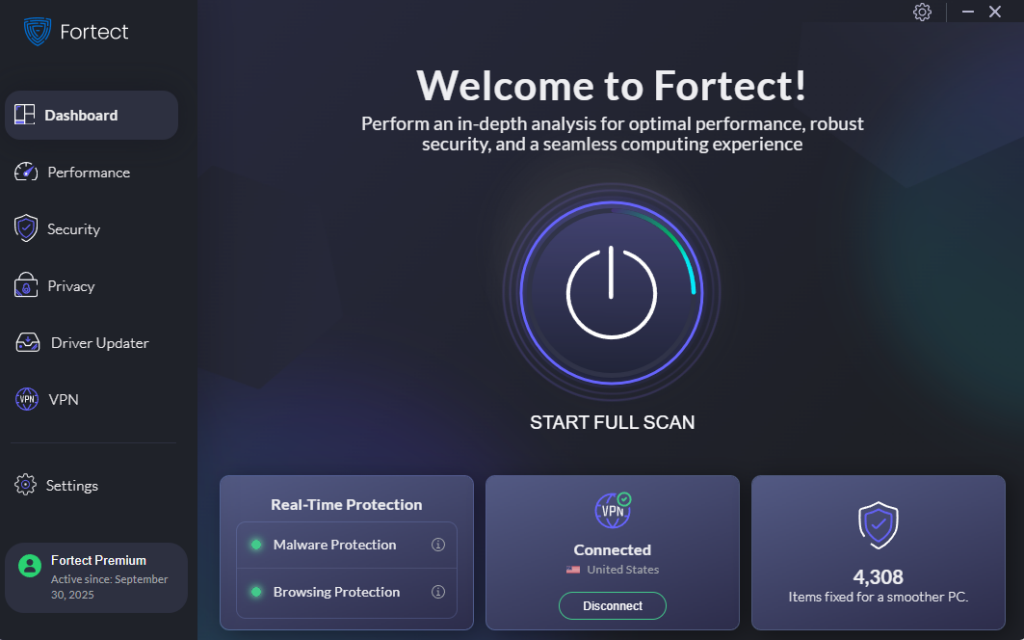
While keeping Windows updated is essential, adding an extra layer of protection ensures comprehensive defense against malware from unverified downloads. Fortect delivers advanced real-time malware protection for Windows users, automatically scanning your PC for traditional and emerging threats, including trojans, ransomware, and spyware, often bundled with unofficial software. It eliminates them safely and restores damaged system files for improved performance. Its smart threat-detection engine monitors suspicious activity and alerts you before harmful actions can take place, helping keep your device secure and running efficiently even when you accidentally download from risky sources.
If you’re always online, your digital habits could be putting your data at risk. The new Fortect Premium includes a built-in VPN with Auto-Protect for public Wi-Fi, keeping your connection secure even on open networks. It encrypts your internet traffic to protect your personal information and shield you from hackers who exploit unsecured connections, a common gateway for zero-day attacks, spyware, and other network-based threats. With Fortect Premium, you can browse, work, and stream safely without worrying about your online safety.
Download and install Fortect today.
Fortect for Mac: Strengthen Your Defense Beyond macOS
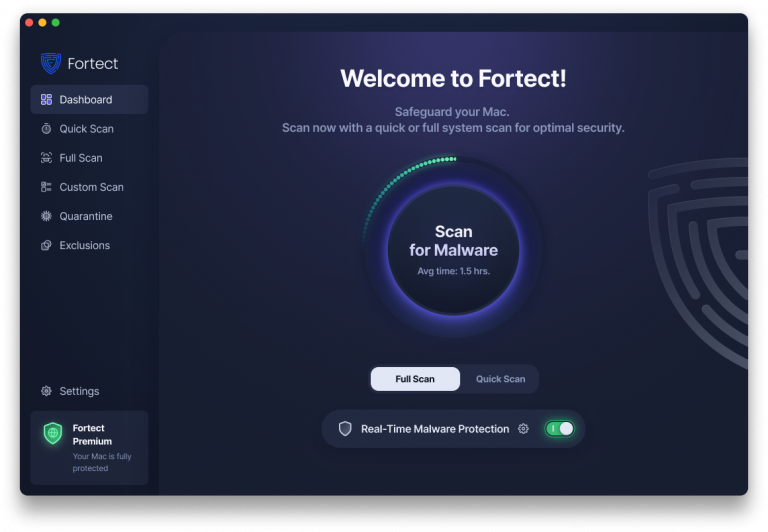
Cybercriminals are evolving fast, and they’re no longer targeting only Windows users. Fortect doesn’t just protect Windows from advanced cyber threats; Mac users are now fully supported as well, recognizing that modern ransomware, spyware, and stealth attacks are increasingly designed to bypass traditional macOS defenses. With threats becoming more complex and more frequent, relying solely on built-in security is no longer enough.
Fortect for Mac delivers smart, real-time protection that works alongside Apple’s native security rather than replacing it. It fills the critical gaps that attackers often exploit, especially from risky online habits like downloading from unverified sources or clicking suspicious email attachments, and shields your system from threats you may not even be aware of.
Key Features:
Real-Time Malware Defense: Always-on threat monitoring that instantly detects and blocks malicious activity without disrupting your workflow.
Cloud-Based Threat Intelligence: Leverages cloud security analysis for rapid detection of new and emerging attack patterns.
Quick Smart Scan: Fast and efficient scans to identify and resolve issues quickly.
Full System Scan: Deep scanning across your entire machine for comprehensive protection and repair.
Using Weak or Repeated Passwords
Reusing the same password across multiple accounts creates a domino effect when one service experiences a data breach. Cybercriminals use stolen credentials to access other accounts, potentially installing malware through compromised services or remote access.
Windows 10 and 11 include built-in password managers through Microsoft Edge and Windows Hello for Business, which support biometric authentication and secure password storage. Enable two-factor authentication (2FA) wherever possible to add an extra security layer beyond passwords.
Ignoring Browser Security Warnings
When your browser displays warnings about unsafe websites, insecure connections, or potentially harmful downloads, dismissing these alerts puts your computer at serious risk. These warnings indicate that the site lacks proper encryption (HTTPS), contains known malware, or has been reported for phishing activities.
Modern browsers like Microsoft Edge, Chrome, and Firefox use real-time threat databases to identify malicious websites. Proceeding despite these warnings can result in drive-by downloads that automatically install malware without your consent.
How to Restrict User Permissions
Limiting user account privileges prevents malware from making system-level changes. Here’s how to create a standard user account:
For Windows 10/11:
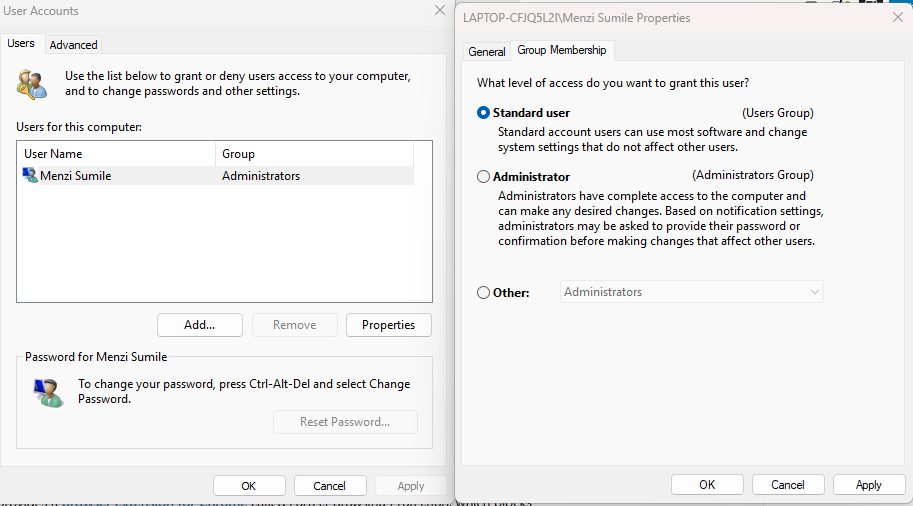
- Open Settings and click Accounts
- Select “Family & other users” (Windows 10) or “Other users” (Windows 11)
- Click “Add someone else to this PC”
- Enter the new user’s email or create a local account
- After creation, click the new account and select “Change account type”
- Choose “Standard User” instead of Administrator
- Click OK to save changes
Use your standard account for daily activities and only switch to an administrator account when installing software or changing system settings.
Connecting to Public Wi-Fi Without Protection

Unsecured public networks in coffee shops, airports, and hotels allow cybercriminals to intercept your internet traffic, inject malware, or redirect you to malicious websites. These man-in-the-middle attacks can compromise your device without any visible warning signs.
Avoid accessing sensitive accounts, online banking, or entering passwords on public Wi-Fi. If you must use public networks, enable a reputable Virtual Private Network (VPN) to encrypt your connection and hide your online activities from potential eavesdroppers.
Disabling Antivirus Software
Windows Defender provides built-in protection against malware, but some users disable it for perceived performance improvements or to install cracked software. Operating without active antivirus protection leaves your computer defenseless against evolving threats.
Windows Security should remain enabled with real-time protection active. Access it by searching “Windows Security” in the Start menu, then verify that Virus & threat protection shows all shields active. Schedule regular full system scans weekly to catch any threats that slip through real-time detection.
Conclusion
Protecting your Windows computer from malware requires vigilance and smart online habits. By avoiding suspicious emails, downloading software from official sources only, maintaining strong, unique passwords, heeding browser warnings, securing your Wi-Fi connections, limiting user permissions, and keeping Windows updated with active antivirus protection, you create multiple defense layers against cyber threats. Small changes to your daily internet routine can prevent devastating malware infections that compromise your personal data and system integrity.