Camera Light On Randomly: Causes and Fixes
Seeing your webcam light turn on without warning can be unsettling. Whether you’re working from home, browsing the web, or attending virtual meetings, that unexpected glow raises immediate privacy concerns. Understanding why your camera light activates randomly and how to prevent it helps you regain control of your device and protect your privacy.
Why Does My Webcam Light Turn On By Itself?
Background Apps and Programs
The most common reason your camera light turns on randomly is legitimate software running in the background. Video conferencing apps like Zoom, Microsoft Teams, or Skype may automatically activate your webcam during startup or while checking for updates. Similarly, camera-enabled apps such as photo editors or social media platforms might access your webcam unexpectedly.
Windows 10 and 11 include built-in camera features that can trigger activation. The Camera app, facial recognition for Windows Hello, or diagnostic tools may cause your indicator light to illuminate without explicit permission.
Malware and Spyware Threats
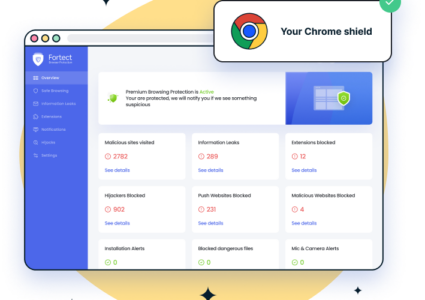
While less common, malicious software is a serious concern. Trojans, remote access tools, and spyware can secretly activate your webcam to monitor your activities. If your camera light turns on frequently without any visible applications running, malware could be the culprit. Fortect helps prevent these threats by continuously monitoring your system for malware, spyware, and other suspicious activity that could trigger your camera unexpectedly.
Windows Update and System Processes
Automatic Windows updates occasionally test hardware components, including your webcam. System diagnostics, driver updates, or troubleshooting processes may briefly activate your camera during maintenance cycles.
Browser Permissions and Extensions
Web browsers can trigger your webcam through websites you’ve granted camera access or through problematic extensions. Some sites retain permission even after you close the tab, causing unexpected camera activation during future visits.
How to Check Which App Is Using Your Camera
Step 1: Access Privacy Settings
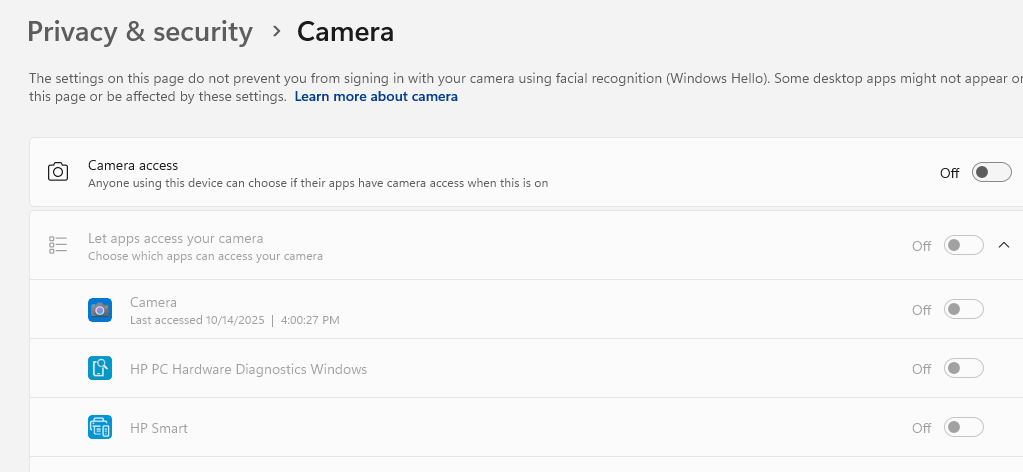
Press Windows + I to open Settings, click Privacy & security (Windows 11) or Privacy (Windows 10), and scroll down to select Camera from the left sidebar.
Step 2: Review Camera Access
You’ll see which apps recently accessed your camera with timestamps. This helps identify suspicious activity and apps that may trigger your webcam without permission.
Step 3: Check Task Manager
Press Ctrl + Shift + Esc to open Task Manager, click the Processes tab, look for applications actively running that might use your camera, and right-click suspicious processes to select End task.
How to Disable Camera Access for Apps in Windows
Restricting Individual Applications
Open Settings > Privacy & security > Camera, toggle off Camera access to disable it system-wide, or scroll down to Let apps access your camera and toggle off specific apps.
Disabling Desktop App Access
Locate Let desktop apps access your camera and toggle it off. This prevents traditional desktop applications from accessing your webcam without affecting camera functionality for apps you trust.
Removing Suspicious Programs and Malware
Run Windows Security Scan
Open Windows Security via Settings > Privacy & security, select Virus & threat protection, run a Quick scan or Full scan to detect threats, and follow prompts to remove any detected malware.
Use Fortect for Enhanced Security
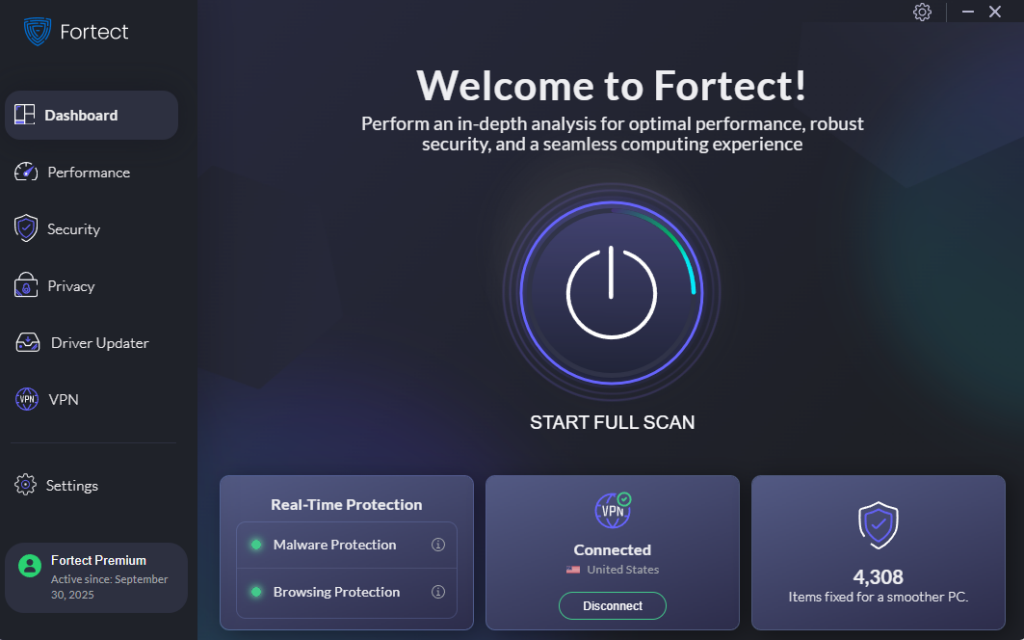
If your camera light turns on randomly, it may indicate malware, spyware, or other unauthorized activity that Windows Security might not fully detect. Fortect provides advanced real-time malware protection, automatically scanning for threats, eliminating them safely, and restoring damaged system files. Its smart monitoring engine tracks suspicious activity and stops harmful actions before they compromise your privacy, keeping your system secure and running efficiently.
Fortect Premium also features a built-in Driver Updater that identifies and replaces outdated or corrupted drivers with secure, verified versions from trusted sources. Outdated or compromised drivers can create vulnerabilities that hackers may exploit to gain access to your webcam or other system components. By keeping all drivers updated and stable, Fortect closes these security gaps, strengthens your PC’s defenses, and ensures a cleaner, faster, and more reliable system overall.
With Fortect, you can prevent unexpected webcam activation, protect your privacy, and maintain optimal PC performance.
Download and install Fortect today.
Uninstall Unknown Applications
Open Settings > Apps > Installed apps, review programs for unfamiliar software, and click the three dots next to suspicious apps to select Uninstall.
Managing Browser Camera Permissions
Chrome Settings
Open Chrome and click the three dots > Settings > Privacy and security > Site Settings, click Camera, review site access, and remove permissions from suspicious or unnecessary websites.
Edge and Firefox
Follow similar steps to manage camera access and revoke permissions from sites you don’t trust.
Additional Security Measures
Disable Your Camera Device
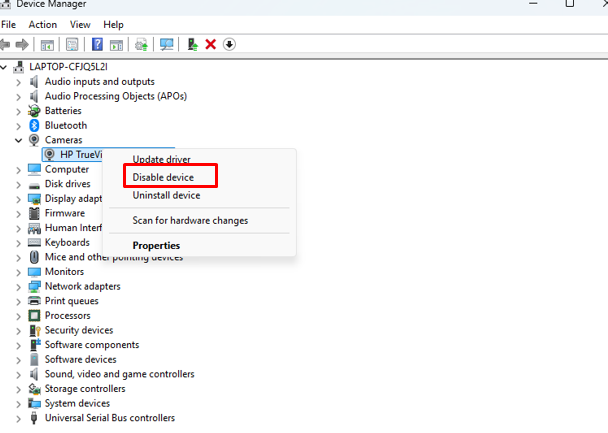
Press Windows + X and select Device Manager, expand Cameras or Imaging devices, right-click your webcam, and select Disable device, then confirm. This blocks all software access until re-enabled.
Use a Physical Camera Cover
Placing a cover or tape over your webcam provides guaranteed privacy regardless of software vulnerabilities.
Keep Windows Updated
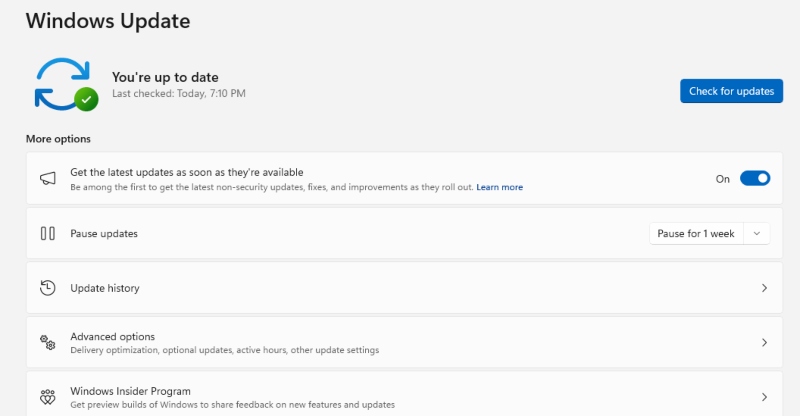
Press Windows + I > Windows Update > Check for updates, and install all updates, including optional driver updates. Regular updates patch security vulnerabilities that hackers might exploit.
Conclusion
A randomly activating camera light usually stems from legitimate apps running in the background, but malware and spyware remain a real risk. By reviewing app permissions, scanning for threats, keeping drivers and Windows updated, and using a dedicated security solution like Fortect, you can safeguard your privacy and prevent unauthorized webcam access. Regular monitoring and proactive security measures ensure your camera only activates when you intend it to, giving you peace of mind and stronger control over your digital safety.